
hiberfil.sys.
The underlying command is legitimate. Running powercfg /hibernate off in an elevated Command Prompt disables hibernation and removes the protected C:\hiberfil.sys file, returning its reserved space to the system drive. Microsoft’s current Windows documentation confirms both the command and the file’s role in storing memory state on disk.
But the 10GB figure is an anecdote, not a baseline. MakeUseOf does not state the laptop’s installed RAM, whether its hibernation file had been manually resized, or whether Windows had configured the system for a full or reduced hiberfile. Those omissions matter: a user with 16GB of RAM should not assume that disabling hibernation will free exactly 10GB, and a user with 32GB may recover substantially more.
 Windows reserves
 hiberfil.sys for more than one feature
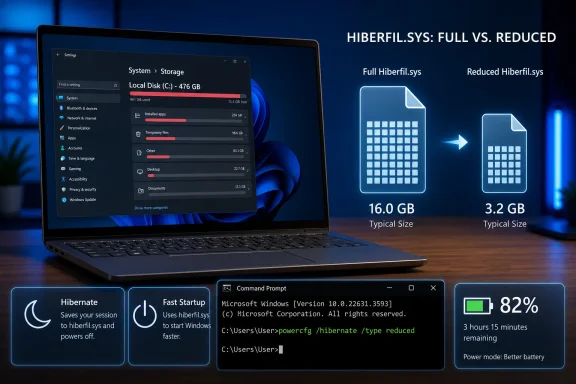
Hibernate is the familiar part of the equation. When a PC enters the ACPI S4 power state, Windows saves the active memory image to hiberfil.sys, powers down almost completely, then restores the session when the machine starts again. Open applications, documents, and desktop state can return without remaining in RAM and consuming battery.
The same file also supports Fast Startup, which is enabled by default on many Windows installations. Fast Startup is not a normal hibernation session: Windows closes user applications and signs users out, then writes the kernel session and loaded drivers to the hibernation file. At the next boot, Windows reloads that kernel image instead of constructing it from scratch.
Microsoft distinguishes that behavior sharply from a restart. Selecting Restart performs a conventional shutdown and boot; Fast Startup applies to a standard Shut down followed by power-on. That distinction is relevant for troubleshooting, because a restart remains the reliable way to flush a persistent driver or kernel problem even when Fast Startup is enabled.
MakeUseOf correctly notes that powercfg /hibernate off removes Fast Startup along with Hibernate. The consequence is larger than the article’s framing suggests: it removes the ability to save a full working session and changes ordinary shutdown behavior from a hybrid boot process to a cold boot every time.
For a desktop that is rebooted occasionally and has an NVMe SSD, that may be perfectly acceptable. For a laptop that travels frequently, spends long stretches unplugged, or is routinely closed with unfinished work open, the reclaimed storage comes at a more meaningful cost.
Microsoft’s documented defaults do not support a universal “40% to 75%” rule
MakeUseOf says Windows typically sizes the hibernation file at 40% to 75% of installed memory. Microsoft’s own current documentation paints a narrower and somewhat inconsistent picture, but it does not endorse that broad rule as a default.
Microsoft’s Windows power-state documentation lists two managed hiberfile types:
- A full hiberfile defaults to 40% of physical memory and supports Hibernate, hybrid sleep, and Fast Startup.
- A reduced hiberfile defaults to 20% of physical memory and supports Fast Startup only.
Elsewhere, Microsoft’s powercfg documentation says an administrator can set a custom hiberfile size from 40% to 100% of memory, and notes that a custom setting at or above 40% is considered a full hiberfile. That is likely where reports of larger files originate: OEM configurations, administrator changes, and different Windows versions can all produce a file larger than the nominal full-file default.
The practical takeaway is straightforward. A 16GB system using Microsoft’s documented full default would reserve roughly 6.4GB, while the documented reduced configuration would reserve roughly 3.2GB. A 10GB file on a 16GB system is possible, but it suggests a custom or OEM-selected percentage rather than a universal Windows default. Without the source machine’s RAM and powercfg configuration, the personal 10GB result cannot be generalized.
Users can inspect which sleep states their own hardware exposes before changing anything:
powercfg /a
That command will show whether hibernation is available and, in Microsoft’s documented output, whether Windows is using a full hibernation file, a reduced file, or no hibernation file at all.
The reduced hiberfile is the storage-saving compromise MakeUseOf skipped
Windows offers a middle path for users who do not need to resume a full desktop session after shutdown but still want Fast Startup: switch to a reduced hiberfile.
The command is:
powercfg /hibernate /type reduced
That preserves Fast Startup but disables the Hibernate option because the reduced file cannot hold the full user-memory image needed to restore an active session. Microsoft explicitly documents the reduced type as a Fast Startup-only configuration.
On a machine currently using a full hiberfile, this is often the more rational first move. It reduces a file Microsoft documents at 40% of physical memory to one documented at 20%, rather than reclaiming 100% of the file’s space by dropping both features. The exact savings vary with hardware and configuration, but the direction is clear: it trades the least-used capability, full-session hibernation, while retaining the boot optimization that powercfg /hibernate off removes.
There is an operational wrinkle. Microsoft says the operating system must manage the hiberfile size to change it to reduced. If the command fails because the file was set to a custom size, the documented recovery sequence is:
powercfg /hibernate /size 0
powercfg /hibernate /type reduced
That is preferable to trying to expose hidden system files and manually delete hiberfil.sys. Windows protects the file for a reason, and deleting it outside the power-management controls is neither the supported method nor a durable one.
To restore full hibernation later, run:
powercfg /hibernate /type full
Or, if hibernation was disabled entirely:
powercfg /hibernate on
Laptop users lose a battery-protection fallback
The largest omission in the MakeUseOf recommendation is the connection between hibernation and Windows’ handling of long sleep periods on battery-powered hardware.
On many newer Windows laptops, Modern Standby leaves the system in an S0 low-power idle state rather than traditional S3 sleep. The PC can remain partially active for maintenance, network activity, notifications, or device wake events. Microsoft also uses adaptive hibernation behavior on compatible Modern Standby machines to move the system into hibernation after battery drain reaches configured thresholds.
Disabling hibernation removes that fallback. A laptop can still sleep, but it cannot transition into a saved-to-disk state that preserves the session with near-zero power use. For someone who regularly closes a lid, throws the machine into a bag, and returns hours or days later, this is the use case hibernation was designed to protect.
There is a separate risk on systems using hybrid sleep. Microsoft warns that if hibernation is made unavailable, hybrid sleep no longer works; if power fails while the PC is sleeping, unsaved work can be lost. Hybrid sleep is more commonly associated with desktops using traditional S1–S3 sleep states, but users should check their own available sleep modes rather than assume a modern Windows 11 PC behaves like every other one.
The advice is therefore different for different machines. A small-SSD desktop that is shut down after every work session is a sensible candidate for disabling hibernation. A 256GB laptop carrying active work, especially one that spends significant time away from AC power, should usually try the reduced hiberfile first.
Restartable apps and BIOS Fast Boot do not replace Hibernate
MakeUseOf proposes enabling “Automatically save my restartable apps and restart them when I sign back in,” then enabling firmware-level Fast Boot and trimming startup applications. These measures may improve convenience or login time, but they are not equivalent to hibernation.
Windows does provide the restartable-apps setting under Sign-in options, and Microsoft notes that organization policy can disable it. More importantly, the setting relies on individual applications participating. It cannot preserve every program’s unsaved documents, active session, driver state, virtual machine, development environment, or peripheral connection. It is a partial app-relaunch mechanism, not a memory-image restore.
Firmware Fast Boot is separate again. It is controlled by the PC maker’s UEFI implementation, varies by model, and normally reduces time spent in pre-Windows hardware initialization. It does not save the Windows kernel state and cannot recreate Hibernate’s resume behavior. Enabling it may be fine on a stable personal PC, but it can also make it harder to enter firmware setup or diagnose hardware during startup, depending on the OEM.
The recommendation to “clean up” Windows services deserves the most caution. Disabling unnecessary startup applications is measurable and reversible through Task Manager’s Startup apps page, where Windows reports each program’s startup impact. Broadly disabling services is a different class of change: services can be dependencies for device drivers, Windows features, management tools, updates, or security products. Storage recovery from hiberfil.sys does not require touching them.
The storage-saving claim holds up. The better conclusion is that disabling hibernation is an all-or-nothing trade, not a universal cleanup trick. Check powercfg /a, establish the actual size of C:\hiberfil.sys, and choose between full hibernation, a reduced Fast Startup-only file, or no hibernation based on how the specific PC is used.
