
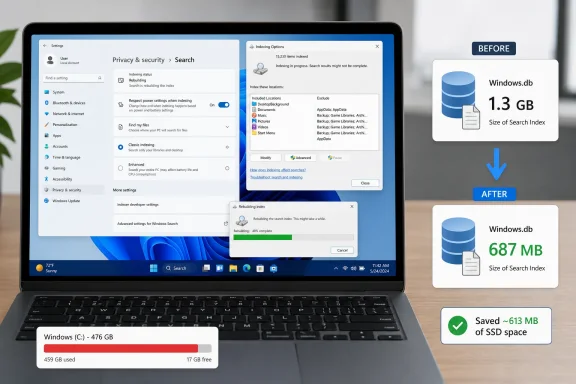
Windows.db from roughly 1.3 GB to 687 MB while preserving everyday Start-menu and file-search functionality. How-To GeekFor Windows enthusiasts managing compact system drives, this is a useful reminder that search indexing is a trade-off. Faster, near-instant search results require Windows to maintain a local catalog of file names, metadata, properties, and—in many cases—document contents. The wider the catalog’s scope, the more disk space and background work it can demand.
The good news is that Windows provides the controls necessary to make its search index match the way a PC is actually used. A machine that relies on a third-party launcher such as Raycast, PowerToys Run, Everything, or a dedicated file manager may not need Windows Search to catalog every drive, backup archive, virtual machine, and cloud-synced folder. A more selective configuration can reclaim storage without turning a core Windows service into a casualty.
 Why Windows Search Can Consume More SSD Space Than Expected
Windows Search is built around an index: a local database that records information about files, messages, and other searchable content. Instead of scanning every disk location from scratch each time a search is performed, Windows can query this prepared catalog and return results far more quickly.
Microsoft compares the arrangement to the index at the back of a book. Rather than reading every page to locate a term, Windows Search consults a prebuilt reference structure containing file names, paths, properties, and, for supported formats, text content. That design is why searches for a filename, document phrase, artist, or file property can feel nearly instantaneous once indexing is complete. Microsoft Support
The downside is straightforward: an index is still data, and data takes storage. More importantly, the amount of space consumed does not map neatly to the size of the files being indexed. A folder containing thousands of tiny files can impose an outsized indexing burden because Windows must track a large volume of individual entries, names, paths, timestamps, and properties.
Microsoft specifically warns that the search index database can grow substantially as indexed items exceed 400,000, regardless of the total size of those files. The indexer compresses its data, but that compression becomes less effective as the catalog grows. Microsoft Learn
That behavior explains why certain storage locations are especially likely to bloat the index:
- Backup directories containing historical copies of files.
- OneDrive folders with large quantities of synced content.
- Downloads folders that accumulate installers, compressed archives, and old documents.
- Video libraries with extensive media metadata.
- Game libraries containing many small game assets and manifests.
- Virtual machine directories containing images, snapshots, logs, and configuration files.
- Developer project folders, especially those with dependency caches such as
node_modules. - Photo archives with huge numbers of images, sidecar files, and metadata records.
- Mail caches, particularly when desktop Outlook content is indexed locally.
The core issue is not that Windows Search is malfunctioning merely because its database is large. The index is doing what it was configured to do: cataloging the material within its permitted search scope. The smarter question is whether that scope remains appropriate.
The Windows.db File: What It Is and Where It Lives
On modern Windows 11 systems, the primary search database is typically named Windows.db and stored in this protected location:
C:\ProgramData\Microsoft\Search\Data\Applications\Windows\Windows.db
Microsoft documents that path and identifies Windows.db as the Windows 11 search-index database, while older Windows versions commonly use a file called Windows.edb in the same general location. Microsoft Learn
Because the folder is protected, many users discover that simply opening it in File Explorer is inconvenient. Taking ownership of system-managed folders merely to inspect a file is unnecessary and can create avoidable permission problems. An elevated Terminal session offers a cleaner route.
The following PowerShell command reads the apparent size of the file without modifying it:
Get-Item "C:\ProgramData\Microsoft\Search\Data\Applications\Windows\Windows.db" -Force |
Select-Object Name,@{Name="Size (MB)";Expression={[math]::Round($_.Length / 1MB,1)}}
This is useful as a quick baseline. It can reveal whether Windows.db is a modest database measured in tens or hundreds of megabytes or a multi-gigabyte file worth investigating.
A crucial measurement caveat
There is one important technical limitation in the command above. It reports the file’s logical Length, not necessarily the actual disk allocation. Microsoft advises checking Size on disk rather than the ordinary file-size figure because the index uses sparse ESE and NTFS file behavior; Explorer’s reported number may not accurately reflect the real capacity consumed, and it can include allocation associated with past usage. Microsoft Learn
That distinction matters on storage-constrained systems. A Windows.db file that appears large may not occupy exactly the same amount of physical SSD capacity. Conversely, a user who wants a precise before-and-after storage result should inspect the file’s Properties dialog and note the Size on disk value.
Still, the PowerShell method remains a sensible low-friction diagnostic. It does not stop the Windows Search service, alter permissions, delete data, or trigger a rebuild. It simply supplies an initial indication of whether the catalog is larger than expected.
Classic Versus Enhanced Search: The Setting That Matters Most
The most consequential Windows Search decision is found under Settings > Privacy & security > Search, in the Find my files section. Windows provides two broad indexing modes: Classic and Enhanced.
Microsoft describes Classic mode as indexing common user locations by default, including Documents, Pictures, Music, and the desktop. It is intended to balance search performance, search usefulness, and system-resource use for people whose files generally live in familiar Windows folders. Microsoft Support
Enhanced mode takes a much broader approach. It indexes the entire PC, including user folders and files across the device, making it better suited to users who deliberately store active content in many different locations. Microsoft also notes that Enhanced search can use more system resources. Microsoft Support
That difference is more significant than the labels suggest.
When Enhanced search makes sense
Enhanced mode remains a legitimate option for users who depend on Windows Search as their principal navigation tool. It is particularly useful when important active files are scattered across:
- Multiple internal drives.
- Custom work folders outside the user profile.
- External storage that remains consistently connected.
- Local media libraries.
- Project trees on secondary SSDs.
- Large folders accessed through Start-menu or taskbar search every day.
For these users, an expanded database is a cost attached to a clear benefit: Windows can surface results quickly without requiring a slow, location-by-location File Explorer search.
When Classic search is the better compromise
Classic mode is a more rational default for systems where Windows Search is used mainly to:
- Launch installed applications.
- Find files in Desktop, Documents, Pictures, and Music.
- Locate recent work in ordinary user-profile locations.
- Search small sets of frequently used local files.
- Provide a fallback search option beside a third-party launcher.
The user in the original report moved from Enhanced to Classic search after concluding that Raycast handled most app launching and file discovery. That shift reduced the number of locations Windows needed to track, and rebuilding the resulting smaller index lowered the reported Windows.db size from approximately 1.3 GB to 687 MB. How-To Geek
The reported reduction of about 613 MB is meaningful on a 256 GB SSD and even more relevant on devices with 128 GB storage, where routine Windows updates, restore points, hibernation files, application caches, and cloud-sync data already compete for limited headroom.
How to Reduce Windows Search Index Size Safely
The most reliable approach is to change the scope first, then rebuild the database. Rebuilding alone may reduce wasted or stale index space, but it cannot permanently solve growth caused by indexing the same excessive range of content.
1. Review the current Windows Search mode
Open:
Settings > Privacy & security > Search
Under Find my files, determine whether the PC uses Classic or Enhanced indexing.
If the system is on Enhanced and Windows Search is not central to the workflow, switching to Classic is the clearest way to stop Windows from treating the whole PC as a searchable catalog. Microsoft confirms that Enhanced indexes the entire PC, while Classic focuses on key user locations and can be expanded selectively. Microsoft Support
This is not a recommendation to disable Windows Search. It is a recommendation to make it narrower and more intentional.
2. Customize indexed locations
After selecting Classic—or even when staying with Enhanced—open Customize search locations and choose Modify. This opens the traditional Indexing Options interface, where individual locations can be included or excluded.
The goal is not to strip indexing down indiscriminately. It is to separate locations that need instant results from locations that merely exist on the drive.
Good candidates for exclusion often include:
- Old backup folders.
- Duplicate media archives.
- Inactive OneDrive content.
- ISO collections.
- VM images and snapshots.
- Large game-library folders.
- Software installers.
- Temporary export folders.
- Downloaded archive collections.
- Source-code dependency directories.
- Historical project repositories.
Microsoft supports this granular approach. Its guidance states that users can exclude folders through Windows Search settings or use Indexing Options > Modify to select and deselect locations at a more detailed level. Microsoft Learn
3. Understand the trade-off before excluding anything
Removing a location from the index does not delete the folder or make its contents inaccessible. It simply means Windows Search will not have a prebuilt catalog for that location.
The practical consequences are usually limited:
- A file may no longer appear immediately in Start-menu search.
- Search results from Windows Search may omit files in excluded locations.
- File Explorer searches inside those folders may take longer because Explorer may need to scan the directory rather than consult the index.
- Applications that rely on Windows Search indexing may not return the same breadth of results.
For backup folders and archival storage, that trade-off is normally sensible. A backup repository is designed for recovery, not for instant query performance. Indexing every old copy of every file can consume resources without delivering meaningful daily value.
The calculus changes for active working directories. A user who regularly searches project files, PDFs, or media assets across a secondary drive may find that exclusion saves storage but creates enough friction to outweigh the gain. The right configuration is personal, but it should be deliberate.
Rebuild the Search Index After Changing Its Scope
Once unwanted locations have been removed, the existing Windows.db file still reflects the prior configuration. Windows must rebuild the index to create a new database based on the smaller set of indexed content.
The standard process is:
- Open Indexing Options.
- Select Advanced.
- Approve the administrator prompt.
- Stay on the Index Settings tab.
- Under Troubleshooting, select Rebuild.
- Confirm the warning.
Microsoft documents the equivalent Windows 11 path as Settings > Privacy & security > Searching Windows > Advanced indexing options > Advanced > Rebuild. The company advises allowing up to 24 hours for a full rebuild, depending on the volume of indexed data and the system’s usage pattern. Microsoft Learn
The warning shown by Windows is important: search results can be incomplete while the index is being reconstructed. That does not mean the PC is unusable. Applications, files, and folders remain in place; Windows Search simply has to rediscover and recatalog them.
What to expect during rebuilding
A rebuild can affect several aspects of the Windows experience temporarily:
- Start-menu searches may return incomplete results.
- File-content search can be inconsistent until indexing finishes.
- Search activity may consume some CPU, storage I/O, and battery power.
- Windows may reduce indexing speed while the PC is actively in use.
- A large library can take hours to catalog fully.
Microsoft notes that Windows Search indexes in the background and may slow indexing while the user is interacting with the PC. It can also wait for the machine to become idle before continuing more aggressively. Microsoft Learn
For that reason, rebuilding is best initiated when the computer can remain powered on for a while. On a laptop, connecting to AC power is prudent. On a desktop, leaving the PC idle after starting the rebuild often produces the quickest path to completion.
Why Rebuilding Works—and Why It Is Not the Whole Solution
Rebuilding discards the old catalog and creates a fresh one. This can reduce the database’s footprint because the new index contains only current information for the locations that remain in scope.
That is why the reported case saw a measurable decline after switching to Classic mode, excluding unnecessary locations, and rebuilding. How-To Geek
But rebuilding should not be mistaken for a recurring cleanup ritual. If Enhanced mode remains active and Windows continues indexing hundreds of thousands of backup, cloud, archive, or developer files, the database can simply grow again.
The lasting fix is scope management:
- Keep indexed locations focused on active content.
- Avoid indexing redundant or archival material.
- Review additions after installing new synchronization tools or creating new libraries.
- Reassess the configuration if
Windows.dbbegins expanding sharply.
Microsoft’s own troubleshooting guidance reaches the same practical conclusion: when a large index is caused by abundant local content, the primary way to reduce disk use is to index less content and then rebuild the database. Microsoft Learn
Risks of More Aggressive “Fixes”
Users who find a large Windows.db file will encounter more drastic suggestions online, including manually deleting the search database, disabling the Windows Search service, or running offline ESE database maintenance commands. Those methods can have a role in specific repair scenarios, but they are poor first-line choices for a system that is otherwise functioning normally.
Disabling Windows Search
Turning off the Windows Search service can eliminate ongoing index maintenance, but it also degrades a variety of familiar Windows behaviors. Start-menu search, File Explorer searching, and search-dependent application features can become slower, less complete, or less convenient.
For a user who truly never relies on Windows Search, that may be acceptable. For most PCs, however, reducing scope is a better compromise than eliminating the service.
Deleting database files manually
Deleting or renaming Windows.db without understanding service state, permissions, and recovery behavior can create unnecessary troubleshooting work. Windows can recreate the index, but a controlled rebuild through Indexing Options is safer and more transparent when the goal is simply reducing size.
Running esentutl without a specific need
Microsoft’s performance guidance includes an offline defragmentation method for the index database in certain situations. However, that procedure requires disabling and stopping Windows Search, operating from an elevated command prompt, and working directly with the underlying database. Microsoft Learn
That is not a casual SSD-cleaning technique. It is more appropriate for advanced troubleshooting, especially where reclaimed internal database space is the objective and the administrator understands the service implications. For ordinary users, changing indexed locations and using the built-in Rebuild command achieves the intended result with far less risk.
A Better Ongoing Maintenance Strategy for SSD-Constrained PCs
Windows Search is not a set-it-and-forget-it feature on every machine. Storage patterns evolve. A small laptop that originally held documents and photos may later accumulate OneDrive replicas, game files, local media, WSL distributions, virtual machines, development tools, and backup images.
A lightweight maintenance routine can prevent the search index from becoming another hidden SSD burden.
Check before assuming there is a problem
A large Windows.db file is not automatically evidence of a defect. First determine:
- Whether the system is using Classic or Enhanced search.
- How many locations are indexed.
- Whether large or high-file-count folders are included.
- Whether Windows Search is central to daily workflow.
- What the actual Size on disk value is.
The last point is especially important. Microsoft’s warning about sparse-file reporting means that the visible file size and the capacity physically consumed can differ. Microsoft Learn
Keep the scope aligned with real usage
A clean indexing configuration might look like this:
- Included: Desktop, Documents, Pictures, a current work folder, and selected local email content.
- Excluded: Backups, old archives, VM directories, game libraries, installer repositories, inactive sync folders, and duplicate media.
- Mode: Classic for most users; Enhanced only where broad, immediate local-file search is genuinely necessary.
This arrangement preserves the convenience of Windows Search where it matters while avoiding an exhaustive catalog of data that may never be queried.
Rebuild only after meaningful changes
There is little reason to rebuild the index every week. A rebuild is appropriate after:
- Switching from Enhanced to Classic.
- Excluding major folders.
- Removing a large local mail cache.
- Migrating data off the system drive.
- Resolving a search-index corruption or performance issue.
- Noticing sustained index growth after a major change in storage habits.
Otherwise, Windows Search should maintain the index incrementally as files change.
The Practical Lesson: Search Scope Is Storage Policy
The most valuable insight from this SSD-saving approach is that Windows Search configuration is really a storage policy decision. Search indexing is not merely a convenience toggle buried in Settings. It determines which parts of a PC Windows continuously observes, catalogs, and maintains for instant retrieval.
For people who use Windows Search constantly across several disks, Enhanced mode can justify its overhead. For those who launch software with Raycast or PowerToys Run, browse files directly in File Explorer, and treat backups or cloud mirrors as passive storage, a broad index often delivers little return.
A narrower index does not make Windows less capable. It makes the operating system more proportional to the workload. By choosing Classic search where appropriate, excluding high-volume locations that are rarely queried, rebuilding after the scope change, and monitoring the actual size on disk rather than a potentially misleading file-size number, Windows users can preserve both responsive search and valuable SSD capacity.
