

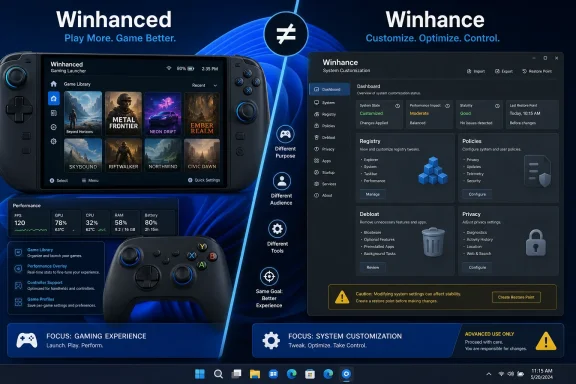
That naming error is more than a cosmetic typo. Winhanced is positioned as an alternative front end for Steam, Epic, Xbox and other game libraries, with handheld features such as performance profiles, controller navigation, a HUD, game installation and low-power downloading. Windows Central’s coverage likewise identifies Winhanced as a Windows gaming launcher. Its purpose is to replace or augment the Xbox full-screen gaming experience, not to delete Windows temporary files, clean the registry or “optimize” the WinSxS component store.
Winhance, meanwhile, is an open-source Windows 10 and Windows 11 debloating, customization and optimization project. Its own documentation says it applies hundreds of configurable settings, and its public code and release notes show that it can change Registry settings, remove selected inbox components, alter policies, manage apps and generate unattended-installation configurations. Conflating these two unrelated projects wrongly tells Winhanced users that their game launcher is conducting destructive maintenance, while obscuring the far more useful conversation about what a debloating tool actually changes.
The correction does not rescue the broadest claims in the How-To Geek piece, either. Windows 11 does include capable maintenance tools, but they do not make all third-party configuration utilities redundant. They solve specific housekeeping problems; Winhance solves a different, riskier category of problem: changing Microsoft defaults.
Storage Sense Is Useful, but It Is Not a General Optimizer
Windows 11’s Storage Sense is the appropriate built-in answer to ordinary disk-space pressure. Microsoft documents that it can clean temporary files, age out Recycle Bin contents, and make inactive OneDrive files online-only while retaining their cloud copies. IT administrators can also configure its cadence and retention thresholds through Group Policy, Intune and the Policy CSP.
For a home PC, the route is Settings > System > Storage > Storage Sense. Storage Sense can run when free space is low, daily, weekly or monthly, depending on policy and local settings. On Windows 11 version 22H2 and later, Microsoft says OneDrive files that have not been opened for more than 30 days may become online-only by default, although files marked “Always keep on this device” are exempt.
There are important limits missing from the claim that Windows quietly handles “everything.” Storage Sense primarily works on the Windows system drive, normally C:. It does not automatically manage every secondary SSD, external disk, game library or network share. It also does not touch the Downloads folder or cloud content unless the user or administrator explicitly enables those cleanup rules.
That distinction should change how users configure it. Clearing temporary files and old recycle-bin items is low risk. Automatically deleting Downloads after 14, 30 or 60 days can be a poor fit for installers, scripts, firmware packages, exported reports and other files that look disposable only until they are needed. Storage Sense is best treated as controlled storage housekeeping, not a substitute for understanding where disk capacity went.
It also is not exclusive to Windows 11. Storage Sense was introduced in Windows 10 and remains supported there. Windows 11 has refined the settings experience and policy options, but presenting it as a reason to upgrade from an era when Windows could not clean its own files blurs a transition that began years earlier.
Windows Already Maintains SSDs, With One Important Nuance
The article is right that users should not run old-fashioned disk-defragmentation routines blindly against SSDs. Windows has long had built-in drive optimization and TRIM support, and Microsoft’s current documentation says the Optimize Drives maintenance task generally runs weekly. TRIM allows the storage stack to tell an SSD which blocks are no longer in use, helping the drive manage future writes efficiently.
But the popular shorthand that Windows “never defrags SSDs” is not strictly accurate. Microsoft documents that the scheduled optimization process can perform traditional defragmentation on SSD volumes on a monthly cadence in addition to retrim behavior. It does so under Windows’ own policy logic, rather than as an indiscriminate legacy routine aimed at a spinning hard drive.
For administrators, the action item is straightforward: leave scheduled drive optimization enabled unless there is a specific, documented reason to manage it differently. A third-party tool that simply invokes Windows’ own optimization functions adds little value. A tool that uses opaque routines, disables scheduled maintenance or claims that a defrag pass will transform SSD performance deserves scrutiny.
The same applies to memory “cleaners.” Windows memory management deliberately uses otherwise available RAM for caches and standby data. An application that forces that memory to be released can make a percentage indicator look better while increasing subsequent disk reads and application launch times. There can be legitimate reasons to diagnose a memory leak or terminate a runaway process; there is little reason to install a permanent RAM-cleaning utility to fight Windows’ normal caching behavior.
The WinSxS Warning Is Real, but It Does Not Describe Winhanced
The Windows Component Store, commonly associated with the WinSxS directory, is an area where aggressive “cleanup” can cause real damage. Microsoft explicitly warns that deleting the WinSxS folder or its files can severely damage Windows, prevent booting, and make future updates impossible. Its apparent size can also be misleading because Windows uses hard links: files may appear in WinSxS and elsewhere in the file system without consuming twice the physical storage.
Microsoft provides supported ways to service the component store. The built-in StartComponentCleanup task removes superseded components after a grace period, and DISM offers a supported /StartComponentCleanup option for advanced use. The more aggressive /ResetBase option removes the ability to uninstall existing updates, which is why it belongs in a tested servicing plan rather than a one-click “free space” routine.
How-To Geek’s warning about random deletion of component-store files is therefore sound in principle. The reporting problem is that the article gives no evidence that Winhanced does this. The public Winhanced material reviewed by Windows Central and its own user-facing releases describes gaming libraries, handheld controls, Xbox-mode replacement, download behavior and a game-focused HUD. It does not describe registry cleaning or component-store deletion.
The program whose name appears to have been intended—Winhance—does make system-level changes, but its public documentation and source repository describe a configurable debloater and customization tool, not a generic registry or WinSxS cleaner. Its changes can include registry and policy modifications, app removals and Windows-feature management. That is a legitimate reason to use caution, but it is a different technical claim from deleting SYSTEM, SOFTWARE, COMPONENTS or the Component Store.
A tool that adjusts Windows defaults can break a workflow without being a “cleaner,” and a gaming launcher does not become a registry cleaner because its name is similar. Readers need that distinction before deciding what to install—or remove.
Winhance Carries a Different Kind of Risk
Winhance should not be dismissed as malware or treated as inherently reckless. It is an open-source project, its code is publicly available, and it exposes the kinds of changes it makes more plainly than many commercial “PC tune-up” suites do. Its documentation presents options by category, while recent releases added technical details for settings, including associated PowerShell scripts, Registry content, default values, dependencies and scheduled-task behavior.
That transparency makes it more auditable, but it does not make broad debloating safe for every machine. The project’s own release history illustrates why. Recent fixes have addressed an Edge-removal issue that could leave a broken MSEdgeHTM Registry key and a OneDrive-removal issue that interfered with startup programs. Those are not accusations against the project; they are evidence of the normal support burden created when an application modifies Windows components that other Microsoft and third-party software expect to find.
This is the practical dividing line for power users and managed-device teams:
- Use Storage Sense, Disk Cleanup or supported DISM servicing when the objective is reclaiming storage through Windows-supported cleanup paths.
- Use Optimize Drives and Windows’ scheduled maintenance for ordinary SSD and hard-drive upkeep.
- Use Task Manager, Resource Monitor, Performance Monitor and Windows Memory Diagnostic to investigate a performance problem before applying a “tweak.”
- Treat Winhance as a configuration-management tool: review each selected change, capture a restore point or image backup, export the configuration, and test it before deploying it broadly.
- Do not install Winhanced in the expectation that it will clean or debloat Windows; it is designed around gaming and handheld use.
For IT professionals, the enterprise consequence is clearer still. Storage Sense has documented management controls in Intune and Group Policy. A debloating configuration that removes applications, modifies policies or changes feature availability must be tested against Windows Update, Autopilot, Microsoft 365 Apps, device-management agents, endpoint security, line-of-business software and recovery workflows. A few gigabytes recovered on a gold image are not a bargain if a future cumulative update, repair install or application dependency fails.
Windows 11 Can Do the Maintenance Job; It Cannot Choose Your Trade-Offs
The useful core of How-To Geek’s advice is that routine maintenance no longer requires a registry-cleaning suite, a RAM purger or an SSD “booster.” Windows 11 already has built-in tools for temporary-file cleanup, cloud-file offloading, drive optimization, component servicing and performance diagnosis. Most systems will be more reliable when those tools are left in charge.
What Windows cannot decide is whether a user wants to remove OneDrive, disable a telemetry setting, suppress a Start menu element, uninstall bundled apps, change a policy, alter a power plan or reshape a gaming handheld interface. Those are preference and compatibility decisions, not maintenance tasks. Winhance exists for the former set; Winhanced exists for the latter.
The immediate takeaway is to correct the inventory before acting: do not uninstall Winhanced because of warnings about registry cleaning, and do not run Winhance as if it were a harmless disk-cleanup button. Enable and configure Storage Sense for actual storage pressure, leave Windows’ supported maintenance paths intact, and reserve system-tweaking tools for changes you can name, review and roll back.