
Microsoft’s current documentation also clears up a naming change that can make older instructions confusing. What Edge previously called Efficiency mode is now labeled Energy saver in the browser. It is separate from Windows 11’s similarly named Efficiency mode shown in Task Manager; changing one does not switch off the other.
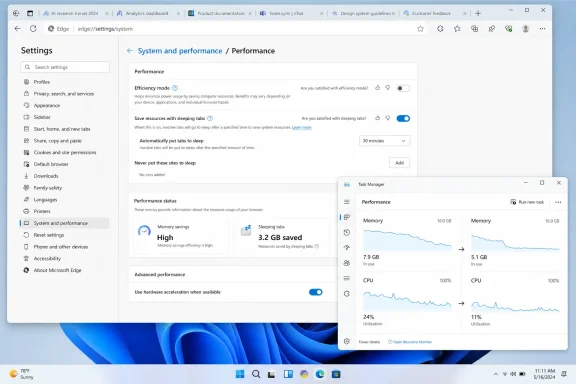 Turn on Sleeping Tabs in Edge
Open Microsoft Edge, select the three-dot menu in the upper-right corner, then go to Settings > System and performance > Performance. Enable Automatically put tabs to sleep if it is not already on.
Sleeping Tabs pauses inactive background pages so their scripts are no longer continually running timers and consuming processor time. The tab stays in the tab strip and resumes when you select it. This differs from closing a tab, and it also differs from a fully discarded tab that must reload its entire page when reopened.
Microsoft Support says the standard Sleeping Tabs timer is two hours when Energy saver is not controlling the behavior. Choose a period that fits how you work under Put inactive tabs to sleep after the specified amount of time. For most people, one or two hours strikes the right balance: it protects a busy PC while leaving recently used research and reference tabs immediately available.
A shorter setting is appropriate if Edge competes with large applications such as Visual Studio, Photoshop, Teams, virtual machines, or games. A longer setting makes sense if you repeatedly move between a modest number of complex web apps and do not see memory pressure. The point is not to force every background page asleep as quickly as possible; it is to stop forgotten tabs from receiving resources that active work needs.
Turn on Fade sleeping tabs while testing. Edge visually dims tabs that have been put to sleep, giving you a simple way to confirm that the feature is operating. The fading is only an indicator and can be disabled later if you find it distracting.
Exempt sites that must keep running
Sleeping Tabs is intentionally cautious. Microsoft says Edge avoids sleeping pages that are active, playing audio, capturing a screen or camera, being inspected through Developer Tools, casting media, using WebUSB, or recognized as an internal company site. Those safeguards reduce disruption, but they do not cover every web application with background work.
Use Always keep these sites active in the same Performance settings page to add exceptions. Select Add site, enter the complete site address, and save it. Treat this list as a deliberate exception list, rather than a collection of every service you use.
Good candidates include:
- A browser-based phone or contact-center console that must remain connected to receive calls.
- A monitoring dashboard where automatic refreshes and alerts are part of the job.
- A time-sensitive collaboration or ticketing page that has proved unreliable after resuming.
- A web development page running a local test environment, especially while DevTools is not open.
Do not automatically exempt Outlook on the web, Teams in a tab, every chat service, or every page that occasionally refreshes. Open tabs accumulate quickly, and a broad exclusion list defeats the resource savings that made Sleeping Tabs worthwhile. Add an exception only after you have observed a real workflow problem and can identify the site responsible.
When a sleeping tab resumes, it may reconnect, refresh data, or request that you sign in again, depending on how the website was built. That is usually normal browser behavior rather than evidence that Sleeping Tabs is malfunctioning. The practical question is whether the page can safely pause while it is out of view.
Energy saver changes the sleep timer
The most important detail missing from many older Sleeping Tabs guides is that Edge’s Energy saver can take control of tab timing. Microsoft’s current support documentation says Energy saver puts inactive tabs to sleep after 30 minutes or less when it is taking moderate power-saving measures, and after five minutes when it applies its stronger savings behavior.
This means your selected Sleeping Tabs interval may appear locked or may not be the interval Edge actually uses. That is by design. If you want direct control over the Sleeping Tabs timeout, turn Energy saver off first; if you prioritize battery runtime and keeping Windows responsive on a laptop, leave Energy saver enabled and accept the more aggressive schedule.
In Edge, return to Settings > System and performance > Performance and look for Energy saver options. The recommended balanced setting reduces resource use while unplugged and becomes more aggressive when battery charge is low. On supported systems, Edge can also be configured to use Energy saver while connected to power.
That last option can help a desktop with limited RAM or a laptop docked to several displays, but it is a trade-off. Microsoft warns that stronger energy-saving behavior can produce visible slowdowns, including less-smooth video. Do not enable the maximum-saving behavior for a browser session devoted to streaming, browser gaming, remote desktops, video meetings, or an interactive development environment unless conserving power or resources is more important than responsiveness.
For a typical Windows laptop, a sensible configuration is Sleeping Tabs enabled, a modest exclusion list, and Energy saver set to balanced behavior. For a plugged-in desktop, begin with Sleeping Tabs alone. Add Energy saver on AC power only if Edge is still contributing to sluggish multitasking and you are comfortable with the possibility of slower background and foreground browser activity.
Measure the result instead of trusting one memory number
Windows Task Manager is useful, but Edge is a multi-process browser. A single Edge window can create separate processes for tabs, extensions, graphics work, service workers, and browser components. Seeing many Microsoft Edge entries in Task Manager does not mean that you have many copies of the browser open.
To identify the actual offender, open Edge’s own Browser Task Manager from the three-dot menu under More tools. It shows individual tabs, extensions, and internal processes with their CPU and memory use. Sort by memory or CPU, then look for the page or extension that is materially larger than the rest.
Microsoft’s Edge troubleshooting guidance recommends this approach because Sleeping Tabs helps reduce background consumption but cannot fix a leaking extension, a runaway web app, or a tab actively rendering advertisements, video, or a complex dashboard. If one tab is using extraordinary resources while it is in the foreground, putting other tabs to sleep will improve the margins but will not solve the underlying problem.
Use a repeatable test:
- Restart Edge and open the same normal set of tabs you use for work.
- Note overall Edge memory use in Windows Task Manager and identify the largest entries in Edge’s Browser Task Manager.
- Leave the computer idle long enough for your selected Sleeping Tabs policy or Energy saver behavior to take effect.
- Check whether inactive tabs are faded and whether Windows becomes more responsive when switching to another application.
- Resume a few tabs and add an exception only if a specific site fails to restore acceptably.
The key measurement is not whether Edge’s number falls to some arbitrary target. The useful outcome is fewer slowdowns, less disk paging, quieter fans, and more available memory for the application you are actively using.
What Sleeping Tabs will not fix
Sleeping Tabs is a resource-management feature, not a cure for every Edge performance problem. It will not repair a corrupted browser profile, a faulty extension, inadequate available system memory, or an active tab that is genuinely demanding a large amount of CPU or RAM.
If Edge remains slow after inactive tabs begin sleeping, check extensions first. Disable suspicious or unused extensions, restart Edge, and compare Browser Task Manager results. Microsoft’s enterprise troubleshooting documentation likewise points administrators toward isolating busy tabs and extensions rather than treating the browser’s aggregate memory number as a diagnosis.
Also distinguish a sleeping tab from a discarded tab. A sleeping page is paused and normally comes back quickly when clicked. A discarded page has been removed from memory and must reload. Microsoft’s policy documentation says Edge can automatically discard sleeping tabs after prolonged inactivity to save additional memory, so very old tabs may reload even though the feature initially preserved them.
For managed PCs, administrators can control Sleeping Tabs through Microsoft Edge policies, including whether the feature is enabled, the inactivity timeout, and sites blocked from sleeping. Microsoft Learn lists these as SleepingTabsEnabled, SleepingTabsTimeout, and SleepingTabsBlockedForUrls. Organizations should use recommended policies when employees need reasonable local control, reserving mandatory policies for environments with a documented compatibility or capacity requirement.
Sleeping Tabs works best as quiet housekeeping: enable it, keep exclusions narrow, and use Energy saver according to whether battery life or immediate browser responsiveness matters more. Once configured, inactive Edge tabs stop competing with the program in front of you—the one Windows needs to keep responsive.