
explorer.exe problem first and a Windows corruption problem second. The fast, low-risk fix is to restart Explorer; the durable fix is to identify any third-party shell extension loaded into the menu and update, remove, or disable the software that installed it.
Microsoft’s File Explorer guidance for Windows 10 and Windows 11 recommends restarting Explorer and checking for updates when Explorer becomes unresponsive. Its developer documentation also explains why third-party software is a plausible culprit: shortcut-menu handlers are COM components registered under the Shell’s ContextMenuHandlers locations, where Windows calls them while building a menu. One bad handler can therefore delay or crash the same Explorer process that owns the taskbar, desktop, and File Explorer windows.
Before changing anything, establish the scope. Right-click a plain .txt file, a folder, empty space inside a folder, and the desktop. Then test the same actions in a different folder, preferably one containing only local files. A failure limited to one file type or one network location points in a different direction than a menu that hangs everywhere.
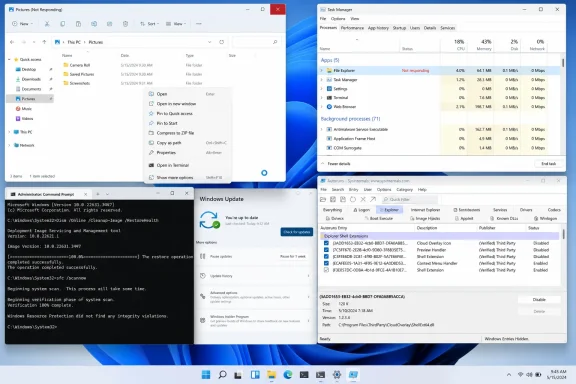 Restart Explorer without restarting the PC
Restarting Windows Explorer closes and relaunches the shell process. Your open File Explorer windows, desktop icons, and taskbar will briefly disappear, but running applications and unsaved work in those applications should remain open.
- Press
Ctrl+Shift+Escto open Task Manager. - Find Windows Explorer on the Processes page.
- Right-click it and choose Restart.
- Wait for the taskbar and desktop to return, then test the right-click menu again.
If Windows Explorer is absent, Task Manager can start it manually. Select Run new task from Task Manager, enter explorer.exe, and press Enter.
This result is useful diagnostically. If the menu works immediately after the restart and later begins hanging again, the restart did not repair a damaged menu configuration; it cleared a stuck Explorer session. That pattern raises the odds of an extension, network integration, cloud-storage client, archive utility, source-control client, security product, graphics-driver utility, or similar software injecting functionality into Explorer.
If the entire desktop and taskbar freeze alongside the right-click menu, do not focus only on File Explorer. Explorer is the Windows shell, so a fault in a component it loads can affect all three at once.
Use the symptom to narrow the failing menu handler
A context menu is not one fixed Windows feature. It is assembled according to what you right-click. A handler attached to every file can affect almost every menu; one registered only for image files, compressed archives, folders, drives, or desktop background affects a narrower set of actions.
Use these patterns to avoid random repair steps:
- If right-click fails on files and folders but works on the desktop background, suspect a handler registered for file-system objects rather than a general desktop component.
- If the failure occurs only on a particular type of file, such as
.zip,.pdf,.psd, or source-code files, start with the application associated with that file type or the utility that adds commands for it. - If it occurs only in a mapped drive, OneDrive folder, SharePoint-synced library, NAS share, or removable drive, test a local folder such as
C:\Tempbefore removing software. The menu item may be waiting on a slow or unavailable remote service. - If right-click works on the Windows 11 compact menu but freezes after selecting Show more options, prioritize older-style extensions. Microsoft notes that Windows 11’s streamlined menu does not display every Windows 10-era extension directly; older entries remain available in the expanded menu.
The last point is a practical divide in Windows 11 troubleshooting. A compact-menu failure can still be caused by Windows or an updated app integration, but a hang that appears only in Show more options is a strong reason to inspect legacy shell extensions before attempting broad repair work.
Take note of when the problem began. A newly installed archiver, cloud backup client, context-menu customizer, PDF suite, Git tool, GPU control application, antivirus, or right-click “enhancer” is more probative than a long list of software that has been stable for months. Also check Settings > Windows Update and restart after installing pending updates. Microsoft’s Explorer troubleshooting guidance includes both steps because a pending update and a stale shell process can produce misleading symptoms.
Disable third-party Explorer add-ons reversibly
Do not begin by deleting registry keys. Context-menu handlers are registered through COM class IDs and may be used by multiple components. Removing an unfamiliar key can leave an application partially installed, break file associations, or make later diagnosis harder.
For a controlled inventory, use Autoruns from Microsoft Sysinternals. Microsoft documents that Autoruns reports Explorer shell extensions and permits entries to be disabled by clearing their check boxes. It is preferable to registry surgery because disabling is reversible.
Run Autoruns as an administrator, accept the license prompt, then take these steps:
- Open Options and enable Hide Microsoft Entries. This reduces noise, but it is a filter rather than a verdict: leave Microsoft components alone unless you have a specific support case or verified guidance.
- Open the Explorer tab and look for entries that identify non-Microsoft publishers, unfamiliar software, or programs installed close to the date the trouble began.
- Record the entry name, publisher, image path, and associated product before making a change. A screenshot is enough.
- Clear the check box for one likely third-party item. Do not disable a dozen entries at once.
- Restart Windows Explorer from Task Manager, or sign out and back in, and retest the same right-click action.
- If the issue persists, re-enable that item and test the next candidate. If the issue disappears, leave the suspect disabled and confirm the result after a full Windows restart.
The one-at-a-time rule matters. Turning off every extension may restore the menu, but it tells you little about which application needs attention and may remove useful commands from Explorer. A disciplined test gives you a defensible answer: “The menu only fails while this handler is enabled.”
Treat unsigned or missing-file entries carefully. An Autoruns entry pointing to a missing DLL can be residue from an incomplete uninstall; an unsigned entry is not automatically malicious. Verify the product name and file path, run a current security scan if the software is unknown, and avoid deleting the entry until you know whether it belongs to installed software.
Remove or update the application that owns the extension
Once a disabled extension restores right-click behavior, use the owning application’s normal repair path. Check the vendor’s updater first; context-menu integrations are tightly coupled to Explorer and are frequently corrected through application updates rather than Windows patches.
If no suitable update exists, uninstall the application through Settings > Apps > Installed apps in Windows 11, or Settings > Apps > Apps & features in Windows 10. Restart Windows afterward and test the menus before reinstalling anything. If you need the software, download a current installer directly from its developer rather than relying on an old setup file or a registry-cleaning utility.
Be especially cautious with software that advertises “context menu cleanup,” registry optimization, file association repair, or one-click PC tuning. Those tools often solve a narrow issue by disabling broad categories of integrations, and they can make it impossible to identify the original broken component. The Windows record supports a more targeted approach: handlers are individually registered, so the repair should be individually tested.
On managed PCs, do not uninstall endpoint protection, data-loss prevention, backup, VPN, or corporate sync software without IT approval. Those products can add Explorer integrations, but they may also be required by policy. Give IT the software name, version, Windows build, exact right-click target, and the result of a reversible Autoruns test instead.
Use a clean boot only when the extension test is inconclusive
A clean boot is useful when the menu works after Explorer is restarted but no individual Explorer add-on stands out, or when the behavior appears only after some background software launches. Microsoft’s clean-boot procedure starts Windows with essential drivers and startup programs, then uses systematic re-enabling to isolate a conflicting service or startup app.
Sign in with an administrator account, run msconfig, open the Services tab, select Hide all Microsoft services, then choose Disable all. Next, open Task Manager from the Startup tab and disable enabled startup applications, keeping a record of every change. Restart and test the menu.
If right-click works in the clean-boot state, re-enable services and startup items in halves rather than one by one. Microsoft recommends this divide-and-test method because it reduces the number of restarts needed to isolate the offender. When the fault returns, the last tested group contains the conflict; keep splitting that group until one service or application remains.
A clean boot does not automatically prove that a disabled startup item is the shell extension responsible. It proves that some non-Microsoft background component participates in the failure. The responsible application may register both a service and a menu handler, so return to the Explorer add-on inventory after identifying the product.
When testing is finished, restore normal startup. Leaving security agents, backup utilities, synchronization clients, or hardware support software disabled indefinitely is not a repair.
Repair Windows files only after isolating software conflicts
If the menu fails even in a clean boot, occurs across file types and local folders, and persists after Windows updates and Explorer restarts, check Windows component integrity. Microsoft’s supported order is to run DISM before System File Checker from an elevated Command Prompt:
DISM.exe /Online /Cleanup-image /Restorehealth
sfc /scannow
DISM may use Windows Update to obtain repair content, so allow it to finish and keep the device online. Then let sfc /scannow reach 100 percent before closing the command window. Restart Windows after either tool reports that it repaired files.
These commands are appropriate for damaged Windows components; they are not a substitute for removing a defective third-party extension. If the issue began after a program installation and disappears when that program’s handler is disabled, repairing the Windows image may produce a clean result while leaving the actual trigger installed.
The practical endpoint is simple: preserve the extension test notes, update or remove the confirmed application, restart Windows, and verify right-click on files, folders, desktop background, and any location that originally failed. A menu that remains responsive after a full restart is the result that counts—not a temporarily working desktop immediately after explorer.exe is relaunched.