
For most PC owners and administrators, the useful translation is simpler: something operating close to the hardware—usually a driver, sometimes unstable memory or a hardware change—made Windows stop rather than continue running in an unsafe state. The fastest repair comes from establishing what changed immediately before the first crash, then changing one suspect at a time.
Do not start by installing a generic “driver updater,” removing random drivers, or replacing RAM based on the stop-code name alone. Those actions can erase the timeline that makes the real cause identifiable.
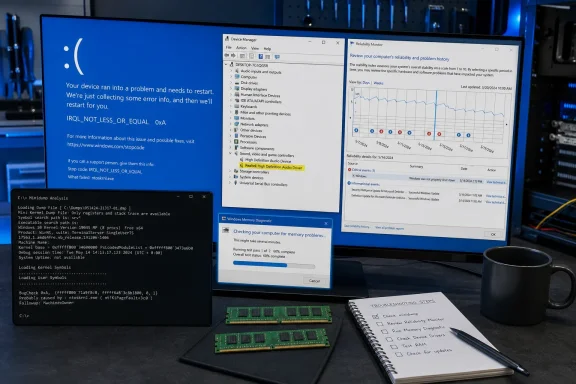 Build a timeline before changing anything
Begin with the date and circumstances of the first IRQL_NOT_LESS_OR_EQUAL crash. Note whether it began after a GPU, Wi-Fi, storage, audio, USB, docking-station, antivirus, backup-tool, BIOS, or Windows update change. Also record whether it occurs while gaming, waking from sleep, copying files, connecting a peripheral, or simply sitting idle.
Open Reliability Monitor by pressing Windows + R, entering perfmon /rel, and pressing Enter. Microsoft documents the /rel option as the direct way to launch Reliability Monitor in Windows 10 and Windows 11. Look at the days surrounding the first red critical event; then open individual entries for Windows failures, application installations, driver installations, and Windows updates.
Reliability Monitor is useful for chronology, but it does not identify a guilty driver by itself. A crash that appears shortly after a driver update is a strong lead, not a verdict. The relevant question is whether the crash stops when that one change is reversed.
Also open Device Manager by right-clicking Start and selecting Device Manager. Expand the categories tied to recent changes, especially Display adapters, Network adapters, Storage controllers, Sound, video and game controllers, Universal Serial Bus controllers, and Bluetooth. A yellow exclamation point, an unknown device, or a Device status error code deserves attention, although a clean Device Manager does not clear every installed driver.
If the PC can still sign in normally, create a restore point before working on drivers. Search for “Create a restore point,” select the system drive, and use Create. It is a modest precaution that can save time if a replacement driver makes the machine less stable.
Roll back the driver that matches the timeline
Microsoft recommends Windows Update and optional driver updates as the first source for supported driver replacements. In Windows 11, go to Settings > Windows Update > Advanced options > Optional updates; in Windows 10, the equivalent optional-driver area may appear under Windows Update after checking for updates. Restart after installing a driver, even when Windows does not insist on it.
For drivers that began failing after an update, rollback is often more useful than installing another package over the top. In Device Manager, right-click the suspected device, choose Properties, open the Driver tab, and select Roll Back Driver if the option is available. State the reason, confirm the rollback, and restart the PC.
Windows retains only one backup driver package per device for this rollback mechanism. Therefore, a greyed-out Roll Back Driver button usually means Windows has no prior package available—not that the current driver has been cleared as a suspect. In that situation, download a known-good driver directly from the PC maker, motherboard maker, or hardware vendor before removing anything.
Use the hardware manufacturer’s package first for laptops, prebuilt desktops, and business devices. Their graphics, Wi-Fi, storage, chipset, and audio packages may be customized for that model. A retail GPU or wireless driver can be appropriate for a self-built PC, but it should still come from NVIDIA, AMD, Intel, Realtek, or the component vendor—not from a third-party driver catalog site.
If the crash began immediately after adding a peripheral or its software, disconnect that device and uninstall its companion software before testing again. USB docks, RGB controllers, virtual network adapters, gaming anti-cheat components, backup agents, endpoint security tools, and hardware-monitoring utilities are all capable of installing low-level drivers.
Avoid disabling or uninstalling a storage controller, chipset driver, boot-critical device, or an unidentified System device as an experiment. If the suspected device is a display adapter or network adapter and Windows crashes too quickly to complete the rollback, use Safe Mode. Hold Shift while selecting Restart, then choose Troubleshoot > Advanced options > Startup Settings > Restart, followed by the Safe Mode option. Windows Recovery Environment may request the BitLocker recovery key on encrypted devices, so have that key before beginning.
Test RAM without mistaking a clean test for proof
Microsoft’s Windows Memory Diagnostic is built into Windows and is a sensible next test when no driver change lines up with the failures, when errors occur under changing workloads, or after a RAM upgrade. Save work, press Windows + R, enter mdsched, and select Restart now and check for problems.
The default test is Standard. If it reports no errors but IRQL_NOT_LESS_OR_EQUAL crashes continue, run it again and press F1 at the diagnostic screen to select the more thorough Extended test, then press F10 to begin. Extended testing takes longer, so perform it when the PC can remain unavailable.
After Windows restarts, the result may appear as a notification. If it does not, use Event Viewer and search for MemoryDiagnostics-Results. Microsoft identifies Event ID 2001 as a result indicating that the test detected no memory errors. That is useful evidence, but it only establishes what the built-in test did or did not detect during that run; it does not prove every DIMM, slot, memory-controller setting, or overclock is stable.
Any reported memory error should halt the driver-chasing cycle. Return the system to a known hardware baseline:
- Remove newly installed RAM or reinstall the previous kit if the crashes began after an upgrade.
- Disable memory overclocking profiles such as XMP, EXPO, or DOCP temporarily and load stable firmware defaults.
- Reseat memory only with the PC powered down, unplugged, and handled according to the system manufacturer’s service guidance.
- Test with the original supported memory configuration before assuming that a newer BIOS, a fresh Windows installation, or another graphics driver will fix the issue.
The same baseline principle applies to newly installed PCIe cards, NVMe drives, USB hubs, docks, and external devices. Microsoft’s blue-screen guidance explicitly recommends removing newly added hardware and checking whether the crashes recur. Reintroduce hardware one item at a time, with several normal-use sessions between changes. Reconnecting every device at once recreates the original uncertainty.
Use the crash record when the fault keeps returning
Repeated 0xA crashes warrant looking at the crash record rather than guessing from symptoms. Microsoft says a small memory dump contains the stop message and parameters, loaded-driver information, processor context, and the kernel-mode call stack. When configured and successfully written, small dump files are stored in %SystemRoot%\Minidump.
A dump can help distinguish a recurring third-party driver from a one-off memory corruption event, especially when several crashes point to the same module or device class. Microsoft’s WinDbg tools can analyze dumps with !analyze -v, while the bug-check documentation recommends starting with an analysis and stack trace.
Do not convict a driver solely because its name is visible near the top of one dump, and do not assume ntoskrnl.exe means that Windows itself is defective. The kernel commonly appears in the crash path because it is the component that detects the invalid operation and calls the stop. A repeated third-party driver name across separate crashes, combined with a timeline that matches its installation or update, is much stronger evidence.
For managed fleets, preserve the dump files, exact Windows build, driver versions, firmware version, and the Reliability Monitor date sequence before deploying a broad rollback. A single problematic driver package can affect a defined model or adapter family while leaving similar-looking systems untouched.
Know when the repair has actually worked
A driver rollback is successful only after the machine remains stable through the activity that previously caused the stop—sleep and wake, sustained network traffic, a game session, USB dock use, storage-heavy work, or whatever triggered the crash. A reboot without an immediate blue screen is not a meaningful test.
If rolling back or replacing the implicated driver stops the failures, leave the stable version in place and watch the vendor’s release notes before trying a newer package. If removing new hardware or disabling memory overclocking stops them, the system has identified a hardware compatibility or stability issue that needs correction before those settings return.
Windows 10 remains capable of running these diagnostics, but its free support ended on October 14, 2025. For a Windows 10 PC that continues to receive driver-related crashes, fixing the immediate instability should come first; remaining on an unsupported operating system will not improve driver availability or long-term security.
