
taskmgr.exe, while damaged Windows components can prevent the program from launching at all.
Do not begin by downloading a replacement copy of Task Manager or running a registry-cleaner utility. taskmgr.exe is a protected Windows component, and third-party copies add a security risk without identifying why Windows denied or failed the launch. Work from the least invasive check to the most consequential repair, and keep a managed work PC separate from a personally owned device: an organization’s policy may be intentional and will return after any local change.
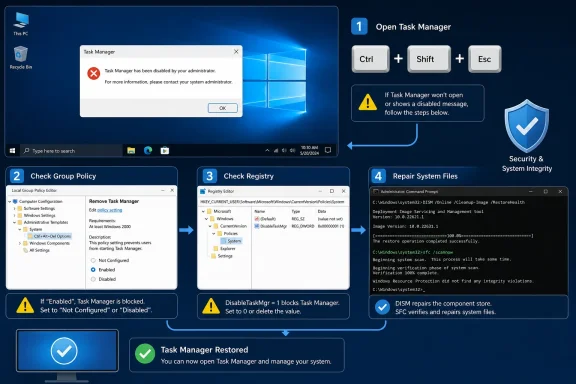 Confirm whether Task Manager itself is blocked
First, try more than one way to start Task Manager. This distinguishes a broken shortcut or shell interface from a system-wide restriction.
- Press
Ctrl+Shift+Esc. - Press
Ctrl+Alt+Delete, then select Task Manager. - Press
Win+R, typetaskmgr.exe, and press Enter. - In File Explorer, browse to
C:\Windows\System32\and runtaskmgr.exe.
If taskmgr.exe opens from C:\Windows\System32 but the keyboard shortcut or taskbar route does not, Task Manager is intact. Restart Windows before changing policy or repairing system files; a reboot clears stalled user-session processes and reloads the Windows shell.
If only the taskbar context menu or Start menu behaves incorrectly, restart Windows Explorer rather than treating it as a Task Manager repair. Open Command Prompt or Windows Terminal, then run:
taskkill /f /im explorer.exe
start explorer.exe
Your taskbar, desktop icons, and File Explorer windows will disappear briefly while Explorer restarts. This can fix a damaged shell session, but it does not override a Task Manager policy. Task Manager has no standalone Windows service that can simply be restarted; it is an executable launched in the signed-in user’s session.
A direct launch that produces the administrator-disabled message is more useful than a silent failure: it points to a specific policy control Microsoft calls Remove Task Manager.
Restore the Remove Task Manager policy
On Windows editions with Local Group Policy Editor, press Win+R, type gpedit.msc, and press Enter. Then go to:
User Configuration
  > Administrative Templates
  > System
  > Ctrl+Alt+Del Options
  > Remove Task Manager
Open Remove Task Manager. Set it to Disabled or Not Configured, select Apply, and close the editor. Microsoft’s policy documentation is explicit about the counterintuitive wording here: enabling “Remove Task Manager” blocks Task Manager, while disabling it or leaving it unconfigured permits access.
Open Command Prompt and refresh user policy:
gpupdate /force
Then sign out and back in, or restart Windows, before testing taskmgr.exe again.
Do not try to “fix” this setting on a work, school, or domain-managed PC without approval. Domain Group Policy, mobile-device management, and security baselines can reapply the restriction at sign-in or during the next policy refresh. A local change that disappears is evidence that another management layer is winning, not that Windows failed to save the setting.
For IT administrators and power users, Microsoft’s gpresult utility can show which policies were actually applied to the signed-in user. Run the following from Command Prompt, then open the report from your desktop:
gpresult /h "%USERPROFILE%\Desktop\gpresult.html"
Look through the resulting policy report for the Ctrl+Alt+Del Options area and the GPO that supplied the setting. That is the useful escalation detail for an administrator; “Task Manager is disabled” alone does not identify whether a local configuration, domain policy, or management profile caused it.
If gpedit.msc is unavailable, do not install an unofficial Group Policy Editor package. Use the registry check below instead. The underlying policy registry value is present across Windows editions even though the graphical editor is not universally included.
Check the DisableTaskMgr registry values
Microsoft’s support guidance identifies DisableTaskMgr as the registry value that blocks Task Manager. A value of 1 enables the restriction; a value of 0, or the absence of the value where no policy applies, allows Task Manager to run.
Before changing anything, open Registry Editor with Win+R, type regedit, and export each key you plan to modify: right-click the key in the left pane and choose Export. This gives you a rollback file if you alter the wrong value.
Check these locations one at a time:
HKEY_CURRENT_USER\Software\Microsoft\Windows\CurrentVersion\Policies\System
HKEY_CURRENT_USER\Software\Microsoft\Windows\CurrentVersion\Group Policy Objects\LocalUser\Software\Microsoft\Windows\CurrentVersion\Policies\System
HKEY_LOCAL_MACHINE\SOFTWARE\Microsoft\Windows\CurrentVersion\Policies\System
In the right pane, look for a DWORD value named DisableTaskMgr.
If it exists and its Value data is 1, change it to 0. If it is already 0, leave it alone. If the value does not exist, do not create it merely to “enable” Task Manager; no value is normally needed when no policy blocks access. Restart Windows after changing a value.
The key distinction is scope. HKEY_CURRENT_USER affects the current profile, so a restriction that appears in only one Windows account is likely to be there or in a user-targeted policy. HKEY_LOCAL_MACHINE applies more broadly and may require administrator approval to edit. The second current-user path can reflect a locally stored policy object, which is why changing only the first key sometimes appears to do nothing.
A registry repair is not a way around centrally managed security settings. If a domain or MDM policy enforces “Remove Task Manager,” it can rewrite DisableTaskMgr after gpupdate, a sign-in, or a management sync. Restore the intended policy at its source instead of repeatedly deleting the value on affected endpoints.
Repair Windows only after policy is ruled out
If Task Manager gives no policy message but taskmgr.exe will not start, closes immediately, or produces an application error, repair the Windows component store and protected system files. Microsoft recommends running Deployment Image Servicing and Management, or DISM, before System File Checker. DISM repairs the component store that SFC uses as a source for replacement files; running SFC first can leave it unable to restore a damaged file.
Install pending Windows updates and restart first. Then open Command Prompt or Windows Terminal as an administrator and run:
DISM.exe /Online /Cleanup-Image /RestoreHealth
Leave the window open until DISM completes. The command normally uses Windows Update to obtain needed repair files, so it may fail on devices with broken update services, a proxy restriction, or a corporate configuration that blocks repair content.
After DISM reports that the operation completed successfully, run:
sfc /scannow
Do not close the window until verification reaches 100 percent. SFC checks protected Windows files and replaces corrupted copies where it can. Restart Windows once both commands finish, then test the direct taskmgr.exe launch again.
These tools repair Windows files; they do not remove a Group Policy setting or a DisableTaskMgr restriction. That is why a clean SFC result alongside an administrator-disabled message is not a dead end — it means the repair path was never the relevant one.
If DISM cannot locate repair files, do not point it at a random ISO or a different Windows release. Microsoft’s documented alternative is a known-good repair source matching the installed Windows version and servicing level, used with /Source and /LimitAccess. For most home PCs, restoring normal Windows Update access is the safer first step.
Treat an unexplained restriction as a security signal
A deliberate Task Manager restriction on a managed device may be routine. The same restriction appearing unexpectedly on a personal PC deserves a malware check, especially if it arrived with unknown software, browser extensions, repeated security warnings, or other disabled administrative tools.
Open Windows Security and run a Full scan from Virus & threat protection. If you suspect persistent malware or the system behaves differently after a normal scan, use Microsoft Defender Offline scan from Scan options. Microsoft says the offline scan restarts the PC and runs in the Windows Recovery Environment, where persistent threats have less opportunity to hide behind a running Windows session.
The practical endpoint is simple: if direct taskmgr.exe launches after correcting the effective policy, the problem was access control; if it launches after DISM and SFC, damaged Windows components were involved; if it still fails while policy is clear and repairs complete, record the exact error, review Windows Security results, and escalate with the gpresult report rather than applying more registry changes blindly.
