
Microsoft’s current Windows Hello guidance for Windows 10 and Windows 11 supports that split: clean and re-enroll a finger when recognition fails; reinstall the biometric driver when Windows reports that it cannot find a compatible scanner. Microsoft also documents a newer Windows 11 complication for external readers: Enhanced Sign-in Security can deliberately prevent a non-compatible USB fingerprint reader from being used for sign-in.
Use your PIN or password to enter Windows while working through these steps. Do not remove your PIN simply because fingerprint sign-in stopped working; the PIN is the recovery credential Windows Hello relies on locally.
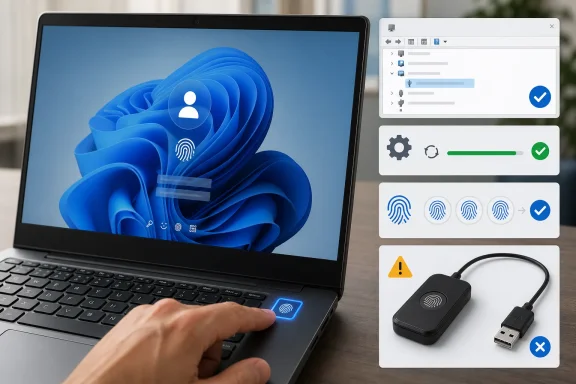 Start by separating recognition failures from missing hardware
Open Settings > Accounts > Sign-in options. In Windows 11, expand Fingerprint recognition (Windows Hello). In Windows 10, select the same entry under the Windows Hello options.
If the fingerprint option is present and Windows says your fingerprint could not be recognized, Windows still sees the reader. Clean and dry both your finger and the sensor, then try the finger that was originally enrolled. Microsoft recommends adding more than one finger and capturing different angles during enrollment, which gives the reader useful alternatives if skin is dry, a finger is slightly damaged, or your usual placement is inconsistent.
Select Remove under Fingerprint recognition, then select Set up and follow the enrollment prompts. Windows will ask for the account PIN before it permits a new fingerprint enrollment. Register the same finger carefully from several angles, then add a second finger if possible.
This is the lowest-risk repair because it replaces only the biometric enrollment for the signed-in account. It does not remove your password, reset the PC, or alter the fingerprint driver.
A reader that fails only at the lock screen but works after sign-in should also be tested after a full restart. Use Start > Power > Restart, rather than relying on sleep, hibernation, or repeatedly locking the PC. That forces Windows to reload the biometric stack and the reader’s driver.
Restart the Windows Biometric Service when the reader is present
Windows uses the Windows Biometric Service, named WbioSrvc, to manage biometric capture and Windows Hello operations. A sensor can remain visible in Device Manager while this service is stopped or stuck, leaving the fingerprint entry unavailable or causing enrollment to fail.
Press Win + R, type services.msc, and press Enter. Find Windows Biometric Service in the list.
If its status is blank, right-click it and choose Start. If it is already running, right-click it and choose Restart. Then return to Settings > Accounts > Sign-in options and test Fingerprint recognition again.
If Services will not restart it, open Terminal (Admin) or Command Prompt (Admin) and run:
net stop wbiosrvc && net start wbiosrvc
Microsoft includes this service restart in its current Windows Hello troubleshooting material. On systems using Enhanced Sign-in Security, Microsoft’s more conservative procedure has the user remove the PIN before restarting the service and then recreate it. That is an escalation step, not a routine fix: removing a PIN signs you out of some local Windows Hello-backed credentials and requires you to set the PIN up again. Try the ordinary service restart and fingerprint re-enrollment before going that far.
Do not follow older forum advice that recommends deleting files from WinBioDatabase, clearing the NGC folder, or changing registry permissions as a first repair. Those methods can destroy stored biometric enrollments and PIN-related state without correcting a missing sensor or incompatible driver. The current Microsoft troubleshooting path is narrower: re-enroll, reinstall the driver if necessary, and restart the biometric service.
Reinstall the reader driver only when Windows cannot use it
If Settings says it cannot find a fingerprint scanner compatible with Windows Hello, or the entire fingerprint section is missing, open Device Manager. Right-click Start and choose Device Manager, then expand Biometric devices.
A working internal reader should normally appear there under a manufacturer-specific name. USB readers may also appear after being unplugged and reconnected. Look for yellow warning icons, an unknown device, or a reader listed under a different category such as Universal Serial Bus controllers.
First, open the device’s Properties page and note any error code. A Code 10, Code 18, Code 28, or a similar driver-related error points to the software layer, while a reader that vanishes after reboots or never appears at all may be disconnected, disabled in firmware, or faulty.
For a reader shown under Biometric devices, use this sequence:
- Right-click the fingerprint device and select Uninstall device. Confirm the removal, but do not select an option to delete the driver package unless you already downloaded the correct replacement from the PC or reader manufacturer.
- Restart the PC. Microsoft’s Windows Hello documentation says Windows should attempt to reinstall the biometric driver during startup.
- Return to Device Manager. If the reader returns without a warning icon, go back to Sign-in options and enroll the fingerprint again.
- If it does not return, select Action > Scan for hardware changes. Then check Windows Update for driver updates.
Windows Update can offer driver packages under Settings > Windows Update > Advanced options > Optional updates in Windows 11. In Windows 10, check Settings > Update & Security > Windows Update, then look for View optional updates. Optional drivers are not installed automatically, so a fingerprint update can be available without appearing in the normal update queue.
If Windows Update has nothing useful, download the fingerprint driver from the laptop maker’s or fingerprint-reader maker’s support page for the exact PC model and Windows version. Prefer that package over a generic driver-download utility. A fingerprint sensor depends on a driver that Windows Hello recognizes, and Microsoft’s hardware documentation makes clear that ordinary driver signing alone does not guarantee Windows Hello compatibility.
For a built-in laptop reader, the PC manufacturer is the best first source because its package may coordinate the biometric sensor with the laptop’s chipset, firmware, and power-management components. For a USB reader, check both the reader manufacturer’s software and the USB connection: try a direct port on the PC rather than a hub, then reconnect it after Windows has started.
Windows 11 Enhanced Sign-in Security can hide external readers
Windows 11 adds a condition that older fingerprint troubleshooting guides often miss. Enhanced Sign-in Security, or ESS, protects biometric data using dedicated hardware and software isolation. When ESS is enabled, Windows can block a Windows Hello-compatible external fingerprint reader that does not itself support ESS.
This is most likely to matter when a USB reader worked on an older installation, then stopped appearing as a Windows Hello sign-in option after a Windows 11 upgrade or configuration change. The reader may still work inside its own vendor software; Windows is specifically refusing to use it for operating-system sign-in.
On Windows 11 version 24H2 and later, open Settings > Accounts > Sign-in options and look under Additional settings for Enhanced sign-in security. A non-ESS external reader requires ESS to be turned off before it can be used for Windows Hello. On Windows 11 version 23H2, the related setting is labeled Sign in with an external camera or fingerprint reader; enabling that option permits the use of an external reader.
There is a meaningful consequence before changing the setting. Microsoft says disabling ESS can remove existing ESS enrollments and associated credentials, including passkeys, which must then be set up again. Do not toggle the setting casually on a work PC, particularly one managed by an employer or school. If the control is absent or unavailable, the device may not detect an incompatible sensor, or an organization may have locked the choice through policy.
This security setting does not usually explain a failed built-in fingerprint reader. For an internal laptop sensor, return to Device Manager, Windows Update, the manufacturer driver package, and—if the reader is missing everywhere—the PC’s firmware setup to ensure biometrics have not been disabled.
Finish by testing the complete sign-in path
After Windows recognizes the reader again, remove any broken fingerprint enrollment and create a fresh one. Lock the PC with Win + L, then test the fingerprint at the sign-in screen rather than judging success only from the Settings enrollment page.
If the reader appears in Device Manager, the Windows Biometric Service starts, and a newly enrolled finger still fails consistently, the next useful record is in Event Viewer > Applications and Services Logs > Microsoft > Windows > Biometrics > Operational. That log is more useful to an IT administrator or hardware vendor than screenshots of a generic “fingerprint not recognized” message.
Windows 10 users should also weigh whether to keep investing in a driver problem. Microsoft ended Windows 10 support on October 14, 2025, so an unresolved fingerprint issue on that platform may no longer receive an operating-system fix. On supported Windows 11 hardware, a current OEM biometric driver, a restarted Windows Biometric Service, and a fresh enrollment remain the repair path most likely to restore the reader without disturbing the rest of the sign-in configuration.
