
Microsoft’s location and privacy documentation confirms that Windows uses a mix of GPS hardware, nearby Wi‑Fi access points, cellular towers, IP address, and—when necessary—a configured default location. Microsoft’s separate Edge troubleshooting guidance adds an important diagnostic detail: Edge depends directly on the Windows Geolocation Service, while other browsers may still return an approximate location through their own methods. So “location works in Chrome but not Edge” does not prove that Windows location is healthy.
Start with Settings, test after each change, and reset only the specific app that remains broken. Do not use old instructions that tell you to clear local Location History: Microsoft removed local location-history storage and its Settings controls in March 2025.
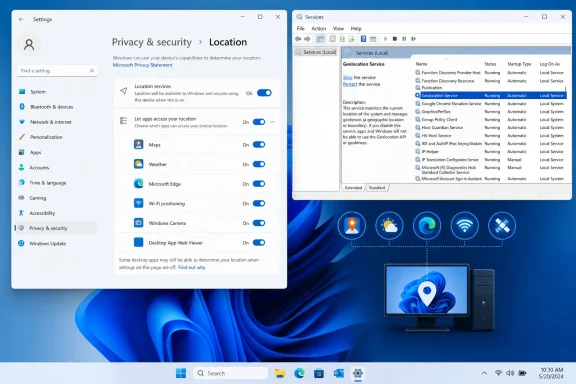 Turn on the device-wide location controls
On Windows 11, open Settings > Privacy & security > Location. On Windows 10, the equivalent page is Settings > Privacy > Location.
First, turn on Location services. This is the device-level control. If it is off, Windows cannot provide its location to apps, and the app-level switches below it cannot override that decision. On a shared PC, an administrator may control this setting; a standard user can be prevented from enabling it.
Next, turn on Let apps access your location. This is the second gate. Location services can be enabled for the PC while every Store-style app remains blocked by the user-level permission setting. Once it is enabled, scroll through the app list and allow the specific app that is failing, such as Maps or Weather.
Windows distinguishes between approximate and precise positioning. When an app has access but still identifies only the right city or region, look for its precise-location permission on the Location page and enable it if the app provides the option. A desktop PC without GPS can still often place itself accurately through Wi‑Fi positioning, but the result will vary with nearby access points and network information.
Use the activity details on the same Settings page as a quick sanity check. Windows can show which apps recently accessed precise location and when. If Maps is listed as a recent user but reports the wrong place, the issue is probably location accuracy or a saved default location—not a blanket permissions block.
For an app that runs as a traditional desktop program rather than a Microsoft Store app, also enable Let desktop apps access your location if that control appears. Microsoft identifies Edge as a desktop app for this purpose. This distinction explains a common dead end: users enable location for “apps,” test a website in Edge, and find that the browser remains unable to request Windows location.
Remove an app or website-specific block
A working Windows location setting does not overrule a denial that was saved by the individual app or website.
For Microsoft Maps and Weather, return to Settings > Privacy & security > Location in Windows 11, or Privacy > Location in Windows 10, and confirm the individual switch is on. Then completely close and reopen the app. If it asked for permission during its first launch and the request was declined, changing the switch in Settings is the cleanest way to restore access.
For a website in Microsoft Edge, click the padlock or site-controls icon next to the address bar while the site is open and review its Location permission. Set it to Ask or Allow, then reload the page. A site placed on Edge’s blocked list will remain blocked even if both Windows-level controls are on.
Edge’s own troubleshooting documentation directs users to its Location permissions page, where a site can be removed from the Block list. In managed environments, Edge policy can also block geolocation for selected URLs. If the site works in a personal browser profile but not in a work profile, do not keep toggling Windows privacy settings: the block may be applied by browser policy.
A similar limit applies to ordinary .exe applications. They may not appear as separately controllable entries in the Windows location-app list. Enabling desktop-app location access is necessary, but the program can also maintain its own privacy or location controls. Check its settings after confirming the Windows controls are enabled.
Check the Geolocation Service before resetting anything
The required Windows component is named Geolocation Service and its service name is lfsvc. It monitors the system’s location and handles geofences—rules that trigger an action when a device enters or leaves a defined area. If it is disabled, applications cannot use Windows geolocation or receive geofence notifications.
Press Windows key + R, type services.msc, and press Enter. Find Geolocation Service in the list and open its Properties window.
If its Startup type is Disabled, change it to Automatic, select Start, choose Apply, and restart the affected app. Microsoft’s current Edge support guidance specifically prescribes that recovery path for a disabled lfsvc service. If the service is not disabled, leave its normal configuration alone; forcing unrelated services to Automatic is not a general cure for location errors.
Experienced users can inspect and start the same service from an elevated Command Prompt:
sc query lfsvc
sc config lfsvc start= auto
sc start lfsvc
The space after start= is required by the Service Control command syntax. This command should be used only when the service is actually disabled or will not start through Services.
If Geolocation Service starts successfully but becomes disabled again after reboot, the PC is being configured by something else. Microsoft’s Edge documentation says this often points to Group Policy. On a company-managed device, the correct fix belongs with the IT administrator, not with a local registry workaround. A policy named Turn off Windows Location Provider disables the Windows Location Provider for all programs on the computer, according to Microsoft’s policy documentation.
On a Windows Pro, Enterprise, or Education PC you administer, review Local Group Policy under Computer Configuration > Administrative Templates > Windows Components > Location and Sensors > Windows Location Provider. The “Turn off Windows Location Provider” policy should be Not Configured or Disabled if location is meant to work. Also check the System Services policy area for a rule that disables Geolocation Service. If Settings displays “Some settings are managed by your organization,” assume a management policy may be involved before altering local settings.
Set a default location on desktops and unreliable networks
A desktop without GPS is not broken merely because it cannot report a precise street address. Microsoft recommends setting a default location particularly for devices without Wi‑Fi and for desktop computers, which may have few usable radio signals for Windows to match against its location database.
Go to Settings > Privacy & security > Location and select Set default under Default location. In the map window, enter an address or select a point on the map, then save it. Windows, Maps, Weather, and other location-aware services can use this fallback when they cannot calculate a better current position.
This is a fallback, not live tracking. A laptop taken to another city may continue to show the saved place until it obtains a stronger location fix. If Maps is reliably showing an old home or office after a move, clear the saved default address rather than repeatedly resetting the Maps app.
Virtual desktops and Cloud PCs add a separate wrinkle. Microsoft says location override requires Location services to be enabled both on the local device and on the remote machine, and the remote-connection app must have location permission. A Weather tile showing the data-center’s city instead of the employee’s city can therefore be a remote-session configuration issue rather than a broken physical PC.
Repair and reset only the app that still fails
Once Windows location works elsewhere, repair the app that still refuses to use it. This is the appropriate point to troubleshoot Maps or Weather itself.
In Windows 11, go to Settings > Apps > Installed apps, select the three-dot menu beside the affected app, then choose Advanced options. Select Repair first. In Windows 10, use Settings > Apps > Apps & features, select the app, and open Advanced options.
Microsoft’s app-repair guidance recommends Repair before Reset because Repair attempts to correct the installation without the more disruptive reset step. If Repair does not resolve the issue, select Reset. Expect the app’s local configuration to return to its defaults, so note any settings or signed-in state you may need to restore afterward.
Do not reset Maps simply because it displays a slightly inaccurate position while other apps do the same. Resetting an app cannot improve the Wi‑Fi, IP-based, or GPS information available to Windows. Use a default location if a stable fallback is acceptable; otherwise test from a different network or location to determine whether the inaccurate result is environmental.
Verify Find my device separately
Find my device depends on more than the normal location permissions used by Maps. Microsoft states that it must be enabled in advance, the device must have location turned on, and you must be signed in with a personal Microsoft account that has administrator status. The PC also needs an internet connection and enough battery to report its location.
The practical consequence is that turning off Location services to troubleshoot privacy concerns can silently undermine a recovery feature you may need later. Individual users turning off location access for their own apps do not prevent Find my device from functioning when the device-level location setting remains enabled.
Windows 10 can still follow the same permission and service checks, but its free support ended on October 14, 2025. A restored location setting does not restore security updates. For a Windows 10 machine that remains in service, treat this as a functional repair and separately plan its supported upgrade or replacement path.
