
The practical consequence is simple: deleting a few temporary files may resolve a genuine storage shortage, but it will not fix a PC whose page file is disabled, artificially capped, or being exhausted by a background process. Conversely, increasing virtual memory will not repair a stuck or corrupt Windows Update download cache. The order below separates those cases without jumping straight to destructive “reset everything” scripts.
Microsoft’s current Windows Support guidance lists 0x8007000E as an insufficient-disk-space installation failure. Its Windows Client documentation, however, says the same code can occur when Windows servicing does not have enough available virtual memory. That is not a contradiction so much as a warning about a broad error code: it describes resource exhaustion, not one single fault.
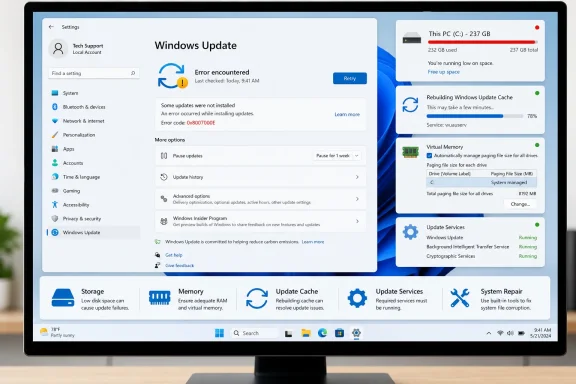 Check the system drive, not just the update download
Open File Explorer, select This PC, and look at free space on the Windows drive, normally C:. Do this before clearing anything: if the drive is nearly full, Windows may have nowhere to unpack the downloaded update, create restore and rollback data, or expand component-store files during installation.
For a major Windows feature update, Microsoft says the older baseline is 16 GB free for a 32-bit operating system and 20 GB for a 64-bit operating system. Those numbers are a minimum threshold, not a promise that every machine will need exactly that amount. Optional features, language packs, existing pending updates, installed drivers, RAM size, and the update path all affect temporary space requirements.
On Windows 11, go to Settings > System > Storage > Cleanup recommendations and review the categories before removing them. Temporary files and an earlier Windows installation are common candidates, but do not casually delete Downloads or Recycle Bin contents unless you have checked what is there. Storage Sense is also useful for routine housekeeping, though it is not a substitute for verifying free capacity immediately before an update.
If Windows Update offers a Fix issues or free-space prompt, follow that prompt rather than assuming the update is broken. Feature updates can use a connected external drive as temporary storage on supported configurations, which is safer than moving or deleting system folders by hand.
A small drive that repeatedly fails monthly cumulative updates needs a capacity plan, not a monthly cache purge. Move large personal files off C:, uninstall applications you no longer use, and review optional Windows features and language packs. An update that barely succeeds with no reserve space often leaves the PC vulnerable to the next servicing failure.
Clear only the Windows Update download cache
If C: has reasonable headroom but 0x8007000E persists, clear the update cache. This removes downloaded update files and Windows Update’s local database; it does not uninstall installed updates, delete documents, or reset Windows itself. The next update check may take longer because Windows must rebuild its cache and download packages again.
First, save work and disconnect from any active update installation screen. Then press Win + R, enter services.msc, and press Enter. Find Windows Update, right-click it, and select Stop.
Open File Explorer and go to:
C:\Windows\SoftwareDistribution
Delete the contents inside that folder. Do not delete the SoftwareDistribution folder itself while using this beginner-level method, and do not delete arbitrary folders under C:\Windows. Return to Services, right-click Windows Update, and select Start.
Restart the PC once the service is running, then open Settings > Windows Update and choose Check for updates. The restart is worth doing even if the service starts normally: it clears processes that may still be holding update files open and lets Windows settle any pending servicing operation.
Microsoft’s support guidance specifically recommends this cache-clearing process for corrupt update files. It is a sensible second step because failed downloads can remain in the cache and cause Windows to retry the same damaged package.
Restart the services that move and verify update files
Windows Update is more than the service named Windows Update. The update client relies on the Background Intelligent Transfer Service (BITS) to transfer downloads and on Cryptographic Services to support signature and catalog verification. A stopped service is more often associated with other error codes, but restarting the chain is a low-risk follow-up after cache cleanup.
In services.msc, locate these services:
- Windows Update
- Background Intelligent Transfer Service
- Cryptographic Services
For each service, confirm that it is not stuck in a perpetual “Stopping” state. If it is stopped, start it. If it is running, right-click it and select Restart where that option is available. Restarting Windows afterward remains the cleanest way to ensure dependent processes return in the right order.
Avoid changing every service to Automatic just because an online checklist says to do so. On a normally configured Windows 10 or Windows 11 PC, some update-related services use trigger-start behavior and do not need to run continuously. On business-managed PCs, Group Policy, Windows Server Update Services, Microsoft Intune, or another management tool may deliberately control service behavior. A manually disabled Windows Update service is a problem; a service that is stopped until Windows needs it is not automatically evidence of one.
For a more complete reset, Microsoft’s Windows Update documentation uses an elevated Command Prompt to stop BITS and Windows Update, rename both SoftwareDistribution and catroot2, then start the services again. That is appropriate only after the simple cache reset fails, because catroot2 is part of the catalog-verification path and the procedure forces Windows to recreate more servicing state.
Open Command Prompt as administrator and run the following commands one at a time:
net stop bits
net stop wuauserv
net stop cryptsvc
ren %systemroot%\SoftwareDistribution SoftwareDistribution.bak
ren %systemroot%\System32\catroot2 catroot2.bak
net start cryptsvc
net start bits
net start wuauserv
Then restart Windows and try the update again. Renaming, rather than deleting, the folders gives Windows a rollback-friendly copy if an administrator needs to inspect the prior cache. If one of the stop commands reports that a service is not started, continue; it simply means there was no running instance to stop.
Do not use this reset indiscriminately on managed enterprise devices. First check whether the device is directed to an internal update server and whether other machines are failing on the same update. A local cache reset cannot fix a bad package or approval problem on the management server.
Rule out virtual-memory exhaustion
If free disk space is adequate, the update cache has been rebuilt, and 0x8007000E still returns during installation, examine virtual memory. Microsoft Learn identifies two common causes: third-party software consuming substantial virtual memory, and a page file that has been manually configured instead of automatically managed.
Open System Properties by searching for “View advanced system settings.” Under Performance, select Settings, open the Advanced tab, and select Change in the Virtual memory section. For most home and small-office PCs, enable Automatically manage paging file size for all drives. Restart after changing it.
A custom page file can be valid on specialist workstations and servers, but it should not be set to zero on a machine expected to install Windows updates. If a security tool, virtual machine host, browser workload, or other application is consuming memory aggressively, close it and retry after a clean restart. Microsoft Learn also notes that a non-default RegistrySizeLimit value can prevent servicing when the registry reaches that artificial ceiling; that is an administrator-level configuration issue, not a registry value to change blindly.
A clean boot is the next controlled diagnostic if the error persists. Microsoft recommends it to reduce startup applications and services that could interfere with updates. It is more informative than disabling random security products: if the update succeeds in a clean boot, re-enable startup items and non-Microsoft services in groups until the conflicting software is identified.
Repair Windows servicing only after the basics fail
When the same update still fails after storage, cache, service, and page-file checks, repair the component store before trying a manual update package. Open Command Prompt as administrator and run:
DISM.exe /Online /Cleanup-image /Restorehealth
sfc /scannow
Let each command finish. DISM repairs the Windows component store, while System File Checker validates and replaces protected system files. Restart, return to Windows Update, and try again.
If Windows Update then identifies a particular failed KB package, note its exact KB number and check Update history. That number distinguishes a general update-client failure from one defective or incompatible package. Repeated attempts without recording the KB and installation stage only obscure the useful evidence.
Windows 10 users should also confirm that their device is entitled to receive the update being requested. Standard Windows 10 support ended on October 14, 2025; Microsoft’s Extended Security Updates program covers eligible Windows 10 version 22H2 systems for critical and important security updates after that date. A cache reset cannot restore normal servicing to an unsupported installation.
The key point is to stop treating 0x8007000E as a one-cause disk-space error. Free space on C:, rebuild the download cache, restart the update transfer and verification services, and restore automatic virtual-memory management if it was overridden. If the same named KB fails after those checks, the evidence has shifted from a routine local blockage to a component-store, policy, or update-package issue—and the KB number and update logs are the information worth preserving before making broader changes.