
Microsoft’s current Edge support documentation confirms that the browser imports a “Favorites or bookmarks HTML file,” while Microsoft’s Edge community guidance documents the matching export command from the Favorites manager. The important practical detail is that the HTML file is a backup of your saved links and folder structure—not a complete backup of your Edge profile.
Before you start, close any doubt about which Edge profile holds the favorites you want. Edge profiles can have separate favorites collections. Check the profile icon in the upper-right corner of the browser window and switch to the correct personal, work, or school profile before exporting.
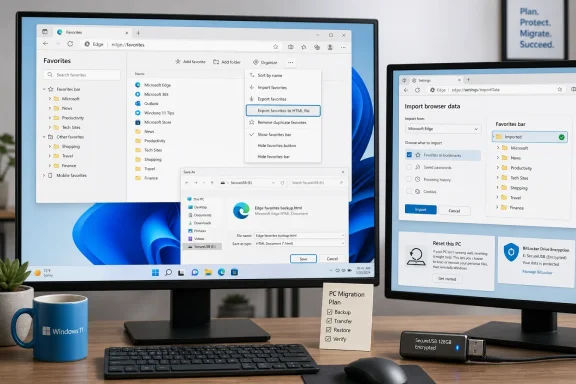 Export Edge favorites to an HTML backup
Open Microsoft Edge, click the address bar, type edge://favorites, and press Enter. This opens the full Favorites manager, which is less ambiguous than working from the small Favorites flyout.
At the top of the Favorites manager, select the three-dot More options menu near the option to add a folder. Choose Export favorites.
When Windows asks where to save the file, do not leave the only copy in Downloads or on the Desktop if you are about to reset or replace the computer. Create a clearly named file such as:
Edge-favorites-2026-08-14.html
Save it somewhere that will survive the change you are making. A USB drive, an encrypted external drive, a trusted cloud-storage folder, or another PC are sensible choices. For an especially important set of bookmarks—research links, administrative consoles, financial sites, or project documentation—keep two copies in separate locations.
The export should finish immediately and create an .html file. This is a standard bookmarks format, which is why it can also be imported by other major browsers. The portability is useful when moving from Edge to another browser, but it also means the file is easy to open, copy, and accidentally expose.
Treat the HTML export as sensitive information. Favorites can reveal internal hostnames, customer portals, cloud tenants, personal interests, account sign-in pages, and the structure of a company’s web tools. Encrypt removable storage where appropriate, and do not email an unprotected favorites backup as an attachment.
What the Edge favorites export saves—and what it does not
The export is designed to preserve favorites: bookmarked addresses, their names, and their folders. That includes the links you place on the Favorites bar, provided they exist in the profile you exported.
It is not a full browser migration archive. Do not assume the file contains the rest of your Edge data. In particular, it does not serve as a recovery copy for saved passwords, payment data, browsing history, open tabs, extensions, cookies, site permissions, collections, or Edge settings.
Microsoft separates these data types in its own import controls. Its support documentation describes favorites imports from HTML files and passwords imports from CSV files as distinct operations. That separation is a useful warning: a favorites HTML file should never be the only preparation before wiping a PC.
If you depend on saved passwords, confirm that Edge sync is configured for the correct account, or use an approved password-manager export and recovery process. For work devices, follow the organization’s data-handling policy rather than exporting credentials or browser data into personal storage.
A good pre-reset routine is straightforward:
- Export favorites from every Edge profile that matters, including a separate work profile if one exists.
- Store the resulting HTML files outside the device that may be reset, replaced, or repaired.
- Verify the files are present and have a plausible size before making irreversible changes.
- Record which file came from which PC and profile, especially if several people use the same computer.
The extra label matters. A file called bookmarks.html is not very helpful six months later when it is sitting beside three other files with the same name.
Import the backup into Microsoft Edge
On the replacement PC, the newly reset Windows installation, or the repaired Edge profile, first open the Edge profile that should receive the restored favorites. If you sign in to Edge and turn on sync before importing, wait long enough to see whether your favorites already return from the Microsoft account. Importing an old export into a fully synced profile can add a second copy of links you already have.
To import the HTML backup through Edge’s current Settings interface:
- Open Edge and select the three-dot Settings and more menu.
- Choose Settings.
- Open Profiles, then select Import browser data.
- Under Other import locations, select the Import button next to Import browser data now.
- In the Import from list, choose Favorites or bookmarks HTML file.
- Select Choose file, browse to your backup, select it, and choose Open.
- Wait for Edge’s completion message, then select Done.
Microsoft says imported favorites appear in a folder on the Favorites bar, often named Imported. This behavior is protective: Edge does not need to overwrite the favorites already in the destination profile merely because you chose a file.
For a clean restore after a reset, the imported folder may contain everything you need. You can leave it as a dated archive folder, rename it, or move its folders and links into your preferred arrangement. If you are importing into an existing profile, keep the imported folder intact until you have checked that all expected links arrived. Moving or deleting it too early makes verification harder.
Verify the folders, Favorites bar, and important links
An import-complete notification only establishes that Edge accepted the file. It does not prove that your most important folders are where you expect them or that the backup was the correct one.
Return to edge://favorites and expand the imported folder. Start by checking the broad structure rather than opening every saved site. Look for the top-level folders you use most, such as Work, Personal, Banking, Research, Shopping, Home Lab, or Projects. If those folders are present, the nested entries are likely present as well.
Then inspect the Favorites bar. In a fresh Edge profile, the bar may not be visible until you enable it. Open Edge Settings, go to Appearance, and find the Favorites bar setting. Set it to show on all tabs if you want immediate access to your favorite-bar links, or choose the behavior that matches how you used Edge before.
Next, open several high-value bookmarks:
- Test at least one link that was directly on the Favorites bar.
- Test a bookmark from a nested folder, not just a top-level folder.
- Check one recently added link and one older link, which helps catch an export made from the wrong profile or from an outdated PC.
- Confirm that a work-only link has not landed in a personal Edge profile where it does not belong.
If Edge imports the file but you cannot find an expected folder, do not immediately import the same file again. First confirm the backup filename and its source device, then check the original machine—if it still exists—for another Edge profile. Repeated imports can make the Favorites manager harder to sort through and can create confusion over which collection is authoritative.
Sync is helpful, but the HTML file is your rollback point
Microsoft Edge can sync favorites across devices when you sign in and enable the Favorites sync category. That is convenient for ordinary PC changes: sign in to the same profile on the new device, turn on sync, and saved links can follow you without manually moving a file.
But sync and backup answer different problems. Sync keeps the current state consistent across devices. An HTML export is a dated snapshot that can be retained before you remove folders, test profile changes, or reset Windows. Keep both where possible.
There is one enterprise caveat. Microsoft’s Edge policy documentation allows administrators to disable manual favorites importing through the ImportFavorites policy. If the import controls are missing or unavailable on a managed work PC, that may be policy—not a damaged Edge installation. Contact IT rather than attempting to work around the restriction.
The practical outcome is simple: create the HTML export before the disruptive change, store it away from the PC, import it only into the intended Edge profile, and verify the folder tree plus a handful of critical links. Ten minutes of preparation is enough to turn a browser reset or PC replacement from a recovery problem into a routine restore.
