

Microsoft’s own service-health guidance makes the same basic point for organizations: check whether a known incident is active before spending time on local troubleshooting. The practical wrinkle for home users and small offices is that the public status page and the Microsoft 365 admin center do not show the same information. The public Microsoft service-health page is a useful first stop for consumer products and as a backup notification page, while the Microsoft 365 admin center’s Health > Service health view is the record that can identify incidents and advisories affecting a particular business tenant.
This 10-minute check uses Edge as the real-world symptom test and nslookup as a way to isolate DNS. It does not “prove Microsoft is down” from one command. It gives you enough evidence to avoid the familiar mistake of reinstalling Edge, rebooting routers, or changing DNS servers when Microsoft is already working on the service — and enough detail to identify when the fault is much closer to home.
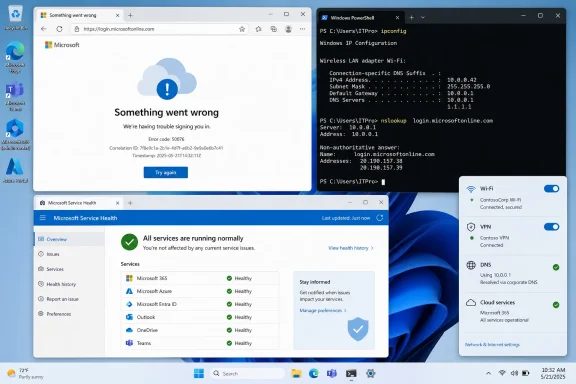 Start with the exact service and its official status
Open the Microsoft service that is failing in Edge and write down the exact address in the address bar. This matters more than it sounds. “Teams is down” can mean the Teams web app will not load, a sign-in page is failing, media traffic is blocked, or a corporate conditional-access policy has rejected the session. Those are different paths with different causes.
Use a new InPrivate window in Edge and visit the same address. An InPrivate window starts without the normal browsing session’s cookies and most extensions, so it is a quick way to separate an account/session or extension problem from a broader connection problem. If the site works there but fails in a normal Edge window, do not treat it as a Microsoft outage. Clear data for that site, review extensions, and sign in again before changing networking settings.
Then check Microsoft’s appropriate service-health channel:
- Personal Microsoft accounts, consumer Outlook, Xbox, and family or student Microsoft services may appear on Microsoft’s public Service Health Status page.
- Microsoft 365 business and enterprise administrators should sign in to the Microsoft 365 admin center and open Health > Service health.
- Azure customers should use Azure Service Health rather than assuming a Microsoft 365 status report covers an Azure resource.
Microsoft describes an advisory as a problem affecting some users while the service remains available, often intermittently or with a workaround. An incident is a more serious interruption in which a service or major function is unavailable. Neither label guarantees that every network, tenant, region, or feature is affected. Read the issue details for affected services, geography, user impact, and Microsoft’s current mitigation status.
A green public status page is useful evidence, but it is not a clean bill of health for every workload. Microsoft says the tenant-aware Service health dashboard has a more accurate view of issues affecting the services an organization actually manages. Conversely, a dashboard entry does not automatically explain a failure confined to one PC. Keep testing.
Use Edge to establish whether the problem is local
Before opening a terminal, test a few deliberately different destinations in Edge:
- Open the failing Microsoft address in a normal Edge window.
- Open the same address in an InPrivate window.
- Open one unrelated, well-known website.
- If policy permits, test the same Microsoft address through a different connection, such as a phone hotspot rather than the office or home Wi‑Fi.
The pattern is more informative than a single “This site can’t be reached” page.
If unrelated sites also fail, the likely fault is your PC’s connection, router, ISP, captive portal, or network security controls. If normal Edge fails but InPrivate works, look first at cached site data, extensions, stored sign-in state, or a browser policy. If the same Microsoft hostname fails on the office network but works through a phone hotspot, the evidence points at the office router, DNS filtering, firewall, proxy, VPN, or ISP path — not at the service itself.
If the problem follows the Microsoft account across multiple browsers and networks, while Microsoft’s status channels show no incident, the issue may be account-specific or tied to authentication and policy. That needs a support or administrator investigation, not a DNS flush.
Microsoft’s Edge support guidance recommends trying the page in another browser; if it fails there too, the problem may be with the network or the website. That is a sensible triage step, but avoid turning it into a ritual of installing browsers. A second browser is a comparison tool, not a repair.
Check which DNS server Windows is actually using
DNS converts a name such as outlook.office.com into an IP address. A failed DNS lookup can stop Edge before it has any opportunity to contact Microsoft. But a successful lookup only proves that a DNS server returned an answer; it does not verify that the web service accepted a connection, that TLS succeeded, or that your account can sign in.
Open Windows Terminal, Command Prompt, or PowerShell. You do not need administrator rights for the following checks.
First, identify your active adapters and assigned DNS servers:
ipconfig /all
Look under the adapter you are actually using — commonly Wi‑Fi or Ethernet — for DNS Servers. Ignore disconnected virtual adapters unless they are part of your connection setup. A corporate device may show an internal DNS server, a VPN client may redirect queries to an enterprise resolver, and a home device will often list a router address that forwards DNS requests elsewhere.
Next, look up the hostname that Edge is failing to open. Use the exact hostname from the address bar, without https:// and without any path after the domain name. For example:
nslookup outlook.office.com
The first part of the result identifies the DNS server Windows queried. The later answer lines usually show the name returned and one or more IP addresses. Large Microsoft services often use content-delivery networks and load balancing, so multiple addresses — and different results between networks — can be normal.
Here is how to read the common outcomes:
- If
nslookupreturns an address, Windows received a DNS answer. The problem may still be in Edge, authentication, HTTPS inspection, a proxy, firewall policy, routing, or the Microsoft service itself. - If it reports that the server cannot be found, requests timed out, or gives a DNS error, note the exact message and the DNS server named at the top of the output.
- If it identifies an unfamiliar DNS server, check whether a VPN, security suite, parental-control product, work profile, router setting, or managed-device policy is intentionally controlling DNS.
- If the hostname resolves but an unrelated hostname does not, do not immediately blame Microsoft. Your resolver may be selectively filtering a category, or the network may have an incomplete DNS failure.
Do not judge the result by whether the returned IP address “looks Microsoft.” Microsoft services can use shared cloud and delivery infrastructure; an address is not a reliable ownership label.
Compare the configured resolver with a second resolver
The useful nslookup feature is its optional second argument: it lets you query a named DNS server directly without changing Windows networking settings. Microsoft’s nslookup documentation supports this noninteractive form.
For a comparison, query the same hostname against a public resolver your organization permits. For example:
nslookup outlook.office.com 1.1.1.1
Then compare it with Windows’ default lookup:
nslookup outlook.office.com
You are looking for a meaningful difference in success or failure, not identical IP lists. A global service may legitimately return different addresses because the DNS server location, network, and load-balancing policy differ.
If your normal lookup fails but the direct lookup succeeds, the strongest immediate clue is a problem with the DNS resolver configured on your PC or network. That could be the router’s DNS forwarding, the ISP resolver, an enterprise DNS server, a VPN, or a filtering service. It is evidence against a blanket Microsoft outage, because another resolver can find the hostname.
If both lookups succeed but Edge cannot load the site, stop treating DNS as the primary suspect. Capture the Edge error wording, test another network, and check the relevant Microsoft status channel. At that point, changes to DNS are more likely to mask the evidence than to fix the actual failure.
For managed PCs, do not replace corporate DNS with a public resolver as a casual test. Internal names, split-DNS access, security controls, and conditional-access dependencies may rely on the organization’s DNS design. Record the result and give it to IT instead.
Flush stale DNS only after the comparison
Windows keeps a local DNS resolver cache. Microsoft documents ipconfig /flushdns as a way to clear cached DNS information, including negative entries created when a lookup previously failed. It is a limited, reversible troubleshooting step; it does not reset Wi‑Fi, change the DNS server, repair a router, or fix a Microsoft-side incident.
Run:
ipconfig /flushdns
Then repeat the lookup and Edge test:
nslookup outlook.office.com
If the name now resolves and Edge works, the local DNS cache was part of the failure. If the lookup still fails against the same configured DNS server but works against the comparison resolver, document the configured DNS server and escalate to the network owner or ISP. Restarting the router may help only when that router is the broken DNS forwarder; it is not a substitute for identifying the failure.
Windows Settings also allows manual DNS configuration under Settings > Network & internet, then the active Wi‑Fi or Ethernet connection and the IP assignment settings. Microsoft recommends automatic DHCP settings in ordinary setups. Treat manual DNS changes as a controlled workaround, not the first response to a vague connectivity problem, and restore managed or workplace devices to their intended configuration if you made a temporary change.
The key outcome is a short, useful incident note: the affected hostname, the Edge error, whether InPrivate changed the result, whether another network worked, the configured DNS server, and the output result from the default and comparison nslookup queries. That record tells a help desk or network administrator far more than “Microsoft is down,” and it keeps a genuine Microsoft incident from being confused with a problem on your own Windows PC.