

Microsoft Support identifies the Windows Web Experience Pack as the app that delivers Widgets and other web-powered Windows experiences. Its current Widgets guidance also says the feature needs current supporting components. One important wrinkle: Microsoft’s older Widgets documentation refers to the Windows Web Experience Pack and Microsoft Edge, while newer documentation calls out the Web Experience Pack and Start Experiences App. That means repairing WebView2 can be useful, but it is not a substitute for updating or resetting the Widgets package itself.
Before changing anything, restart the PC once and test Widgets with Win + W. This separates a missing taskbar button from a board that cannot open or load content.
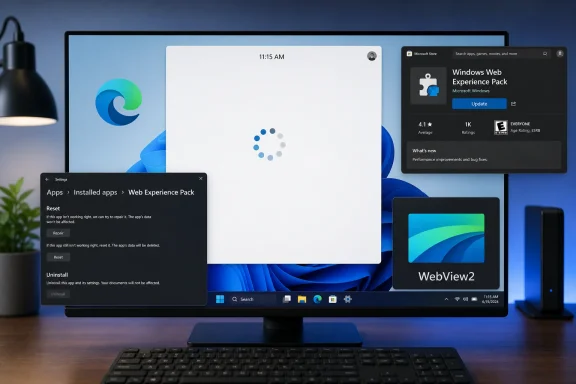 Confirm that Widgets Is Enabled on the Taskbar
If the Widgets icon disappeared from the taskbar, that is a visibility setting—not proof that the feature was removed or broken.
- Right-click an empty area of the taskbar and select Taskbar settings.
- Under Taskbar items, switch Widgets to On.
- Press
Win + Wto open the board.
Microsoft notes that Win + W can still open Widgets even when its taskbar icon is turned off. If the shortcut opens the board normally, the fix is complete; leave the taskbar switch on only if you want the weather or Widgets entry point visible.
If Win + W opens a blank panel, flashes and closes, or leaves an indefinite loading animation, continue with the package repair steps below.
Update Windows, Microsoft Store, and the Web Experience Pack
Widgets is partly serviced through Microsoft Store rather than only through the monthly Windows Update process. A fully patched Windows 11 installation can therefore still have an outdated Windows Web Experience Pack.
Open Settings > Windows Update and install all available updates, then restart if Windows requests it. Next, open Microsoft Store, select Library, and choose Get updates. Look specifically for updates to:
- Windows Web Experience Pack.
- Start Experiences App, if it appears in the update list.
- Microsoft Edge.
- Microsoft Edge WebView2 Runtime, if it is listed separately.
Microsoft Support’s Web Experience Pack documentation directs users to Microsoft Store’s Library page and says the package normally updates automatically in the background. In practice, automatic updates can be delayed when Store updates are disabled, Store has not been opened for some time, or the device is managed by an organization.
To prevent the same failure from returning because the package is left behind on an old release, open Microsoft Store settings from the profile menu and make sure App updates is switched on.
Reset the Windows Web Experience Pack
If an update does not resolve the problem, reset the Windows Web Experience Pack. This is the most targeted repair for a Widgets board that opens but never finishes loading, shows empty cards, or crashes on launch.
- Open Settings > Apps > Installed apps.
- Search for Windows Web Experience Pack.
- Select the three-dot menu beside it and choose Advanced options.
- Select Terminate if that button is available.
- Select Repair first.
- Open Widgets with
Win + Wand test it. - If it still fails, return to the same page and select Reset.
Microsoft’s Windows app repair guidance recommends this exact order: use Repair first, then Reset if Repair does not correct the issue. Repair attempts to fix the installed app while preserving its data. Reset removes the app’s local data and returns the package to a fresh state, so expect Widgets preferences, sign-in state, and locally cached content to be rebuilt.
Do not confuse this with resetting the entire PC. Resetting the Web Experience Pack affects that Store-delivered package; it does not delete documents, installed desktop software, or personal files.
If Windows Web Experience Pack does not appear in Installed apps, skip to the reinstall section. Its absence is useful evidence: the failure is no longer merely corrupted cache or content, but a missing, unregistered, or organization-blocked package.
Repair Microsoft Edge and WebView2
Widgets relies on embedded web rendering. Microsoft Learn’s WebView2 documentation explicitly lists Windows Widgets among applications that use the Edge WebView2 runtime. When WebView2 is damaged, blocked, or unable to start its renderer processes, a white or blank embedded surface is a common result.
First repair Microsoft Edge:
- Go to Settings > Apps > Installed apps.
- Find Microsoft Edge.
- Select the three-dot menu, choose Modify, then select Repair.
- Let the repair finish and restart Windows.
Microsoft’s Edge troubleshooting documentation recommends this repair path when Edge itself will not launch reliably. It is also a sensible low-risk repair when the same Edge servicing components are involved in a broken WebView2-based Windows feature.
Then search Installed apps for Microsoft Edge WebView2 Runtime. Depending on the Windows 11 version and how the runtime was deployed, it may appear as a regular installed app or system component. If a Modify or Repair option is offered, use it and restart Windows afterward.
If WebView2 is missing or its repair cannot complete, download and install the Evergreen WebView2 Runtime only from Microsoft’s official WebView2 download page. Choose the installer matching the device architecture—normally x64 on a conventional Windows 11 PC, ARM64 on ARM-based devices. The Evergreen Runtime is shared: Microsoft’s developer documentation says a single installation supports all Evergreen WebView2 applications on the machine. Installing it is therefore not a Widgets-only change; it can also repair other affected apps such as new Outlook, Teams, or internal business software that uses WebView2.
Close Edge, Widgets, Teams, Outlook, and other web-based Windows apps before trying to repair or install WebView2. Microsoft warns that running Edge or WebView2 applications can hold files needed by the installer.
Reinstall the Windows Web Experience Pack from Microsoft Store
Reinstalling the Web Experience Pack is appropriate when it is missing from Installed apps, Reset does not restore it, or the Widgets executable starts but immediately closes after an update.
Open Microsoft Store, search for Windows Web Experience Pack, and install it from the Microsoft listing. Restart Windows after installation, then press Win + W.
This is preferable to downloading an unsigned package archive or copying an AppX package from another PC. The Store selects the appropriate package and dependencies for the Windows installation, and it restores the normal update channel.
If Microsoft Store itself will not open or cannot obtain the package, press Win + R, enter the following command, and press Enter:
wsreset.exe
Microsoft Support says this clears the Store cache, briefly opens a blank command window, and then starts Microsoft Store. It does not uninstall purchased apps or erase the app library. Once Store reopens, return to Library, run Get updates, and try installing the Windows Web Experience Pack again.
Avoid uninstalling the Web Experience Pack first unless you have confirmed it can be reinstalled from Store. Removing it before fixing a broken Store can turn a recoverable Widgets fault into a missing-component problem.
For a quick verification that the package is registered for the current user, open Windows Terminal or PowerShell and run:
Get-AppxPackage -Name MicrosoftWindows.Client.WebExperience
A returned package record confirms that Windows sees the Web Experience Pack. No result after a Store installation attempt points to an AppX deployment problem rather than a normal Widgets cache failure.
Managed PCs Need a Different Check
On a work-managed Windows 11 PC, a blank Widgets board may be the visible result of a policy or endpoint-security restriction. Microsoft Learn documents that security tooling, Windows Defender Application Control, endpoint detection and response products, DLL injection, altered permissions, or antivirus actions can block or terminate WebView2 processes.
IT administrators should check Task Manager while launching Widgets. Look for msedgewebview2.exe processes under the Windows Widgets host. If no WebView2 child process appears, the runtime may be blocked from starting. If the renderer or GPU process appears briefly and disappears, endpoint security or injected software may be terminating it.
Do not “fix” this by weakening corporate protection or deleting Edge and WebView2 folders. Preserve the evidence, note the time of the failure, and have the administrator review AppLocker, WDAC, EDR, and antivirus events. Microsoft’s enterprise guidance specifically warns against modifying or cleaning the system-serviced WebView2 runtime and its default permissions.
The practical order is simple: enable the taskbar entry, update Windows and Store packages, repair or reset the Windows Web Experience Pack, repair Edge and WebView2, then reinstall the Web Experience Pack from Microsoft Store if it is absent or still corrupt. If Widgets remains blank after those steps while other WebView2 apps also fail, the fault has moved beyond Widgets and should be treated as a WebView2 or managed-device policy issue.