
diskmgmt.msc never opens, the console freezes on “Connecting to Virtual Disk Service,” or the window appears and then closes. Start by treating those as a management-console problem—not permission to initialize, format, clean, or otherwise alter a disk.Microsoft’s Disk Management documentation still applies to Windows 10 and Windows 11, and Microsoft’s troubleshooting guidance specifically calls out failures to start the Virtual Disk Service. The important wrinkle is that Virtual Disk is normally a demand-start service: seeing it stopped before Disk Management launches is not automatically a fault, and changing it permanently to Automatic is usually unnecessary.
Before repairing Windows files or changing services, disconnect any newly attached USB drive, docking station, external enclosure, or questionable drive that was present when the problem began. Disk Management enumerates available storage while it opens; a device that is timing out can make the interface appear broken even when the MMC console and Windows installation are intact.
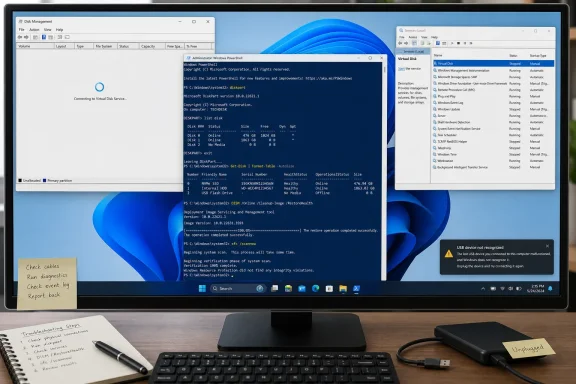 Confirm that the Disk Management console is the part that failed
Open an elevated Windows Terminal, Command Prompt, or PowerShell session. Then try to launch Disk Management directly:
diskmgmt.msc
If that does nothing, try opening the same snap-in through Computer Management. Press Win + R, enter:
compmgmt.msc
Then select Storage > Disk Management. Microsoft documents both paths, and the second route helps distinguish a failed shortcut or file association from a storage-management failure inside the snap-in.
A window that opens but remains stuck on “Connecting to Virtual Disk Service” has reached the console but has not finished talking to Windows storage services. A window that immediately closes can point to damaged system components, a malformed MMC configuration, or a third-party disk utility interfering with the legacy management stack.
Do not confuse this with a disk that is absent inside Disk Management. If the console opens and the drive is missing, offline, unreadable, or shown as RAW, that is a different diagnosis. Microsoft warns that a disk can be missing or fail to initialize because of a physical hardware failure, and initializing or formatting it can destroy recoverable data.
Check Virtual Disk without forcing every service to start
Disk Management historically communicates with the Virtual Disk service, whose service name is vds. Microsoft now describes the older Virtual Disk Service interface as superseded by the newer Windows Storage Management API, but the familiar Disk Management interface can still display the VDS connection message. That legacy wording is why advice to “enable VDS permanently” is common—and often too blunt.
Check the service state from an elevated terminal:
sc query vds
Or, in PowerShell:
Get-Service -Name vds
If the service is stopped, start it once:
sc start vds
Then close Disk Management completely and run diskmgmt.msc again. If it is already running but the console remains frozen, restart the service:
sc stop vds
sc start vds
You can also use services.msc, find Virtual Disk, and choose Start or Restart where available. If its Startup type has been explicitly set to Disabled, change it to Manual, apply the change, and start the service. Manual is the appropriate setting for a demand-start service; setting it to Automatic merely masks the fact that Disk Management should be able to request it when needed.
Also verify that Remote Procedure Call (RPC) is running:
sc query RpcSs
RPC should report RUNNING. Do not attempt to stop or restart RPC on a live system; it is a core Windows service and Windows will normally block the request. If RPC is not running or produces an error, reboot the PC rather than trying to repair the service manually.
Microsoft’s remote-management guidance adds an important limit to this step. Firewall configuration and Remote Volume Management exceptions matter when Disk Management is connecting to a remote PC. They are not the first fix for a local computer that hangs while loading its own disks. If you are working locally, focus on VDS, the storage hardware, and Windows component integrity first.
Use DiskPart and PowerShell as safe diagnostic controls
A failed Disk Management window does not prove Windows has lost access to the drives. Test the storage layer with read-only commands before changing anything.
Open an elevated terminal and run:
diskpart
At the DISKPART> prompt, enter:
list disk
Then exit:
exit
list disk only lists drives; it does not alter partition tables or volumes. If it returns a normal disk list while Disk Management continues to hang, the physical storage stack is responding and the fault is more likely confined to the management console, VDS path, or an interfering application.
PowerShell provides a second test using the newer Storage module:
Get-Disk
Microsoft documents Get-Disk as returning physical disks visible to the operating system. It does have a limitation: dynamic disks are not returned in the same way as basic disks. Still, on a typical Windows 10 or Windows 11 PC using basic GPT disks, it is a useful confirmation that Windows can enumerate storage without the Disk Management interface.
Interpret the results carefully:
- If both
list diskandGet-Diskwork, restart Virtual Disk and repair Windows components before considering hardware replacement. - If both commands hang, take an unusually long time, or stall only while a particular external drive is attached, shut down and test with that device disconnected. The enclosure, cable, drive firmware, or the drive itself may be preventing enumeration.
- If
Get-Diskworks but DiskPart does not, or vice versa, record the exact error rather than issuing repair commands against a disk you cannot positively identify. - If the affected device contains important data, do not use
clean,convert,format,initialize, or any “fix” that writes to the drive until the data is backed up or a recovery plan is in place.
Third-party partition managers, RAID utilities, disk-encryption products, and storage-controller software deserve attention here. Microsoft notes that some non-Microsoft disk-management products can replace or disable Microsoft’s Logical Disk Manager functionality. Uninstalling a utility should be a last resort if it controls an active RAID, encrypted volume, or vendor-specific storage configuration; first check whether the vendor has an update compatible with the installed Windows build.
Repair the Windows component store before running SFC
When Disk Management fails after a Windows update, an interrupted cleanup, malware remediation, or a crash, repair the Windows image before trying to replace individual files. Microsoft’s current support instructions put DISM first because it repairs the component source that System File Checker relies on.
In an elevated terminal, run:
DISM.exe /Online /Cleanup-Image /RestoreHealth
DISM may take several minutes and normally uses Windows Update to obtain repair files. Keep the PC online, do not close the terminal, and wait for the final result. A message that the operation completed successfully means the component store was repaired or was already usable; it does not by itself prove Disk Management is fixed.
Next run:
sfc /scannow
SFC verifies protected Windows system files and replaces damaged copies from the repaired component store. Microsoft advises waiting until verification reaches 100 percent before closing the session.
The result dictates the next move:
- “Windows Resource Protection did not find any integrity violations” means Windows did not detect protected-file corruption. Return to the service and hardware checks rather than repeating SFC.
- “Windows Resource Protection found corrupt files and successfully repaired them” calls for a reboot, followed by another attempt to open
diskmgmt.msc. - “Windows Resource Protection found corrupt files but was unable to fix some of them” means the repair is incomplete. Run DISM again, restart, and rerun SFC. If it persists, capture the SFC details rather than guessing which file to replace.
To extract the relevant SFC entries to a desktop text file, use:
findstr /c:"[SR]" %windir%\Logs\CBS\CBS.log >"%userprofile%\Desktop\sfcdetails.txt"
Do not download random replacement copies of system files. Microsoft’s own repair documentation treats manual replacement as an exceptional measure requiring a known-good file from the same Windows version and architecture. On a Windows 10 or Windows 11 PC, an in-place repair installation is generally safer than selectively copying DLLs from another machine.
Reboot, retest, and separate local from remote failures
After starting or restarting Virtual Disk and completing DISM and SFC, restart Windows. Then test in this order:
diskmgmt.msc
diskpart
list disk
Get-Disk
If Disk Management opens after the reboot, verify that the expected disks and volumes appear before taking any action. If it still fails but DiskPart and PowerShell work, use those tools for non-destructive inspection while investigating MMC configuration or third-party storage software. For routine basic-disk administration, Windows’ modern Storage cmdlets can be a practical alternative, though they do not eliminate the need for Disk Management in every dynamic-disk or legacy workflow.
If all three tools fail to enumerate disks, stop treating the problem as a broken console. Test without external storage devices, inspect Device Manager and Event Viewer for controller or disk errors, update storage-controller and enclosure drivers from the hardware vendor, and prioritize a backup of any readable data. A Disk Management hang can be the first visible symptom of a drive or controller that is no longer responding reliably.
