
The important limitation comes first: Windows Data usage is a local accounting tool, not a carrier-grade billing meter or a hard internet shutoff. It records what the PC believes it has sent and received through a selected network adapter. Your mobile carrier, ISP, hotspot, router, VPN, or corporate gateway can count traffic differently, and Windows will not stop a download you deliberately start merely because the number reaches your allowance.
Use it as an early-warning system, then pair it with a metered connection to curb background activity on a capped connection.
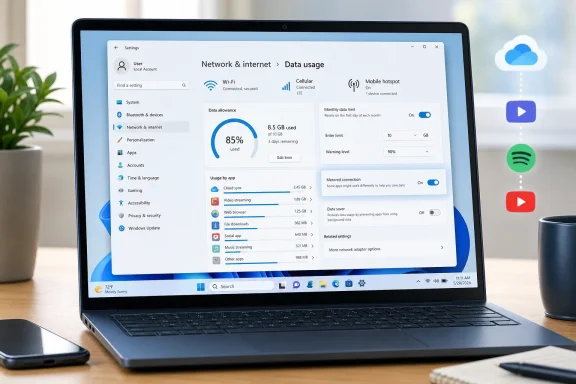 Find the connection that is consuming data
On Windows 11, open Settings with Win + I, then go to Network & internet > Advanced network settings > Data usage. If the PC has more than one adapter — for example, Wi-Fi, Ethernet, a cellular modem, a VPN, or a virtual adapter installed by Hyper-V or a security product — use the connection selector at the top of the page to inspect the one that actually carries your internet traffic.
The page reports usage for a recent period and lists applications and Windows components beneath it. Sort mentally from the largest numbers downward: a browser, a cloud-sync client, Steam, Xbox, OneDrive, a video app, or “System” often explains a large total faster than a deep network troubleshooting session.
On Windows 10, open Settings > Network & Internet > Data usage. The page follows the same basic model, although menu labels and placement differ between older Windows 10 releases. Select the relevant Wi-Fi, Ethernet, or cellular connection before drawing conclusions from the app list.
Do not overlook the word connection. Usage is tracked separately for network interfaces, so heavy traffic on an Ethernet dock may not appear under Wi-Fi, and a laptop connected through a phone hotspot can have its own record. If a number looks implausibly low, verify that the selected adapter matches the link currently shown as connected in Network & internet.
A VPN deserves special attention. Windows may show traffic under the physical Wi-Fi or Ethernet adapter, the VPN adapter, or both in ways that make simple comparisons confusing. For a quick answer to “what used my hotspot data,” temporarily disconnect the VPN, reset the counter for the hotspot connection, and observe usage during a normal work session.
Read the app list before setting a limit
The Data usage list identifies broad application consumption; it does not provide the forensic detail of a packet capture or a per-process live bandwidth meter. Still, it is usually enough to identify the category of problem.
If a browser tops the list, inspect open tabs, video quality settings, download managers, and extensions. Browser traffic can also include web apps such as Teams, Outlook on the web, cloud-storage portals, and remote desktop gateways, so the browser entry is a container rather than a final diagnosis.
If OneDrive, Dropbox, Google Drive, Steam, Epic Games Launcher, Xbox, or another sync or game client is near the top, pause its activity before moving to more aggressive controls. A new PC, a restored backup, a large game update, or a photo-library sync can legitimately consume tens of gigabytes. The useful next action is to change the workload — pause sync, restrict folders, defer game updates, or wait for unmetered Wi-Fi — rather than simply toggling Windows settings and hoping the traffic disappears.
“System” or Windows-related entries need more care. Microsoft documents that a metered connection can restrict background updates and syncing, but it does not mean Windows will never communicate while the connection is metered. Security-related traffic, connection checks, manually initiated updates, and services needed to keep the device functioning can still use data. Microsoft also notes that manually initiated Windows Update or Microsoft Store downloads are not governed by Delivery Optimization’s bandwidth limits.
For administrators, the distinction is practical: a metered policy is suitable for reducing surprise consumption on an employee’s hotspot; it is not a substitute for endpoint-management controls, update rings, content caching, or a firewall egress policy.
Set a monthly, one-time, or daily data limit
In Windows 11, open Settings > Network & internet > Advanced network settings > Data usage, select the connection, and choose Enter limit. In Windows 10, open Settings > Network & Internet > Data usage and select Enter limit for the connection being monitored.
Windows offers three useful limit models:
- A Monthly limit is the right choice for a cellular plan, home broadband allowance, or recurring tethering allocation. Set the reset date to match the billing cycle rather than the date you happen to configure it.
- A One time limit fits a temporary travel eSIM, prepaid hotspot allotment, conference Wi-Fi package, or a short-term backup connection.
- A Daily limit can help when a shared hotspot has a small daily allowance, though it is too rigid for most monthly plans because Windows and application updates do not arrive evenly each day.
Enter the amount in MB or GB and save it. Windows then compares its local count with the limit and warns as consumption approaches or exceeds it. Microsoft describes the setting as a way to help users remain under a data plan and find ways to reduce traffic.
Set the Windows limit below the provider’s actual cap. A sensible buffer is especially important when the PC uses a VPN, when other devices share the plan, or when the provider’s measurement window does not line up perfectly with Windows’ reset date. For example, with a 50 GB monthly hotspot plan shared by a laptop and tablet, setting Windows to 42–45 GB gives the laptop room for counter differences and the other device’s traffic.
Do not set a false “unlimited” limit when you want warning notifications. Choose the real allowance and revise it whenever the plan changes. Windows cannot see traffic used by a phone, smart TV, or another PC connected to the same carrier account.
Turn on Metered connection for the expensive network
A data limit tells Windows what to watch. A metered connection changes how Windows and compatible apps behave on that specific network.
On Windows 11, use one of these paths:
- For Wi-Fi, go to Settings > Network & internet > Wi-Fi > [your connected network], then turn on Metered connection.
- For wired networking, go to Settings > Network & internet > Ethernet, select the active connection if needed, and turn on Metered connection.
- For cellular, go to Settings > Network & internet > Cellular and review the metered setting. Microsoft says cellular links are metered by default.
Windows 10 uses the same idea: open Settings > Network & Internet, select Wi-Fi or Ethernet, open the active connection’s properties, and enable Set as metered connection.
Microsoft says a metered link can limit background updates and app synchronization. Microsoft Store downloads may pause, Offline Files may no longer sync automatically, and Windows Update normally limits automatic downloads to priority updates. Those changes are deliberate: the setting trades some convenience and update immediacy for reduced background use.
Metering is saved per network connection, which is why it works well for a phone hotspot without penalizing normal home or office internet. Turn it on for the hotspot’s Wi-Fi network name, then leave the home Ethernet or unlimited office Wi-Fi unmetered.
If Windows Update is urgent, you can override the protection intentionally. In Settings > Windows Update > Advanced options, enable Download updates over metered connections. Treat that switch as a temporary exception; turn it back off once the required update is installed.
Reset the counter only when you mean to start a new measurement
To begin a clean test, return to Data usage for the relevant connection and choose Reset usage stats. This removes Windows’ local history for that adapter and starts the tally again. It does not erase ISP records, refund data, change the network plan, or stop any existing transfer.
Resetting is useful in three cases: immediately after the carrier billing cycle starts, before testing whether a suspected application is responsible, or after changing a hotspot, VPN, or network-adapter arrangement that made the prior number hard to interpret. It is less useful as routine housekeeping because it destroys the comparison history that makes the tool valuable.
For a clean diagnosis, reset the counter, record the date and adapter name, then use the PC normally for several hours. Return to Data usage and compare the largest entries. If the same app remains on top, change that app’s own sync, download, or streaming settings first. If the usage is primarily listed as System, check Windows Update and Delivery Optimization settings before assuming malware or a hidden process is responsible.
When the Metered switch is unavailable
A greyed-out Metered connection switch usually has a mundane explanation. Microsoft says an active data limit can prevent a change until the limit is removed, and the setting can also be controlled by an organization. A standard user account may lack the rights needed to alter it.
First, remove any existing limit through Network & internet > Advanced network settings > Data usage, select the connection, and choose Remove limit. Then verify that the signed-in account is an administrator. On a work-managed PC, do not try to bypass a policy with registry edits or network resets; ask the IT team whether the connection classification is managed through Group Policy, Microsoft Intune, or another endpoint tool.
A network reset is not a data-usage reset. Microsoft warns that it removes adapters and returns their settings to defaults, and it may require VPN clients, virtual switches, or other networking software to be configured again. Use Reset usage stats to clear the counter; reserve Network reset for genuine connectivity faults.
Windows 10 still exposes these controls, but its general support ended on October 14, 2025. The data-management steps remain relevant on systems covered by Extended Security Updates or a managed support arrangement, while Windows 11 is the better long-term platform for a PC that regularly uses a mobile or capped connection.
The practical routine is simple: set the monthly cap slightly below the provider’s allowance, mark the hotspot or costly Wi-Fi network as metered, and check the per-app list before the next billing date. That will not make Windows consume zero data, but it turns an unexplained overage into a specific application or service you can control.
