
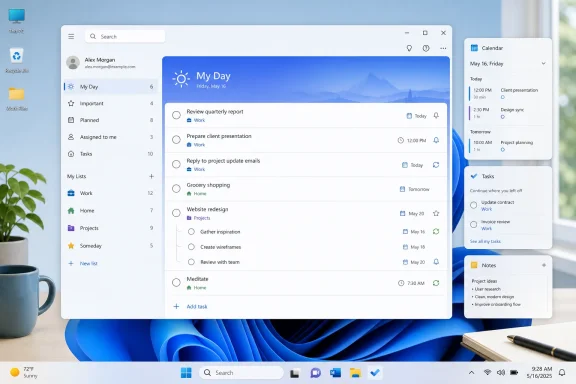
Microsoft’s current To Do documentation confirms that My Day resets overnight, but it does not delete incomplete work. Tasks remain in their original lists and are offered again through suggestions, which makes My Day useful as a daily planning surface rather than a second filing system. The most effective setup takes a few minutes: create durable lists for areas of responsibility, give real deadlines only to tasks that truly have them, and use My Day to choose a manageable number of next actions.
 Start with a small set of durable lists
Open Microsoft To Do from the Start menu and sign in with the Microsoft account, work account, or school account you want to use. Tasks saved under that account sync with To Do on other supported devices; Microsoft also says that To Do tasks are stored on Exchange Online services and can appear in Outlook.
Before entering every task you can think of, create a small number of lists that answer one question: where does this task belong when today is over? Select + New list, type a clear name, and press Enter.
For a beginner, three to five lists is usually enough:
- Create a Work list for individual responsibilities that are yours to complete.
- Create a Home list for errands, maintenance, calls, and personal administration.
- Create a Projects list for larger outcomes that need several actions.
- Create a Someday list for ideas and non-urgent tasks that should not compete with current work.
- Create a shared Shopping or household list only when another person needs to update the same items.
Avoid making separate lists named “Today,” “Tomorrow,” and “This Week.” Those time-based lists duplicate features To Do already provides through My Day and the Planned smart list. A task such as “Book dentist appointment” belongs in Home whether you do it today or next month; its date and presence in My Day can change without forcing you to move it between lists.
If your sidebar becomes crowded later, Microsoft To Do supports list groups. You can create a group beside the New List control and drag related lists into it. This is best reserved for a meaningful division, such as Work, Personal, and Shared, rather than turning every category into a group.
Write tasks as visible next actions
Select a list, click Add a task, write the task, and press Enter. The task name should describe an action that can be recognized as complete, not a broad intention.
“Taxes” is too large to act on. “Download 1099 forms,” “Enter charitable donations,” and “Review return before filing” tell you what to do when you next open the list. This is the point at which a task manager starts reducing friction instead of becoming another place to store vague obligations.
Open a task to reveal its detail pane. Microsoft To Do lets you add a due date, a reminder, repeat settings, importance, notes, attachments, and steps. Do not fill in every field by default. Extra metadata is useful only when it will change your behavior or help you find the task later.
Use the task title for the immediate action and the note field for information that would otherwise be scattered across messages or browser tabs. A task called “Call printer support” may need a note with the service number, error code, and support ticket. Keeping that material with the task means the next action remains usable when you return to it.
You can also mark a task as important by selecting its star. Microsoft To Do collects starred items in the Important smart list and can sort a list by importance. Use that marker sparingly. If most tasks are important, the label stops helping you decide what belongs in My Day.
Build My Day from the work that matters now
Select My Day in the left sidebar each morning. You can type a new task directly into the list, but use this view primarily to pull in tasks already stored elsewhere. Open a task from one of your lists and choose Add to My Day, or use the lightbulb suggestions control in My Day to review tasks that To Do thinks may need attention.
Microsoft says that new tasks entered directly in My Day are also saved in the general Tasks list. Tasks added to My Day from another list remain connected to that original list. In practical terms, adding an item to My Day is not a move, copy, or permanent tag; it is a decision to put that item in front of you today.
Keep the list shorter than your ambition. A useful My Day often contains one or two consequential tasks, several routine tasks, and enough slack for interruptions. Loading it with every overdue item can create the same paralysis as an unfiltered master list.
A workable daily pattern is:
- Review the Planned list for tasks genuinely due today.
- Add the few tasks that must move forward, whether or not they have dates.
- Put routine work in only if there is enough time to complete it.
- Reorder the list so the first visible task is the one you should begin next.
Microsoft To Do resets My Day every night. That reset is intentional. Unfinished tasks are not erased; they stay in their original lists and can return as suggestions the following day. Do not recreate incomplete tasks each morning. Re-add the existing item when it still deserves attention, or revise it if the task was too large or poorly defined.
Treat due dates and reminders as different tools
A due date answers, “When is this actually due?” A reminder answers, “When do I need an interruption to prompt action?” Those are related, but they are not interchangeable.
To add either, open a task’s detail pane. Select Add due date to choose Today, Tomorrow, Next week, or a specific date. Select Remind me to choose a prompt time such as later today or a date and time you set. Microsoft places tasks with due dates in the Planned smart list, which is the right place to scan commitments ahead of time.
Use due dates for external commitments and genuine deadlines: a subscription renewal, a bill, a meeting preparation deadline, a school submission, or a promised delivery. Assigning artificial dates to every task produces an ever-growing overdue section that makes legitimate deadlines harder to see.
Use reminders where timing matters. “Pick up prescription” may be due this week but needs a reminder when you will be near the pharmacy. “Send meeting agenda” might be due tomorrow but needs a reminder at 3 p.m. today, before colleagues leave for the day.
Recurring work belongs in Repeat. To Do supports daily, weekdays, weekly, monthly, yearly, and custom repetition. This works well for recurring actions such as submitting a timesheet every Friday or reviewing expenses on the first day of each month. It is less useful for a task you merely hope to do regularly; a repeating reminder becomes background noise if it is repeatedly dismissed.
On the Windows app, Microsoft also documents natural-language recognition for English task titles: phrases such as “tomorrow,” “Friday noon,” or “every Monday” can be recognized as due date, reminder, or repeat information. Check the result before relying on it. The recognized wording remains in a title by default unless you change that preference in Settings, and ambiguous words can be interpreted as dates when they are part of the task name.
Use steps to turn projects into finishable work
Steps are the feature that keeps a project from becoming a single intimidating checkbox. Open a task and select + Add step to create smaller actions underneath it. To Do displays a counter showing how many steps have been completed, so the parent task can remain open while progress accumulates.
For example, create a task called “Prepare quarterly presentation” in your Work or Projects list. Add steps such as “Collect sales figures,” “Draft slide outline,” “Ask finance to verify totals,” “Build charts,” and “Rehearse opening.” Add only the next useful layer of detail; steps should clarify execution, not reproduce an entire project plan.
There is a judgment call here. If the task will take several weeks, involves several people, needs dependencies, or requires a calendar-style schedule, Microsoft’s own To Do-versus-Planner guidance points toward Planner for team work. Microsoft To Do is strongest for personal follow-through and lightweight shared lists, not as a replacement for formal project management.
For ordinary individual work, steps provide enough structure. Add the parent task to My Day only when you intend to work on it, then focus on one unchecked step. You do not need to finish every step in a sitting for the task to have moved forward.
Review Planned weekly, not only My Day daily
My Day tells you what you selected for the current day. Planned tells you what has a due date across all lists. Review both, but for different reasons.
At the start or end of each week, open Planned and look beyond today. Confirm that real deadlines have dates, move tasks whose due dates changed, and remove dates that were only guesses. Then open each major list and decide whether its next actionable item should enter My Day tomorrow.
Microsoft To Do can sort a list by due date, importance, when it was added to My Day, alphabetical order, or creation date. Sorting by due date is useful for commitment-heavy lists; sorting by importance can make a long Work list easier to scan. Do not mistake sorting for prioritization, though. A sorted list shows order; My Day forces a decision about what you will actually attempt now.
The concrete payoff is a system that survives an unfinished day. Keep tasks in lists that reflect their purpose, use dates only for real commitments, and let My Day reset without losing the work. When you open To Do tomorrow, you will have a clear daily slate instead of another copied list of yesterday’s unfinished intentions.
