
The distinction is easy to miss because “pin” is used informally for both actions. It matters when you right-click an item: a document should offer Add to Favorites, while a folder should offer Pin to Quick access. Choosing either creates a shortcut-like entry in Home; it does not reorganize the file system, change a document’s name, or create another copy of your data.
Microsoft’s current File Explorer documentation also confirms that Home is the default starting view on Windows 11 and that Quick access is used for pinned folders. The Windows Insider team’s release notes document the corresponding Favorites command for files, and Microsoft was still fixing File Explorer’s “Add to favorites” icons and tooltips in Windows 11 Insider builds in February 2026. In other words, Favorites remains part of the File Explorer design, despite occasional support posts and older tutorials that use the terms inconsistently.
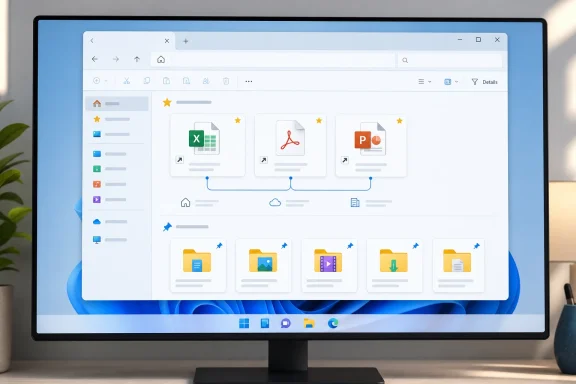 Open File Explorer Home
Press Windows key + E to open File Explorer. In most Windows 11 installations, it opens directly to Home. If it opens somewhere else, select Home in the left navigation pane.
Home brings three different kinds of shortcuts and activity together:
- Quick access contains folders you have pinned, along with Windows’ commonly used folder locations.
- Favorites contains individual files you deliberately marked for fast retrieval.
- Recent lists files you opened or worked with recently.
This layout is useful when your work is organized by project folders but you repeatedly need a small set of active files from different places. You may have a spreadsheet in Documents, a PDF in Downloads, a presentation in OneDrive, and a report in a departmental network share. Favorites can surface those files in one place while leaving each item in its proper project location.
If the left navigation pane is missing, select View on the File Explorer command bar, choose Show, then enable Navigation pane. Microsoft documents that route for restoring the pane after it has been hidden.
Add a document or spreadsheet to Favorites
First, browse to the file you want to keep at hand. This can be a local file, a synced OneDrive file, or another reachable location that File Explorer can open.
Right-click the file and select Add to Favorites. The file will then appear in the Favorites area of File Explorer Home. You can select more than one file first if you want to add a working set at once.
For example, a monthly close process might call for three files: Budget.xlsx, Invoices.pdf, and StatusReport.docx. Add those individual documents to Favorites instead of creating a new “Monthly Close” folder, copying files into it, or scattering duplicate shortcuts across the desktop. The originals remain exactly where they are, and opening the Favorite opens that original item.
If Add to Favorites is not visible in the compact Windows 11 right-click menu, select Show more options and look again. Microsoft’s File Explorer release notes have previously acknowledged cases where the command did not appear immediately in the modern context menu. On current builds, it should normally be available directly when you right-click a file, but the older menu remains a useful fallback.
There is one practical limitation: Favorites are for files, not folders. If you right-click a folder, use Pin to Quick access instead. The folder will then be available under Quick access in Home and in the left navigation pane.
That division is deliberate. A Favorite answers “Which individual document do I keep reopening?” A Quick access pin answers “Which location do I keep browsing into?” Treating them as separate tools keeps Home cleaner and avoids a Favorites list dominated by directories.
Pin frequently used folders to Quick access
To make a folder permanently easy to reach, browse to it, right-click it, and select Pin to Quick access. The folder appears in the Quick access area and in the left-side navigation pane.
This works well for folders such as:
- A project folder that contains many changing files.
- A shared department folder on a network drive.
- A local folder used for exports, scans, or downloaded installers.
- A OneDrive folder containing active collaboration material.
Windows 11 already places common Windows folders such as Desktop, Documents, Downloads, Pictures, Music, and Videos in Quick access by default. Microsoft says this behavior has applied since Windows 11 version 22H2, when those known folders were moved out of the main This PC view to keep that view focused on drives and network locations.
You can safely unpin one of those default folders if it is not useful. If you later want it back, open Home, select the Up arrow near the address bar to expose the standard known folders, right-click the one you want, and choose Pin to Quick access. This restores the shortcut; it does not recreate or move the actual Documents, Downloads, or Pictures folder.
The important operational point is that both Favorites and Quick access are pointers. Deleting a favorite or unpinning a folder removes the Home entry only. Deleting the real file or folder is a separate action and still requires using Delete on the item itself.
Remove outdated Favorites without deleting files
When a report is finished or a spreadsheet no longer belongs in your daily workflow, return to Home and find it under Favorites. Right-click the item and choose Remove from Favorites.
The file remains in its original folder. It can still appear under Recent if you opened it recently, and it can still be found through File Explorer search. Removing it from Favorites simply stops treating it as a deliberately retained shortcut.
Do not confuse Remove from Favorites with other menu choices that sound similar. A command such as Delete affects the actual file, while a command that removes an item from a recent list affects Home’s history. Read the full command before selecting it, especially when working with the only copy of a document.
The same principle applies to folder pins. Right-click a folder under Quick access and choose Unpin from Quick access to remove that navigation shortcut. The folder and all its contents remain intact where they were.
A quick cleanup every few weeks is enough for most people. Keep Favorites limited to files you genuinely need repeatedly, rather than treating it as a second document library. A short list makes the feature faster than search; an overgrown list recreates the clutter it was meant to prevent.
Use Home and Recent as two different shortcuts
Favorites and Recent solve different problems. Favorites is a manual list: items stay there until you remove them. Recent is automatic: it changes based on what you open.
Use Favorites for documents that are continuously important, such as a live project plan, a reference spreadsheet, a recurring timesheet, or a standard operating procedure. Use Recent to resume work you touched today or earlier in the week but do not necessarily need to preserve as a permanent shortcut.
File Explorer’s search box can also search content surfaced in Home, including relevant cloud content when the associated account is connected. Microsoft says Home can expose recent and favorited Office.com files and improve access to PC and cloud files compared with opening directly to This PC. That makes Home especially useful for people who work across local storage and OneDrive, but it is not a substitute for a sensible folder structure or backup routine.
If you prefer File Explorer to start at This PC, select the See more button on the command bar, choose Options, then change Open File Explorer to from Home to This PC and apply the setting. You can still select Home whenever you want to use Favorites, Quick access, or Recent.
For most users, the better approach is to leave Home as the default and make it intentional: pin folders you browse, favorite files you repeatedly open, and let Recent handle the short-lived trail of work. The original locations stay organized for backup, sharing, and long-term retrieval, while File Explorer Home becomes the small working dashboard in front of them.
