

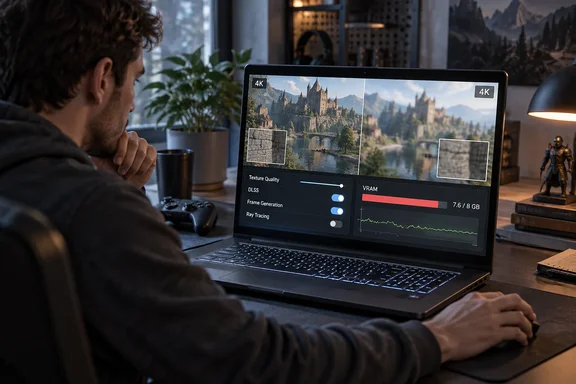
His advice comes down to one habit: stop treating preset labels and VRAM meters as final, and test one setting at a time. That's sound, and it fits a lot of Windows gaming rigs and laptops. Below is what he found, what NVIDIA's own documentation adds, and where his personal results should be read as "your mileage may vary."
Why an 8GB card struggles when consoles haven't changed
Butler starts with a fair question. The PS5 still has the same memory it launched with, so why do games built for it now push past what an 8GB PC card can hold?
His answer is unified memory. On a PS5, the CPU and GPU share one pool, so a game can give graphics a bigger slice when it needs one. On a PC, the CPU works from system RAM and the GPU from its own VRAM. He adds that PC games often keep some data in both places, which a console doesn't need to do because both processors read the same memory.
The numbers need some care:
- PS5: Sony's official spec sheet, posted on the PlayStation Blog, lists 16GB of GDDR6 system memory with 448GB/s of bandwidth. That's the total for the whole console. It is not 16GB of video memory, and the operating system reserves part of it.
- Typical 8GB PC: 16GB of system RAM plus 8GB of dedicated VRAM, in two separate pools. The GPU can only use its 8GB at full speed. Anything that spills over has to cross the PCIe bus to system RAM, and that's where stutter starts.
So comparing "16GB vs 8GB" is misleading in both directions. The PC has more memory in total. The console can put more of its memory toward graphics. Neither fact tells you what a specific game will do, and none of the sources checked here give a game-by-game breakdown of how console memory is split.
Section summary: Consoles don't have "more VRAM." They have a more flexible pool. If a game is tuned for that pool, an 8GB card has a fixed limit that the console doesn't.
"Low" textures aren't a verdict on image quality
Butler's most useful point for anyone bothered by lowering the texture setting: preset names mean nothing outside the game they're in. Each developer decides what "High" or "Medium" means, and one game's Ultra can look like another game's High.
If a 2026 release needs Medium textures to fit in 8GB, that doesn't mean it looks worse than last year's game on High. The newer game may just have raised the top end. You aren't getting a downgrade because the labels moved.
He also cites a Digital Foundry video on The Blood of Dawnwalker. According to Butler, it found that the game's texture setting controlled texture streaming and the texture budget more than the textures themselves. If so, important assets such as the main character stay sharp on Low or Medium, but you may see more pop-in or less detail near the camera. That observation comes from Butler's account of the video and hasn't been independently confirmed here, but plenty of modern engines work this way.
In practice, a lower texture setting in a streaming-based engine may cost you nothing on a still screenshot. The difference usually shows up in motion: textures sharpening late, or blurry detail on nearby surfaces. Test while moving through the world, not while standing still.
1080p with DLAA vs 4K DLSS Performance
This is the most specific tip in the piece. Butler plays on a 4K mini-LED TV. With older games, DLSS upscaling to 4K works well on his RTX 4060. With some newer ones, he now sets the game to 1080p, turns on DLAA (NVIDIA's AI anti-aliasing at native resolution) and lets the TV scale the image up to 4K.
He reports better performance and less stutter than DLSS at 4K in Performance mode, with a softer image as the trade-off. He also says it depends on the game: sometimes his 1080p DLAA approach wins, and sometimes DLSS Performance does.
NVIDIA's own numbers help explain why this can work. When NVIDIA's transformer model for DLSS Super Resolution left beta, reporting on the updated DLSS SDK found that the new model uses 85.77MB of VRAM at 1080p, compared with 307.37MB at 4K, after optimizations cut about 80MB from the 4K figure. TweakTown, reporting the same SDK data, noted that moving to 1440p, 4K and higher resolutions sharply increases the model's memory footprint.
Analysis: DLSS Performance at 4K already renders internally at about 1080p. So the gain from the 1080p route isn't about drawing fewer pixels. It's about everything that has to exist at the 4K output size: the DLSS model's working memory, the final frame buffers, and any post-processing done at output resolution. Drop the output to 1080p and all of that gets smaller. A few hundred megabytes sounds small until the card is at 7.8GB of 8GB and every extra buffer pushes data into system RAM.
A caveat about the TV: Butler describes his set as doing a clean integer upscale from 1080p to 4K, since 4K is exactly four times the pixels of 1080p. Not every TV or monitor scales that cleanly. Many use their own processing, which can add softness or input lag. Check your display's game mode before deciding this trick does or doesn't work for you.
How to test it:
- Choose a demanding, repeatable part of the game, such as a busy city street or a fast traversal.
- Set the output to 4K with DLSS Super Resolution in Performance mode. Play the section and note stutter, frame rate and texture pop-in.
- Change the in-game resolution to 1920??1080, turn on DLAA and leave everything else the same.
- Play the same section again. Make sure your display's game mode is on so the TV's processing doesn't skew the result.
- Keep whichever setup gives smoother frame pacing at image quality you're happy with. Expect the winner to differ from game to game.
Frame generation and ray tracing cost VRAM too
Butler admits the irony: frame generation is pitched as a way for mid-range cards to make better use of high-refresh displays, yet it has made some of his games stutter. His explanation is that it uses VRAM, which on an 8GB card can push data out of video memory. His options are to lower texture quality or accept a lower frame rate without it.
That fits NVIDIA's own claims. In its DLSS 4 announcement, NVIDIA said its new frame generation model "is 40% faster, uses 30% less VRAM, and only needs to run once per rendered frame to generate multiple frames." As an example, the company said the model ran 10% faster in Warhammer 40,000: Darktide while using 400MB less memory at 4K with max settings. Tom's Hardware added that frame generation needs a lot more VRAM than the upscaling part of DLSS.
Two practical points for RTX 40 owners follow:
- The version matters. NVIDIA says the upgraded frame generation model is available on RTX 50 and RTX 40 Series GPUs and uses less VRAM. If a game still ships an older implementation, you may be paying the higher memory cost. NVIDIA has pushed these model upgrades through the NVIDIA app for supported games, so check there before giving up on frame generation.
- Less is still not zero. Even a 30% smaller footprint means more memory used than with frame generation off. On a card that's already full, even the improved model can tip things over.
Butler also points out that ray tracing isn't automatically off-limits on an RTX 4060. RT shadows or RT global illumination can run fine in plenty of games. The catch is that turning on any RT effect means VRAM has to hold the extra data structures ray tracing needs. According to Butler, adding more RT effects mainly increases rendering work, because the games he describes need only one copy of that data. That's plausible and matches how RT acceleration structures generally work. The actual memory cost varies by game, and no sources checked here measure it. In practice, the first RT toggle is the expensive one on memory. If you can afford it, a second RT effect is more of a performance question than a VRAM one.
Section summary: Frame generation and ray tracing both use VRAM you may not have. Newer frame generation models help. The first RT effect costs the most memory.
The MacBook comparison
Butler notes that his M4 Pro MacBook can run ray tracing and texture settings his PC can't, even though its GPU is weaker than the RTX 4060. He credits its 24GB of unified memory, which lets the GPU use far more memory than a discrete 8GB card. He calls it "almost like a PlayStation 5."
Read that as a first-hand example of the unified-memory point, not a benchmark. It isn't a controlled comparison, and Mac game libraries, ports and APIs are very different from Windows. It does show the same idea from another angle: when memory is the bottleneck, the size of the pool the GPU can reach can matter more than raw GPU power.
An 8GB troubleshooting plan for Windows gamers
Butler says clearly that his tweaks worked for him and aren't a set of instructions. His main message is not to give up the moment a new game shows 99% VRAM usage. Built on that, here's a disciplined way to find your own settings:
- Look at the right number. Open Task Manager's Performance tab and select your GPU to see dedicated GPU memory, or use a performance overlay. A full VRAM reading alone doesn't prove anything is wrong. Many engines fill whatever memory is available on purpose. Worry when high usage comes with stutter, hitches or textures that won't load.
- Get a baseline. Start with a preset that runs acceptably and replay the same test section each time.
- Adjust textures first. On a memory-limited card, this is usually the setting that most directly relieves VRAM pressure. Remember that "Medium" in this game may match "High" in another.
- Try both resolution routes. Compare 4K with DLSS Performance against native 1080p with DLAA plus display scaling, as described above.
- Test frame generation alone. If turning it on adds hitching, the extra memory it needs may be forcing data out of VRAM. Check whether the game can use NVIDIA's newer, lighter model before switching it off for good.
- Add ray tracing one effect at a time. Treat the first RT effect as the big memory cost. Global illumination or shadows usually give the most visible improvement.
- Change one thing at a time. If you change three settings at once and the stutter goes away, you won't know which one fixed it.
The bigger picture
Much of Butler's frustration is about timing. As he frames it, rising memory and GPU prices make upgrading unrealistic for most people. Whether that turns out to be temporary or lasting, 8GB cards will be around for a long time, in laptops especially, where the GPU can't be swapped out.
There's a reasonable counterargument that 8GB was always cutting it close for a card sold for 1080p gaming in 2023, and that settings tricks just hide a hardware limit that is only getting tighter. That's true. But there are two answers to "8GB isn't enough anymore": spend money you may not have, or spend twenty minutes testing settings. Butler's column argues well for the second, provided you judge the game by how it looks and plays in motion rather than by labels and meters.
References
- I'm finally hitting the 8GB VRAM wall, but here's how I'm hanging on How-To Geek · 2026-09-28T18:30:14+00:00
- NVIDIA DLSS 4 Introduces Multi Frame Generation & Enhancements For All DLSS Technologies | GeForce News | NVIDIA nvidia.com
- Unveiling new details of PlayStation 5: Hardware technical specs (UPDATED) – PlayStation.Blog blog.playstation.com