

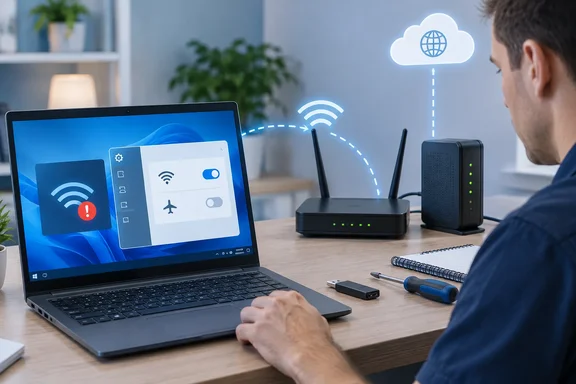
All five steps match Microsoft's own support guidance. Microsoft's documentation also adds diagnostic checks, cautions and consequences that the short version leaves out. Below is the full procedure for Windows 10 and Windows 11, arranged by symptom, since that's how the problem actually shows up on your screen.
First, work out which problem you have
"My Wi-Fi isn't working" can mean two quite different things:
- The network doesn't appear, or the Wi-Fi control is gone. This points to the laptop: a switch, a setting, the adapter or the driver.
- The laptop connects but shows "No Internet." The link between laptop and router may be fine, and the fault may be further upstream.
Microsoft's support page explains that in the "No Internet" (limited connectivity) state, your PC is connected to the local network but not to the internet. You can often still see other devices on your network, but browsing, email and streaming fail. Windows decides this by sending a small HTTP request to an internet server. If nothing comes back, the icon appears. The icon tells you that the internet is unreachable, not why.
Before any manual steps, Microsoft recommends an automated pass. If you are using a Windows 11 device, start by running the automated Network and Internet troubleshooter in the Get Help app. It will automatically run diagnostics and attempt to fix most of the problems. On Windows 10, the troubleshooter is at Start > Settings > Network & Internet > Status > Network troubleshooter. Microsoft's Surface Wi-Fi guide gives another Windows 11 route for adapter problems: Select Settings > System > Troubleshoot. Select Other Troubleshooters. Select Network Adapter > Run.
Summary: Find out whether the problem is "no Wi-Fi at all" or "Wi-Fi but no internet," and run the built-in troubleshooter before changing anything yourself.
Fix 1: Check that Wi-Fi is on and Airplane mode is off
This sounds too simple to matter, but it catches a lot of cases.
- Select the Network, Sound or Battery icons on the right side of the taskbar to open quick settings.
- Make sure Wi-Fi is turned on.
- Check whether your network name says Connected underneath. If it shows anything else, select a network you recognize and try to connect.
- Make sure Airplane mode is off. You can toggle it in quick settings, or go to Settings > Network & Internet > Airplane mode. With Airplane mode on, all wireless radios are disabled.
On Windows 11, Microsoft's connection guide says you can select Manage Wi-Fi connections on the Wi-Fi quick setting. If your network isn't listed, the Refresh network list button starts a new scan.
Success: Your network shows as Connected and the taskbar icon shows signal bars without a warning.
Fix 2: Forget the network and reconnect
If the laptop sees your network but won't join it, the saved profile may be stale or corrupt. This often happens after a router password change.
- Open Settings > Network & internet > Wi-Fi > Manage known networks.
- Select the problem network and click Forget.
- Select the network again from the list and enter the password.
Have the password ready before you click Forget. Forgetting the network deletes the saved credentials. If you don't remember the password, Microsoft's connection guide says you can view it from another Windows PC that is still connected. On Windows 11 it's under Settings > Network & internet > Properties, next to Wi-Fi network password, via Show.
If the laptop keeps rejecting a password you know is right, Microsoft suggests checking that it matches the router's configuration, rebooting the router, and updating the router's firmware.
Fix 3: Test another device, then restart the modem and router
Before you blame the laptop, check the rest of the network. Microsoft's guide says to try to connect to the same network on another laptop or phone. If the other device works, the problem is probably your laptop. If the phone can't get online either, the likely suspects are the router, the modem or the ISP. That test alone won't tell you which one.
Microsoft says restarting the modem and router creates a fresh connection to your ISP. It also temporarily disconnects everyone on the network, so warn the household first. Microsoft's order of steps is:
- Unplug the router, then the modem.
- Some modems have a backup battery. If the modem's lights stay on after you unplug it, remove the battery.
- Wait at least 30 seconds or so.
- Put the battery back if you removed it, then plug the modem back in first. Wait for its lights to stop blinking.
- Plug the router back in.
- Wait a few minutes until both devices are fully running, then try the laptop again.
If you have a combined modem/router unit, follow the steps for that single device.
Two more checks from Microsoft fit here:
- Try the other band. Many routers broadcast separate 2.4 GHz and 5 GHz networks. If you see both, try connecting to the one you aren't using.
- Ping the router. Open Command Prompt as administrator, run
ipconfig, and note the Default gateway address for your Wi-Fi network (for example, 192.168.1.1). Then runpingfollowed by that address. If you get replies, the Wi-Fi link to the router works and the fault is probably the modem or ISP, so check for a service outage. If there are no replies, Microsoft suggests connecting the PC directly to the modem with an Ethernet cable if you can. If Ethernet works, the Wi-Fi router is the problem.
Summary: Use another device to find out whether the fault is local or upstream, restart the modem before the router, and use the ping test to separate a Wi-Fi problem from an ISP problem.
Fix 4: When the Wi-Fi option is missing, check the adapter
If the Wi-Fi toggle isn't in Settings, Windows either can't see the wireless adapter or has disabled it. Microsoft's recommended order is:
- Check for a physical switch. Some laptops have a hardware Wi-Fi switch. Make sure it's on.
- Enable the adapter. Search the taskbar for Device Manager, expand Network adapters, right-click your wireless adapter, and choose Enable device if it's disabled.
- Restart the WLAN service. Press Win + R, type
services.msc, find WLAN AutoConfig, right-click it and choose Restart.
What you see in Device Manager tells you something:
- The adapter is listed: open its Properties > Driver tab and compare the Driver Version and Driver Date with what your PC maker currently offers.
- The adapter isn't listed at all: Microsoft says Windows isn't detecting it. You may need to install the driver manually from your device manufacturer's website.
Microsoft also mentions a less common cause. An adapter may not support the band your router uses, for example a 2.4 GHz-only adapter with a 5 GHz network. Or the driver may be filtering that band out. In the adapter's Properties > Advanced tab, look for a Wireless Mode or Band setting and make sure it allows your network's frequency.
If the connection keeps dropping rather than disappearing, check power saving. Right-click your Wi-Fi adapter and choose Properties. Navigate to the Power Management tab. Uncheck Allow the computer to turn off this device to save power.
Before you reset: handle drivers carefully
The CBY guide ends by saying the laptop "may need a network driver update." Microsoft gives a more specific procedure. It's worth considering especially if Wi-Fi broke after a recent update:
- Get a backup driver first. Download the latest network adapter driver from your PC maker's website. If the laptop can't get online, download it on another PC and copy it to a USB stick. You'll need your PC's manufacturer and model.
- In Device Manager, right-click the adapter and choose Uninstall device. Tick Attempt to remove the driver for this device, then click Uninstall.
- Restart. Windows will try to find and install the driver automatically. If it doesn't, install your backup.
It's also worth running Windows Update. Microsoft's steps are Start > Settings > Windows Update > Check for updates. Download and install any new updates.
If you're comfortable with the command line, Microsoft also lists a sequence to run in an elevated Command Prompt before a full reset: netsh winsock reset, netsh int ip reset, ipconfig /release, ipconfig /renew and ipconfig /flushdns. If you're stuck on "No Internet," run ipconfig and check your IP address. Microsoft says an address like 169.254.x.x means Windows couldn't get an address from the router, so check that DHCP is enabled on it.
Fix 5: Network Reset, the last resort
Both the CBY guide and Microsoft say Network Reset comes last. Using network reset should be the last step you try. Consider using it if the steps above don't help to get you connected.
- Windows 11: Settings > Network & internet > Advanced network settings > Network reset
- Windows 10: Settings > Network & Internet > Status > Network reset
Select Reset now, confirm with Yes, and let the PC restart.
The CBY guide warns that you'll lose saved Wi-Fi passwords. The actual effect is bigger than that. Network reset removes any network adapters you have installed and the settings for them. After your PC restarts, any network adapters are reinstalled, and the settings for them are set to the defaults. Microsoft also warns about two side effects:
- VPN clients and Hyper-V virtual switches may need to be reinstalled or set up again. That matters on work laptops and developer machines.
- Known networks may be set to the Public profile, which makes your PC invisible to other devices on the network. If you use file sharing or network printers at home, switch your home network back to Private afterward.
Microsoft also notes that reset can help with problems after upgrading from Windows 10 to Windows 11, and it can also help to fix the problem where you can connect to the Internet but can't connect to shared network drives.
When to escalate
If none of this works, the result still tells you who to contact:
| What you found | Likely culprit | Who to contact |
|---|---|---|
| Adapter missing from Device Manager | Driver or hardware detection | PC manufacturer |
| Other devices also offline, router ping works | Modem or ISP | Your ISP |
| Router ping fails, Ethernet to modem works | Wi-Fi router | Router documentation or vendor |
| Only this laptop fails, everything else works | Laptop settings, driver or hardware | PC maker or a technician |
For IT administrators, the consumer page isn't the whole story. Microsoft Learn has a separate Wi-Fi troubleshooting guide for support staff, which applies to Windows 11 and supported versions of Windows 10 and follows a symptom-first approach: identify your scenario, collect baseline evidence, and then use the Wi-Fi autoconnect state machine and Event Tracing for Windows (ETW) analysis to isolate the component and connection stage where the problem occurs.
A caveat about the five fixes: none of them is guaranteed to work, and a failure after all of them doesn't prove the hardware is dead. What they do is narrow the problem down to the laptop, the local network or the internet connection. That way, when you finally call support, you can tell them exactly what you've already ruled out.
References
- Wi-Fi Not Working on Your Laptop? Try These 5 Fixes cambuy.tw · 2026-09-29T09:42:50
- Fix Wi-Fi connection issues in Windows | Microsoft Support support.microsoft.com
- Wireless network connectivity issues troubleshooting - Windows Client | Microsoft Learn learn.microsoft.com