

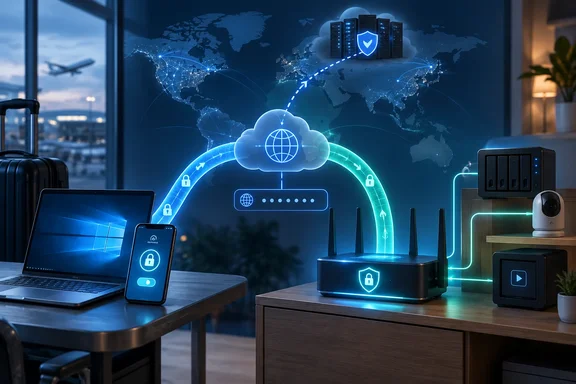
How-To Geek highlights this often-overlooked remote-access feature. TP-Link, ASUS and NETGEAR documentation confirms the underlying distinction: supported routers can accept incoming VPN connections, giving remote devices access to home resources. The important prerequisite is that your home router must be reachable from the internet; finding a VPN switch in its settings is only the starting point.
VPN server and VPN client describe different jobs
TP-Link’s setup guidance separates two scenarios. A router operating as a VPN server accepts connections from devices outside your home. A router operating as a VPN client connects outward to an existing VPN server or service.
ASUS documents the same distinction, including its VPN Fusion feature for assigning household devices to different outgoing VPN connections.
| Your goal | Relevant router feature | Where the connection goes |
|---|---|---|
| Reach home-network resources while traveling. | VPN server. | Your remote laptop or phone connects to your home router. |
| Connect household devices to an outside VPN service. | VPN client, or ASUS VPN Fusion on supported models. | Your router connects to the outside service. |
| Browse through your home connection while away. | VPN server with internet access through the tunnel configured. | Your remote device connects home, then uses the home internet connection. |
These roles are complementary. A Windows laptop connecting to your home VPN server is still a VPN client. “Client” does not inherently mean a paid privacy service; it identifies which end initiates the connection.
This also explains why a subscription VPN app is not automatically the right software for your router. NETGEAR explicitly says the VPN Service covered by its support guide works with OpenVPN clients, not arbitrary VPN applications. The client software and configuration must match the router’s server.
What connecting home actually gives you
The useful result is access to resources that ordinarily require being on your home network. ASUS describes its VPN server as a way to reach those resources securely from a remote location. How-To Geek gives NAS storage, media servers and local camera systems as examples.
The encrypted tunnel runs between the remote device and the router. Rather than making each home service individually accessible from the public internet, you connect to the VPN endpoint and reach the resources available through that connection.
However, the article’s analogy of being “physically there” should not be read as a guarantee that every device will automatically appear in Windows network discovery. TP-Link’s support guidance separately identifies “VPN Connected but Can’t Access or Discover LAN Devices” as a troubleshooting scenario. Establishing the tunnel and successfully reaching the intended resource are distinct outcomes.
Internet browsing is another separate consideration. NETGEAR documents using its home VPN service to access internet sites while away, so the feature can do more than provide access to local files. But connecting a VPN does not, by itself, establish which traffic uses it. Check the access and routing choices documented for your model before relying on it to carry browsing traffic over hotel or airport Wi-Fi.
When internet traffic does go through your home connection, home becomes its exit point. That can be useful while traveling, but it does not give you a commercial provider’s menu of exit locations or make your activity anonymous.
Check internet reachability before configuring clients
ASUS explicitly states that its router VPN Server requires a public WAN IP address from the internet provider so outside devices can locate the router. It advises asking the ISP if the address type is unclear.
For users whose ISP places their connection behind carrier-grade NAT, this requirement is a potential blocker. The practical implication of ASUS’s guidance is to establish whether inbound connections can reach your router before spending time exporting profiles and troubleshooting laptop software.
Dynamic DNS addresses a different problem: finding a home connection whose public IP address changes. How-To Geek explains that it provides a stable hostname whose address updates as the residential IP changes. NETGEAR recommends Dynamic DNS and also documents a static public address as an alternative.
A stable name does not itself make an otherwise unreachable router accessible. Treat these as two checks: whether outside connections can reach the router, and how your remote device will find its current address.
A model-specific setup plan
There is no universal setup sequence covering every ASUS, TP-Link and NETGEAR router. The following checkpoints help you choose the correct manufacturer procedure without confusing server mode with an outgoing VPN subscription.
- Confirm server support for the exact router. ASUS says a VPN type absent from the model’s specifications is unsupported. TP-Link directs owners to select the correct hardware version on the product support page and consult its specifications or firmware release notes. A brand name or a generic “VPN” claim is insufficient.
- Check which server protocol and remote client the model supports. TP-Link documents OpenVPN server configurations, while ASUS lists several protocols and directs users to model-specific specifications. WireGuard support should be checked rather than assumed. Where TP-Link offers both PPTP and OpenVPN, its guidance identifies OpenVPN as the stronger security choice.
- Confirm the WAN-address prerequisite and the documented Dynamic DNS or static-address setup. Resolve an uncertain public-IP arrangement with the ISP before proceeding.
- Follow the router’s server guide to enable the service and obtain the client configuration. Then use the instructions for the actual remote operating system. NETGEAR provides separate Windows, macOS, Android and iOS procedures; its Android configuration package and import steps should not be substituted for its Windows workflow.
- Verify the connection from another network and check the resource you intend to use. NETGEAR’s Android procedure explicitly requires switching to another network before connecting. A successful VPN connection is the first milestone; usable access to your home resource is the practical result.
The exported configuration is part of authorizing remote access, so treat it as sensitive rather than as an ordinary file to share.
For a Windows user who wants access to home storage while traveling, the router’s VPN server is worth checking before purchasing a separate service. Start with the exact model’s server support and your ISP’s public-address arrangement: those determine whether the feature can serve your purpose, long before the choice of client app does.
References
- Your Wi-Fi router already has a VPN built-in, but it doesn't work the way you'd expect How-To Geek · 2026-09-20T19:00:14+00:00
- (Wireless Router) Unlock the Power of the VPN with ASUS router: Secure, Private, and Seamless Connectivity | Official Support | ASUS Global asus.com
- How to Set Up VPN on a TP-Link Wi-Fi Router tp-link.com