

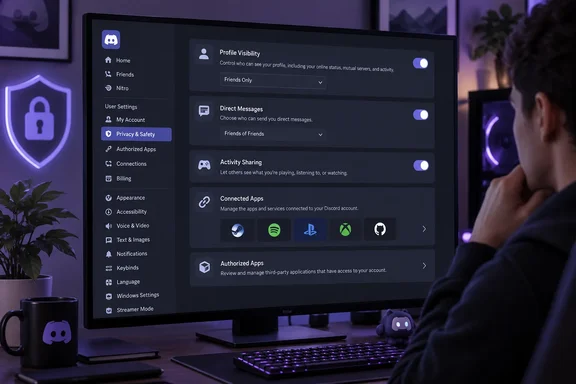
You can work through this checklist in the Windows desktop app or a browser. On mobile, open your profile using the You tab, then tap the settings cog. Menu names below follow Discord’s documented settings; some controls may look different depending on your account and device.
Start with what strangers can see
Open User Settings using the cog beside your name, then go to Data & Privacy > Profile Privacy. Discord offers three audiences for your full profile:
- Friends & All Servers: Friends and members of any shared server.
- Friends & Small Servers Only: Friends and members of shared servers with 200 or fewer members.
- Friends Only: Friends alone.
Choosing a narrower audience hides details such as your bio, pronouns, custom status and connected accounts from people outside it. It does not hide your avatar, banner, display name, username, account age, or mutual friends and servers. On mobile, find the same control under Settings > Data & Privacy. Your choice saves when you select it.
For someone who joins large public servers but mainly chats with established friends, Friends Only is a sensible starting point. That is a privacy preference, not a universal rule: community organizers may deliberately want a fuller profile visible. Either way, check the result with the understanding that a private profile is not an invisible account.
Separate game activity from online presence
A private bio will not necessarily stop Discord from showing what you are playing. In User Settings > Activity Privacy, review Share Activity with Others. Discord also documents per-server activity controls in a server’s Privacy Settings and per-game detection controls under Registered Games. A server-specific restriction has a wrinkle: friends in that server may still see your activity. Connected services can have their own sharing options, so review Connections or Connected Apps as well if you have linked an Xbox, PlayStation, Spotify or other account.
Want to appear offline while still using Discord? Select your avatar and choose Invisible from the status menu. Do Not Disturb serves a different purpose: it mutes desktop notifications but does not make you appear offline. Neither status choice is a substitute for reviewing activity sharing.
Decide who gets to contact you
Next, open User Settings > Content & Social. Discord says that, by default, someone who shares a server with you can send you a DM. Turning off Direct messages limits DMs from non-friends in servers; pay attention when Discord asks whether to apply that change to existing servers. You can also adjust permissions for individual servers. On mobile, use Settings > Content & Social.
In the same area, open Friend Requests. Everyone allows broad requests; Friends of Friends requires a mutual friend, while Server Members permits requests from people in a shared server. Discord says you can deselect all three if you do not want requests through those categories. For one persistent person, open their profile, select the three-dot menu and choose Block. These contact controls remain independent of Profile Privacy.
While you are in Content & Social, inspect the sensitive-content and DM spam filters. Discord’s spam options include filtering messages from non-friends or filtering all DMs. These tools help screen what reaches you; they do not change who can view your profile. Discord’s age-related protections may also limit changes to certain sensitive-content settings.
Review data use, apps and billing
Back in Data & Privacy, look under How Discord uses your data. Turning off Use data to personalize my Discord experience stops Discord, according to its support documentation, from using information specific to your account to drive recommendations and promotions. It does not remove access to conversations or voice channels—and it is not a switch that stops Discord from holding data needed to run the service.
Sponsored content has separate controls for personalization based on Discord activity and on third-party-source data. Turning off the Discord-activity option also turns off the third-party option; turning off only third-party data does not disable activity-based personalization. You may still see Quests or other sponsored content after opting out.
Then check two often-confused lists:
- Connected accounts: Review external services you linked and disconnect those you no longer want associated with Discord. Also inspect whether a connection shares its activity or displays it as your status.
- Authorized Apps: Review account-installed apps in User Settings > Authorized Apps and deauthorize ones you no longer use. Discord says these apps can access information you authorized, although account-installed apps do not generally gain blanket access to your server or DM contents. Read an app’s permissions before deciding to keep it.
BGR also recommends checking saved payment methods. On desktop, Discord documents these under User Settings > Billing: choose Edit beside a method, then Delete Payment Method if you want to remove it. There is an important limit to the “remove every card” approach: Discord requires at least one saved payment method while an active subscription remains. Check Subscriptions first; removing a payment method does not itself cancel a subscription.
What about age verification—or leaving Discord?
Privacy toggles and age assurance solve different problems. BGR raises the possibility of account restrictions, but Discord’s explanation is narrower: most users will not be prompted to confirm their age. Discord says users who choose not to verify retain their account, servers, friends, DMs and voice chat, though age-restricted content and certain safety-setting changes may be unavailable. You do not need to confirm that you are an adult to change Profile Privacy.
If a settings review makes you reconsider using the service, distinguish disabling an account from deleting it. Disabling is a break, not a subscription cancellation: Discord warns that an active subscription can continue billing until you cancel it separately. That is worth checking before you close the app and call the job done.
The practical takeaway is to review Discord in layers: what others see, who can reach you, what activity you share, and which services still have access. One reassuring-looking privacy setting cannot do all four jobs.
References
- Protect Your Privacy On Discord By Changing These Settings bgr.com · 2026-09-29T11:47:00+00:00
- Profile Privacy Setting on Discord – Discord support.discord.com
- Age Assurance on Discord: Vendors, Methods, and Your Data discord.com