

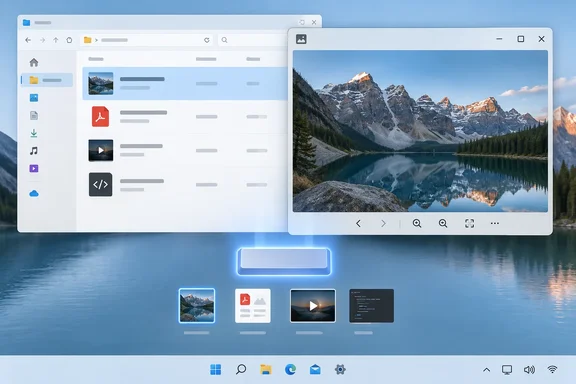
What QuickLook is (and isn't)
QuickLook is a community project from the QL-Win developers. Microsoft doesn't make it. The project's background notes say the developer missed macOS Quick Look, which allows users to peek into a file content in lightning speed by just pressing the Space key.
A few things to know before you install it:
- It's open source and free. The code is released under GPL-3.0, and the current README says the project has no ads, no tracking, no premium tiers.
- It works outside File Explorer too. The documentation says you can preview a file or folder on the Desktop, in a File Explorer window, in an Open or Save-File dialogue. The project also lists some supported third-party file managers. Not every file manager works, so check the list if you use an alternative to Explorer.
- It shows previews only. You can't edit anything in the QuickLook window. When you want the real app, press Enter to hand the file off to its default program.
Summary: QuickLook adds a separate, keyboard-driven preview window to Windows. It works alongside File Explorer's Preview pane rather than replacing it.
How to set up Spacebar previews
These steps match Neowin's guide and the project's own "typical use case" instructions:
- Install QuickLook from its official GitHub releases page or from the Microsoft Store. GitHub offers an installer and a portable archive.
- Make sure it's running. QuickLook has to stay running in the background for the Spacebar shortcut to work. The README says you only need to run QuickLook.exe (only necessary if autostart is disabled). When it's running, you'll see its icon in the system tray.
- Select a file in File Explorer, on the desktop, or in an Open/Save dialog.
- Press Spacebar. A preview window opens.
- Close it by pressing Spacebar again, pressing Esc, or clicking the window's ⨉ button.
How to tell it's working: when you press Spacebar on a selected file, a floating preview window appears and your Explorer layout stays as it was. If nothing happens, go straight to the troubleshooting section below.
Shortcuts worth learning
The project lists these controls:
| Input | What it does |
|---|---|
| Spacebar | Show or hide the preview window |
| Esc | Hide the preview window |
| Enter | Open the current file in its default app |
| Arrow keys / mouse click | Preview another file |
| Mouse wheel | Zoom images; adjust volume for media |
| Ctrl + mouse wheel | Zoom PDFs |
The arrow keys save the most time. You can move through a folder of photos, scanned PDFs or log files without closing and reopening the preview. One detail from the project documentation: arrow keys move selection in the background if the preview window is not in focus. If the preview seems stuck on one file, click the preview window first.
Enter is also easy to misread. It doesn't close the preview. It opens the file in its default app, which is what you want once you've found the right file.
File formats and plugins
QuickLook handles images, video, PDFs, text, Markdown, code and archives out of the box. Anything more specialised comes through plugins. The project's plugin wiki lists a large number of them, including:
- OfficeViewer, which lets QuickLook preview Office file formats, without the requirement of installing Office suite.
- SumatraPDFReader, for EPUB, MOBI, CBZ, XPS, DjVu and similar formats. The old EPUB plugin is marked as unmaintained, and the wiki points users to this one instead.
- Developer and specialist viewers, such as Jupyter notebooks, SQLite databases, CAD files, PlantUML, Git repositories and, recently added, Blender files, which the wiki says it can preview with automatic HD rendering, caching, and smooth zoom/pan.
Neowin lists Word, Excel and PowerPoint among the supported formats. The project has historically delivered Office previews through the OfficeViewer plugin, though. If Office documents don't preview on a fresh install, that plugin is the first thing to add.
Installing a plugin
The plugin installer uses QuickLook's own preview window:
- Download the plugin file, which ends in
.qlplugin. - Ensure QuickLook is currently running, select the file and press Spacebar.
- Click on the Install button, then restart QuickLook.
If you'd rather install manually, MakeUseOf notes that you can also manually extract the plugin file into the QuickLook.Plugin directory inside your install folder. Upgrading a plugin works the same way as installing it. To remove one, quit QuickLook, open its data location, and delete that plugin's folder.
Summary: the built-in formats cover most everyday files. Add plugins only for the formats you actually open often.
Troubleshooting common problems
- Spacebar does nothing. QuickLook almost certainly isn't running. Check the system tray, then launch it from the Start menu. Enable autostart if you want it available after every reboot.
- A file type opens a blank or error preview. You probably need a plugin, and for some media formats a codec. The project's wiki is the reference for which formats need what.
- No previews in Open/Save dialogs. An older version of the project README said the Microsoft Store build was for Windows 10 users only, with no preview in Open/Save dialogs. That note may be out of date, but if dialog previews matter to you, the GitHub installer is the safer choice.
- A plugin broke after an update. Plugins can fall out of step with new QuickLook releases. Updating the plugin, or temporarily removing it, usually fixes this.
- Arrow keys move the Explorer selection but the preview doesn't change. Click the preview window to give it focus.
What about PowerToys Peek?
Microsoft now has its own option. PowerToys includes a module called Peek, and WindowsForum's earlier comparison noted that starting with PowerToys 0.95 [Peek] supports activating the preview with a single Spacebar press. You turn it on in PowerToys Settings under the File Explorer section.
In general terms:
- Choose QuickLook if you want the large plugin library, support for niche formats (CAD, Blender, scientific data, Git repositories), and integration with Open/Save dialogs and some third-party file managers.
- Choose PowerToys Peek if you already run PowerToys, want a Microsoft-maintained tool, or work somewhere that approves Microsoft utilities more readily than community projects.
Running both and binding both to Spacebar is asking for a keyboard dispute. Pick one.
Is it worth installing?
Neowin's author found it most useful for skipping app launch times. They use VLC as the default video player, and videos take a few seconds to start when opened normally, while QuickLook starts playing them right away. They also found it quicker for code files than waiting for VS Code or reading plain text in Notepad. Those are personal impressions rather than benchmarks. The project's own README claims ⚡ ~0.2 seconds for a preview against roughly 10 seconds for the double-click routine, but that's a marketing illustration, not a measured test.
There are trade-offs. It's one more background process in your tray. The plugin ecosystem varies in quality, and the wiki marks some plugins as legacy or unmaintained. IT administrators should vet a community utility with plugins before allowing it on managed machines, as they would any third-party tool.
For people who spend the day sorting screenshots, checking invoices or working through a downloads folder, QuickLook is quick to set up and costs nothing.