

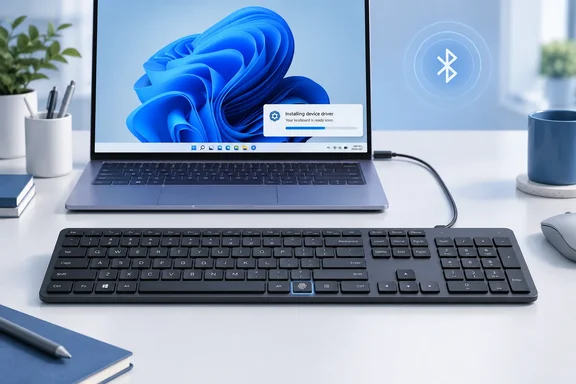
Microsoft Modern Keyboard with Fingerprint ID Pairs by Cable, Not Through Bluetooth Settings
Most people pair a Bluetooth keyboard by opening Windows' Bluetooth settings and picking the device from a list. Microsoft's Windows 11 procedure for this keyboard skips that. Microsoft's support page says the keyboard "pairs to your Windows 11 device using the in-box USB cable," and pairing starts when you plug in the cable and switch the keyboard on.
The cable path matters because pairing and driver installation happen together. When the keyboard is connected, Windows shows a notification. Selecting it installs the keyboard driver and completes the pairing automatically. If you pair through Bluetooth settings instead, you could end up with a working keyboard but no fingerprint support. That last point is our inference: Microsoft doesn't describe a manual Bluetooth-first route.
The hardware reason for all this is the fingerprint sensor. Notebookcheck reported at launch that the fingerprint sensor has replaced the menu key next to right alt. Microsoft's store listing says the sensor is subtly hidden in a normal-looking key and uses Windows Hello to let you sign in instantly and more securely with one simple press. Notebookcheck described the target buyer as someone with desktops and laptops lacking a fingerprint reader or Windows Hello compatible IR camera. For that PC, the keyboard is the Windows Hello hardware.
It's also a keyboard you mostly buy secondhand or already own. Microsoft's store page now says the Microsoft Modern Keyboard with Fingerprint ID is currently not available. Microsoft still publishes and updates setup instructions for it, so this procedure is for people with the keyboard on the desk or arriving from a reseller.
Windows 11 Requirements and the Surface Pro X Installer Limit
Microsoft's Windows 11 requirements are short. The keyboard needs Windows 11 and a device that supports Bluetooth 4.0, Bluetooth LE or Bluetooth Smart, and Microsoft asks you to update Windows to the latest version before pairing. Launch coverage from Notebookcheck put the wireless link at Bluetooth 4.0/4.1 or wired via USB, in contrast to the wireless only Surface Keyboard.
The limit that matters most is the ARM note. Microsoft says the keyboard's installer isn't compatible with Windows ARM-based PCs and gives the Surface Pro X as its example. TheWindowsClub's independent walkthrough repeats the same restriction: Microsoft Modern Keyboard with Fingerprint ID installer isn't compatible with Windows ARM-based PCs, such as Surface Pro X.
Read that note narrowly. Microsoft talks about the installer, the software that sets up the fingerprint driver. It doesn't say whether the keyboard can type over Bluetooth on an ARM device, and it doesn't list which ARM PCs besides the Surface Pro X are affected. Microsoft gives no workaround either. If fingerprint sign-in is the reason you want this keyboard and your PC runs on an ARM processor, Microsoft's instructions don't support that setup.
The requirement for internet access is less obvious. Microsoft's first Windows 11 step is to make sure the device is online, because Windows downloads the driver during pairing. The older Windows 10 instructions on the same page say it more directly: the PC must be on Wi-Fi or Ethernet before pairing to install the Fingerprint ID driver.
The Windows 11 Pairing Procedure, Step by Step
Microsoft's current Windows 11 flow is below. Keep the included USB cable nearby. You need it for both pairing and charging.
- Connect the Windows 11 PC to the internet.
- Plug the in-box USB cable into the PC and into the keyboard.
- Slide the keyboard's power switch to on.
- Select the notification that appears in the bottom-right corner of the screen. Microsoft says the keyboard driver then installs and the keyboard pairs automatically.
- If you miss the notification or can't select it, turn the keyboard off and back on to restart pairing.
- When setup finishes, you can unplug the cable or leave it connected. Microsoft says the keyboard works either way.
Success is quiet: the notification leads to a driver install, and the keyboard keeps typing when you unplug the cable. Step 5 exists because Windows notifications disappear after a few seconds. Power-cycling the keyboard brings the prompt back, so there's no need to hunt through Settings.
If setup fails, Microsoft points to a manual installation of the Fingerprint ID driver. The current Windows 11 text only links to that option and gives no filenames or steps. The legacy Windows 10 text frames it as the fallback for when you can't set up the keyboard while connected to the internet. A 2018 Microsoft Q&A thread shows what the standalone package looked like then: a user downloaded and installed the newest driver for Microsoft Modern Keyboard with Fingerprint ID (KeyboardwithFingerprintIDInstaller_64bit_ENG_1.0.162. That version number comes from one user's report years ago. Treat it as history, not as the current package.
Charging the Keyboard and Reading the LED Above the Up Arrow
The same USB cable charges the keyboard, and one LED above the Up Arrow key shows battery status. Microsoft lists three states:
| LED behavior | Meaning |
|---|---|
| White, blinking | Charging |
| White, solid | Fully charged |
| Red, blinking | Battery low, needs charging |
Microsoft's printed setup guide adds that the light above the Up arrow key will blink white when it's charging, and says you can keep typing while it charges. The legacy Windows 10 instructions add a note worth following on Windows 11 too: you may need to charge the keyboard before first use. A keyboard that shipped or sat in storage with a flat battery can look like a pairing failure.
There's one conflict in the record. Notebookcheck's launch article said that when running wirelessly, the keyboard relies on two AAA batteries. Microsoft's current instructions describe a keyboard you recharge over USB. Microsoft's troubleshooting material, as reproduced by manuals.plus, says a red or unlit LED means the internal lithium ion battery is low and needs to be charged. Go with Microsoft's documentation and charge it over the cable rather than hunting for a battery compartment.
Fingerprint Enrollment Is a Separate Windows Hello Step
Pairing gets the keyboard working. Your fingerprint is enrolled separately, in Windows Hello. Microsoft says the USB cable doesn't have to be connected for this. Enrollment works over Bluetooth once the driver is installed.
Windows Hello needs a PIN before it can use biometrics. Microsoft's accessory troubleshooting page puts it plainly: If you have not yet setup a Pin, you haven't setup Windows Hello. In practice you set up a Windows Hello PIN first and add the fingerprint after that.
Microsoft Learn describes Windows Hello as a way to sign in with biometric data or a PIN instead of a password. Microsoft's overview says most fingerprint readers work with Windows, whether built into laptops or into USB keyboards. It also says Windows stores Windows Hello biometric data only on the local device, where it doesn't roam and isn't sent to external devices or servers. For this keyboard, that means your fingerprint template is stored on the PC you enrolled it on, not in the keyboard or a Microsoft account. Our inference is that moving the keyboard to another PC means enrolling again there.
Microsoft Learn also notes that using Windows Hello with a local account isn't backed by an asymmetric key pair, so it's less secure than using it with a Microsoft account or a FIDO2-capable identity provider. If you want the stronger form of Windows Hello, sign in with a Microsoft account.
Where Windows Hello Fingerprint Enrollment Goes Wrong
Microsoft's accessory troubleshooting pages, written when Windows 10 was current, give a recovery order for a fingerprint that stops working. You need your PIN or account password to get into Windows first. Then work through these checks:
- Restart the PC.
- Turn the keyboard off and back on. Microsoft says restarting Microsoft Modern Keyboard with Fingerprint ID will re-establish your Bluetooth connection.
- Confirm the keyboard is charged and still paired.
- Remove the enrolled fingerprint and enroll it again. Microsoft's reasoning is that the original fingerprint used to set up Windows Hello is no longer available, was not recorded properly, or is not being read correctly.
For step 4, Microsoft's older instructions say to go to Start, and select Settings > Accounts > Sign-in options, then under Windows Hello > Fingerprint, select Remove. That path comes from the Windows 10 page. On Windows 11, start in Settings > Accounts > Sign-in options, but the fingerprint entry may have a different name there.
A harder failure is the fingerprint Set up button being grayed out. In the 2018 Microsoft Q&A thread, a user whose Windows Hello face recognition worked reported that the Fingerprint "Set up" button is greyed out. Reinstalling the biometric driver and installing the standalone keyboard driver didn't fix it. The thread doesn't show whether that was a common fault or one PC's problem. A grayed-out button does tell you where to look: Windows isn't seeing a working fingerprint driver. That's the case the cable-and-notification setup, done while online, is supposed to prevent.
Microsoft's printed guide adds one more lead for a reader that used to work. It suggests that a recently installed app, driver, or update might be causing the problem.
Personal Windows Hello vs. Windows Hello for Business
Microsoft's keyboard page covers consumer Windows Hello enrollment only. Microsoft Learn describes Windows Hello for Business as an extension with enterprise management features, including device attestation, certificate-based authentication and conditional access policies. It authenticates against Microsoft Entra ID or Active Directory, while consumer Windows Hello authenticates against a Microsoft account. According to Microsoft Learn, Windows Hello for Business runs on Windows Pro, Enterprise, Pro Education/SE and Education.
Nothing in Microsoft's keyboard instructions says the keyboard, by itself, configures Windows Hello for Business or meets an organization's biometric policy. Microsoft Learn says manufacturers must meet specific false-accept and false-reject rates for fingerprint sensors and include anti-spoofing measures. Whether your organization allows an external keyboard sensor is a policy question for your identity team, not something the setup guide answers. Microsoft's support page also sends work and school users to their organization's IT helpdesk for technical help.
The Windows 10 instructions still on the page are legacy material. Microsoft says Windows 10 support ended on October 14, 2025. Since then Windows 10 gets no free Windows Update software updates, technical assistance or security fixes. PCs keep working, but Microsoft recommends moving to Windows 11. The Windows 10 steps closely match the Windows 11 ones, but Microsoft no longer supports that path.
What this means for you
If you own this keyboard and use an x64 Windows 11 PC, the decision is easy: pair it Microsoft's way, with the cable and the notification while the PC is online, and don't start from Bluetooth settings. Surface Pro X and other Windows on ARM owners should treat fingerprint sign-in as unsupported, because Microsoft says the installer won't run there. If you're thinking about buying one secondhand for an ARM laptop, Microsoft's documentation doesn't support that use.
- Charge the keyboard first. A blinking red LED above the Up Arrow key means the battery is low, and a flat battery can look like a pairing failure.
- Connect to the internet, plug in the in-box USB cable, switch the keyboard on and select the Windows notification so the fingerprint driver installs during pairing.
- If you miss the notification, turn the keyboard off and on to bring it back. Microsoft's fallback after that is a manual Fingerprint ID driver install.
- Set up a Windows Hello PIN, then enroll your fingerprint. The cable doesn't need to be connected for enrollment.
- If fingerprint sign-in stops working, restart the PC, power-cycle the keyboard, confirm it's charged and paired, and remove and re-enroll the fingerprint.
- Work or school users shouldn't assume the keyboard meets Windows Hello for Business requirements without checking with their IT team.
Microsoft has stopped selling the Modern Keyboard with Fingerprint ID but still maintains Windows 11 setup instructions for it. For the x64 Windows 11 desktops the keyboard was built for, the process is reliable if you follow Microsoft's order. For ARM-based Windows PCs, Microsoft's own warning rules out the installer the keyboard needs for fingerprint sign-in, and nothing Microsoft has published changes that.