

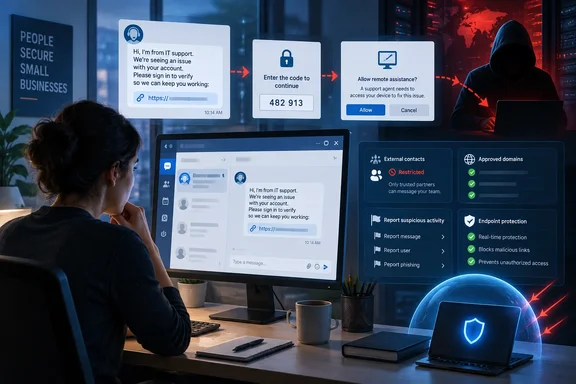
Microsoft has documented that path in attacks attributed to Storm-1811, a financially motivated group associated with Black Basta ransomware activity. In Microsoft’s account, the group began using Teams messages and calls in late May 2024 to impersonate help-desk staff, then pushed victims toward Quick Assist, credential-phishing pages, scripts, and persistent remote-control tooling. Bitdefender’s small-business guide turns that incident pattern into practical warning signs, although its final section is also a sales pitch for Bitdefender Ultimate Small Business Security.
For Teams administrators, the useful conclusion is straightforward: training users to distrust surprise support requests is necessary, but it is insufficient if anyone on the internet can initiate a Teams conversation with staff. Restricting inbound external contact is the control that removes much of the attacker’s opening move.
The five “scams” share one access goal
Bitdefender identifies fake IT-support chats and calls, Quick Assist remote-access requests, phishing links, bogus security alerts, and impersonation of colleagues or suppliers. Those categories are useful for employee awareness, but they overlap heavily in an actual intrusion.
A typical sequence starts with a message from an unknown external account carrying a credible display name such as “IT Support” or “Help Desk.” The sender invents urgency: a spam-filter problem, pending account suspension, suspicious activity, or a required security update. The victim is then directed to a phishing page, asked to disclose a multifactor authentication code, or persuaded to launch Quick Assist and provide a connection code.
Microsoft’s Threat Intelligence team described precisely that progression in its Storm-1811 research. It said attackers used Teams to chat with and call targets while posing as help-desk personnel; where victims granted Quick Assist access, the activity could proceed to credential theft through EvilProxy, script execution, and persistence using SystemBC. Microsoft also described instances in which attackers later used remote-management tools including ScreenConnect and NetSupport Manager.
That is a critical distinction for an IT team responding to an event. A suspicious Teams chat is not necessarily merely a phishing-message problem. If a user supplied a Quick Assist code or allowed control of the machine, assume the incident may have crossed from attempted credential theft into endpoint compromise. Closing the chat window, blocking the account, or changing one password does not establish that the device is clean.
Quick Assist is legitimate, which is why the lure works
Quick Assist is built into Windows and intended to let one person view or control another person’s PC during a support session. Its legitimacy is the point: an employee accustomed to receiving help through Microsoft tools may see a Quick Assist request as safer than an unfamiliar remote-access application.
Microsoft’s May 2024 advisory made clear that the tool itself was being misused, rather than exploited through a stated software flaw. The attacker needs the target to participate in the connection and approve access. That makes this a difficult threat to stop with antivirus alone, because the first action is a user-authorized remote-support session using a Microsoft application.
Small businesses should establish one unambiguous support rule: no employee should initiate Quick Assist, install remote-management software, reveal an MFA approval code, or share a screen because of an unexpected Teams chat, call, email, or text. If support really is needed, the employee should open a ticket through the company’s known process or call a published internal number. The verification path must come from an address book, intranet, ticket portal, or other trusted record — never from contact details sent by the purported technician.
This policy needs an exception only if the business genuinely operates an on-demand support model. In that case, staff should be trained to verify the technician through a separate, known channel before launching the session. “They knew my name and company” is not verification; Teams display names can be selected by an external organization and are not proof of the person behind them.
External Teams chat is a configuration decision
Bitdefender tells readers to limit messages from unmanaged Teams accounts and to allow external communication only with trusted domains where possible. Microsoft’s current Teams administration guidance provides a concrete route to do that, but the operational trade-off deserves more attention than the vendor guide gives it.
Teams external access allows users to chat, call, and meet with people in other organizations. It is valuable for companies working with clients, contractors, suppliers, and managed-service providers. It also allows a stranger who knows an employee’s email address to reach that employee directly if the tenant is configured broadly enough.
Microsoft recommends that organizations needing tighter controls set external access to permit only specified external domains. Teams administrators can also manage access using allow and block lists assigned to particular users or groups, rather than imposing the same external-contact policy on every worker. A finance team handling supplier invoices, for example, may need an approved supplier list; a help-desk team may need broader contact rules; most back-office staff may not need unsolicited external Teams chat at all.
Microsoft’s unified external-collaboration settings documentation is especially relevant here because the company’s “Open” and “Controlled” modes both show broad external-domain access as their listed default for chats, calls, and meetings. Businesses should not assume that choosing a mode called Controlled means external Teams contact has been narrowed to trusted partners. Review the actual external-access settings and policies.
There is also a practical limit to domain allowlisting. It can disrupt legitimate collaboration when a customer uses a personal Microsoft account, a vendor changes email domains, or a partner has not configured reciprocal federation. But for a small business with a stable list of outside partners, the inconvenience is often preferable to treating every employee as a publicly reachable support target.
Teams has reporting and investigation controls, but they must be enabled and used
Microsoft Teams can warn users when it detects possible spam, phishing, or impersonation in a chat request from outside the organization. Microsoft tells users to inspect the sender’s name and email address, preview the message, and accept only when they are confident the contact is trustworthy. The warning is useful, but it cannot determine whether a message from a compromised supplier account is safe, nor can it recognize every impersonation attempt.
Users can report suspicious chat and channel messages through Teams’ Report this message action, selecting a security concern where that capability is available. Microsoft notes that reporting options can depend on organizational settings, so administrators should confirm that employees can actually report security concerns before an incident arrives.
For organizations using the relevant Teams protections, Microsoft also offers a Security detections report in the Teams admin center. The report covers detections such as impersonation, malicious URLs, and weaponizable files, and it can expose sender information useful for investigation and blocking. This creates a workable incident loop: users report the suspicious message, administrators investigate related chats and detections, and security staff block the offending sender or external domain.
Microsoft’s Tenant Allow/Block List can block specific Teams sender addresses and domains, with block entries applying to new Teams meetings, chats, channels, and calls from the listed party. Microsoft says those entries do not expire and may take up to 24 hours to become active. That delay is a reason to isolate and protect an exposed user or device immediately; it is not a reason to wait for a block entry before beginning response work.
A Teams scam needs different response paths depending on what the user did
Bitdefender correctly advises businesses to disconnect an affected device if they suspect ongoing access, change compromised credentials from a trusted device, revoke active sessions, and investigate software, security-setting changes, and unfamiliar sign-ins. The proper response depends on whether the incident stopped at a message or progressed further.
- If the employee only received or previewed a suspicious Teams message, block and report the sender, preserve the message details for the administrator, and verify that no links or files were opened.
- If the employee entered credentials into a link reached from Teams, reset the account password from a known-clean device, revoke active sessions, review recent sign-ins and MFA-method changes, and investigate whether the same password was reused elsewhere.
- If the employee approved Quick Assist, installed software, or gave screen control to the caller, remove the endpoint from the network and treat it as a probable compromise until qualified IT staff check for new accounts, remote-access tools, scheduled tasks, startup items, security-control changes, and suspicious outbound connections.
- If the affected account had administrative rights, access to customer records, financial systems, backups, or other sensitive services, expand the investigation beyond the individual laptop. Attackers who obtain a foothold through a support scam may use valid credentials to move toward higher-value systems without immediately deploying ransomware.
The final point is where small organizations are most exposed. A business without a dedicated IT team may view a Teams incident as an employee-training mistake and simply reset a password. Microsoft’s Storm-1811 reporting shows why that can be inadequate after remote access: the goal can be durable access and follow-on activity, not merely a single stolen login.
The immediate audit is smaller than most businesses think
A small business does not need to redesign Microsoft 365 to reduce this risk. It should begin by inventorying who needs external Teams chat, which partner domains are actually required, who can authorize remote assistance, and whether Quick Assist or other remote-control tools are necessary on ordinary employee PCs.
Then test the human process. Send a harmless internal simulation or walk through a tabletop exercise in which “IT Support” asks an employee to open Quick Assist after reporting a fake account lockout. If the employee cannot identify the approved verification channel within a minute, the organization has found its real weakness.
Bitdefender’s list is a useful awareness prompt, but the stronger defense is procedural and administrative: make support requests predictable, make external contact deliberate, and treat any unauthorized remote-control session as a security incident.