

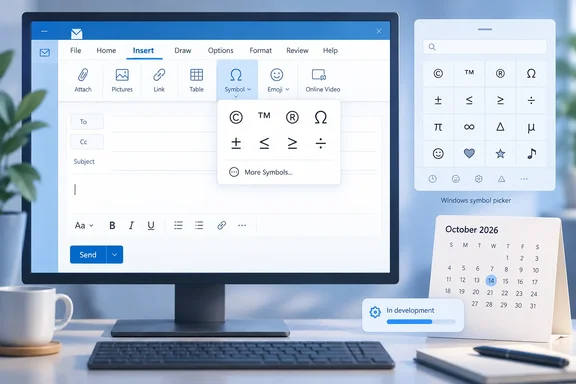
Outlook’s planned Insert > Symbols command addresses a familiar gap
Roadmap ID 571683 describes a straightforward task: while composing an email, open the Insert tab and select Symbols to add a character. The submitted Microsoft roadmap record lists desktop and web as platforms and October 2026 as the planned month for general availability. It gives no particular October date or Outlook build number. Microsoft describes its roadmap dates as estimates that can change.
The wording matters because Outlook already lets users put symbols in messages. Microsoft’s support guidance says classic Outlook for Windows has Insert > Symbol: choose a character from the immediate list or open More Symbols. The planned command therefore should not be described as Outlook gaining symbol insertion for the first time.
For new Outlook for Windows, Microsoft’s current instructions say the Symbol option is unavailable in the ribbon. A composer must instead place the cursor in the message, press Windows key +. (period), select Symbols in the Emoji and more window, and choose a character from its categories. Putting a command on Outlook’s Insert tab would make that task easier to discover for someone expecting the classic ribbon workflow. That is a practical inference from the planned menu path, not a tested description of the unfinished feature.
Classic and new Outlook need different instructions today
Before looking for the forthcoming command, it helps to establish which Windows app is open. Microsoft says the Settings button at the upper right identifies new Outlook for Windows; if that button is absent, the user is in classic Outlook. This check is more useful than assuming that every Outlook window has the same Insert tab commands.
The current, documented Windows procedures are short:
- In classic Outlook for Windows, compose a message or reply, open Insert > Symbol, and select a character. Choose More Symbols if it is not in the immediate list.
- In new Outlook for Windows, compose a message or reply and place the cursor where the character belongs. Press Windows key +., select Symbols in the picker, browse its categories, and select the character. Microsoft says it is inserted directly into the message.
Microsoft also lists Windows Outlook keyboard shortcuts for a few common characters: Alt+0169 for ©, Ctrl+Alt+T for ™, and Ctrl+Alt+R for ®. They are examples of shortcuts for particular symbols, not a substitute for browsing a symbol catalog. Microsoft’s cited instructions cover Outlook for Windows; they do not establish a corresponding Windows-key procedure for Outlook on the web.
October 2026 is a target, not an Outlook deployment date for every user
The roadmap record names General Availability and Targeted Release, and lists Worldwide standard multi-tenant, GCC, GCC High, and DoD cloud instances. Those labels describe the planned scope, but the entry does not provide separate rollout dates for those environments or say when any individual tenant will see the command. Microsoft’s roadmap explanation says that, where Targeted Release applies, a rollout start reflects the change beginning to appear there before Standard Release.
Nor does the short feature description specify what opens after Insert > Symbols. It does not promise classic Outlook’s More Symbols dialog, the Windows picker’s categories, or an identical selection on desktop and web. For anyone who relies on a particular character or a particular way of finding it, that interface detail remains worth checking when the feature arrives.
The October target also supplies no license requirement, administrator setting, or deployment prerequisite. Administrators do not have a documented control to configure from this entry, and users have no reason to change Outlook versions solely to get a command that is still in development.
What this means for you
Use the symbol-insertion method documented for your current Outlook client; treat Insert > Symbols as a planned convenience until it appears in your composer. The immediate task is already possible in both Windows versions, though the paths differ.
- If you use classic Outlook for Windows, use Insert > Symbol, then More Symbols when needed.
- If you use new Outlook for Windows, put the cursor in your draft and use Windows key +., then select Symbols.
- If you are unsure which Windows Outlook you have, look for Settings at the upper right; Microsoft identifies its presence with new Outlook.
- If you manage a rollout, record October 2026 as the roadmap’s estimated general-availability month, not a guaranteed activation date for every user or cloud instance.
- If your workflow depends on a specific symbol, keep using the working method until you can see whether the new command includes that character and a suitable way to find it.
Outlook’s Insert > Symbols plan is a small but useful piece of interface consistency: it offers a ribbon route for a task that classic Outlook users can already perform there and new Outlook for Windows users currently perform through Windows. October 2026 is the decision point for checking the delivered command, particularly its desktop and web behavior; until then, the existing Windows procedures remain the dependable instructions.
References
- Outlook: Insert Symbol Microsoft 365 Roadmap · 2026-09-24T22:58:55.621854Z
- Add symbols to an email in Outlook for Windows | Microsoft Support support.microsoft.com