

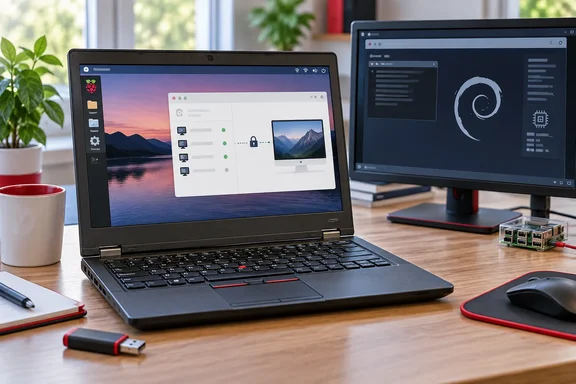
What's new
Raspberry Pi describes the release as the fully updated Debian Trixie with Raspberry Pi Desktop for PC and Mac. It's now based on 64-bit Debian (the amd64 architecture) rather than the older 32-bit version, because Debian itself has stopped supporting 32-bit for PC architectures.
Raspberry Pi's download page lists the PC and Mac image with these details:
- It was released on 5 October 2026.
- It is 64-bit and based on Debian 13 "trixie".
- It uses Linux kernel 6.12.
- The download is 2,616 MB.
- Its SHA-256 hash is 270fdcf1585fcc6a30760e78c37d1d0c522e33e4a809adf51fc4027f053e6513.
9to5Linux adds that the release runs the long-term supported Linux 6.12 LTS kernel series. The kernel number is not a typo. The Raspberry Pi board builds on the same page list kernel 6.18, so don't mix up the two specifications.
The previous PC/Mac edition was a 32-bit Debian Bullseye image from July 2022. That makes this a large jump in base system, not a point release.
The Connect client
The main addition is the Raspberry Pi Connect client. With it, you can control a PC or Mac running the Desktop in the same way as your Raspberry Pis.
Raspberry Pi says the setup works like it does on a Pi, with one difference. When you set up a PC for Connect, you're asked to enter a name to identify the device. A Raspberry Pi doesn't need this because it uses a unique hardware ID. The name you choose then appears in the device list when you log into the Connect website.
Raspberry Pi's general Connect documentation describes the usual flow on Pi hardware:
- Sign in at connect.raspberrypi.com with a Raspberry Pi ID.
- The full Raspberry Pi OS editions include Connect, but the service is disabled by default, so you must turn it on before first use.
- Link the device to your account.
- From your PC, Mac, or other device, visit the Connect site to access linked devices in a web browser.
That documentation is written for Raspberry Pi devices. I haven't found a PC-specific walkthrough, so treat the Pi steps as a guide and not a verified checklist for x86. Two caveats from those docs may also apply:
- The remote machine must be powered on and booted into the OS.
- Screen sharing relies on Wayland, according to Raspberry Pi's notes on Connect. That is the part I'd test first on unusual graphics hardware.
On privacy, Raspberry Pi's documentation says Connect uses an encrypted connection. It normally connects the device and browser directly, and falls back to a relay server if a direct link fails. Personal accounts are free.
How to install it
This is an operating system you install, not an app that runs inside Windows or macOS. The steps:
- Download the ISO from Raspberry Pi's website, and check it against the published SHA-256 hash.
- Write the ISO to a USB flash drive.
- Boot the PC or Mac from the USB drive.
- Run the installer. 9to5Linux says it uses the Calamares graphical installer, launched from the "Install Raspberry Pi OS" desktop shortcut or the matching entry in the System Tools menu.
9to5Linux also says the ISO features persistence, so you can use it directly from the USB drive. That is useful if you want to try the system without installing it. I haven't verified how persistence behaves in practice.
Which machines will it run on?
The 64-bit requirement rules out genuinely old 32-bit-only hardware. Raspberry Pi's own reassurance is that most PCs made in the last 15 years or so will run 64-bit Debian, as will most Intel-based Macs. The company's launch photo shows the desktop on a 2020 Dell XPS laptop.
Here are the limits on that claim:
- 9to5Linux frames it as for an x86_64 machine, not ARM. XDA likewise describes Intel-based PCs and Macs. Don't assume Apple-silicon Macs are supported.
- The download page gives no full hardware compatibility list or minimum specs.
- Raspberry Pi's "15 years" figure is a general guide, not a guarantee.
Back up anything important and test from the USB drive before you wipe a disk.
The bundled software
The download page says Mathematica and Wolfram Language are included under license for non-commercial use only. If you plan to use the machine for work, check that license first.
Why it matters for PC users
Windows 10 hardware that falls short of Windows 11's requirements is the obvious target, though Raspberry Pi doesn't frame it that way. A Debian-based desktop with a current UI, a remote-access client and a familiar Pi look is a tidy option for a kiosk, a family machine or a lab box. It also reduces setup work if you already manage Raspberry Pis through Connect, because the PC shows up in the same device list.
The release also has limits:
- Connect is a Raspberry Pi service, so you depend on their account system and relay infrastructure.
- It is not a drop-in replacement for enterprise remote-management tools.
- It isn't a Windows-native remote-desktop client. Access is through a web browser.
A forum thread from February 2026 reported that the Connect package wasn't available for amd64 at that time. This release addresses that gap: Raspberry Pi says it has now included the client in the PC and Mac image.
Bottom line
Raspberry Pi has refreshed the PC and Mac Desktop on Debian 13 with a 64-bit image and a Connect client that lets you manage the machine from a browser. Check that your hardware is 64-bit x86, verify the ISO hash, and try the live USB before you install.
References
- The new Raspberry Pi Desktop for PC and Mac lets you control your computer remotely via Connect XDA · 2026-10-06T14:21:46+00:00
- Debian Trixie-Based Raspberry Pi Desktop Is Now Available for PC and Mac - 9to5Linux 9to5linux.com
- Raspberry Pi Connect - Raspberry Pi Documentation raspberrypi.com