

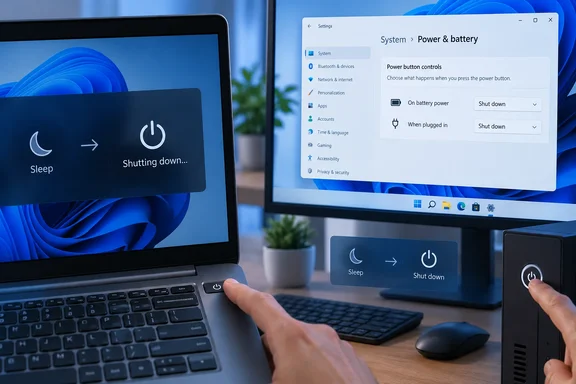
How-To Geek highlighted this convenience tweak in its September 22 guide. Microsoft’s power-management documentation confirms the underlying setting, while its support instructions provide a Control Panel route for changing it. Sleep is a deliberate default on many PCs, especially laptops and tablets—not evidence that the button is malfunctioning.
The useful improvement is making the button predictable. That means checking both battery and plugged-in behavior, keeping laptop lid controls separate, and understanding what Windows means by “Shut down.”
Windows 11 already lets the power button request a shutdown
Microsoft documents the setting as Power button action, with four core choices: Do nothing, Sleep, Hibernate, and Shut down. It is a longstanding Windows capability, available since Windows Vista, rather than a newly released Windows 11 feature.
Before changing it, consider the button’s position. If you regularly brush it while typing or moving the laptop, assigning Shut down turns an accidental press into a request to close your session. Save your work before trying the new behavior; an application’s shutdown warning is not a substitute for saving.
Use the Settings controls when they are available
According to How-To Geek, Windows 11 exposes the following route in Settings:
- Press Win+I to open Settings.
- Open System > Power & battery.
- On a laptop, open Lid, power & sleep button controls. The publication identifies the desktop control as Power button controls.
- Find Pressing the power button will make my PC.
- Select Shut-down for the power condition you want to change.
- On a laptop, check both On battery and Plugged in. Choose Shut-down in both if you want consistent behavior regardless of whether the charger is connected.
The reporting does not establish a minimum Windows 11 build for those exact Settings labels. If your PC does not show that page, use Microsoft’s documented Control Panel route rather than assuming the capability is missing.
Control Panel provides a documented alternative
Microsoft’s Windows 11 support instructions identify the classic Power Options interface for configuring the physical button. Combined with Microsoft’s documented Shut down action, the procedure is:
- Search for Control Panel from the taskbar and open it.
- Select System and Security.
- Under Power Options, select Choose what the power buttons do.
- If the relevant controls are unavailable, select Change settings that are currently unavailable.
- Beside When I press the power button, select Shut down in the applicable column.
- On a laptop, set On battery and Plugged in separately.
- Select Save changes.
You are changing the power-button row, not the neighboring lid or sleep-button controls. There is no need to change all three to achieve one-press shutdown.
After saving your work, briefly press and release the physical power button. The expected result is that Windows begins its normal shutdown process, rather than entering Sleep. Give Windows time to finish, and respond to any application that needs attention; the setting does not promise an instantaneous power-off.
To reverse the change, return to the same control, choose Sleep or your previous action, and save it. You can also continue using the ordinary Start > Power > Shut down command, which Microsoft documents as the menu-based way to turn off the PC.
Sleep, Hibernate, and Shut down solve different problems
The choice is primarily about what should happen to your current session. Microsoft recommends Sleep for short absences and Hibernate for longer periods away from a laptop when charging may not be available. Shut down is appropriate when you want to end the session.
| Power-button action | What it does | When it fits |
|---|---|---|
| Do nothing | Windows takes no action in response to the configured button press. | You frequently press the button accidentally. |
| Sleep | The PC enters a low-power state while keeping your session available for a quick return. | You are taking a short break. |
| Hibernate | Windows saves the session to storage so it can restore it later, using less power than Sleep. | You want to preserve your session during a longer absence. |
| Shut down | Windows closes the user session and performs its normal shutdown process. | You have finished working and want the button to turn off the PC. |
| Turn off display | The screen goes dark while the PC remains running. | You want to blank the display without requesting Sleep or shutdown. |
How-To Geek also reports Turn off display among the choices some PCs expose. Microsoft’s core Power button action documentation lists the other four actions, so do not expect every interface or device to offer all five.
Hibernate has its own availability limits. Microsoft says it is not offered on every PC, and it may need to be exposed in the shutdown menu. Where the option is available, its documented procedure is to open Control Panel > System and Security > Power Options > Choose what the power buttons do, select Change settings that are currently unavailable, enable Hibernate under Shutdown settings, and select Save changes. That checkbox controls its availability in the shutdown menu; assigning Hibernate to the physical button is a separate choice in the button-action control.
A laptop’s battery and plugged-in settings let you choose between consistency and different behavior in each situation. Selecting Shut down in both columns makes the button predictable when you connect or disconnect the charger. Selecting Sleep on battery and Shut down when plugged in preserves quick resume while mobile, but requires remembering that the same button now has two outcomes.
The lid remains independent. You can keep closing the lid assigned to Sleep while making the power button request Shut down. Likewise, a separate sleep-button setting does not mean your keyboard necessarily has a sleep key, and it need not be changed to configure the power button.
A short power-button press preserves Windows’ shutdown handling
The safety distinction is press and release versus press and hold. After you assign Shut down, a brief press asks Windows to shut down through its normal handling. According to How-To Geek, this serves the same purpose as choosing Shut down from the Start menu.
A prolonged press used to force an unresponsive PC off does not give Windows and applications the same opportunity to finish. Unsaved work is at risk. Changing the short-press action does not turn that emergency operation into a normal way to end every session.
Even a normal shutdown can interrupt your work if you trigger it unintentionally. How-To Geek notes that Windows may offer a chance to cancel when an application needs attention, but that is not a guaranteed confirmation prompt before every shutdown. If accidental presses are common, retaining Sleep—or selecting Do nothing—is the more suitable choice.
There is also a technical qualification to “turn off.” Microsoft’s system-power documentation explains that Windows can use Fast Startup, which logs off user sessions but preserves kernel state in a hibernation file to accelerate the next boot. Consequently, a normal shutdown does not necessarily perform the same complete system-state transition as a restart.
That does not undermine the convenience of the button setting. Your user session still closes. It does mean that assigning Shut down neither disables Fast Startup nor makes the button a replacement for Restart when a restart is what you need.
Managed Windows PCs may reserve the power-button choice for IT
On a work-managed computer, the visible control may not be yours to change. Microsoft’s Power Policy configuration service provider documents device-level power-button policies for supported Windows Pro, Enterprise, Education, and IoT Enterprise editions, including separate battery and plugged-in actions.
Those policies let administrators select Take no action, Sleep, Hibernate, or Shut down. Microsoft states that users can see and change the setting when the relevant policy is disabled or not configured.
Selecting Change settings that are currently unavailable in Control Panel should therefore not be treated as a way around organizational policy. If the setting remains locked on a managed PC, ask IT whether the button action is centrally controlled. The restriction alone does not establish a Windows fault.
For administrators, the practical distinction is between changing an individual preference and imposing behavior across devices. A shutdown assignment affects the person who presses the button and any applications they have open. Battery and plugged-in choices should be intentional, particularly if users move between desks and mobile work.
Choose one-press shutdown only if it matches how you finish work
Set the button to Shut down if you routinely end your session and can press it deliberately. Keep Sleep if quick return is more useful, or use Hibernate where supported when preserving the session with lower power use is the priority.
Before settling on the change:
- Check both On battery and Plugged in so connecting the charger does not unexpectedly change the button’s behavior.
- Leave the lid and sleep-button actions alone unless you also intend to change those separate controls.
- Save your work before verifying the new action, then press and release the button once.
- Retain Sleep or select Do nothing if the button is easy to hit accidentally.
- Treat a locked control on a managed PC as a possible policy restriction rather than trying to bypass it.
- Remember that assigning Shut down does not change Fast Startup or replace a requested restart.
Windows already provides the shortcut; the useful adjustment is choosing when it should apply. With the relevant power conditions set deliberately, a brief press can become a dependable way to finish a session—without a trip through the Start menu and without resorting to a forced power-off.
References
- Windows 11 handles your power button all wrong—here's how to make shutdowns easier How-To Geek · 2026-09-22T12:00:13+00:00
- Shut down, sleep, or hibernate your PC | Microsoft Support support.microsoft.com
- Power button action | Microsoft Learn learn.microsoft.com