

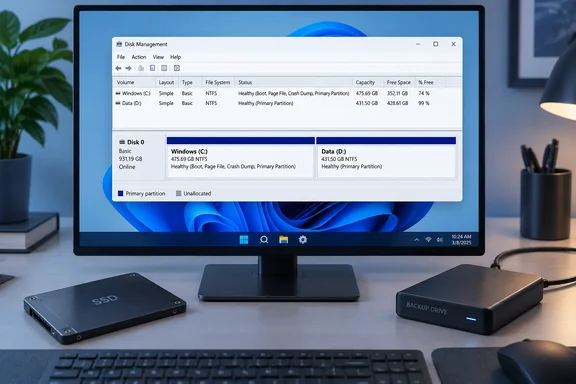
The short version
Partitioning is optional. A Windows PC runs fine on a single volume. MakeUseOf makes five arguments for splitting a drive anyway, and none of them is about speed:
- Better organization
- Encrypting only sensitive data
- Dual-booting
- Simpler backups
- Less painful reinstalls and troubleshooting
The article also admits the downsides. Allocating the wrong amount of space is a problem, and Disk Management has a learning curve. Here is how each argument holds up.
1. Organization: real, but a preference
The article suggests Windows and apps on C:, personal files on D:, and games elsewhere. A separate volume gives you its own drive letter and a space readout. You can see at a glance how much room games or work files are using.
The article says partitions "force" discipline. That is an editorial judgment, not Windows behavior. Folders do the same job. A partition only helps if you actually save files to it.
2. Encrypting only what matters
The idea is to encrypt a single data partition instead of the whole drive. The article says to right-click the drive, turn on BitLocker and save the recovery key.
Microsoft's BitLocker documentation adds some caveats:
- Turning BitLocker on or off for operating system and fixed data drives requires membership in the local Administrators group. I'm relying on the BitLocker FAQ from the research packet for that point, not the search result, so treat it as a general Microsoft documentation claim.
- Microsoft says the recovery password and key for a fixed data drive can be saved to a folder, to USB devices, or to a Microsoft account, or printed. Domain administrators can also store them in Active Directory or Microsoft Entra ID.
- Don't store the recovery key on the drive it protects. Keep a copy somewhere else.
- Some drives can't be encrypted this way. Microsoft lists reasons such as insufficient disk size, an incompatible file system, a dynamic disk, or a drive designated as the system partition.
- Automatic unlocking of a fixed data drive requires the operating system drive to also be BitLocker-protected.
- BitLocker's full management features are tied to certain Windows editions. Home devices may only get the more limited Device Encryption, so check what your edition offers before planning around it.
The article's malware point is the weakest. It says a separate partition raises your odds of recovering data after an infection. It admits this isn't guaranteed. A data partition on the same disk is not a security boundary against every kind of malware. Encryption protects data at rest. A partition just defines which data gets encrypted.
3. Dual-booting: the strongest case
This is where partitioning is genuinely required. Windows and Linux each need their own space.
The article says most Linux installers detect Windows and offer to shrink it. Ubuntu's installer does document an "install alongside" option. Behavior varies by installer and system, so don't assume it. Ubuntu also warns that BitLocker can get in the way of that process. If Windows is encrypted, check the installer's current instructions first, and back up before touching partitions.
4. Backups: convenience, not protection
Pointing a backup tool at one volume is simpler than picking folders by hand. The article says this makes backups smaller and faster. That depends on what's on the volume, how the backup software selects and compresses data, and where the backup goes.
The important caveat is that a partition is not a second disk. If the physical drive fails, every partition on it goes with it. A data partition on the same SSD is not a backup. You still need a copy on another device or in another location.
5. Reinstalls and troubleshooting: useful, with caution
Keeping personal files on a separate volume can make a clean Windows reinstall less nerve-wracking. The article says you can wipe and reinstall just the OS partition.
Microsoft's guidance on formatting is blunt. Formatting destroys the data on a partition, so back up anything you want to keep. You also can't format a partition that is currently in use, including the one holding Windows. That Disk Management note comes from Microsoft's support page in the research packet. In practice, you do the wipe from the installer, and you have to pick the right target. A separate partition lowers the odds of a mistake but doesn't remove them.
The part people skip: resizing later
The article says that if the OS partition is too small, resizing is "easier said than done." Microsoft's documentation explains why. In diskpart, list volume shows the volumes on all disks, and you select the one to shrink with select volume <volume-number>. The limits are the real problem:
- Disk Management can only shrink basic volumes that are NTFS or have no file system.
- Ordinary files are relocated automatically.
- Unmovable files, such as the page file and shadow copy storage, set a floor. Shrinking can only go as far as those files allow.
- If a shrink fails, Microsoft says to check the Application log for event ID 259, which identifies the blocking file.
- As a workaround, you can temporarily move the paging file or shadow copies to another disk, shrink, then move them back. That needs a second physical disk.
A Microsoft Q&A answer in the results gives similar advice: leave C: large enough for Windows and apps, in the tens of GB at minimum, and accept the shrink size Windows suggests. That is community Q&A, not an official sizing rule. No authoritative universal size exists, so I won't invent one.
How to create a data partition in Windows 10 or 11
Microsoft says Disk Management works the same in both versions. These steps follow Microsoft's support documentation:
- Back up anything important first.
- Open Disk Management by right-clicking Start and selecting Disk Management. Or press Windows+R and run
diskmgmt.msc. - You need to be signed in as an administrator, and you need unallocated space. If there is none, shrink an existing volume, right-click it and choose Shrink Volume.
- Right-click the unallocated region and select New Simple Volume.
- Follow the wizard. Set the size in MB, choose a drive letter, and pick a format. Default settings are fine for most people.
- Confirm success. The new volume should appear in File Explorer with its own letter.
If you're initializing a brand-new disk, Microsoft recommends GPT for modern UEFI systems that need large drives or more than four partitions. Use MBR only for older hardware or operating systems without UEFI support.
Verdict
Partitioning is worth it if you dual-boot, if you want a dedicated encrypted data volume, or if you like a clean split between OS and files. If you just want protection from disk failure or malware, it isn't the answer, because backups and security tools do that job. Most single-OS users on a big SSD can skip it.
If you do partition, verify the disk and volume before every resize or format. Keep a separate backup, keep your recovery key somewhere that isn't the protected drive, and leave Windows plenty of room to grow.
References
- Partitioning your drive still makes sense in 2026 for these 5 reasons - MakeUseOf MakeUseOf · 2026-10-06T12:01:15+00:00
- Shrink a Basic Volume | Microsoft Learn learn.microsoft.com
- BitLocker FAQ | Microsoft Learn learn.microsoft.com