

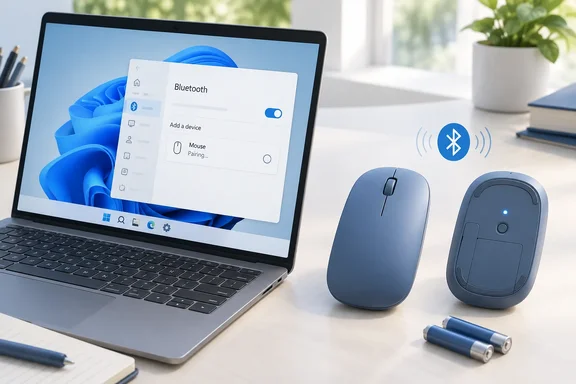
Surface Mobile Mouse Setup Starts with Windows 10/11 and Bluetooth 4.0
The requirement is short. To get set up, you'll need a PC that's running Windows 11 or Windows 10 with support for Bluetooth 4.0 or later. Microsoft also says this mouse supports Swift Pair in Windows for faster pairing. If you don't know which Bluetooth version your PC has, Microsoft's page sends you to its separate help article on checking the Bluetooth version on your PC.
Bluetooth 4.0 is the real limit here. Adorama's retail listing for the mouse puts it plainly: the device must support Bluetooth 4.0 or higher (Note: Many Apple and Windows 7 devices do not support Bluetooth 4.0). The mouse ships without a USB dongle, so an older PC can't fall back on a receiver. Microsoft's general Windows Bluetooth guidance says a PC without built-in Bluetooth can take a USB Bluetooth adapter plugged into a USB port. The mouse's own page doesn't say whether a particular adapter meets the 4.0 requirement.
The Windows 10 support in the listing is a hardware compatibility statement, not a lifecycle one. Microsoft's general pairing article notes that Windows 10 support ended on October 14, 2025. Windows 10 PCs still work after that date but no longer get free security fixes. The mouse will pair with them either way.
Some product claims also appear on the page. Microsoft says the Surface Mobile Mouse features Microsoft BlueTrack Technology, allowing it to work smoothly on virtually any surface. Its ambidextrous design makes it comfortable for both left- and right-handed users. These are manufacturer claims, and the setup guide doesn't list which surfaces, if any, are exceptions.
One Button Handles Both Power and Pairing
The most common setup mistake follows from how the hardware is built. Your mouse has a shared power and Bluetooth pairing button located on the bottom. A short press and a long press do different things: press the button once to turn the mouse on or off. For Bluetooth pairing, press and hold the button to put the mouse in discovery mode.
If you tap the button and wait for Windows to find the mouse, you have only switched it on or off. Pairing needs a sustained hold, and the LED tells you whether it worked. A flashing light means the mouse is discoverable. A steady light means it's powered on, either with no pairing attempt under way or with pairing already finished.
The hold time is specific to this model. Microsoft tells Surface Mobile Mouse owners to hold the button until the LED light starts to flash (about 3 seconds). Microsoft's Surface Arc Mouse guide gives a different timing: press and hold the pair button on the bottom of the mouse until the LED light starts to flash (about 5 seconds). The Arc Mouse also powers on differently. To turn on your mouse, snap it into the curved position. Snap your mouse flat to turn it off. If your office has a mix of Surface mice, go by the flashing LED instead of counting seconds.
Swift Pair Is the Quick Route, and Settings Is the Backup
Once the mouse is flashing, Microsoft offers two ways to finish.
The Swift Pair notification
On your Windows PC, select Connect if a notification appears for your mouse, then wait for it to get set up. Swift Pair is a Windows feature that watches for supported Bluetooth devices announcing themselves nearby. Microsoft's general pairing documentation says the notification appears only when the device is nearby and is in pairing mode and discoverable. The first time a PC uses Swift Pair, Windows may ask whether to allow it. Select Yes if you want the notification route.
Adorama's listing says Swift Pair on this mouse is supported by Windows 10 April 2018 Update or later. Microsoft's setup page doesn't give a minimum Windows 10 build, but any Windows 10 PC that still gets updates will be well past that release.
The manual Settings path
Swift Pair is a shortcut, not a requirement. If no notification appears, Microsoft gives a manual path for each Windows version, and the two differ:
- On Windows 11, go to Start > Settings > Bluetooth & devices > Add device > Bluetooth, select Surface Mobile Mouse, then select Done.
- On Windows 10, go to Start > Settings > Devices > Bluetooth & other devices > Add Bluetooth or other device > Bluetooth > Surface Mobile Mouse > Done.
You can tell it worked from the LED. Once your mouse is paired, the LED light will stop flashing. The light will stay on until you turn off your mouse. Microsoft's general Bluetooth guidance adds that once paired, a Bluetooth device and the Windows PC reconnect automatically whenever both are in range and Bluetooth is on.
Look for Either Name: Surface Mobile Mouse or Microsoft Modern Mobile Mouse
Microsoft publishes the procedure under more than one name. An Australian version of the support article covers two products. On Windows 11 it tells users to choose Surface Mobile Mouse or Microsoft Modern Mobile Mouse in the Add device list, and it says the Surface Mobile Mouse and Microsoft Modern Mobile Mouse both use 2 AAA batteries.
In practice, if you're pairing a Microsoft-branded mobile mouse and the Windows device list shows "Microsoft Modern Mobile Mouse" instead of "Surface Mobile Mouse", you likely have the Modern Mobile Mouse. Microsoft documents the same steps for both. The US page that is the main subject here names only the Surface Mobile Mouse.
No Multi-Device Switching in the Surface Mobile Mouse Guide
The guide describes only single-PC pairing, and that affects anyone who moves between a laptop and a desktop. Compare Microsoft's page for the Microsoft Bluetooth Ergonomic Mouse, which says you can pair up to two more devices with your mouse. To pair your mouse with another device, press the pairing button to change it to another device, then follow the same instructions above to pair the new device.
The Surface Mobile Mouse page has no equivalent section. One Surface Mobile Mouse owner's workaround, posted in the comments of a SurfaceTip tutorial, is to put the mouse back into pairing mode and pair it again. The commenter wrote "I do this every time I want to switch the mouse between multiple computers." That's one user's report, not Microsoft guidance. It fits the documented design, though: one button and no device selector. If you need to switch between machines often, choose a model that Microsoft documents with multi-device pairing.
Two AAA Batteries and a Built-In Battery Readout
The mouse doesn't recharge. The Surface Mobile Mouse is powered by two AAA batteries. Microsoft's replacement steps:
- Turn the mouse over.
- Gently press the edge of the battery door to open it.
- Remove the old batteries and insert two new AAA batteries.
Microsoft's advice for making batteries last is simple: to help conserve battery life, press the Bluetooth button on the bottom of the mouse to turn it off when not in use. Use a short press for this. A long press starts pairing instead. The setup page gives no battery-life figure. Adorama's listing claims the mouse connects wirelessly to your Surface via Bluetooth and delivers up to one year of battery life, which is a retail claim and will vary with use.
You don't need extra software to check the charge level. Microsoft says to open Search, type Bluetooth, and open Bluetooth & other devices settings. The battery level appears next to the mouse. If you keep spare AAA cells in a laptop bag, that readout tells you when you'll need them.
Customizing the Mouse in Settings and Mouse and Keyboard Center
Basic pointer behavior is in the standard Windows settings. Microsoft gives two paths:
- On Windows 11, go to Start > Settings > Bluetooth & devices > Mouse.
- On Windows 10, go to Start > Settings > Devices > Mouse.
For more than the built-in options, Microsoft points to its free Microsoft Mouse and Keyboard Center app, which it describes as a way to personalize and customize Microsoft keyboards and mice. The setup page doesn't say which advanced controls the app offers for this model. Adorama's specification sheet lists customizable functions including X-Y resolution adjusting, Wheel button function reassignment, Left click and right click swap, Wheel customization, Battery level reporting. Treat that as the retailer's list, not a Microsoft-confirmed feature set. It gives a sense of what to look for once the app is installed.
The same retailer lists the hardware as 3 buttons - left, right and middle wheel button. That's worth knowing before you plan button remapping: the mouse has no side buttons.
What this means for you
If you have a Windows 11 or Windows 10 PC with Bluetooth 4.0 or later, you can set up the Surface Mobile Mouse in under a minute without a dongle or software. The only real decisions are whether your PC's Bluetooth is new enough and whether you'll need to share the mouse between several computers. IT staff giving these mice out across a fleet should confirm the Bluetooth version before deployment. Remember too that Windows 10 compatibility doesn't mean Windows 10 still gets security updates.
- Hold the underside button until the LED flashes, about three seconds on this model. A single tap only turns the mouse on or off.
- If the Swift Pair notification doesn't appear, use Settings > Bluetooth & devices > Add device > Bluetooth on Windows 11, or Settings > Devices > Bluetooth & other devices > Add Bluetooth or other device on Windows 10.
- A steady LED after pairing means the connection worked. A light that keeps flashing means the mouse is still waiting to be discovered.
- Check the battery level in Bluetooth & other devices settings, and keep two AAA cells handy, because the mouse doesn't recharge.
- Turn the mouse off with a short press when you pack it away to save battery.
- If you switch between PCs often, consider a model Microsoft documents with multi-device pairing, such as the Microsoft Bluetooth Ergonomic Mouse. The Surface Mobile Mouse guide describes pairing to one PC only.
The Surface Mobile Mouse is about as simple as Bluetooth accessories get: one button, two AAA cells, and a Windows feature that does most of the pairing for you. What Microsoft's guide adds is precision. The hold time is specific to this model, the manual fallback differs between Windows 11 and Windows 10, and a steady light confirms success. Now that Windows 10 no longer gets free updates, more of these mice will end up paired with Windows 11 machines, where the Bluetooth & devices path is the one to remember.