

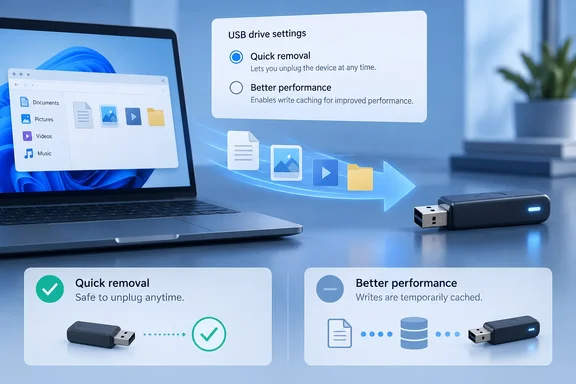
What Microsoft changed in 2018
Microsoft's documentation explains that Windows defines two main policies, Quick removal and Better performance, that control how the system interacts with external storage devices such as USB thumb drives or Thunderbolt-enabled external drives. Beginning in Windows 10 version 1809, the default policy is Quick removal. In earlier versions of Windows, the default policy was Better performance.
Microsoft didn't explain the change for a while. When gHacks covered it in 2019, it pointed out that the company published a new support article -- six months after the initial release of Windows 10 version 1809 -- that describes the change that has been made. So the "quiet change" framing is fair. Many users only learned about it later, through tech-news coverage.
The setting is not one global switch. You can change the policy setting for each external device, and the policy that you set remains in effect if you disconnect the device and then connect it again to the same computer port. If you have three flash drives and an external SSD, each one has its own policy.
Section summary: Since Windows 10 1809, Windows has defaulted to Quick removal for external storage. Before that, the default was Better performance. You set the policy per device, and it is remembered on the same port.
The trade-off: removal safety vs. write caching
The two options differ in one main way: whether Windows can cache writes in memory before sending them to the drive.
- Quick removal: This policy manages storage operations in a manner that keeps the device ready to remove at any time. You can remove the device without using the Safely Remove Hardware process. However, to do this, Windows can't cache disk write operations. This can degrade system performance.
- Better performance: When this policy is in effect, Windows can cache write operations to the external device. However, you must use the Safely Remove Hardware process to remove the external drive.
Microsoft is direct about the risk: If you remove or disconnect the device without following the safe removal instructions, you risk losing data. Think of write caching like a restaurant kitchen that holds tickets and fires them in batches. It works fine, unless someone pulls the plug on the kitchen while tickets are still on the rail.
Microsoft's choice made sense. Most people copy files, wait for the progress bar to finish, and pull the stick out. The default protects that habit at some cost to speed.
How much does Quick removal actually cost?
XDA's Abhinav Raj ran a test on an inexpensive USB 2.0 flash drive. He built a folder of 6,000 small files, each between 4 KB and 256 KB, about 760 MB in total. He copied it to the drive using the same port under each policy.
| Policy | Reported copy time |
|---|---|
| Quick removal (default) | 11 min 31 sec |
| Better performance | 10 min 31 sec |
That is one minute saved, about 9%, on a slow drive with a workload heavy in small files. The author's reasoning was that write caching should help most with many small writes, where per-file overhead adds up. He describes that as a theory, not something he measured separately.
Treat the result as one data point, not a benchmark. It was a single run on one unnamed drive. The report doesn't give a file system or repeated trials, and the author says himself that results will vary by drive and file type. The numbers shouldn't be applied to external NVMe enclosures, Thunderbolt SSDs, or large sequential copies like video files.
Some vendors make stronger claims. External-storage maker OWC says the Quick removal default protects your data, it can significantly reduce read/write performance, and that if you're experiencing slow speeds with your OWC storage, changing the removal policy back to "Better performance" can improve disk performance. OWC sells drives and offers its own tool for changing the setting, so treat that as a vendor claim, not an independent measurement. Microsoft says only that Quick removal "can degrade" performance and doesn't give a figure.
So the honest headline is narrower than "Windows has been slowing every USB drive." The default gives up write caching, which can make some drives slower on some workloads, by amounts that differ a lot from one setup to the next.
Section summary: One test found a one-minute gain copying small files to a cheap USB 2.0 stick. Vendors such as OWC claim bigger gains on their own hardware. Microsoft gives no number. Test your own drive and your typical files.
How to change the removal policy in Windows 10 and Windows 11
Microsoft's official route goes through Disk Management:
- Connect the device to the computer.
- Right-click Start, open File Explorer, and note the drive letter or label, for example "USB Drive (D🙂".
- Right-click Start again and select Disk Management.
- In the lower half of the Disk Management window, right-click the drive's label and choose Properties.
- Select the Policies tab.
- If the Policies tab isn't there, Microsoft notes that some recent Windows versions arrange the tabs differently. Select Hardware, pick the removable drive from the All disk drives list, then select Properties. The Policies tab should now appear.
- Choose Quick removal or Better performance.
Microsoft adds: If you select Better performance, we recommend that you also select Enable write caching on the device.
Device Manager route. XDA uses Device Manager instead, and ElevenForum describes the same path: Open Device Manager (devmgmt.msc). Expand open Disk drives, and double click/tap on the removable drive you want. Then open the Policies tab and pick your option. ElevenForum's Windows 11 tutorial also documents a third route in Settings, under a "Removal policy" option, for people who'd rather avoid the classic MMC tools.
What success looks like. The Policies tab shows Better performance selected for that specific drive. Plug the drive back into the same port later and the setting should still be there.
Troubleshooting notes:
- No Policies tab? Use the Hardware tab method in step 6, or the Device Manager route.
- Setting seems to vanish? The policy is stored per device and per port. If you plug the drive into a different port, check it again.
- No speed change? XDA's author found the change didn't seem to apply right away and recommends a reboot. Microsoft's documentation doesn't say a reboot is required, so treat that as one user's experience, not official guidance. Rebooting won't hurt if you're comparing speeds.
- Several drives? Each one needs its own setting. Changing one doesn't change the others.
Should you flip it?
Answer one question honestly: do you eject your drives every time?
Better performance is a reasonable choice if:
- You already use Safely Remove Hardware or the eject option out of habit.
- The drive stays plugged into one machine for long periods, like a backup disk or a scratch drive on a desk.
- You often write big folders of small files to the same device.
Stay on Quick removal if:
- You, your family, or your users pull drives out as soon as the copy dialog closes.
- The drive moves between many machines and ports, since the setting is tied to the port.
- The data on the drive matters more than the time you'd save.
There's an extra caution for write caching in general. Winaero noted years ago that while the disk write caching improves system performance, it can lead to data loss due to power outage or another hardware failure. A laptop with a healthy battery handles that risk well. A desktop on unreliable power with no UPS is a riskier place to enable it.
For IT admins: Quick removal is the safer default for a fleet. People pull drives out without ejecting no matter how much training they've had. Switch to Better performance only on specific machines with dedicated drives and staff who know to eject first.
The bottom line
The default changed in Windows 10 1809. Quick removal turns off Windows write caching so you can pull a drive without corrupting files. Better performance turns caching back on, but you must eject the drive every time. In XDA's single test on a USB 2.0 stick, that was worth a minute on a 760 MB copy of small files. Your results may be larger, smaller, or close to zero.
The default was a deliberate choice, and it makes sense for most people. If you're disciplined about ejecting and copy lots of small files to the same drive, switching is worth trying. Time a copy before and after, so you're judging by your own drive and not a headline.
Have you measured a difference on your own drives? Share your numbers in the forum, along with the drive model, interface, and file mix.
References
- Windows has been slowing down every USB drive you plug in for 8 years, and one setting fixes it XDA · 2026-10-03T17:30:20+00:00
- Windows 10 1809: Quick Removal new default for external storage devices - gHacks Tech News ghacks.net
- Change Removal Policy of External Storage Devices in Windows 11 elevenforum.com