

His explanation is plausible, and many people in apartments and dense suburbs will recognise it. But the account is a story, not a controlled diagnosis. Windows users can do better than guessing, because the tools to gather evidence are already built into Windows 10 and Windows 11.
What happened in the XDA account
Singh says his evening Wi-Fi had been poor for several weeks. It was new, and he hadn't changed his devices or what he used them for. He worked through the usual router fixes:
- Turned on QoS (Quality of Service), which tells the router to prioritise some traffic instead of serving everything first come, first served.
- Cut transmit power from 75% to 50%, hoping to cause less interference with neighbouring networks.
- Picked a new channel using WiFi Analyzer, in case the router's automatic channel choice was out of date.
- Narrowed the channel width to reduce interference further.
- Changed DNS servers. He had already been using Cloudflare DNS and ran a DNS speed test to check which resolver was fastest from his location.
None of it fixed the evenings. He then wondered whether his ISP was throttling him, but his PC's wired connection was fine. That clue pointed him away from the internet line and toward the wireless side.
His conclusion was that evening load from nearby networks (streaming, gaming, background downloads, smart-home traffic) was eating up the available airtime. His fix was to rely less on Wi-Fi:
- An Ethernet cable to his smart TV. Speeds on the TV had looked fine over Wi-Fi, but going wired got rid of the occasional buffering and quality drops he saw in the evenings.
- His game console moved to Ethernet too.
- Wired backhaul for his mesh nodes, so the nodes talk to each other over cable and the wireless channels are left for his devices.
In short: router tweaks didn't help, wired worked fine, and moving stationary devices onto cable is what finally fixed his evenings.
"Drops" or "slowdowns"? It matters
The XDA headline says his Wi-Fi drops at the same time every day. The article itself describes sluggish evening performance. Those are two different problems.
- A real drop means your device loses its connection to the access point. That can come from driver faults, power-saving behaviour, access-point timers, roaming problems, or interference bad enough to break the link.
- A slowdown means you stay connected but get less throughput and more lag. That fits airtime congestion, and it also fits heavy traffic inside your own home.
Microsoft's advanced Wi-Fi troubleshooting guide on Microsoft Learn, which covers Windows 11 and supported versions of Windows 10, treats these as separate cases. It has one path for devices that connect and then drop intermittently, and another for devices that stay connected but can't reach network services, which leads into TCP/IP, DHCP, DNS, proxy and firewall checks. Before you start changing settings, work out which one you have.
Is this proof the neighbours did it?
Not quite, and this is where some healthy doubt is useful.
The idea itself is sound. Wi-Fi runs on shared, unlicensed spectrum, so nearby networks on the same or overlapping channels compete for airtime. When everyone gets home and starts streaming, that competition gets worse. The standards body acknowledges the problem too: the IEEE's Wi-Fi 8 project explicitly defines its reliability goals for both an isolated network and "overlapping BSSs", which is standards language for neighbouring networks treading on each other.
But the XDA piece gives no router model, band, channel number, signal readings, before-and-after speed tests or access-point logs. An evening-only pattern could also mean:
- Your own home gets busier in the evening. Several people streaming, a console downloading an update and phones backing up photos can crowd your own Wi-Fi just as well as the neighbours can.
- The ISP line slows down in the evening. A good wired result makes this less likely, but only if you tested wired and wireless at the same time, against the same server, with a similar load.
- Something else that runs on a schedule in your house or building.
The wired-versus-wireless comparison is the strongest evidence in the story. It tells you the problem is probably on the wireless side. It doesn't tell you what on the wireless side.
In short: neighbourhood congestion is a reasonable theory for Singh's case, but you should confirm it with evidence rather than assume it.
How the router tweaks stack up
| Tweak | What it can do | Why it may not help with neighbour congestion |
|---|---|---|
| QoS | Prioritises traffic within your own network | Your router has no control over what neighbouring networks transmit |
| Lower transmit power | Can shrink your coverage and how much you overlap with neighbours | It doesn't make other networks quieter, and it can weaken your own signal at the edges |
| Channel change | Can move you away from a busy channel | A channel scan shows who is on each channel, not how much airtime they're using |
| Narrower channel width | Can reduce overlap with other networks | It also lowers your top speed; the trade-off depends on your setup |
| DNS change | Can speed up name lookups | DNS has nothing to do with radio airtime |
| Ethernet / wired backhaul | Takes devices and mesh links off the air completely | Phones, laptops and tablets still stay on Wi-Fi |
Microsoft's own small-business networking guidance backs the Ethernet move and is honest about the cost. It says wired networks reduce the chance of outside interference, but take more work to set up and can mean more expensive hardware. For a TV or console that never moves, that's usually worth it. For a phone, it obviously isn't possible.
One point Singh gets right is worth stressing: wired backhaul helps your mesh system, not every device. It frees up airtime that the nodes were using to talk to each other, but a laptop on Wi-Fi still competes for the same crowded channel as everything else.
A Windows routine for "my Wi-Fi dies every evening"
Before you reset your network settings, delete Wi-Fi profiles or reinstall drivers, collect evidence. Microsoft's troubleshooting guide says this directly: gather a baseline and note when the problem happens before those steps, because resets can wipe the evidence or temporarily change the behaviour.
Step 1: Write down when it happens and what you see
Keep a short log: the time, what you were doing, and whether the connection actually dropped or just crawled. Microsoft suggests recording the exact date and time of each disconnect, your wireless adapter model, its driver version and date, and your Windows build.
Step 2: Test wired and wireless at the same time
If you have a wired PC, run the same speed or latency test on it and on a Wi-Fi device at the same moment, during the bad period. If wired is fine and Wi-Fi is poor, look at the wireless side. If both are poor, suspect the ISP.
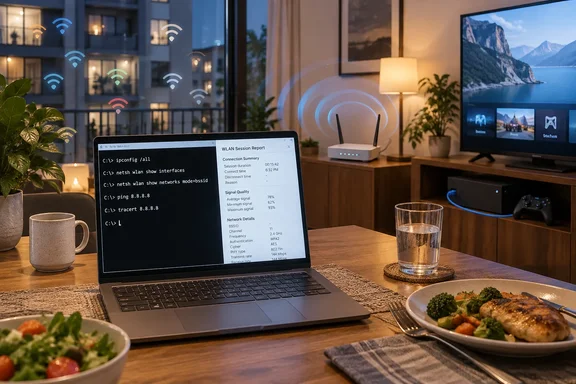
Step 3: Run the built-in netsh commands
Open Command Prompt or Terminal as an administrator and run:
netsh wlan show drivers
netsh wlan show interfaces
netsh wlan show networks mode=bssid
netsh wlan show wlanreport
According to Microsoft Learn, mode=bssid lists every visible network with its BSSID, signal strength, channel and radio type. Run it once in the afternoon and again during the evening slowdown. If your channel is crowded with neighbours' networks in the evening, that's a useful clue, but remember it counts networks, not how much airtime they're using.
Step 4: Read the WLAN report
Microsoft Support describes the wireless network report as saved as an HTML file, which you can open in your favorite web browser. The report shows all the Wi-Fi events from the last three days and groups them by Wi-Fi connection sessions. The three-day window means you should generate it soon after a bad evening, not a week later.
PCWorld notes that Windows saves the file as wlan-report-latest.html in the folder C:\ProgramData\Microsoft\Windows\WlanReport. That folder is hidden by default, so paste the path shown in Command Prompt straight into your browser or the Run box.
In the report's session chart, Windows Central points out that the "X" icon indicates an error. The "D" icon shows when the adapter loses its connection. This is how you tell the two problems apart:
- "D" markers lined up with your bad evenings mean real disconnects. Look at drivers, power management and the router's logs.
- Clean sessions but still-sluggish evenings point toward congestion or bandwidth limits.
Keep expectations realistic: the report does not apply fixes, but it provides detailed information that helps you identify the cause of wireless issues and take corrective action.
Step 5: Check the router's logs if you have them
For intermittent disconnects, Microsoft recommends matching up what the PC recorded with the access point's or controller's logs. Many consumer routers keep at least a basic event log. If the router kicked the device off, the reason it gives is worth more than any number of guesses.
Step 6: Then wire what you can
If the evidence points to evening congestion, do what Singh did: move stationary, heavy-traffic devices like TVs, consoles and desktop PCs onto Ethernet, and use wired backhaul if your mesh system supports it.
In short: find out whether it's a drop or a slowdown, compare wired and wireless, save the evidence, and only then change things.
Will Wi-Fi 8 fix this?
Singh mentions Wi-Fi 8 focusing on reliability rather than raw speed, and that's accurate. The IEEE project behind it, P802.11bn, is officially titled "Enhancements for Ultra High Reliability." Compared with Wi-Fi 7 (Extremely High Throughput), its targets include:
- at least one mode that raises throughput by 25% at one or more signal-to-interference levels,
- at least one mode that cuts 95th-percentile latency by 25%, and
- at least one mode that reduces lost packets (MPDU loss) by 25% in a given scenario, especially when moving between access points.
The "95th percentile" part is the interesting bit. It targets the worst-case lag spikes that ruin a video call, not the headline speeds on the box.
But it isn't here yet. The IEEE 802.11 working group's status page shows that the Wi-Fi 8 draft (D2.0) passed its initial working-group ballot with 76.5% approval. That ballot drew more than 8,000 comments, and about 20% of them were resolved at the September 2026 interim session. It's still a work in progress, and even once finished, those targets describe what the standard can do, not what every router will deliver in a busy apartment block.
Bottom line
Singh's takeaway, that some Wi-Fi slowdowns aren't your router's fault and that cable is the most reliable fix, is sound advice for crowded areas. His more sweeping line that nothing else can be done goes too far. A recurring evening problem could be neighbours, your own household, or a genuine fault that shows up in the WLAN report as a string of disconnects.
On Windows, finding out costs you four commands and one HTML file. Collect that evidence first, then use Ethernet for the devices that don't move and leave Wi-Fi to the ones that do.
References
- My Wi-Fi drops every day at the same time, and I finally understand it's not my router XDA · 2026-09-28T18:30:17+00:00
- IEEE SA - P802.11bn standards.ieee.org
- Windows has a hidden Wi-Fi diagnostic tool. Here's how to use it | PCWorld pcworld.com