

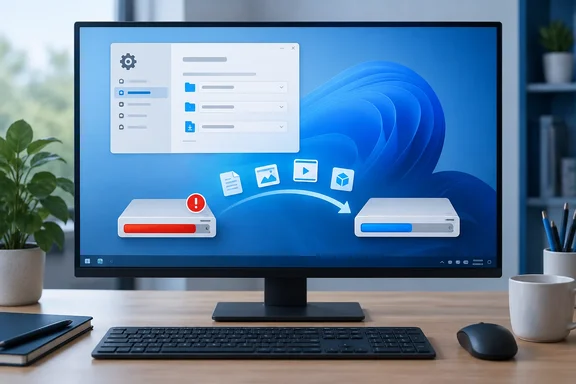
The advice holds up. Some of the extra space-saving tips in the original piece need caveats, though, and Microsoft's own documentation fills in the details.
Why C: keeps filling up
Shah's explanation is that Windows saves almost everything new to C: by default. That's broadly fair, but it overstates things. Where data lands depends on the content type, the app and that app's own settings. What Windows actually gives you is a default location for a set list of content categories. Changing those defaults stops a good share of future data from piling onto the system drive.
His setup is where this matters most. He describes a PC that has hundreds of gigabytes free on a second drive while Windows keeps warning that C: is nearly full. If you have one big unpartitioned drive, none of this helps much, because there's nowhere else to send the files.
Running low on space does have real effects. Microsoft's "Free up drive space in Windows" page says a PC low on storage may run more slowly or have trouble installing Windows updates. The update numbers are specific. Microsoft's guidance on making room for updates says feature updates usually need 6 GB to 11 GB or more of free space, and quality updates need 2 GB to 3 GB or more. Shah also says a full drive can cause failed saves or even crashes. Those are possible worst cases, not things that will definitely happen.
Section summary: The problem is where data is saved by default. The fix is to change those defaults, then clean up what's already on C:.
The main fix: change "Where new content is saved"
On Windows 11, Microsoft's Storage settings documentation lists a setting that picks the default drive for new apps, documents, music, pictures and videos. Each content type can use a different drive.
Windows 11 steps:
- Open Settings > System > Storage.
- Select Advanced storage settings.
- Select Where new content is saved.
- Use the drop-down menu under each content type to pick a drive.
Windows 10 steps: In Storage settings, scroll to More storage settings and select Change where new content is saved. Remember that Microsoft ended Windows 10 support on October 14, 2025, so this path mostly matters for machines that haven't moved to Windows 11 yet.
If the drive you want isn't listed: Microsoft says to make sure it's connected to the PC. Choose a drive that will always be there. A USB stick you sometimes leave in a bag is a bad home for your Documents folder.
What success looks like: New content of each type you changed now saves to the drive you picked. Existing files and installed programs stay where they are. These settings only affect what you save from now on.
Browser downloads are configured separately
Changing the Windows default doesn't change where your browser saves downloads. You have to change that in the browser itself. Microsoft's Edge support page explains how to find the setting: go to Settings and more > Settings > Downloads, and the current path (usually something like C:\Users[your name]\Downloads) appears under Location. Shah says to click Change there and pick a folder on another drive.
Chrome, Firefox and other browsers each have their own download settings, so don't assume the Edge menu names apply to them. Changing the location only affects new downloads. Files already in your old Downloads folder stay on C: until you move them.
Moving apps you've already installed
Moving installed apps is less straightforward. For Microsoft Store apps, Shah's route is the built-in Move command, and several how-to sites describe the same steps: head to Settings > Apps > Installed Apps. Click the three dots, choose "Move," pick the new drive, and confirm with "Move" again. On Windows 10, Pureinfotech says the equivalent is to open Settings > Apps > Apps & features, choose the app, click "Move," select the new location, and click "Move."
Common problem: the Move option is missing. It isn't available for every app. How-To Geek notes that you may not see this option for some apps, or it might be grayed out. AOMEI's guide puts it more bluntly: traditional desktop programs (.exe installers) will not show the "Move" button. NinjaOne points out a destination-drive problem too. If the drive you seek is not shown, it's probably not NTFS formatted. FAT32/exFAT drives won't work due to permission requirements.
What to do instead:
- Desktop (Win32) programs: Shah says uninstalling and reinstalling to the new drive is usually your best bet. Don't drag installed program folders to another drive in File Explorer. That's a reliable way to break shortcuts, registry entries and updates.
- Store apps that won't move: Pureinfotech suggests setting the new default app location, then uninstalling and reinstalling from the Store. It also warns that you may lose app data depending on the app.
- Games: Use the launcher's own tools. Shah names Steam, Epic Games, EA and Rockstar Games. Moving game files by hand risks a broken install or a very large re-download.
Cleanup tools: use them, but review what they delete
Changing the defaults stops the growth. Getting back space that's already used is a separate job.
Disk Cleanup. Microsoft's steps: search for disk cleanup, pick the drive, check the file types you want removed, and select Clean up system files for more options. Shah also recommends that last step. Microsoft notes that some categories are checked by default: Downloaded Program Files, Temporary Internet Files and Thumbnails. Uncheck them if you want to keep those files.
Watch out for Previous Windows installation(s). For a short period after an upgrade (Microsoft says fewer than 10 days), your old Windows version appears as a deletable item. Deleting it removes the Windows.old folder and your option to roll back, and Microsoft says this can't be undone.
Storage Sense and Cleanup recommendations. Microsoft says Storage Sense is off by default, but Windows may turn it on by itself when the disk gets low. With default settings, it doesn't touch your Downloads folder or cloud files unless you tell it to. It works only on the system drive, its settings apply only to the signed-in user, and it won't run unless you've been signed in and online for more than 10 minutes. On Windows 11, Cleanup recommendations groups suggestions into temporary files, large or unused files, files synced to the cloud, and unused apps.
Other options in Microsoft's documentation:
- OneDrive Files On-Demand keeps small placeholders on disk instead of full copies. Starting with Windows 11 version 22H2, files not opened for more than 30 days become online-only by default.
- Compressing the OS drive appears in Microsoft's Windows 10 guidance as a way to make room for important updates. You can undo it afterwards.
- Low Disk Space errors caused by a full Temp folder. Microsoft says this can happen when Store .appx files pile up. The fix includes resetting the Store, running wsreset.exe to clear its cache, and running the Windows Update troubleshooter.
- Updates that won't fit. If there isn't enough space, Windows Update may show a Fix issues option that lets you use an external drive to finish the update. Back up important files first.
Hibernation: a trade-off, not a free win
Shah suggests disabling hibernation from an elevated Command Prompt with powercfg /h off. Microsoft's powercfg reference confirms the command (/hibernate and /H are the same switch), and powercfg /hibernate on turns it back on.
Two caveats matter here.
- The size estimate isn't reliable. Shah says hiberfil.sys can be 60% to 75% of RAM. Microsoft's documentation shows the size can be configured as a percentage of total memory, and any setting of 40% or more counts as a "full" hibernation file. The real size depends on your settings, so check your own PC rather than assuming a number.
- You lose more than hibernation. Microsoft's power-states documentation says the hibernation file is used for hybrid sleep, Fast Startup and standard hibernation. Turning it off removes all of them.
A middle option: If you never hibernate but like Fast Startup, Microsoft documents a reduced hibernation file, which supports only Fast Startup:
- Run
powercfg /h /type reducedfrom an elevated prompt. - If it returns "the parameter is incorrect," the file has a custom size above 40%. Run
powercfg /h /size 0first, then try again. - Run
powercfg /ato check. With a reduced file, hibernation is reported as not supported. With no file at all, it's reported as not enabled.
The paging file: leave it alone
Shah also suggests setting the paging file to a fixed manual size so Windows can't use more than that. I'd skip this. The page file backs committed system memory and can be used for crash dumps. Setting a cap too low just to save disk space can cause memory or dump problems that are much harder to diagnose than a red storage bar. This is general industry practice, not a Microsoft rule tied to this article: leave the page file system-managed unless you have a specific workload reason to change it.
During feature updates, Microsoft says Windows Update already temporarily disables hiberfil.sys and pagefile.sys to use their space, then turns them back on afterwards.
The bottom line
The order that works:
- Open Settings > System > Storage to see what's actually using space.
- Point Where new content is saved at your larger drive.
- Change your browser's download location separately.
- Move Store apps with Move. Reinstall desktop programs. Use launchers for games.
- Clean up with Disk Cleanup or Storage Sense, and check every item before deleting.
- Disable or reduce hibernation only if you understand what you'll lose. Leave the page file alone.
If C: is still too small after all of that, Shah's last suggestion is the right one: extend the partition or upgrade the drive. Settings can only help so much on a C: partition that's simply too small.
References
- I finally figured out why my Windows C: drive kept running out of space - MakeUseOf MakeUseOf · 2026-10-02T14:00:15+00:00
- How to move installed apps to another drive on Windows - Pureinfotech pureinfotech.com
- How to Move Apps to Another Drive in Windows 11 ninjaone.com