

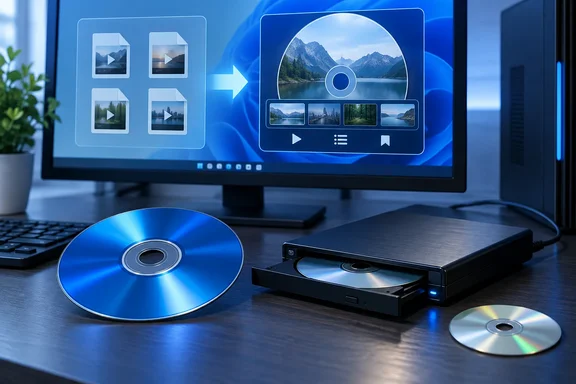
Windows 11 Burns Blu-ray Data Discs, Not Blu-ray Movies
Windows has the low-level plumbing. Microsoft's developer documentation for the Image Mastering API (IMAPI) describes burning in three steps: build a file-system image of files and folders, connect to the optical recorder, and write the image. The file systems it supports are ISO 9660, Joliet and UDF. That's data mastering. It copies files and folders onto a disc exactly as they are.
Microsoft's own consumer tools stop at the same point. The current Windows Media Player support page lists three burnable disc types: audio CDs, data CDs and data DVDs. It has no Blu-ray video workflow. The page also makes a point that applies directly to Blu-ray: a data disc plays on a device only if that device supports the file types on it. An MP4 copied to a disc is still an MP4, and a standalone Blu-ray player may or may not accept its container and codecs.
That leaves you with two very different end products, and How-To Geek says to pick one before you start. A data disc holds your video files in their original formats. It works well on a PC and may or may not play on a player. A movie disc has been converted and packaged into the Blu-ray Video structure, so it behaves like a disc from a store. File Explorer only makes the first kind.
The Hardware Gate: BD-R, BD-RE and BDXL Writers
How-To Geek says hardware is where most people get stuck, and that seems right. Plenty of current desktops and laptops have no optical drive at all. A drive that reads Blu-ray, or writes only CDs and DVDs, won't help. The drive has to explicitly support writing Blu-ray media. If your PC has no suitable drive, the guide recommends an external USB Blu-ray writer whose spec sheet lists both BD-R and BD-RE writing.
The guide also says to plug that writer straight into the PC rather than into a cheap hub, because burners can be fussy about power and a dropped connection mid-burn ruins the disc. That's sensible advice from the guide's author, not a documented hardware requirement. Microsoft's IMAPI documentation does warn about a related risk: a power-state change during a burn, such as a user logging off or the system going into suspend, can interrupt the process and lose data. Before starting a long burn on a laptop, it's reasonable to plug in the charger and stop the machine from sleeping. That's our inference from Microsoft's warning, not a step Microsoft prescribes for end users.
For media, the choice is simple:
| Media | Behavior | Nominal capacity | Notes |
|---|---|---|---|
| BD-R | Write-once | 25GB single-layer, 50GB dual-layer | Use for the final disc |
| BD-RE | Erasable and rewritable | 25GB / 50GB | Use for test burns |
| BDXL | Write-once, high capacity | 100GB triple-layer, 128GB quad-layer | Both the writer and the player must support it |
The Blu-ray Disc Association describes standard Blu-ray capacity as 25 to 50GB. Pioneer's drive specifications list BDXL at 100GB and 128GB, but only on BDXL-capable hardware. How-To Geek's advice is to skip BDXL unless you know both your drive and the target player handle it. Treat BDXL as a separate compatibility check, not a routine upgrade. The guide also suggests buying at least one BD-RE so your first attempts don't use up write-once discs.
File Explorer's Two Data-Disc Modes in Windows 11
If all you want is to store video files, Windows 11 can do the job without extra software. According to How-To Geek, you insert a blank disc, choose to burn files to disc, and give it a title. Windows then asks how you want to use the disc:
- The "Like a USB flash drive" option lets you keep adding and removing files by drag and drop, but other devices are less likely to read the disc.
- The "With a CD/DVD player" option produces a disc that more devices can read.
- After dragging your videos into the disc window, you use Eject under Drive Tools to finalize the disc.
We couldn't find a current Microsoft page that walks through these exact Windows 11 screens, so treat the labels above as How-To Geek's description. A Microsoft troubleshooting article written for Windows 8 does document the "With a CD/DVD player" choice and a caution that still makes sense. If you start a second "Burn to disc" while a large file copy to the disc is still running, Windows tries to burn to the same drive in a different session. That isn't supported and triggers an error. Microsoft's fix is to wait for the copy to finish before burning.
The disc you get plays fine on a computer. It won't behave like a store-bought movie. How-To Geek warns that a standalone Blu-ray player may reject some containers and codecs, which matches Microsoft's rule for data CDs and DVDs: the playback device has to support the files. If your relative's player won't read MKV files, a data disc full of MKVs won't play there.
DVDFab Blu-ray Creator and the Other Tools That Do the Authoring
A movie disc needs an authoring program. Authoring means converting your footage into Blu-ray-compatible video and audio, then building the navigation around it: menus, chapter points, and optionally extra audio tracks and subtitles. How-To Geek's author likes DVDFab Blu-ray Creator, a commercial tool. DVDFab's product page says it accepts more than 200 input formats, including MP4, MKV and MOV. It can output to BD-25 or BD-50 discs, to an ISO image, or to a folder. Those are the vendor's claims. The guide adds that some people will find the app bloated and says to try alternatives if you don't like it.
Most authoring tools follow a similar sequence, according to How-To Geek:
- Import your video files.
- Pick the disc size that matches your blank media, BD-25 or BD-50.
- Choose an output resolution, usually 1080p or 720p.
- Choose a menu template, set chapter markers, and add audio tracks or subtitles if you want them.
- Let the software convert the footage. This can take a long time on long projects.
- Save the result as an ISO or a folder before burning, if the program allows it.
Step 6 is the one worth building your process around. With an ISO or folder saved on disk, you can preview the result before committing a disc, and if a burn fails you can retry without converting everything again. Leave plenty of free space on your SSD or hard drive. The guide notes that authoring tools usually create large temporary files before burning starts.
The BD-25 or BD-50 choice matters more than it looks. How-To Geek points out that 25GB fills up quickly with high-bitrate footage, and squeezing a project onto a smaller disc with heavy compression undermines the reason for choosing Blu-ray. A dual-layer 50GB disc is enough for a feature-length 1080p film. If your footage is well past 25GB, buy BD-50 media before you let the software start cutting quality to make it fit.
ImgBurn, BDMV and UDF 2.50: Writing a Finished Blu-ray Folder
ImgBurn is the free option How-To Geek mentions, and its role is often misunderstood. ImgBurn burns discs; it doesn't author them. It can build DVD Video discs (from a VIDEO_TS folder), HD DVD Video discs (from a HVDVD_TS folder) and Blu-ray Video discs (from a BDAV / BDMV folder). It doesn't turn a folder of MP4s into a menu-driven movie. Long-time users on the VideoHelp forum say this plainly. In one thread, someone dropped raw capture files into ImgBurn's build mode and ended up with a disc whose video files were placed in the BDMV root instead of the STREAM subfolder, and a Blu-ray player treated it as a data disc. A reply pointed out that ImgBurn is not a Blu-ray authoring program and suggested the free tool tsMuxeR for building the disc structure first.
ImgBurn fits at the end of the job, after an authoring tool has produced a BDMV folder or an ISO. For a prepared folder, How-To Geek's steps are to add the BDMV and CERTIFICATE folders, select your Blu-ray writer, use UDF 2.50 as the file system, and turn on verification so ImgBurn reads the disc back and compares it with the source.
Other guides agree on those steps. A VideoHelp answer on burning a BDMV folder describes switching to Build mode, dragging in the BDMV folder and, if there is one, the CERTIFICATE folder as well, then noting that ImgBurn will prompt you to use UDF 2.5. An older walkthrough from Adubvideo says ImgBurn will detect that you are trying to burn a Blu-ray based disk and will automatically set a number of settings for you, like the UDF revision (which should be 2.50 or 2.60). So UDF 2.50 is the standard choice, and ImgBurn usually proposes it itself. On why the UDF version matters, one VideoHelp poster explains that the reason you burn blu-ray movies with 2.5,2.6 is because the blu-ray players are designed to read those revisions.
One detail can save a disc. Adubvideo warns that the CERTIFICATE folder belongs on Blu-ray compilations, and that if you include the CERTIFICATE folder in a AVCHD compilation, you run the risk of confusing your Blu-ray player and producing a non-playable disk. If your camcorder or authoring tool produced AVCHD content rather than full Blu-ray Video, copy the folder structure as it is. Don't add folders because a Blu-ray tutorial mentions them.
These guides describe ImgBurn versions from several years ago, so menu names may differ slightly from what you see. The principles haven't changed: burn a finished BDMV structure, use a UDF 2.x file system, and verify the disc afterward. ImgBurn's changelog also states it can't copy protected discs, including AACS-protected commercial Blu-rays. That fits How-To Geek's own boundary: only burn public-domain video or movies you own.
Recordable Blu-ray Belongs in a Backup Plan, Not at the End of One
The case for Blu-ray is concrete. How-To Geek notes that streaming depends on heavy compression, while a disc can carry high-definition video with lossless audio options, several subtitle tracks and menus, with no internet connection or subscription needed. A finished disc plays on standalone players and consoles. That makes it a practical way to hand a wedding video to relatives who don't want to deal with USB sticks or cloud links, and it's a physical copy you control.
Recordable discs are not a permanent archive, though. The Library of Congress says recordable optical discs need a working drive to read, can deteriorate, are affected by how they're stored and handled, and have lifetimes that are hard to predict. The U.S. National Archives lists Blu-ray among the optical formats that pose long-term preservation problems. Neither agency gives a lifespan for any particular disc brand, so ignore claims of decades-long guarantees. How-To Geek says the same thing: how long a disc lasts depends heavily on its quality and storage, and keeping one as your only copy is a mistake.
For plain storage, the guide says an external hard drive or SSD is cheaper per gigabyte, faster and much less hassle. It also lists the costs: a burner many people must buy separately, the discs, possibly paid software, long conversion times, clunky tools, and player-specific playback problems common enough that testing becomes part of the process. Its verdict is that Blu-ray works as one layer of a backup plan alongside a drive and a cloud copy, but not as a replacement for them. For a single disc for a one-off occasion, the setup cost may not be worth it. For a growing library of family video, it probably is.
What this means for you
Decide first whether you need a disc someone can watch on a TV or just an offline copy of your files. That choice decides how much you have to buy. If it's storage, File Explorer and a drive that writes Blu-ray are enough, though an external SSD probably makes more sense. If it's a movie disc for someone else's player, budget for authoring software and a test burn.
The Library of Congress recommends testing optical discs on two different machines. How-To Geek's version for movie discs is to test on the exact player the disc is meant for: a console, a living-room player, or a PC running VLC. Fixing a problem on a rewritable disc costs far less than finding it after burning a write-once one.
- Buy an internal or external writer that explicitly lists BD-R and BD-RE writing. Avoid BDXL unless you've confirmed both the writer and the target player support it.
- Use File Explorer only for data discs. Expect them to play on PCs, but not necessarily on standalone Blu-ray players, which depend on codec and container support.
- Author movie discs in a dedicated tool such as DVDFab Blu-ray Creator. Pick BD-25 or BD-50 to match your blank media, and save an ISO or folder before burning.
- Use ImgBurn only to write an already-authored BDMV folder or ISO. Add the BDMV and CERTIFICATE folders for Blu-ray, accept UDF 2.50, and turn on verification.
- Do a first burn on a BD-RE and play it on the real target device before writing the final BD-R.
- Keep at least one copy of important footage on a hard drive or in cloud storage, because no recordable disc comes with a reliable lifespan.
Windows 11 isn't going to become a Blu-ray authoring tool. Microsoft's own disc tools stop at data discs, so a playable movie disc will keep depending on third-party software and a writer you may have to buy. For people with a growing archive of family video and relatives who watch discs on a TV, the one-time cost of a writer, some BD-RE discs for testing and an authoring tool buys a copy they can watch without an account, a login or an internet connection. Keep a copy on a drive or in the cloud as well.