

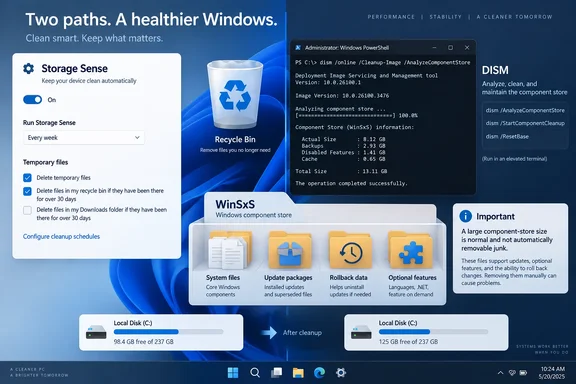
Dism /Online /Cleanup-Image /AnalyzeComponentStore is a useful reminder that Windows 11’s Storage Sense has a narrow remit—but its claim of finding nearly 12GB of “junk” that Storage Sense missed overstates what the command actually proves.The command is safe to run because it only analyzes the Windows component store, commonly called WinSxS. It can expose a sizeable difference between the folder size shown in File Explorer and the storage Windows regards as component-store overhead. But Microsoft’s own DISM documentation makes clear that the important result is not simply the number beside “Backups and Disabled Features.” Administrators should also look for the reported number of reclaimable packages and whether DISM says component-store cleanup is recommended.
That distinction changes the practical takeaway. Storage Sense is for predictable housekeeping of user-facing clutter and selected temporary files. DISM is a servicing tool for Windows’ update infrastructure. Treating the latter as an uncollected cache bin risks encouraging users to clean files that Windows deliberately retains for rollback, optional features, and future servicing.
Storage Sense is not Windows Update cleanup
Microsoft describes Storage Sense as an automated way to remove unnecessary temporary files and Recycle Bin contents from the system drive. It can also clear Downloads on a chosen schedule and turn inactive OneDrive Files On-Demand content back into online-only placeholders when configured to do so.
Those choices are deliberately conservative. Emptying Downloads can delete files a user still expects to find; making OneDrive files online-only can be a problem for someone who travels or works without a reliable connection. Storage Sense therefore exposes schedules and retention periods rather than assuming every old file is disposable.
It also does not provide a general-purpose cleanup pass over every Windows-owned directory. That means it should never be judged by comparing its reclaimed space to the size of WinSxS, the DriverStore, application caches, virtual-machine images, hibernation data, restore points, or a Downloads folder full of ISOs. Those categories have different owners, risks, and cleanup mechanisms.
XDA is right on the central point: a PC can have a healthy Storage Sense configuration while still holding several gigabytes in Windows servicing files. The leap from that observation to “Storage Sense cleaned less than DISM found” is less meaningful than it sounds, because Storage Sense and DISM were not built to remove the same material.
Microsoft’s default differs from the XDA premise
There is a more basic problem with the article’s description of Storage Sense defaults. Microsoft’s current Windows 11 support documentation says Storage Sense is off by default. If enabled, its default behavior is to run when the system drive is low on disk space. Downloads and cloud content are not managed unless the user specifically configures those options.
Microsoft also says Windows may enable Storage Sense in response to low storage if the user has never interacted with it, then notify the user. That leaves room for a machine to appear to have a default configuration even when Windows has activated the feature in reaction to a storage shortage.
In other words, the reported 10.2GB reclaimed over a month is a valid measurement of one PC, not evidence that a fresh Windows 11 installation silently runs Storage Sense on a routine schedule for every user. Anyone checking their own device should open Settings > System > Storage > Storage Sense and verify three things:
- Storage Sense is switched on.
- The run frequency is set to the interval they actually want, rather than only during low-disk conditions.
- The Recycle Bin, Downloads, and OneDrive settings match the files they are willing to remove or dehydrate automatically.
For managed PCs, that is also a policy issue. An organization may reasonably leave Downloads untouched because it is a common location for installers, exported records, diagnostic logs, and other work files. More frequent automation is not automatically better cleanup.
What the WinSxS report really measures
WinSxS is commonly called a folder, but it is more accurately the Windows component store: the repository that lets Windows service installed components, add or remove optional features, repair files, and retain earlier component versions following updates.
Its File Explorer size is famously misleading. Windows uses hard links so that a single physical file can appear through more than one directory path. Explorer can count linked files as though each appearance consumes separate disk space. Microsoft explicitly directs administrators to DISM’s Actual Size of Component Store field rather than relying on the folder’s Properties dialog.
DISM then divides that actual size into several categories. Files “shared with Windows” are active operating-system components and are not free space waiting to be recovered. “Backups and Disabled Features” represents component-store overhead, while cache and temporary data is another category of overhead.
XDA reported an actual component store size of 20.14GB, with 8.27GB shared with the running installation and 11.84GB listed as backups and disabled features. That is a large amount of overhead, but the figure does not, by itself, mean a standard cleanup will immediately reclaim 11.84GB.
The reason is embedded in the label. Disabled Windows features can retain payloads so that a feature can be enabled later without finding installation media or downloading files. Backup components may be retained under servicing rules and update-uninstall windows. Whether Windows can remove packages safely is reflected in DISM’s “Number of Reclaimable Packages” and “Component Store Cleanup Recommended” fields—two results absent from XDA’s account.
A proper analysis should therefore record the full DISM output, particularly the cleanup recommendation, rather than treating one size category as a cleanup promise.
Windows already has a component-cleanup job
The other omitted context is that Windows includes a servicing maintenance task named StartComponentCleanup. Microsoft says the scheduled task automatically cleans components when the system is not in use, ordinarily waiting at least 30 days after an updated component is installed before removing prior versions.
That delay is intentional. A Windows update that looks uneventful on patch day can still produce driver, application, or boot problems later. Retaining older component versions gives Windows a period in which updates can be removed. Manually forcing cleanup shortens that grace period.
Administrators who have checked DISM’s output and need to reclaim space can run the following from an elevated Command Prompt or Windows Terminal:
Dism.exe /Online /Cleanup-Image /StartComponentCleanup
Microsoft says this produces results similar to the scheduled cleanup task, but does so immediately rather than observing the normal 30-day wait. It is a reasonable intervention for a constrained system drive, a lab machine, or a virtual desktop image with verified update health. It is not a monthly performance ritual for broadly deployed endpoints.
The more aggressive variation adds /ResetBase:
Dism.exe /Online /Cleanup-Image /StartComponentCleanup /ResetBase
That option removes all superseded versions of installed components. Microsoft’s documentation warns of the direct tradeoff: existing updates can no longer be uninstalled afterward. On a personal device with an acute storage problem and a known-good patch state, that may be an acceptable choice. On an enterprise fleet, it removes a local rollback option precisely when a faulty cumulative update can require one.
Use the right cleanup path for the space problem
For an ordinary Windows 11 PC, the best order of operations is less dramatic than digging through WinSxS. Enable and configure Storage Sense for routine deletion of files you truly no longer need. Use Settings > System > Storage > Cleanup recommendations to review temporary files, large files, cloud-synced files, and unused applications. Use Disk Cleanup’s Clean up system files option when Windows identifies items such as previous Windows installations.
Then run the read-only DISM analysis if space remains tight or Windows Update servicing appears to have accumulated unusually large overhead. The command is valuable because it replaces guesses based on Explorer’s inflated WinSxS number with Windows’ own accounting.
XDA’s test identifies a real blind spot in the way Windows presents storage management: Settings makes Storage Sense look like a comprehensive cleanup feature while its actual scope is selective. Microsoft could make that clearer by surfacing component-store status, the last component cleanup date, and DISM’s cleanup recommendation in the Storage page.
Until that happens, the practical rule is straightforward: let Storage Sense handle everyday files, let Windows’ servicing maintenance handle routine component cleanup, and use DISM manually only after its full report shows a genuine cleanup opportunity.
References
- I ran a single command and found more garbage on my Windows 11 drive than Storage Sense cleaned all month - XDA XDA · 2026-09-17T00:00:16+00:00