

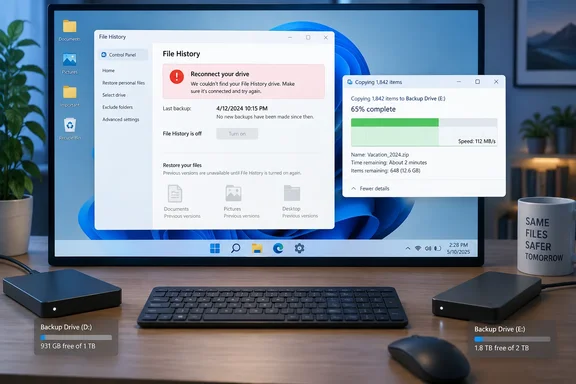
The warning was covered by BleepingComputer on September 21 and by Korben the following day. BleepingComputer reports that Microsoft has acknowledged the failure to create or update backups after the September security updates. Microsoft’s own support text supplies the important operational detail: Windows can incorrectly tell users to reconnect a functioning backup drive.
KB5124008 leaves File History configured but unable to back up
File History is the Windows feature available through Control Panel > System and Security > File History. It saves files to an external drive or network location, providing a way to recover earlier copies. The September regression interrupts that protection without necessarily making the destination itself inaccessible.
Microsoft lists several possible symptoms in the KB5124008 advisory. An affected PC may display “Reconnect your drive” despite having a compatible, functioning backup destination. Its “Last Backup” timestamp may stop advancing, and previously backed-up files may show “No previous version available.”
Those symptoms describe two immediate difficulties: users may be unable to make fresh backups, and the interface used to find older versions may fail to show them. Microsoft has not announced that this regression deletes existing backup data. An empty Previous Versions view therefore should not be treated as proof that the files already stored on a backup drive have been erased.
Microsoft also says Event Viewer may record application crashes referencing FileHistory.exe and KERNELBASE.dll. These are useful details to include in a support report, but the advisory does not establish a technical root cause. A crash mentioning a DLL is not, by itself, evidence that readers should replace that file or attempt a system-file repair.
The practical consequence is a widening gap between the files on the PC and the most recent recoverable copies. A backup configuration that worked earlier in September may still look familiar while no longer capturing subsequent work. Checking the last successful backup is more useful than simply confirming that File History remains enabled.
Windows 11 has a confirmed update trail, while broader scope needs care
Microsoft’s KB5124008 documentation identifies the September 8 security update for Windows 11 24H2 and 25H2 and records that File History was added as a known issue on September 19. That establishes both the originating update and when Microsoft documented the regression.
The relevant Windows 11 releases are:
| Windows version | September 8 security update | September 14 out-of-band update |
|---|---|---|
| Windows 11 24H2 | KB5124008, build 26100.9445 | KB5129195, build 26100.9457 |
| Windows 11 25H2 | KB5124008, build 26200.9445 | KB5129195, build 26200.9457 |
These identifiers help distinguish the original September installation from the later cumulative release. They are not a list of PCs guaranteed to experience the fault: Microsoft says that some File History users may be affected.
Korben reports a broader affected range, including Windows 11 23H2, Windows 10 beginning with 21H2, and Enterprise LTSC 2016 and 2019. The Microsoft support records examined here establish the Windows 11 24H2 and 25H2 case, but do not establish that complete cross-version matrix. A Windows 10 user also describes matching symptoms in Microsoft Q&A; that is a user report, not official confirmation of every Windows 10 edition Korben names.
Readers on those other versions should therefore take matching symptoms seriously without assuming that KB5124008 is their applicable update. In particular, the Windows 11 package number should not be turned into a universal Windows 10 troubleshooting instruction. The relevant information is the affected machine’s actual Windows version, installed September update, and last successful File History run.
Another boundary deserves care. Microsoft’s KB5124008 page says Windows 365 and Azure Virtual Desktop are unaffected by a separately documented Remote Desktop Services issue. That exemption belongs to the Remote Desktop advisory; it does not establish an exemption from the File History problem.
KB5129195 fixes other regressions, not a documented File History repair
Microsoft released KB5129195 on September 14 as an out-of-band update—a release outside the usual monthly schedule. Its documentation lists fixes for Remote Desktop Services, host-folder sharing with certain Hyper-V-based Linux virtual machines, and some USB audio configurations. It does not list a File History fix.
The distinction is easy to miss because the KB5124008 page contains several known issues, each with its own resolution. Statements saying that updates released on or after September 14 resolve a problem apply to the corresponding Remote Desktop or host-folder-sharing issue. The dedicated File History section instead says Microsoft is working on a resolution in a future Windows update. These are separate statuses, not contradictory instructions about the same fault.
User reports reinforce the need to check backup behavior after installing the newer package. In Microsoft Q&A, a participant identified as Mike_A_P reports that File History continued failing after KB5129195 brought the PC to build 26200.9457. Another participant, BobH3027, reports that File History recovered after removing the earlier update but failed again after installing KB5129195. Those observations remain user-reported rather than independently reproduced tests.
Microsoft explicitly describes KB5129195 as cumulative: it includes updates from previous releases as well as its additional improvements. That explains why installing a newer package is not sufficient evidence that every earlier regression has been addressed. The decisive information here is the File History-specific resolution status, backed by an actual successful backup on the affected PC.
As of September 22, the documented position is straightforward: there is no confirmed File History repair in these release notes. Microsoft promises further information when available, but gives no release date for the correction. There is no basis for promising that a particular October update will fix it.
Removing KB5124008 trades a backup fault for a security decision
The appeal of uninstalling the update is understandable. BobH3027 reports in Microsoft Q&A that File History worked on three Windows 11 PCs before updating, failed afterward, and recovered when KB5124008 was removed. The participant also reports reinstalling the update to confirm the behavior.
That is useful troubleshooting evidence, but it does not make rollback a dependable, low-risk remedy for every affected machine. Later comments describe different update-removal states after KB5129195 was installed. One participant reports that removing the newer package only returned the PC to the earlier affected build, requiring another removal before File History worked again.
The security trade-off follows directly from the packages involved. KB5124008 is a security update, and KB5129195 contains additional security improvements. Removing security updates can withdraw protections along with the changes responsible for a regression. Korben also warns against rollback, although its specific claim about actively exploited vulnerabilities is not needed to establish the basic risk.
For most readers, retaining the updates and creating a separate copy of important files avoids making backup reliability depend on leaving Windows less protected. A manual copy is a temporary safeguard with limits: it preserves what you copy at that moment, and it must be repeated to capture later changes. It does not automatically recreate File History’s previous-version workflow.
Korben suggests FreeFileSync, Kopia, and restic as alternative tools, describing Kopia and restic as snapshot-oriented options. Those suggestions are alternatives to evaluate, not Microsoft-supported repairs for this bug or evidence that an existing File History archive will work with them. Anyone switching tools needs to establish both that a new backup completes and that its restore workflow is usable.
For managed PCs, removing updates should be an administrator’s explicit risk decision rather than an informal help-desk workaround. A working backup is essential, but pausing Windows Update indefinitely is not a sustainable way to obtain one.
File History users should verify a fresh copy before waiting for Microsoft
Keep the security updates installed by default, and establish whether File History is currently protecting your files. The following checks separate a reachable destination from a functioning backup and provide a temporary path when the feature remains unreliable.
- Open Control Panel > System and Security > File History and note the selected destination, the “Last Backup” time, and any reconnect-drive message. Compare that time with the date of your recent work; an old successful run does not protect later changes.
- Check whether the destination is accessible in File Explorer. Microsoft Q&A participants describe being able to read and write files on drives that File History rejected. Successful ordinary file access supports investigating the Windows regression, though it does not prove that every aspect of the drive is healthy. If ordinary access also fails, the File History advisory alone does not explain that separate problem.
- On Windows 11, open Settings > Windows Update > Update history and record whether KB5124008 or KB5129195 is installed. Keep those details with the last successful backup time. For other Windows versions, record their actual update identifiers rather than applying the Windows 11 package numbers.
- If File History offers “Run now,” check whether a run completes and produces a fresh backed-up copy, rather than merely opening the panel or creating folders. Q&A participants report that File History could recreate configuration directories yet still fail to run. A useful verification is whether a recent, nonessential file in the configured backup scope is available from the backup, alongside an advancing timestamp.
- If no fresh backup is being made, copy critical files to a separate destination without overwriting or deleting the existing File History archive. One Q&A participant describes manually copying important files while waiting for a correction. Verify the copied files can be opened, and repeat the copy as necessary while you continue working.
There is no Microsoft-documented File History reset procedure in the advisory, and deleting backup folders is not an established fix. Nor does a misleading reconnect message justify reinstalling Windows: one Windows 10 participant reports repeating a clean installation only to encounter the same symptoms after updating. Preserve the existing archive and avoid destructive troubleshooting based solely on this warning.
For IT teams, a useful incident record is compact: Windows version and build, installed update, destination type, last successful backup time, exact error message, and any matching File History crash event. That gives support staff something actionable without assuming that all external drives, all network shares, or all users are affected.
The immediate takeaways are:
- Verify a recent backed-up file and the last successful backup time instead of relying on a connected drive or an enabled File History panel.
- Treat “Reconnect your drive” as potentially misleading when ordinary access to the destination still works.
- Do not interpret “No previous version available” as confirmation that the existing archive has been deleted.
- Keep security updates installed by default and use a separate backup workflow if File History cannot produce fresh copies.
- Treat a future File History-specific fix as the point to retest backup and recovery, rather than assuming any newer cumulative update resolves the problem.
Microsoft’s eventual correction will need to restore a working backup path, but users can close the immediate protection gap before that release arrives. Preserve the copies already held, make a verified copy of current work, and resume relying on File History only after it demonstrably captures and makes available a new backup.
Update: Report expands affected File History update matrix (September 22, 2026)
Notebookcheck reports that Microsoft’s documented scope now extends beyond the previously confirmed Windows 11 24H2 and 25H2 case. According to the outlet, affected releases include Windows 11 23H2 through 26H1, Windows 10 21H2 and 22H2, plus Enterprise LTSC 2016 and 2019; Windows Server editions are reportedly not affected.
The report also identifies the respective September packages as KB5124012, KB5124008, KB5122880, KB5122878, KB5122876, and KB5123099. That is a more specific cross-version mapping than the earlier reporting, although administrators should still verify the installed update against each machine’s actual Windows release before treating it as affected.
For organizations with mixed Windows fleets, the practical change is that File History checks should not be limited to the newer Windows 11 builds. Review the last successful backup time and test restoration of a recently changed file on Windows 10 and LTSC systems that received September updates as well.
Update: Optional KB5124010 preview reportedly fixes File History failure (September 23, 2026)
According to tbreak.com, Microsoft’s optional KB5124010 preview update, released September 22, includes a File History repair for Windows 11 versions 24H2 and 25H2. This supersedes the earlier status in which Microsoft had acknowledged the failure but had not documented a File History-specific correction.
Affected users can check Settings > Windows Update > Advanced options > Optional updates for KB5124010. Because this is a preview release rather than the normal monthly security package, it may not appear immediately on every eligible PC.
Installing the update should not be treated as proof that protection has resumed. After restarting, users should open File History, confirm the destination is recognized, run a backup, and verify that the Last Backup time advances and that a recently changed test file can be restored. Microsoft reportedly plans to include the correction in a future regular Windows update for systems that do not install the optional preview.
Update: Preview repair reportedly extends to Windows 11 26H1, while older releases still wait (September 23, 2026)
ZDNET reports that Microsoft’s September preview fixes are not limited to Windows 11 24H2 and 25H2. According to the outlet, Windows 11 26H1 receives the File History correction through optional update KB5124006, while Windows 11 24H2 and 25H2 receive it through KB5124010.
This expands the practical preview-update path for organizations already running 26H1. Administrators should check the optional update’s KB number against the installed Windows release rather than attempting to deploy KB5124010 universally.
ZDNET also reports that the repair does not yet cover Windows 11 23H2 or Windows 10 systems receiving Extended Security Updates. Microsoft is reportedly still working on a future update for those releases. That means affected 23H2, Windows 10, and LTSC users should continue using a separate verified backup process rather than assume that installing the available Windows 11 preview will restore File History.
For systems that do receive KB5124006 or KB5124010, confirm the result with a fresh backup and restore test after installation; a successful update installation alone does not prove File History has resumed protecting current files.
Update: Additional details (September 24, 2026)
BleepingComputer reports that Windows 11 users who skip the optional KB5124006 or KB5124010 preview updates are scheduled to receive the File History repair through the next regular Patch Tuesday release on October 13, 2026.
References
- Windows 11 File History bug breaks backups - tbreak.com tbreak.com · 2026-09-23T15:17:00+00:00
- How to fix your Windows File History if the September update broke it - ZDNET ZDNET · 2026-09-23T16:52:17+00:00
- Microsoft September updates break File History backups - Notebookcheck Notebookcheck · 2026-09-22T11:39:00+00:00