

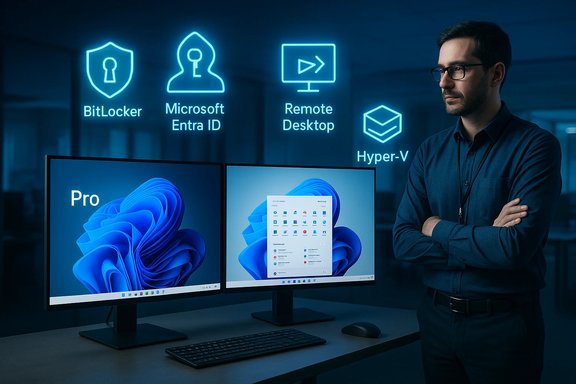
If you’re standing at a Windows 11 setup screen and wondering whether upgrading to Pro is worth the outlay, the hard truth is simple: for day‑to‑day use the desktop, gaming features, and core security look and behave the same — but if you need centralized management, enterprise‑grade encryption, remote‑host capabilities, or native virtualization, Pro unlocks tools that Home simply doesn’t expose. Overview
Windows 11 ships with the same modern UI and many headline features across Home and Pro: Copilot integrations, Snap Layouts, File Explorer tabs, Widgets, Auto HDR, DirectStorage (hardware permitting), and the built‑in Windows Security stack. That shared baseline is why most individual users won’t notice a difference when they switch editions — the split is one of control and scale, not everyday polish or performance.
From Microsoft’s perspective, the editions are designed to match distinct use cases: Home targets consumers and gamers; Pro targets small businesses, IT pros, developers, and regulated workflows that demand stronger device control and lifecycle management. The practical choices are therefore functional, not cosmetic.
What Windows 11 Pro actually adds: the features that justify the Pro SKU fall into clear buckets: identity & fleet management, encryption & compliance, remote access, and virtualization/developer tooling. The most consequential Pro‑exclusive capabilities are:
- Domain join / Microsoft Entra (Azure AD) join — essential for single sign‑on, conditional access, and enterprise identity management.
- Group Policy and Windows Update for Business — centralized update deployment to avoid disruptive reboots.
- BitLocker (full BitLocker management surface) — enterprise‑grade full‑disk encryption key escrow and policy control.
- Remote Desktop host — Pro (and Enterprise/Education) can accept inbound RDP sessions; Home can only use the client. Pro also includes Hyper‑V and Windows Sandbox. — native hypervisor and disposable test environments for devs, testers, and security analysts.
- Higher hardware ceilings — Pro supports much larger physical memory and multi‑CPU workstation scenarios than Home.
These are not minor toggles — they change what the machine can do in a technical and operational sense.
Deep dive: security differences that matter
BitLocker vs. Device Encryption — not the same thing
Windows 11 Home on modern hardware often supports device encryption (a simplified, automatic form of BitLocker), but full BitLocker management — with group policies, pre‑boot PINs, BitLocker To Go control for removable drives, centralized recovery key escrow, and enterprise reporting — is a Pro feature set. Microsoft documents the distinction, and recent platform changes (Windows 11 24H2) increased automatic device encryption on qualifying installs, but that does not replace the management surface enterprises require. Why this matters in practice: BitLocker under Pro lets IT teams rotate keys, escrow recovery keys into Entra ID, and enforce encryption policies across fleets — functions that reduce risk and satisfy compliance requirements. Conversely, switching on encryption without a clear recovery‑key plan risks permanent data loss; Pro gives you the tools to avoid that, but also the responsibility.
Integration with Microsoft enterprise stack
Pro devices are the natural on‑ramp to managed device lifecycles via Intune, Microsoft Purview (DLP and information protection), and Windows Update for Business. Those cloud services are separately licensed, but Pro exposes the hooks administrators need for automated enrollment, conditional access, and policy enforcement. Home simply lacks those hooks by design. Virtualization and dev workflows
For developers, test engineers, and security professionals, Pro’s inclusion of Hyper‑V and Windows Sandbox can be a decisive factor.
- Hyper‑V: a built‑in hypervisor that supports local VMs, nested testing, and integration with Windows features such as vTPM. It removes the need for third‑party VM software and integrates with Microsoft management tooling.
- Windows Sandbox: a disposable desktop environment that runs the current build of Windows in an isolated container. It’s ideal for quick tests of untrusted installers; once closed, the sandbox discards all changes. Microsoft documents usage details and constraints (memory caps and behaviors).
Practical reality: third‑party hypervisors (VirtualBox, VMware Workstation Player are available on Home edition, but native Hyper‑V simplifies enterprise imaging, CI pipelines, and integration with Windows security features.
Hardware ceilings and performance: what Pro changes — and what it doesn’t
A persistent myth is that Pro makes Windows “faster.” It does not. The kernel, scheduler, and core graphics stack are shared between Home and Pro; switching editions will not deliver measurable FPS gains, faster boot times, or battery improvements for consumer workloads. Pro changes the ceiling, not the daily speed:
- Maximum physical memory: Microsoft’s official memory limits list Windows 11 Home limited to 128 GB and Windows 11 Pro to 2 TB of physical RAM (other SKUs like Pro for Workstations and Enterprise support higher limits). This is a hard technical differentiation documented by Microsoft.
- CPU sockets: Pro supports multi‑CPU configurations where appropriate for workstation class hardware; Home is geared toward single‑socket consumer machines.
So if you’re building a high‑end workstation for large datasets, or professional rendering, Pro (or Pro for Workstations) is the correct choice. For gaming laptops, mainstream desktops, and most content creators, Home’s hardware allowances are practically sufficient.
Management, updates, and operational control
Windows Update behavior is a common operational pain point. Pro exposes Windows Update for Business policies (via Group Policy or Intune), which let admins defer feature updates, sidestep surprise restarts during business hours. Home’s update model is more automated and consumer‑oriented; that’s usually desirable for single PCs but problematic for production fleets.
If you manage even a small fleet, the time saved by centralized policy, automatic enrollment, and staged updates can quickly pay for the Pro license in reduced support tickets and fewer emergency rollbacks.
Upgrade mechanics, pricing, and licensing realities
Microsoft supports an in‑place upgrade from Home to Pro via Settings > System > Activation — you can enter a Pro product key or open the Microsoft Store purchase flow to pay for an upgrade. Microsoft’s support pages describe this flow and the activation model (digital license vs. product key). On price: historically Microsoft’s retail list prices have been roughly $139.99 for Windows 11 Home and $199.99 for Windows 11 Pro, with the in‑OS Home→Pro upgrade often priced around $99.99. Those figures are representative but not fixed — retail discounts, OEM bundles, channel promotions, and third‑party resellers can change street prices dramatically (including temporary deep discounts). Two independent outlets list MSRP ranges and typical upgrade cost structure. Important licensing caveat: cheap activation keys from unknown marketplaces can be illegitimate, OEM‑tied, or non‑transferable. Buy from Microsoft or reputable resellers when transferability and support matter.
Who should upgrade — a practical decision checklist
Upgrade to Pro if any of these apply: 1. You must host Remote Desktop sessions (accept inbound RDP connections) regularly.
- You need centralized BitLocker management, recovery key escrow, or enterprise compliance reporting.
- You manage group Policy, Windows Update for Business, or Intune enrollment to reduce admin overhead.
- You run professional VMs, nested virtualization, or need Hyper‑V/Windows Sandbox integrated into the OS.
- You’re building a workstation that will exceed Home’s memory/CPU ceilings (large CAD/CAE jobs, large render farms, or heavy virtualization).
Stick with Home if:
- You’re a gamer, student, or solo creator and don’t need domain join, group policy, native RDP hosting, or Hyper‑V. Home gives the modern Windows experience and baseline security without extra cost.
Real‑world examples that illustrate the gap
- A 15‑person architecture firm can use Pro to auto‑enroll devices in Intune, enforce BitLocker with recovery keys stored in their tenant, stage updates to avoid downtime, and enable Remote Desktop to access high‑spec workstations remotely. These capabilities materially reduce downtime.
- A home gamer and casual editor will see no FPS or encoding speed gains by upgrading to Pro; they already have Auto HDR, DirectStorage, and Windows Security in Home, and the $99 upgrade could be better spent on an SSD or more RAM for immediate performance benefits.
Risks, gotchas, and operational traps
- Encryption without key discipline: enabling BitLocker (or letting device encryption enable automatically) without planning for recovery‑key storage is a top cause of data loss. Export or escrow keys before making changes.
- Assuming Pro equals cloud entitlements: Pro enables management hooks, but services like Intune, Microsoft Purview DLP, or Windows Update for Business require additional licenses. Pro is necessary but rarely sufficient for full enterprise workflows.
- Buying the wrong key: deep discount or volume‑locked keys that lack transferability. Verify licensing terms.
- Feature drift and 24H2 stability: major Windows feature updates (for example, 24H2) have in some cases introduced regressions affecting gaming and compatibility — another reason fleets often delay feature updates via Pro management tooling until compatibility is verified.
- Third‑party “workarounds” for RDP: hacks to enable Microsoft’s RDP host on Home (RDP Wrapper, etc. can break with updates and present security risks. If you need native RDP hosting, upgrade or use supported third‑party solutions. (blog.oudel.com)
A conservative upgrade workflow (step‑by‑step)
- Inventory: confirm which Pro features you actually need (list them).
- Backup: take a full image backup and ensure important data is stored off‑device. Export any existing encryption recovery keys.
- Validate hardware: confirm Hyper‑V T), TPM and Secure Boot states for BitLocker, and motherboard support for large RAM if needed.
- Acquire license: purchase from Microsoft Store or a reputable reseller; avoid unknown marketplaces for critical machines.
- Upgrade: Settings → System → Activation → Change product key (or Open Store). Confirm activation and test features (BitLocker, Hyper‑V, Remote Desktop, and verify with Microsoft documentation.
- Secure: if enabling BitLocker, store recovery keys in a secure password manager, or offline escrow. Document policies and test recovery scenarios.
Critical analysis — strengths, limits, and where Microsoft’s strategy complicates choices
Strengths
- Integrated security and management: Pro bundles components that integrate cleanly with Microsoft’s enterprise cloud, reducing friction for device lifecycle management and compliance.
- Native virtualization: Hyper‑V and Sandbox lower the barrier to safe testing and dev workflows without third‑party software.
- Clear scalability: explicit hardware ceilings mean Pro is the right technical choice for workstation class builds and heavy virtualization workloads.
Limits and risks
- No performance magic: Pro does not and will not improve single‑user application performance; it unlocks capabilities rather than speed.
- Licensing complexity: the edition is one factor among many; true enterprise readiness often requires additional subscriptions and careful planning.
- Operational discipline required: powerful features mean powerful mistakes — poorly configured policies, mishandled keys, or premature update rollouts can cause outages or data loss.
Where Microsoft’s recent changes add nuance
- With Windows 11 24H2 Microsoft increased automatic device encryption on qualifying installs, with some hardware prerequisites, which means Home devices may come encrypted by default on new clean installs — but that’s not a substitute for lifecycle tooling in Pro and does not change the management calculus for enterprises. Treat automatic encryption as a security improvement that also increases the need for a key management plan.
Final verdict — buy based on workflow, not hope
- If your primary concern is gaming, streaming, schoolwork, or casual creative work: Windows 11 Home delivers the same modern UI, Copilot features, Auto HDR, DirectStorage, and baseline protections at lower cost. The day‑to‑day experience will be indistinguishable from Pro for most users.
- If your needs include fleet management, hosting Remote Desktop, enterprise encryption and key escrow, native virtualization, or workstation‑class hardware, Windows 11 Pro is a focused investment that buys administrative control, compliance options, and native tooling you won’t get otherwise. The value is operational and cumulative.
When in doubt, follow the conservative path: inventory requirements, validate hardware and management dependencies, back up data, and buy a legitimate Pro license if the features lead to measurable time or risk reductions. The edition choice is rarely about daily speed — it’s about control, compliance, and the ability to operate at scale.
Summary of verified claims and where they were confirmed:
- Windows 11 Home and Pro share the same core UI and features.
- BitLocker (full management) is a Pro feature; device encryption is available more broadly but is not a direct substitute.
- Remote Desktop host is supported only on Pro, Enterprise, and Education.
- Hyper‑V and Windows Sandbox are Pro features and documented by Microsoft.
- Memory ceilings: Home = 128 GB, Pro = 2 TB, documented on Microsoft Learn.
- Upgrade path: Settings → System → Activation (change product key or Open Store) as Microsoft documents.
- Pricing at retail historically sits near the MSRP ranges cited, but discounts and channel variance are common; exercise caution with third‑party vendors.
(Where a claim depends on rapidly changing market prices or third‑party reseller behavior, the statement above is marked as conditional — verify pricing at purchase time.
The practical bottom line: choose Windows 11 Pro when you need manageability, encryption lifecycle, remote hosting, or virtualization as part of an organized workflow; otherwise, stick with Home and invest the difference in hardware that tangibly improves your experience.
References
- Windows 11 Pro Upgrade Gains And Limits Revealed findarticles.com