

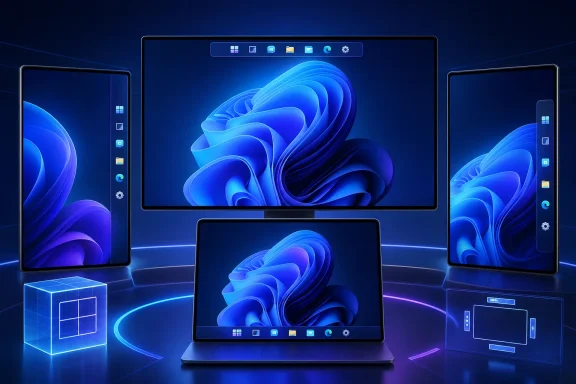
For people who have wanted the taskbar at the top or on either side of the display, the change is consequential. Windows 11 can now place the taskbar along the bottom, top, left, or right edge of the screen through Settings. Yet it remains a qualified return of taskbar flexibility rather than full feature parity across every orientation. Auto-hide, the tablet-optimized taskbar, some touch work, full Search-box behavior, and compact sizing all have important restrictions outside the traditional bottom edge.
What KB5124008 changes—and what it does not
KB5124008 was released on September 8, 2026 for Windows 11 versions 24H2 and 25H2. It advances those versions to OS builds 26100.9445 and 26200.9445, respectively. Microsoft also provides offline packages for x64 and Arm64 editions of both Windows 11 releases.
The key detail behind the movable-taskbar headlines is the update lineage. Microsoft’s September notes state that KB5124008 includes improvements from the August 27 KB5120998 preview. That August preview is the update in which Microsoft documented the ability to choose whether the taskbar appears at the bottom, top, left, or right of the screen.
That distinction matters for two reasons:
- It prevents a misleading claim that taskbar positioning first appeared on September 8.
- It explains why a PC can be fully patched yet still not show the option immediately: the August documentation identified the feature as a gradual rollout.
The path to general availability also began before either of those public servicing releases. Microsoft made positioning the taskbar on any screen edge available to Windows Insiders in the Experimental channel starting May 15. The subsequent preview and cumulative updates moved that work into the servicing track for 24H2 and 25H2, but staged delivery means eligibility on an individual machine cannot be assumed from the installed build number alone.
Where to move the taskbar
On a PC where the rollout is enabled, use the supported Windows interface rather than a registry edit or an unofficial utility:
- Open Settings.
- Select Personalization.
- Open Taskbar.
- Expand Taskbar behaviors.
- Use Taskbar position to choose Bottom, Top, Left, or Right.
This is a meaningful improvement over relying on unsupported workarounds. Microsoft is designing adjacent Windows interface elements to respond to the new position: Start, Search, tooltips, flyouts, and animations are intended to appear relative to the relocated taskbar rather than behaving as though it still sits at the bottom.
The setting also reflects the fact that horizontal and vertical taskbars are not identical layouts. Icon-alignment choices differ depending on whether the bar is at the top or bottom versus the left or right edge. Users should therefore evaluate the arrangement they actually plan to keep, rather than assuming that a preferred bottom-taskbar layout will map exactly to a vertical one.
For a desktop setup with a wide display, a left or right taskbar can preserve more vertical room for documents, web pages, code editors, or long file lists. A top taskbar may suit users who prefer window controls and global navigation concentrated near the upper edge. Multi-monitor users should test how the relocated bar affects their normal pointer travel and the placement of pop-up interface elements before committing to a new routine.
The limitations are material, especially on touch devices
The release is not yet a universal restoration of every taskbar behavior in every position. Microsoft has documented several limitations that are particularly relevant to laptop, tablet, and accessibility-oriented workflows.
No auto-hide in alternate positions
Auto-hide is not currently supported when the taskbar is moved away from its standard position. That is likely to be the largest practical compromise for people who relocate the bar to reclaim space. A permanent vertical rail can be useful on a broad monitor, but on a narrower laptop display it consumes horizontal room continuously.
Users who depend on auto-hide should not expect a top, left, or right placement to deliver the same space-saving behavior as their existing configuration. In that situation, remaining at the bottom may still be the better trade-off until Microsoft expands support.
Tablet optimization does not move with it
The tablet-optimized taskbar is also unsupported in alternate positions. This is more than a minor visual omission: it means a configuration that makes sense with mouse and keyboard may not be appropriate after detaching a 2-in-1 keyboard or switching to a touch-led workflow.
Microsoft also says touch gestures for the relocated taskbar remain in progress. That leaves a clear dividing line between the current desktop-oriented customization benefit and a fully mature touch experience. Owners of tablets and convertibles should test their most-used gestures before treating a side or top taskbar as a permanent setup.
Search is reduced to an icon
At alternate taskbar positions, Search boxes are not available; Search appears only as an icon. This may be unobtrusive for users who open Search with a keyboard shortcut or simply click the icon, but it is a noticeable workflow change for anyone accustomed to a persistent text field.
The distinction illustrates why “movable” does not automatically mean “identical.” Windows adapts several UI components to the taskbar’s new edge, but it does not reproduce every bottom-taskbar control in the same form.
Smaller sizing remains horizontal-only
The smaller taskbar option is currently limited to top and bottom positions. It is not available when the taskbar is placed on the left or right. A vertical taskbar therefore has fewer density choices, which could be significant for users trying to maximize usable content space or accommodate many pinned applications.
Taken together, these restrictions suggest a straightforward rule: top placement is the least disruptive alternative for people who want to retain a broadly familiar horizontal layout, while left and right placements are best approached as deliberate desktop customizations rather than drop-in replacements for every existing taskbar feature.
Why forcing the feature is a poor recommendation
A staged rollout can be frustrating, particularly when the required cumulative update is installed but the Taskbar position menu has not appeared. That frustration often leads to instructions involving ViVeTool or other feature-configuration methods. Those approaches should not be presented as safe, supported, or guaranteed ways to enable movable taskbars.
ViVeTool is a third-party tool that works with Windows feature-control APIs. Its own maintainer warns that successfully applying a configuration does not guarantee a meaningful change. Feature identifiers, states, and behavior can change across Windows builds and cumulative updates. In other words, a command can report success while the intended UI remains unavailable, behaves differently than expected, or is unsuitable for that particular build.
That warning is especially relevant here because Microsoft has supplied an official Settings control and has clearly described the rollout as gradual. A forced state is not equivalent to receiving the feature in the condition Microsoft has enabled for the device. It may also make troubleshooting harder if a later cumulative update changes the underlying implementation.
For most home users, the sensible course is to install the normal supported update path, look for the Settings control, and wait if it is not yet present. For managed PCs, the case for avoiding experimental activation is stronger: an organization should not turn a staged consumer-facing interface feature into an unsupported configuration baseline merely to accelerate a personalization option.
Update health: reason to patch, not reason to experiment
Microsoft lists no known issues for KB5124008 in its current update notes. Its Windows release-health information also records that updates released September 8 resolved several problems associated with earlier updates, including failures that could prevent Teams and the new Outlook from launching on ARM devices, black desktop-background resets, and resets to mouse customization.
That context supports ordinary deployment of the cumulative update, subject to an organization’s normal update-validation practices. It does not validate manually forcing a still-staged taskbar feature. Patch quality and feature-rollout eligibility are separate questions: the former concerns the supported cumulative update, while the latter can be controlled by phased delivery and readiness decisions.
It is also worth separating security headlines from this individual Windows update. Reporting described the September 2026 Microsoft security release as addressing 974 CVEs across Microsoft’s product portfolio, including Windows issues. That portfolio-wide figure should not be recast as “974 fixes in KB5124008,” nor as a count of Windows 11 taskbar defects. The KB update is part of the monthly servicing release, but broad CVE totals cover more than one product and more than one type of fix.
A practical decision for Windows 11 users
For a conventional desktop PC, the new control is worth trying once it arrives through Settings. The most appealing use cases are predictable: put the taskbar at the top for a different visual hierarchy, or move it to a side on an ultrawide display where vertical space is plentiful. Because Windows adapts Start, Search, tooltips, flyouts, and animations to the selected edge, the change is designed to be more than a cosmetic repositioning.
But the limitations should drive the choice. Keep the taskbar at the bottom if auto-hide, a full Search box, tablet optimization, or a smaller vertical taskbar is important to your workflow. Consider top placement if you want an alternate edge while retaining the smaller-taskbar option. Treat left and right placement as desktop-first modes that offer a different workspace geometry, with compromises that are currently explicit rather than accidental.
The larger takeaway is encouraging but measured. Windows 11 now has a supported route to put the taskbar on any edge of the display, and KB5124008 brings that August preview work into the September cumulative-update stream for 24H2 and 25H2. Still, gradual availability and missing behaviors mean the feature is best understood as an expanding personalization capability—not yet a complete, uniform replacement for the classic bottom taskbar in every kind of Windows use.