

What happened
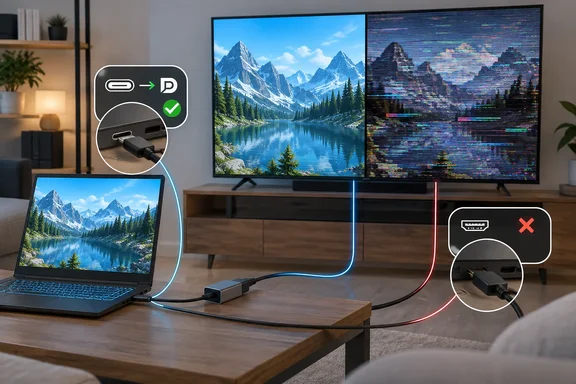
Butler says his household has two Windows gaming laptops, both connected to TVs. The laptops and TVs are all different brands and models, yet both setups had the same intermittent stability problems over a direct HDMI connection. Some details:
- TVs only. The problem didn't show up with computer monitors.
- Nothing he tried fully fixed it. Different cables, TV settings and GPU utility tweaks each fell short.
- The fallback worked. His wife's gaming laptop has a USB-C port with DP Alt Mode. He connected a UGREEN USB-C-to-HDMI dongle to it, and the problems stopped.
- The cause is still unknown. Butler lists three suspects: NVIDIA's HDMI driver stack, the HDMI link itself, or the way these laptops negotiate with TVs. He didn't confirm any of them.
The account leaves out a lot. There are no laptop or TV model numbers, no driver versions, no Windows builds and no detailed description of the glitches. That's worth remembering before anyone reads this as "USB-C beats HDMI." What it shows is that a different signal path fixed things on this particular hardware.
Summary: A working alternate route got rid of the symptoms. It didn't identify the underlying fault.
Why the port you use can matter
The two connectors can reach the TV by different routes inside the laptop. Butler points out that on some gaming laptops the HDMI port is wired directly to the discrete GPU, much like plugging into a desktop graphics card. A USB-C DisplayPort output might connect to the integrated GPU instead. He also stresses that this layout varies from laptop to laptop.
NVIDIA's own documentation supports this. In an Optimus design, the discrete GPU can do all of the rendering while the Intel integrated graphics hands the final image to the display. In that setup the integrated GPU works as a simple display controller. So when you switch from HDMI to USB-C, you may also change which GPU and which display driver sends the picture out, on top of swapping the connector.
The adapter changes the chain too. A USB-C-to-HDMI dongle doesn't give the TV the same signal as the laptop's own HDMI socket. The laptop sends DisplayPort over USB-C, and the adapter converts it to HDMI for the TV. Cable Matters' explainer describes DP Alt Mode as a way for USB-C connectors to transmit DisplayPort (DP) video and audio signals, alongside data and power delivery.
Each of those changes could skip over whatever was causing the trouble. Butler says the new route may simply be avoiding the glitch's source.
Summary: Switching ports can change the output GPU, the driver, the link and the converter all at once. That's why it can work as a fix even when you don't know the cause.
What you give up
Butler is clear that the adapter isn't a free upgrade. His list of trade-offs:
- No HDR. Through this adapter, neither the laptop nor the TV would enable HDR, even though it's described as an HDMI 2.1 adapter.
- 4K at 120Hz worked. Resolution and refresh rate came through fine, which makes the missing HDR harder to explain.
- A small performance cost. Because the image goes through the Intel iGPU, he estimates a loss of "a few percentage points." He didn't publish benchmarks, so treat that as his estimate.
- Native HDMI stays for gaming. His wife still uses the built-in HDMI port for games on the living-room OLED, to keep latency down and get the most from the dedicated GPU. An occasional dropout is tolerable in a game but maddening during spreadsheet work.
Getting 4K at 120Hz without HDR isn't as odd as it sounds. Microsoft's Windows HDR developer documentation says HDR signaling over HDMI and DisplayPort mainly uses 10 bits per channel or more and the BT.2100 ST.2084 color space. It also says the display kernel, the display driver and the GPU hardware all have to support detecting, selecting and driving that mode. An "HDMI 2.1" label on the adapter doesn't guarantee every other part of the chain agrees. Butler didn't find which part blocked HDR, and nobody should guess. A different adapter might enable it or might not.
Butler also tried games over the USB-C connection. They ran fine apart from the missing HDR. He adds that a USB-C-to-DisplayPort connection to his older ultrawide gaming monitor had also worked perfectly.
Summary: USB-C was the steadier choice for desktop work in this home. Built-in HDMI was still the better choice for HDR gaming.
How to try it yourself
Here's how to test this safely. The steps draw on Butler's account, Microsoft's USB-C documentation and general USB-C display guidance.
- Check that your port can carry video. A USB-C port doesn't automatically support video. KTC's guide puts it plainly: USB-C is a connector shape, not a promise of video output. Look in your laptop's spec sheet for DP Alt Mode, Thunderbolt or USB4 display support. Windows Report makes the same point: Not all PCs have USB C ports that support DisplayPort Alternate Mode.
- Know that you can't switch Alt Mode on in Windows. Microsoft's USB Type-C FAQ for Windows says the operating system has no part in selecting an alternate mode. That decision is made by the connector's driver and firmware. If the port doesn't support Alt Mode, no setting will change that.
- Watch for Billboard messages. Microsoft notes that an adapter the PC doesn't support can expose a "Billboard" device describing the error, and Windows may show a notification such as "Try improving the USB connection." KTC notes that a "USB Billboard Device" entry that signals the video negotiation failed can show up in these cases.
- Keep the chain simple. KTC recommends testing with one laptop, one cable and one display, with docks and extra dongles unplugged. Every USB-C display setup is limited by the weakest link in this chain: source port, cable, dock or adapter, and monitor.
- Check detection in Windows. Press Win+P to pick Extend, Duplicate or second-screen-only. You can also use Detect under Settings > System > Display > Multiple displays.
- Test the mode you'll actually use. If you need 4K at 120Hz with HDR, confirm all three before you depend on the setup for a presentation or a movie night.
- Update firmware and drivers if detection is unreliable. KTC's guidance lists BIOS/UEFI firmware, chipset drivers, integrated and discrete graphics drivers, Thunderbolt or USB4 drivers, and USB-C controller drivers as the ones to update first.
It's working if the TV shows up in Display settings, runs at the resolution and refresh rate you need, and stays stable through the kind of work that used to drop the signal. It isn't working if the laptop charges or the dongle's lights come on but the screen stays black. In that case, suspect port support first and the cable second.
How much to read into it
Is USB-C actually "more reliable" than HDMI? The headline says so, but the evidence supports a narrower claim: in this household, with these TVs, one USB-C path held up better for desktop work. The fact that monitors never had the problem points toward TV-side negotiation. That's still only a lead, not a diagnosis.
The approach is still useful. When the built-in HDMI port keeps glitching and the USB-C route stays solid, you've learned the problem sits somewhere in the part of the chain the two routes don't share: the HDMI port, its GPU routing, its driver path or the HDMI handshake with the TV. That narrows the search, and when you're about to present on a conference-room TV that keeps cutting out, it might be enough to get you through.
The bottom line
A USB-C-to-HDMI adapter on a DP Alt Mode port is cheap to try if your laptop has trouble with a TV. It gives you a second route and a quick way to narrow down the cause. Check the port's specs before buying anything, test the exact mode you need, and don't assume HDR will carry over. For HDR gaming, the built-in HDMI port may still be the better option. For spreadsheets, PDFs and presentations, a steady picture counts for more.
References
- I stopped using my laptop’s HDMI port after realizing USB-C was more reliable How-To Geek · 2026-09-29T11:30:15+00:00
- No DisplayPort Alt Mode on USB-C: Solutions & Fixes us.ktcplay.com
- FAQ - USB Type-C connector on a Windows system - Windows drivers | Microsoft Learn learn.microsoft.com