

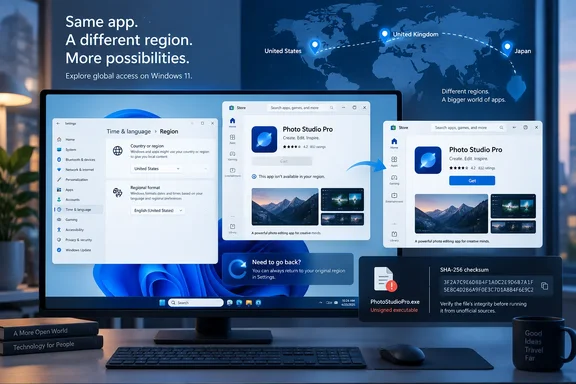
In a September 22 report, MakeUseOf described using WinStoreRegion 0.1.2 to install ZDF’s streaming app after its Microsoft Store listing displayed a disabled Get button under the United States region. That example demonstrates a narrower—and more useful—capability than “install apps from anywhere”: changing catalog availability can unlock installation without changing the service’s own eligibility rules.
For readers considering the utility, the important decisions come before pressing Install. Windows provides a manual alternative, the utility’s executable is unsigned, and its normal installation path handles region restoration differently from its fallback installer. Understanding those boundaries makes this a manageable Windows configuration task instead of an exercise in repeatedly changing settings.
WinStoreRegion automates Microsoft Store market selection
Microsoft Store publishers can choose where their applications are offered. Microsoft’s publishing guidance for MSI/EXE apps describes distribution across more than 200 countries and regions, with publishers able to exclude individual markets. Local requirements, including age ratings, can also prevent a listing from appearing in a selected market. A visible product page therefore does not mean every regional catalog will offer an installation.
WinStoreRegion searches those regional offerings using a Store address or Product ID—the identifier associated with a particular Store product. According to the project documentation, it first checks roughly 40 major markets. Selecting “Remaining regions” expands the search across the larger list, involving approximately 250 requests. The initial search is deliberately incomplete, so an empty first result is a reason to consider the wider search, not a definitive finding that the app is unavailable everywhere.
The application distinguishes a positive offering, an explicit refusal, and a market that did not answer. That last category matters operationally: a failed lookup cannot establish that an app is absent. Even a positive result remains preliminary, because the utility checks the application again after the selected Windows region is active.
This is where the automation earns its place. Someone who already knows the correct market can change Windows manually. Someone who does not know it otherwise faces repeated trips between Settings and Microsoft Store, without a convenient record of which markets actually offered the product.
The project is independent of Microsoft. It describes its work as changing Windows’ Home Location setting and invoking Microsoft’s installation mechanisms; it does not change Microsoft-account country, disguise an IP address, patch Store packages, or obtain repackaged applications from unofficial servers. Installation availability and service access remain separate checks.
Windows’ manual region setting remains the simplest alternative
Microsoft’s region guidance documents different Settings paths for Windows 11 and Windows 10. It also recommends changing regions when moving to another country or region for an extended period, warning that purchases and services can behave differently between regions. The existence of the setting is not an assurance that temporary switching will make every product usable.
For a single application with a known supported market, the manual route avoids introducing another executable:
- Record the current Country or region value before changing it.
- On Windows 11, open Settings > Time & language > Language & region. On Windows 10, open Settings > Time & language > Region.
- Change Country or region to the market where the application is offered.
- Reopen Microsoft Store and revisit the application’s listing. If the regional restriction was the obstacle, the installation option may become available.
- Complete the installation, then return to the same Windows setting and restore the original country or region.
Microsoft documents the setting change and the ability to switch back. The installation result remains dependent on the app and Store response; MakeUseOf’s ZDF example also required a restart before the changed region produced an active Get button. A restart should therefore be treated as something that particular Store workflow requested, not a mandatory step for every application.
Keep this Windows procedure separate from editing a Microsoft-account profile. Microsoft’s account-location guidance warns that account funds do not transfer between regions and that a purchase in a new locale can require updated billing information. Those account and commerce rules should not be folded into an ordinary Windows-settings change.
In particular, changing account country is not an appropriate next troubleshooting step simply because changing Windows’ region failed. WinStoreRegion does not perform that account operation, and its documented scope gives no basis for assuming that doing so would solve a paid app’s eligibility problem.
WinStoreRegion 0.1.2 needs a security decision before installation
The project publishes portable x64, ARM64, and 32-bit x86 executables. Its stated compatibility floor is Windows 10 version 1809, build 17763, with Windows 11 also supported. Microsoft Store and App Installer must already be present, and the executable needs a writable directory because it copies the required Microsoft.Management.Deployment.winmd metadata file beside itself. The program does not request administrator privileges.
Those requirements describe compatibility, not comprehensive testing. The 0.1.2 release notes explicitly say that only the x64 build had been run on real hardware; ARM64 and x86 builds were published without equivalent device testing. Readers using those architectures should treat their availability as an invitation to evaluate, not as evidence of the same testing coverage.
The executable is also unsigned. The release includes a SHA256SUMS.txt file for comparing downloaded binaries with the project’s published checksums. For the versioned x64 filename, the documented PowerShell check is:
Get-FileHash.\WinStoreRegion-0.1.2-x64.exe -Algorithm SHA256
Run it from the directory containing that download, and compare the resulting hash with the entry for the exact same filename. A mismatch is a reason to stop. A match establishes that the file matches the published digest; it does not supply a code-signing identity or establish that the program is harmless.
Obtain the executable and checksum from the kroxiksut/win-store-region project’s GitHub release, rather than an unrelated download listing. The project’s release notes describe a possible SmartScreen reputation warning, but the practical response depends on the protection that intervenes.
MakeUseOf reported that Smart App Control blocked its copy outright and that the reviewer disabled and subsequently re-enabled that protection. The report does not identify the Windows build used for that security-control sequence. That is insufficient detail to recommend the same sequence universally. For a region-setting task, the more conservative choice is to leave protection enabled and use the manual Windows procedure if the utility cannot run.
WinStoreRegion’s normal and fallback installations restore regions differently
Before starting, have the application’s Store address or Product ID ready, confirm the required Microsoft components are installed, and retain a note of your original Windows region. The normal workflow is:
- Open WinStoreRegion and enter the Store address or Product ID on the Installation tab.
- Select “Find a region where installation is offered.” If needed, explicitly run “Remaining regions” for the broader search.
- Choose an offered region and review the displayed application name and publisher.
- Select Install and let WinStoreRegion perform the region change and installation handoff.
- Review the result on the Journal tab and confirm that Windows’ original region has been restored.
Under the project’s documented normal path, the utility saves the original region before changing it, reads back the new setting to confirm the switch, and looks up the application under that active region. An important detail is that restoration need not wait until the entire download finishes: WinStoreRegion restores the original region once it has confirmed that installation has genuinely started. It subsequently checks for the installed application package to establish completion.
That sequence separates two outcomes users might otherwise confuse. Restoring the region means the configuration transaction has finished; confirming the package’s appearance means installation succeeded. A successful handoff alone is not enough to claim both.
The Store installer fallback requires an explicit return to WinStoreRegion
Some products cannot use the normal installation route. WinStoreRegion can then offer “Download the Store installer,” which the project says retrieves Microsoft’s installer for the Product ID, checks its trusted Microsoft signature, and presents identifying information and a SHA-256 hash before launch. The unsigned utility and the signed installer it retrieves are different executables with different trust checks.
The fallback opens an installer window that the user must finish. WinStoreRegion cannot fully track that external process, so its journal records a handoff rather than claiming a completed installation. After the app has finished installing, return to the utility and use its restore-region action.
This was the route in MakeUseOf’s ZDF test. The normal method reported that no supported installation path was available. The fallback changed Windows to Germany, Microsoft Store requested a restart, and reopening ZDF’s listing after reboot revealed an active Get button. The reviewer then installed the app through Microsoft Store. That reported success concerns installation; it does not establish streaming availability from the reviewer’s location.
Interrupted installations leave a recovery record
WinStoreRegion keeps its recovery information under %LOCALAPPDATA%\WinStoreRegion. The project documents a pending-restore.json record for an active temporary region change. If the program closes unexpectedly or Windows restarts, the next launch detects that record and offers to restore the saved region or retain the current one before allowing another installation.
Reopen the utility and resolve that prompt after an interruption, then verify Country or region in Windows Settings. If the utility cannot run, the recorded original value lets you restore it manually through the version-appropriate Settings path above.
This remains an early-stage utility. Its documentation records an August 21, 2026 incident in which Windows closed an unresponsive interface after repeated failed operations. The developer reported that region restoration had completed in those attempts, while leaving the interface failure’s cause unresolved. That is a maturity limitation worth knowing, without treating it as a demonstrated failure of the recovery mechanism.
Microsoft Store updates remain a separate maintenance problem
An app installed under a temporary region can create a later maintenance obligation. Microsoft’s MSI/EXE publishing guidance explicitly says that when a publisher removes a market, existing users there can continue using the app but will no longer receive submitted updates. That documented case illustrates why retaining an installation and receiving future releases are distinct outcomes.
WinStoreRegion’s Updates tab is intended to identify installed Store products that are refused in the current region but offered elsewhere. It presents installed and catalog version information and can carry a product back into the installation workflow for another region search. The project deliberately stops short of promising a one-click updater.
Its documentation also cautions against treating different displayed version numbers as automatic proof that an update exists. Store bundle and package numbering can differ, and the project has not established that its fallback installer reliably updates an already-installed application. An Updates entry is therefore a regional-availability finding to investigate, not a guaranteed upgrade waiting to be applied.
For an occasional app, that extra attention may be acceptable. For software you depend on, it belongs in the initial decision: a successful first installation is less valuable if keeping the application current requires recurring intervention. The same restraint applies to service access. Changing Windows’ region leaves the account and network information used by the service untouched.
What this means for Microsoft Store users
Choose the manual Windows setting when you know the necessary market and only need a one-off installation. Consider WinStoreRegion when finding an available market and reliably restoring the previous setting would save meaningful work.
- Start with an explicit regional-availability problem; a disabled Get button by itself does not establish which restriction is responsible.
- Keep Windows country or region separate from Microsoft-account country, billing details, and subscription eligibility.
- Check the exact WinStoreRegion release and architecture, compare its published checksum, and remember that the 0.1.2 executable is unsigned.
- Treat the normal installation path and Store-installer fallback differently: the fallback requires completing Microsoft’s installer and returning to restore the region.
- Verify both the installed application and the restored Windows setting, and resolve any recovery prompt after a restart or interruption.
- Plan for future updates and application-side eligibility checks; an available installation does not remove those separate requirements.
WinStoreRegion’s useful contribution is reducing the work around a temporary Windows region change: discovering an offered market, preserving the original setting, and managing the installation handoff. Use it within that boundary, with the manual Settings route as a straightforward alternative. The decision should rest on whether the particular app can be installed, used, and maintained under your actual circumstances—not merely whether a previously gray button turns active.
References
- How to bypass Microsoft Store region locks and install apps from anywhere MakeUseOf · 2026-09-22T18:00:14+00:00
- github.com github.com
- Define markets for MSI/EXE app - Windows apps | Microsoft Learn learn.microsoft.com