

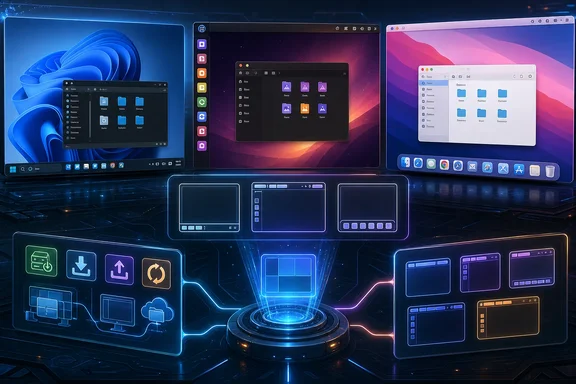
The useful distinction is between changing a panel layout and replacing the desktop environment. Xfce Panel Profiles makes the former relatively easy to explore: it can back up, restore, import, and export panel layouts. Debian trixie includes ready-made Cupertino and Unity profiles alongside several Windows-, Xfce-, Xubuntu-, GNOME 2-, and openSUSE-inspired choices. But a profile is more than a theme. It changes panels, embedded plugins, their order, and the controls available in a session. Treat every import as a reversible configuration change rather than a cosmetic switch.
Panel Profiles are the foundation, not a theme switch
A panel layout determines which screen edge holds the panel, its size and behavior, and the sequence of menus, launchers, task controls, notification areas, clocks, and indicators. That makes an archive useful as a shortcut, but it also means a missing plugin or an unfamiliar panel arrangement can affect how quickly a user can reach routine controls.
Xfce Panel Profiles can save and restore an existing setup, and a selected layout takes effect immediately. The consequential warning is equally clear: applying another configuration loses the current configuration unless it has been backed up first.
On Debian trixie, the packaged collection contains 12 profile archives: Cupertino, GNOME 2, Redmond, Redmond 7, Unity, three standard Xfce variants, three Xubuntu variants, and an openSUSE Leap 15.x layout. That gives users a practical starting point for both conventional taskbar designs and more stylized top-panel arrangements without manually building every panel item.
The profiles should still be considered starting points, not guarantees of a pixel-perfect recreation. Xfce version, display geometry, scaling, distribution integration, installed panel plugins, and plugin versions can all alter what appears after a layout is applied.
Prerequisites and recovery before applying Cupertino or Unity
Do not apply Cupertino or Unity until there is a route back to the known-good desktop. Included Panel Profiles archives can depend on panel plugins that are not installed by default. A profile may therefore import but lack an intended menu, task control, spacer, indicator, or other component if its required plugin is absent.
First, open Panel Profiles and save the current working arrangement under an unmistakable name, such as Current-work-layout. Then verify that the plugins required by the target layout are installed before applying it. This is particularly important if the planned result includes a Docklike Taskbar or an AppMenu item, because those are additional panel components rather than assumptions every Xfce installation satisfies.
Use this recovery sequence if a trial layout leaves the panel incomplete or inconvenient:
- Open Panel Profiles from the application menu or Xfce settings.
- Select the saved working profile.
- Restore or apply that saved profile.
- Confirm that essential controls—application launching, window switching, notifications, and session controls—have returned before making another change.
This is more reliable than attempting to reconstruct a former panel from memory. It also makes experimentation safer: save the baseline, apply one layout, assess it, and restore the baseline if the result is not suitable.
Choosing the right desktop metaphor
The best makeover is not necessarily the one that most faithfully imitates another operating system. It is the one that improves routine navigation.
Redmond-style layouts for Windows muscle memory
For someone who uses Windows at work and Xfce elsewhere, a conventional lower panel is often the least disruptive option. A menu on the left, task controls in the middle, and system indicators on the right preserve familiar spatial cues. The Redmond and Redmond 7 layouts are natural candidates.
This approach can reduce relearning. A user accustomed to opening applications from the lower-left corner and changing windows through a bottom taskbar does not have to adopt a dock- or top-panel-first workflow immediately. The goal need not be an exact Windows clone; preserving the broad interaction model is often more valuable.
Unity-style layouts for a top-panel workflow
The Unity layout is more suitable for users who prefer system status and application-level controls along the top edge, with launching and switching handled elsewhere in the workspace. It can become more coherent when its panel contents are deliberately grouped rather than merely placed beside one another.
There is a tested, version-sensitive refinement for the Unity arrangement. Add a Separator immediately after AppMenu in the top-panel plugin order, then set that Separator to Transparent and Expand. In the reported test, this pushed every item following the Separator—including trailing status items—to the right side of the panel.
That is not an upstream guarantee for every Xfce release, distribution, panel configuration, or plugin version. It is a specific tested adjustment. Apply it only after the base layout works, and test the result after the change. If the alignment is not as expected, restore the saved profile or remove the new Separator rather than continuing with a panel whose behavior is unclear.
Cupertino-style layouts for dock-first use
Cupertino is the obvious profile to try when the desired result is a macOS-like top bar combined with icon-led launching and switching. Its appeal comes less from copying every visual detail than from giving the top panel a clear role for shared controls and status information.
One tested, version-sensitive refinement is to clear Expand on the AppMenu plugin in the Cupertino panel. In the reported configuration, that stopped AppMenu from consuming more horizontal space than intended. As with the Unity Separator adjustment, this should be treated as a local recipe, not an Xfce-wide promise. Test the panel after changing the setting, and retain the saved profile until the new arrangement has proved usable.
Docklike Taskbar: a middle ground between taskbar and dock
A traditional taskbar emphasizes open windows, while a dock emphasizes stable application icons that can act as launchers whether or not an application is running. Docklike Taskbar is packaged for Debian trixie as xfce4-docklike-plugin and is described there as a modern, minimalist taskbar for Xfce.
For users who want a more icon-centred workflow without adding a separate dock application, it is worth evaluating inside an existing Xfce panel. A grouped, pinned-launcher style can be especially useful on smaller displays because it aims to avoid an ever-growing strip of individual window buttons. Whether that interaction model works well depends on the installed version and on the user’s applications, so test it with the browser, file manager, terminal, editor, and other daily tools.
For Debian trixie systems specifically, the package can be installed with:
sudo apt install xfce4-docklike-plugin
That command is scoped to Debian’s APT packaging and should not be presented as a generic Linux instruction. Other distributions can use different package managers, repositories, and package names.
There is also a practical design choice. Adding a separate dock alongside a panel task switcher can duplicate launchers and window indicators. Start by testing Docklike Taskbar in the existing panel. If it covers the launcher and task-switching roles needed for daily work, another dock may add visual and configuration complexity without a matching benefit.
Making a global menu actionable in Xfce
A global menu moves an application menu from its individual window into a shared panel location. This is central to the visual language of traditional macOS and Unity-like desktops, and it can reclaim some vertical room on smaller screens. The trade-off is focus awareness: when several windows are open, the user must know which active window the shared menu controls.
The names matter because two related components serve different roles. Vala Panel AppMenu is the underlying AppMenu project. In Xfce, the panel-facing package is xfce4-appmenu-plugin. On Debian trixie, that package is available for the Xfce panel and recommends the GTK menu-export module. The GTK module is separately packaged as appmenu-gtk3-module.
For an Xfce session on Debian trixie, install the panel plugin and GTK module with:
sudo apt install xfce4-appmenu-plugin appmenu-gtk3-module
Then add the AppMenu plugin to the intended Xfce panel. Configure the following three Xfce settings for the AppMenu setup:
/Gtk/ShellShowsMenubar/Gtk/ShellShowsAppmenu/Gtk/Modules, set toappmenu-gtk-module
The first two are the Xfce shell menu-bar and application-menu settings used by the AppMenu configuration. The third loads the GTK menu-export module. After the module is installed for the first time, log out and log back in before judging whether it works. A plugin appearing in the panel is not, by itself, proof that applications are exporting usable menus.
As with the Docklike package, the APT command and package names above are Debian trixie instructions, not universal Linux commands. Keep the configuration scoped to the Xfce session being customized, and make one change at a time so that a failed menu setup can be separated from an unrelated panel-layout problem.
Compatibility is application-dependent
Global-menu support should be approached as a compatibility test, not as a promise that every program will behave alike. The GTK module supports exporting legacy GTK menus implemented through GtkMenuShell menus as GMenuModel objects. That establishes a supported path for that class of GTK menu.
Qt menu support is separate: the Vala Panel AppMenu project directs users to install and configure Qt-specific AppMenu support for Qt menus. GTK export and Qt export are therefore not interchangeable parts of one automatic mechanism.
The practical response is simple: test applications individually after logging back in. Start with the programs that matter most to the workflow—perhaps a file manager, terminal, editor, office application, development tool, or another key work application. Confirm not merely that a menu appears, but that it follows the active window and that important actions are usable. If it does not, the issue may lie with the application’s menu implementation or the relevant toolkit support rather than with panel placement alone.
A measured rollout beats a wholesale makeover
A stable transformation is usually incremental:
- Save the current arrangement in Panel Profiles.
- Verify the target profile’s required panel plugins are installed.
- Apply either Cupertino or Unity and check that ordinary Xfce controls remain accessible.
- Make the tested Unity or Cupertino spacing refinement only if it is needed, then test immediately.
- Try Docklike Taskbar before adding a second dock-like component.
- Install and configure AppMenu only after the base panel arrangement is satisfactory.
- Test global-menu behavior application by application after the required logout/login.
- Keep the saved original profile until the replacement setup has survived normal use for several days.
For Windows users exploring Linux, the value of Xfce is not that it can impersonate Windows, Unity, or macOS perfectly. It is that it can borrow useful conventions from each: familiar taskbar placement, deliberate top-panel organization, compact launching, and—where application compatibility permits—a shared menu. Panel Profiles makes those experiments reversible, while disciplined plugin checks and per-application testing keep them practical.
References
- Xfce Panel Profiles Xfce Documentation
- Give Xfce a Mac or Unity-style makeover The Register