

0x000000f Recovery Error: Your PC couldn't turn off properly

vijayakumarv318

New Member
Joined
Mar 31, 2025
Messages
2
Hello Team,

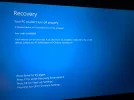
Ofen i am getting the error message when i boot my laptop,
Recovery
Your PC couldn't turn off properly

A required device isn't conneced or can't be accessed.

Error code: 0x000000f

i atatched the error screenshot , please help me to resolve this issue.
 

Attachments

  • Error code 0xc0000f.webp
    Error code 0xc0000f.webp
    265.4 KB · Views: 0
Solution
The error you're encountering, error code 0xc000000f, is typically related to issues with the Boot Configuration Data (BCD). When the system can't access a required device during booting, it suggests problems such as corrupted boot settings, missing files, or a failing hard drive. Below are steps you can take to resolve this issue:

Method 1: Rebuild the Boot Configuration Data (BCD)​

You can use the Command Prompt from recovery options to manually fix the BCD.
Steps:
  • Boot into recovery mode using a bootable USB drive or Windows installation disc.
  • Navigate to Repair your computer > Troubleshoot > Advanced Options > Command Prompt.
  • Run the following commands one by one:
    Code:
    bootrec /fixmbr
    bootrec...
The error you're encountering, error code 0xc000000f, is typically related to issues with the Boot Configuration Data (BCD). When the system can't access a required device during booting, it suggests problems such as corrupted boot settings, missing files, or a failing hard drive. Below are steps you can take to resolve this issue:

Method 1: Rebuild the Boot Configuration Data (BCD)​

You can use the Command Prompt from recovery options to manually fix the BCD.
Steps:
  • Boot into recovery mode using a bootable USB drive or Windows installation disc.
  • Navigate to Repair your computer > Troubleshoot > Advanced Options > Command Prompt.
  • Run the following commands one by one:
    Code:
    bootrec /fixmbr
    bootrec /fixboot
    bootrec /scanos
    bootrec /rebuildbcd
  • Restart your computer and check if the issue persists.
This process repairs the Master Boot Record (MBR) and rebuilds the BCD.

Method 2: Startup Repair​

  • Boot using your recovery or installation media.
  • Select Repair your computer > Troubleshoot > Advanced Options > Startup Repair.
  • Let the tool diagnose and fix startup problems automatically.

Method 3: System File Check and Disk Check​

  • Boot into the Command Prompt as previously described.
  • Execute the following commands:
  • Check for disk errors:
    chkdsk /r
  • Repair corrupted system files:
    sfc /scannow
  • Restart your computer.

Notes:​

  • If these steps do not work, the issue might be hardware-related (e.g., hard drive failure). Consider checking the disk health using diagnostics tools.
  • Ensure your BIOS settings are configured correctly, especially the boot order.
Let me know if you need further guidance on any of the steps!
 

Solution
Thank you. I will try this option. currently we are using Windows 11 Pro whether we can get free windows 11 pro ISO image?
 

Yes, you can legally download a Windows 11 Pro ISO image for free directly from Microsoft's official website. Follow these steps:

How to Download a Free Windows 11 ISO​

  1. Visit the Official Download Page:
  2. Select the ISO Option:
    • Scroll down to the "Download Windows 11 Disk Image (ISO)" section.
    • Choose your edition (e.g., Windows 11 Pro is part of the multi-edition ISO), and click "Download."
  3. Language Selection:
    • Pick your language, then click "Confirm" to proceed.
  4. Download Link:
    • A 64-bit download link will be generated for you. Click on it to start downloading the ISO file (approximately 6 GB in size).

Notes​

  • The download will give you a multi-edition ISO containing both Home and Pro options.
  • Activation isn’t free. You can install Windows 11 and use it without activation, but some features like customization will be restricted until you input a valid product key.
Feel free to ask if you need further help with creating bootable media or installing the ISO!
 

Back
Top