

Error
The practical verdict is: repair Windows for
WindowsForum users and editors have encountered this distinction from several directions. Forum coverage has included a recurring
Before deleting caches, downloading installation media, or considering a reset, record the exact failure.
Open Settings > Windows Update > Update history and note:
Use this decision path:
That break between the paths is the central point. A generic cache-reset script can change the machine without answering the most important question: what exactly failed?
A user may describe an update as “stuck” or say that “24H2 will not install,” but that description can refer to an ordinary quality update, a feature update, a manual MSU installation, or an organization-managed deployment. The visible symptom alone does not select the repair.
A Settings-based route may also be available under:
Settings > System > Troubleshoot > Other troubleshooters
Run the Windows Update troubleshooter if it appears there.
These tools can address common update-state problems, but they do not replace error classification. If automated troubleshooting does not resolve the failure, continue with the branch for the actual error code instead of repeatedly running general diagnostics.
Open an elevated command environment:
Allow DISM to finish. Its progress can remain at the same percentage for an extended period, so a temporarily stationary progress indicator does not by itself mean the process has stopped.
If DISM reports that the operation completed successfully, use System File Checker as the next validation and repair step:
In this playbook, DISM comes first because
Restart the PC and retry the failed update once. That controlled retry establishes whether the repair changed the result. If the same update fails again with the same code, confirm the DISM result and move toward the supported repair-reinstall path rather than performing an uncontrolled sequence of unrelated fixes.
Offline-source repair instructions depend on details such as the Windows release, build, edition, language, image format, and servicing task. Advice involving WIM or ESD indexes, custom source paths, or
Keep the initial decision narrow:
An SFC result must also be interpreted in context. WindowsForum has covered an SFC-related issue after the Windows 11 24H2 upgrade. That report is a reason to compare unexpected repair-tool behavior with the installed build and known update information, not a reason to abandon SFC or assume that every unusual result has the same cause.
The precise documented example is narrower: a manual installation of KB5051987 involved prerequisite KB5043080. That case establishes the need to inspect the requirements for the exact update being installed.
It does not establish that:
Check Microsoft’s support information for that exact update. If Microsoft documents a checkpoint or prerequisite package, follow the documented sequence and confirm that every package applies to the installed release and architecture.
If no prerequisite is documented, the branch must end with a controlled escalation rather than an open-ended search for packages:
This matters most when a user or administrator is installing an update manually. Before using a package from the Microsoft Update Catalog, check the support information for the target KB and verify any stated prerequisites.
The KB5051987 and KB5043080 relationship is useful as a concrete example of the kind of dependency that can exist. It is not a reusable two-KB recipe.
Before a manual installation, verify:
WindowsForum’s reporting has included separate 24H2 deployment discussions involving WSUS, SCCM or Configuration Manager, and Known Issue Rollback. The titles and scope of those reports are enough to establish an important support boundary: a managed deployment belongs to a different operational path from an update failure on a standalone home PC.
For an organization-managed device, record:
A local workaround may place the computer outside the organization’s tested servicing path. It can also make a deployment problem harder to reproduce because the endpoint no longer matches the rest of the managed group.
The editorial takeaway is concise: identify the KB or feature update, record the build, and preserve the delivery channel before changing the system. Those details decide whether the next step is component repair, package-prerequisite verification, administrator escalation, or recovery.
A cache reset does not repair the component store identified by
Performing many changes together creates another problem: if the update later succeeds, there is no clear record of which action mattered. A useful troubleshooting chronology is:
Look in Settings > System > Recovery for Fix problems using Windows Update or similarly labeled repair options. The precise wording and presentation can vary with the installed Windows build and device configuration.
Microsoft describes this capability as reinstalling the current Windows version while preserving:
Consider the repair reinstall when:
If the repair-reinstall capability is not shown, do not infer a specific cause from its absence. Device configuration, Windows build, and administrative control can affect the recovery choices presented. Use Microsoft-supported recovery guidance or contact the organization’s administrator.
If DISM succeeds, run SFC, restart, and retry the update. If servicing remains damaged, the Windows Update repair reinstall should be considered before Reset this PC because it is designed to preserve apps, personal files, and settings.
Send those details to the organization’s administrator on a managed device. On an unmanaged PC, continue with Microsoft-supported Windows Update troubleshooting or support rather than installing speculative prerequisite packages.
It does not mean every 24H2 update requires the same checkpoint package.
If DISM completes successfully, follow with:
This sequence repairs the component store first and then checks protected system files.
Settings > System > Troubleshoot > Other troubleshooters
Use the automated troubleshooter for failures delivered through Windows Update, then continue with the targeted error-code path if the problem remains.
Use cache maintenance only when there is a defined update-state or download problem that makes it relevant.
0x80073712 on Windows 11 should trigger DISM-based system repair. Error 0x800f0993 should trigger an update-specific investigation: identify the exact failed KB, confirm how it was delivered, and verify any documented prerequisites before treating the PC as corrupted.The practical verdict is: repair Windows for
0x80073712; investigate the update chain for 0x800f0993. Microsoft maps 0x80073712 to ERROR_SXS_COMPONENT_STORE_CORRUPT. By contrast, the documented manual-install case for KB5051987 involved prerequisite KB5043080. That case makes 0x800f0993 an investigation trigger, not a universal diagnostic code for missing prerequisites.| Error code | What is verified | First action | Escalation | What not to infer |
|---|---|---|---|---|
0x80073712 | Microsoft maps it to ERROR_SXS_COMPONENT_STORE_CORRUPT | Run DISM.exe /Online /Cleanup-Image /RestoreHealth | If DISM succeeds, run SFC, restart, and retry once; if servicing remains damaged, use the Windows Update repair-reinstall capability | Do not assume a reset or unsupported file replacement is required |
0x800f0993 | A documented manual-install case for KB5051987 required KB5043080 | Identify the failed KB, Windows build, architecture, and delivery channel | Follow the prerequisite documented for that KB; if none is documented, retry through the intended channel, collect the failure details, and escalate | Do not infer that KB5043080 fixes every occurrence or that the component store is corrupt |
0x800f0983 installation failure, wider reports of trouble installing Windows 11 24H2, an SFC-related issue after the 24H2 upgrade, and deployment failures involving WSUS or Configuration Manager. Those reports do not establish one shared technical cause. They show why the failed KB, build, and delivery path must be recorded before repair begins.
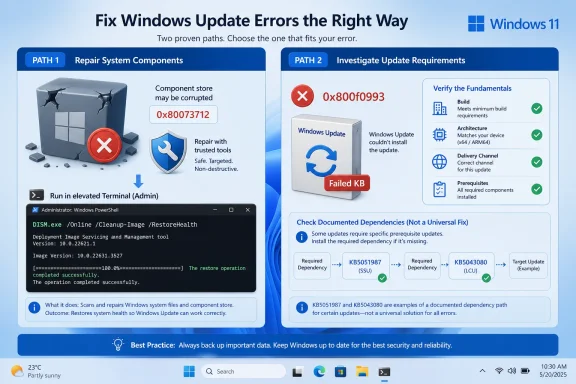 The First Five Minutes Should Determine the Repair Path
Before deleting caches, downloading installation media, or considering a reset, record the exact failure.Open Settings > Windows Update > Update history and note:
- The failed KB number or feature update
- The displayed error code
- Whether the failure occurred while downloading, installing, restarting, or rolling back
- Whether Windows Update or a manually downloaded package initiated the installation
- Whether the PC is managed by an organization
- Windows edition
- Windows version
- OS build
- System type and architecture
Use this decision path:
Code:
0x80073712
    └─ Run DISM repair
       └─ If DISM succeeds, run SFC
          └─ Restart and retry Windows Update once
             └─ If servicing remains broken, use the Windows Update repair reinstall

0x800f0993
    └─ Identify the exact failed KB, build, and delivery channel
       └─ Check Microsoft support information for that KB
          └─ Verify any documented checkpoint or prerequisite package
             ├─ Prerequisite documented:
             │    └─ Follow the documented package sequence
             └─ No prerequisite documented:
                  └─ Retry only through the intended channel
                     └─ If it fails again, collect the KB/build/channel
                        and escalate to the administrator or
Microsoft-supported update troubleshootingA user may describe an update as “stuck” or say that “24H2 will not install,” but that description can refer to an ordinary quality update, a feature update, a manual MSU installation, or an organization-managed deployment. The visible symptom alone does not select the repair.
Start With the Windows Update Troubleshooter
For a failure delivered through Windows Update, begin with Microsoft’s Windows Update troubleshooting tools. Windows 11 provides automated troubleshooting through the Get Help app. Open Get Help, search for the Windows Update troubleshooter, and follow the diagnostic process.A Settings-based route may also be available under:
Settings > System > Troubleshoot > Other troubleshooters
Run the Windows Update troubleshooter if it appears there.
These tools can address common update-state problems, but they do not replace error classification. If automated troubleshooting does not resolve the failure, continue with the branch for the actual error code instead of repeatedly running general diagnostics.
Error 0x80073712 Calls for DISM Repair
Microsoft identifies0x80073712 as ERROR_SXS_COMPONENT_STORE_CORRUPT. This is the stronger diagnostic mapping of the two errors discussed here and supports beginning with Windows image repair.Open an elevated command environment:
- Right-click Start.
- Select Terminal (Admin).
- Approve the User Account Control prompt.
DISM.exe /Online /Cleanup-Image /RestoreHealthAllow DISM to finish. Its progress can remain at the same percentage for an extended period, so a temporarily stationary progress indicator does not by itself mean the process has stopped.
If DISM reports that the operation completed successfully, use System File Checker as the next validation and repair step:
sfc /scannowIn this playbook, DISM comes first because
0x80073712 points to component-store corruption. SFC then checks protected system files after the component-store repair has completed.Restart the PC and retry the failed update once. That controlled retry establishes whether the repair changed the result. If the same update fails again with the same code, confirm the DISM result and move toward the supported repair-reinstall path rather than performing an uncontrolled sequence of unrelated fixes.
Do Not Turn a DISM Failure Into Unsupported ISO Guesswork
A failedRestoreHealth operation does not automatically require a factory reset. It also does not justify copying files into protected Windows directories or assembling a repair command from unrelated forum posts.Offline-source repair instructions depend on details such as the Windows release, build, edition, language, image format, and servicing task. Advice involving WIM or ESD indexes, custom source paths, or
/LimitAccess must match the actual installation and Microsoft’s applicable documentation.Keep the initial decision narrow:
- If DISM succeeds, run SFC, restart, and retry the update once.
- If DISM fails, record its complete output and final status.
- If several updates or Windows components remain affected, use the Windows Update repair-reinstall capability.
- If that capability is not present, use Microsoft-supported Windows recovery or installation-media guidance for the installed release.
An SFC result must also be interpreted in context. WindowsForum has covered an SFC-related issue after the Windows 11 24H2 upgrade. That report is a reason to compare unexpected repair-tool behavior with the installed build and known update information, not a reason to abandon SFC or assume that every unusual result has the same cause.
Error 0x800f0993 Is an Update-Specific Investigation Trigger
There is no sound basis for translating every occurrence of0x800f0993 into either “the component store is corrupt” or “install KB5043080.”The precise documented example is narrower: a manual installation of KB5051987 involved prerequisite KB5043080. That case establishes the need to inspect the requirements for the exact update being installed.
It does not establish that:
- Every
0x800f0993failure has the same cause - KB5043080 is a permanent fix for the error code
- The code always means a checkpoint update is missing
- DISM should be run without separate evidence of corruption
- A package required by one update should be installed for a different update
- A manual-install solution applies to a failure delivered through Windows Update or an organization’s management platform
Check Microsoft’s support information for that exact update. If Microsoft documents a checkpoint or prerequisite package, follow the documented sequence and confirm that every package applies to the installed release and architecture.
If no prerequisite is documented, the branch must end with a controlled escalation rather than an open-ended search for packages:
- Retry the update only through its intended delivery channel.
- If it fails again, record the KB, error code, Windows build, architecture, and channel.
- On a managed device, provide that information to the administrator.
- On an unmanaged device, proceed through Microsoft-supported Windows Update troubleshooting or support.
0x800f0993 failure from becoming a chain of speculative Catalog installations.Checkpoint Cumulative Updates Matter During Manual 24H2 Installation
Windows 11 24H2 introduced checkpoint cumulative updates. A later cumulative update can therefore have a documented dependency on an earlier checkpoint package.This matters most when a user or administrator is installing an update manually. Before using a package from the Microsoft Update Catalog, check the support information for the target KB and verify any stated prerequisites.
The KB5051987 and KB5043080 relationship is useful as a concrete example of the kind of dependency that can exist. It is not a reusable two-KB recipe.
Before a manual installation, verify:
- The exact target KB
- The installed Windows version and OS build
- The device architecture
- Whether Microsoft documents a prerequisite or checkpoint update
- Whether that prerequisite is already installed
- Whether manual installation is the intended delivery method
- Whether the PC is controlled through an organization’s servicing system
Managed PCs Should Stay on the Managed Path
If the PC is managed by work or school, contact the administrator before installing Catalog packages, changing update policies, or resetting Windows Update components.WindowsForum’s reporting has included separate 24H2 deployment discussions involving WSUS, SCCM or Configuration Manager, and Known Issue Rollback. The titles and scope of those reports are enough to establish an important support boundary: a managed deployment belongs to a different operational path from an update failure on a standalone home PC.
For an organization-managed device, record:
- The failed KB or feature update
- The error code
- The Windows version and OS build
- The time of the failed attempt
- The delivery system or update channel
- Whether other managed devices appear to be affected
- Whether the installation was user-initiated or organization-required
A local workaround may place the computer outside the organization’s tested servicing path. It can also make a deployment problem harder to reproduce because the endpoint no longer matches the rest of the managed group.
Editorial Takeaway From WindowsForum Reports
WindowsForum’s 24H2 coverage spans recurring0x800f0983 installation errors, general feature-update trouble, an SFC-related issue, and failures reported through enterprise deployment channels. These are not evidence of one universal Windows Update defect or one universal repair.The editorial takeaway is concise: identify the KB or feature update, record the build, and preserve the delivery channel before changing the system. Those details decide whether the next step is component repair, package-prerequisite verification, administrator escalation, or recovery.
Use Cache Resets Only for a Defined Reason
Renaming update-cache folders and stopping Windows Update services appear in many troubleshooting guides, but they should not be the opening move for these two errors.A cache reset does not repair the component store identified by
0x80073712. It also does not prove whether the documentation for a specific 0x800f0993 failure lists a prerequisite.Performing many changes together creates another problem: if the update later succeeds, there is no clear record of which action mattered. A useful troubleshooting chronology is:
- Record the failed update, error, build, and channel.
- Perform the targeted first action.
- Retry once.
- Record the result.
- Escalate to the least disruptive supported repair path.
The Repair Reinstall Is the Sensible Middle Ground
If DISM cannot repair a system reporting0x80073712, or if broader Windows component failures continue, Windows 11 provides a repair-reinstall capability through Windows Update.Look in Settings > System > Recovery for Fix problems using Windows Update or similarly labeled repair options. The precise wording and presentation can vary with the installed Windows build and device configuration.
Microsoft describes this capability as reinstalling the current Windows version while preserving:
- Applications
- Personal files
- Settings
Consider the repair reinstall when:
- DISM cannot complete the component-store repair
- Several Windows updates or components are failing
- Problems continue after DISM succeeds, SFC runs, and the PC restarts
- The evidence extends beyond one isolated update package
0x800f0993 failure. If only one KB fails and the rest of Windows servicing works normally, finish the update-specific investigation first.If the repair-reinstall capability is not shown, do not infer a specific cause from its absence. Device configuration, Windows build, and administrative control can affect the recovery choices presented. Use Microsoft-supported recovery guidance or contact the organization’s administrator.
A Better Servicing Playbook
For Windows 11 update failures, use this evidence-led sequence:- Open Settings > Windows Update > Update history.
- Record the failed KB, error code, Windows build, architecture, and delivery channel.
- Run the Windows Update troubleshooter for failures delivered through Windows Update.
- For
0x80073712, run:
DISM.exe /Online /Cleanup-Image /RestoreHealth- If DISM succeeds, run
sfc /scannow. - Restart and retry the update once.
- If component repair fails or broader servicing problems continue, use the Windows Update repair reinstall.
- For
0x800f0993, identify the exact failed KB before running broad repairs. - Check Microsoft’s support information for prerequisites documented for that KB.
- For the KB5051987 manual-install case, account for the documented KB5043080 prerequisite.
- Do not carry that prerequisite into unrelated update failures.
- If no prerequisite is documented, retry only through the intended channel and then escalate with the KB, build, error, and channel.
- On managed devices, involve the administrator before installing packages or changing update configuration.
- Avoid combining cache resets, policy changes, manual packages, and repair commands in one uncontrolled attempt.
Frequently Asked Questions
Does 0x80073712 mean Windows must be reset?
No. Microsoft maps0x80073712 to component-store corruption, so the first response is DISM repair:DISM.exe /Online /Cleanup-Image /RestoreHealthIf DISM succeeds, run SFC, restart, and retry the update. If servicing remains damaged, the Windows Update repair reinstall should be considered before Reset this PC because it is designed to preserve apps, personal files, and settings.
Does 0x800f0993 always mean a prerequisite update is missing?
No. Treat it as an update-specific investigation trigger. The documented KB5051987 manual-install case involved KB5043080, but that does not define every occurrence of0x800f0993.Should I install KB5043080 whenever I see 0x800f0993?
No. Install a prerequisite only when Microsoft documents it for the actual update being installed. A package required by KB5051987 should not be treated as a general repair package for the error code.What should I do if no prerequisite is documented for 0x800f0993?
Retry the update once through its intended channel. If it fails again, collect the failed KB, Windows build, architecture, error code, and delivery channel.Send those details to the organization’s administrator on a managed device. On an unmanaged PC, continue with Microsoft-supported Windows Update troubleshooting or support rather than installing speculative prerequisite packages.
Why do checkpoint cumulative updates matter?
Windows 11 24H2 checkpoint cumulative updates can create a documented dependency between a later cumulative update and an earlier checkpoint package. This makes prerequisite verification important during manual installation.It does not mean every 24H2 update requires the same checkpoint package.
Should I run DISM or SFC first?
For0x80073712, run DISM first because Microsoft maps that error to component-store corruption:DISM.exe /Online /Cleanup-Image /RestoreHealthIf DISM completes successfully, follow with:
sfc /scannowThis sequence repairs the component store first and then checks protected system files.
Where is the Windows Update troubleshooter?
Open the Get Help app and search for the Windows Update troubleshooter. A troubleshooting option may also appear under:Settings > System > Troubleshoot > Other troubleshooters
Use the automated troubleshooter for failures delivered through Windows Update, then continue with the targeted error-code path if the problem remains.
Will Fix problems using Windows Update remove my applications?
Microsoft describes the repair-reinstall capability as reinstalling the current Windows version while preserving applications, personal files, and settings. It is distinct from Reset this PC.Where can I find the repair-reinstall option?
Check Settings > System > Recovery for Fix problems using Windows Update or a similarly labeled repair option. The wording and availability can vary, so use the recovery options presented by the installed Windows build rather than relying on an assumed identical interface.Why might the repair-reinstall option be missing?
Its absence does not establish one particular cause. The options displayed can depend on the Windows build, device configuration, and administrative control. On a managed PC, contact the administrator. Otherwise, consult Microsoft-supported recovery guidance for the installed release.Should I manually install an MSU on a work-managed computer?
Not without authorization from the organization’s administrator. Record the failed KB, error code, build, time, and delivery channel first. A manual package can interfere with the managed servicing process or make the original deployment failure harder to investigate.Is clearing the Windows Update cache the best first step?
Not for these errors. For0x80073712, start with DISM. For 0x800f0993, identify the failed KB and check its documented requirements.Use cache maintenance only when there is a defined update-state or download problem that makes it relevant.
References
- Primary source: learn.microsoft.com
windows 11 update error 0x80073712 - Microsoft Q&A
hello i have a windows error 0x80073712 i tried every thing and no result : i tried sfc /scannow and give me there is no problem i tried net stop bits net stop wuauserv net stop cryptsvc ren %systemroot%\softwaredistribution…learn.microsoft.com - Independent coverage: support.microsoft.com
Troubleshoot problems updating Windows | Microsoft Support
Learn how to troubleshoot problems updating Windows. Find answers to common questions and issues installing Windows updates.support.microsoft.com - Independent coverage: hs.windows.microsoft.com
- Independent coverage: techcommunity.microsoft.com
- Primary source: WindowsForum
Windows 11 Update Fixes 0x800f0983 and October Regressions in 24H2 25H2 | Windows Forum
Microsoft has quietly begun rolling out a non‑security update that smooths several annoyances in Windows Update and addresses a recurring installation...windowsforum.com