

Windows 11 ships with a lot of convenience and integrated services — and with them come background tasks, telemetry, and promotional nudges that can slow boot times, eat RAM, and leak more data than some users want. The following feature checklist distills the top 10 things you should consider turning off immediately after a fresh install to improve performance, reduce telemetry, remove built‑in ads, and regain control of your desktop environment. These are practical, reversible steps plus clear warnings about trade‑offs and version‑dependent behavior so you can apply them safely and confidently.
Windows 11 emphasizes personalization, cloud integration, and built‑in services. That makes it friendlier for many users — but it also increases background CPU, network and disk activity, and places several UI surfaces that can show Microsoft promotions or suggestions. Turning off unnecessary items yields measurable gains in responsiveness and privacy for most users, especially on older or lower‑spec hardware. Common recommendations shared across community guides and technical writeups include disabling unnecessary startup apps, stopping background app execution, minimizing diagnostic telemetry, and removing promotional content from Start, File Explorer, and the Lock Screen.
This article summarizes how each tweak works, gives step‑by‑step instructions (Settings UI or registry where necessary), explains the practical benefits, and highlights risks and caveats — including which changes are reversible and which are potentially version‑dependent.
The chief risks lie in advanced toggles and registry edits: they require backup and may be overridden by updates or administrative policy. Enterprise users should use Group Policy and IT governance for durable control; home users should prefer the Settings UI when possible and treat registry/GPO changes as a second step.
For privacy‑conscious readers, these tweaks significantly reduce the automatic sharing of usage data and disable advertising identifiers; for those prioritizing convenience, selectively disabling only the most intrusive items (Widgets, Start recommendations, Explorer banners) strikes a good balance.
Where recommendations touch on aggressive removals (uninstalling Copilot completely, changing ContentDeliveryManager registry values), treat them as advanced: document your changes, and verify behavior across updates. If a claim about a specific registry key or Group Policy setting cannot be verified on your build, label it as potentially version‑dependent and check the Settings UI as a safe alternative.
Source: TweakTown 10 things you should turn off in Windows 11 right now
 Background / Overview
Windows 11 emphasizes personalization, cloud integration, and built‑in services. That makes it friendlier for many users — but it also increases background CPU, network and disk activity, and places several UI surfaces that can show Microsoft promotions or suggestions. Turning off unnecessary items yields measurable gains in responsiveness and privacy for most users, especially on older or lower‑spec hardware. Common recommendations shared across community guides and technical writeups include disabling unnecessary startup apps, stopping background app execution, minimizing diagnostic telemetry, and removing promotional content from Start, File Explorer, and the Lock Screen.This article summarizes how each tweak works, gives step‑by‑step instructions (Settings UI or registry where necessary), explains the practical benefits, and highlights risks and caveats — including which changes are reversible and which are potentially version‑dependent.
Why these changes matter
- Improve boot times and reduce memory pressure by preventing unnecessary programs from auto‑starting.
- Reduce background CPU/network activity by halting apps and services that poll the internet or perform indexing.
- Limit telemetry and targeted advertising by setting diagnostic levels to the minimum and disabling the Advertising ID.
- Remove built‑in promotional content from Start, File Explorer, Widgets, and the Lock Screen for a cleaner, distraction‑free UI.
- Stop unexpected restarts and maintain control over when your PC reboots after updates.
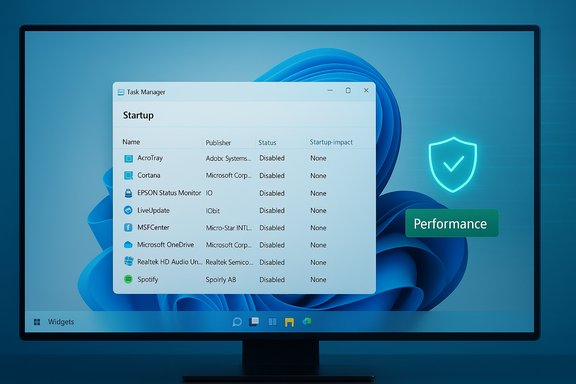
1. Disable unnecessary Startup apps
What it does
Startup apps are programs that launch when your user session begins. Too many of them increase boot time and consume RAM and CPU right after login.Why turn it off
Disabling nonessential startup items is the simplest, highest‑impact optimization for better boot times and lower initial memory pressure. This is safe and reversible.How to do it (Settings UI)
- Press Ctrl + Shift + Esc to open Task Manager.
- Switch to the Startup tab and review entries.
- Right‑click any nonessential app and choose Disable.
Alternatively: Settings > Apps > Startup and toggle unwanted items off.
Risks & notes
Keep antivirus, endpoint protection, and cloud‑sync agents you rely on (OneDrive, security clients) enabled. If a feature stops working after disabling its startup entry, reenable that item.2. Turn off noisy Notifications & Tips
What it does
Windows surfaces tips, “finish setting up” nudges, and app suggestions through the Notifications pane and Start menu. These can interrupt workflows and generate extra UI load.Why turn it off
Turning off these tips and suggested notifications reduces distraction and prevents the Start menu from surfacing promoted apps.How to do it
- Settings > System > Notifications: toggle off “Get tips, tricks, and suggestions as you use Windows” and disable app‑level notifications you don’t need.
- Settings > Personalization > Start: toggle off “Show recommendations for tips, shortcuts, new apps, and more.”
Risks & notes
You’ll miss product tips and helpful notifications about features you don’t know; this is a usability trade‑off, not a safety issue.3. Stop Background Apps that drain RAM and CPU
What it does
Many UWP (Store) apps and some traditional apps run background tasks that perform syncing, indexing, or polling.Why turn it off
Reducing background app permissions frees RAM, lowers CPU/network usage, and extends battery life on laptops.How to do it
- Settings > Apps > Installed apps.
- Click the three dots next to an app > Advanced options > Background app permissions > set to Never or Power optimized.
Risks & notes
Some apps (mail, calendar, messenger) rely on background access for timely notifications. Choose “Power optimized” if you need occasional updates but want to limit resource use.4. Stop online search suggestions in Start (remove web results)
What it does
By default, Start/search can surface web results and suggestions (Search Highlights). This triggers background lookups and uses online services.Why turn it off
Disabling online search reduces network calls, speeds local searches, and prevents web suggestions from appearing in Start. It also reduces the attack surface linked to Start menu processes.How to do it (Registry method shown in community guides)
- Press Win+R, type regedit and press Enter (or use Settings where available).
- Navigate to HKEY_CURRENT_USER\Software\Policies\Microsoft\Windows\Explorer.
- If Explorer key is missing, create it.
- Create a new DWORD (32‑bit) Value named DisableSearchBoxSuggestions and set its value to 1.
- Reboot.
Risks & notes
Registry edits carry risk; mis‑editing can cause instability. These values can be changed by major updates, and managed devices may be locked by policy. Flagging: behavior and exact key names may vary by Windows 11 build — validate after feature updates.5. Remove Widgets / News feed and Taskbar annoyances
What it does
Widgets deliver news, weather, and promoted content via a taskbar flyout; they run background services and fetch online content.Why turn it off
Disabling Widgets reduces background network traffic and prevents ad‑like content from surfacing in the taskbar. It’s a clean visual declutter.How to do it
- Settings > Personalization > Taskbar > Taskbar items: toggle Widgets to Off.
- Optionally hide or change Search to Icon or Hidden to reduce suggestions.
Risks & notes
If you rely on quick glance info, consider customizing the Widgets feed rather than fully disabling it. For full removal, PowerShell or Group Policy methods exist but may carry more risk.6. Reduce Telemetry & Diagnostics
What it does
Windows collects diagnostic data to keep systems secure and improve features. “Required” (minimum) telemetry is often needed for health and security; “Optional” sends richer usage data to Microsoft.Why turn it off
Switching optional data off reduces the volume of data sent off your machine and may slightly reduce background traffic and disk activity from telemetry logging.How to do it
- Settings > Privacy & security > Diagnostics & feedback.
- Turn off “Send optional diagnostic data” and set Diagnostic data to Required (or the minimal setting available).
- Also turn off Tailored experiences and Inking & typing personalization if you don’t want personalized cloud experiences.
Risks & notes
Required telemetry cannot be fully disabled on consumer editions. If you file a support case, Microsoft may ask you to enable optional diagnostics temporarily for troubleshooting. For centralized control in enterprise, Group Policy offers stricter options.7. Disable promotional banners in File Explorer and Lock Screen ads
What it does
File Explorer shows “sync provider” banners (OneDrive prompts), and the Lock Screen’s Windows Spotlight can show promotional cards or tips.Why turn it off
Hiding these UI nags cleans the file manager and lock screen, reduces UI draws, and stops occasional content downloads for Spotlight.How to do it (two safe steps)
- File Explorer: Open File Explorer → three dots (⋯) → Options → View tab → uncheck “Show sync provider notifications.”
- Lock Screen: Settings > Personalization > Lock screen → change Background from Windows Spotlight to Picture or Slideshow and uncheck any “Get fun facts, tips, tricks and more” toggle.
Risks & notes
Disabling sync provider notifications does not uninstall OneDrive or break sync; it only hides prompts. Registry edits for ContentDeliveryManager should be done carefully — back up the key and test. Major updates may re‑enable these settings.8. Uninstall or disable Cortana and Copilot
What it does
Cortana (legacy assistant) and the newer Copilot AI integration can run background processes and add UI elements some users find unnecessary.Why turn it off
Removing Copilot/Cortana eliminates related background processes and potential telemetry surface area and can free resources. Community steps show both Settings UI and Uninstall routes.How to do it
- Settings > Apps > Installed apps: locate Cortana or Copilot and choose Uninstall or Disable.
- For more persistent removal, Group Policy (Pro/Enterprise) or PowerShell commands may be used, but these require technical caution.
Risks & notes
Uninstalling Copilot or Cortana may remove convenient features (voice typing integration, AI suggestions). Some AI features are being integrated into multiple apps and may reappear after updates. If you use voice or AI features, consider disabling only the background service or toggling visibility in Taskbar settings.9. Kill Activity History, Timeline and Online Speech Recognition
What it does
Activity History and Timeline collect local and cloud activity to enable cross‑device Resume experiences; Online Speech Recognition sends utterances to cloud services for improved recognition.Why turn it off
Turning these off reduces local indexing and cloud syncing of activity and prevents speech data from leaving the device unless you explicitly allow it. Great for privacy‑conscious users.How to do it
- Settings > Privacy & security > Activity history: turn off “Store my activity history on this device” and click Clear to delete saved history.
- Settings > Privacy & security > Speech: toggle off Online speech recognition.
- Settings > Privacy & security > Inking & typing personalization: turn this off to stop cloud‑based personalization.
Risks & notes
Disabling Activity History will remove the convenience of cross‑device Resume. If you rely on Windows Search to surface recent activity from OneDrive or linked devices, you’ll lose that functionality.10. Stop automatic reboots after updates (and control update restarts)
What it does
Windows Update can schedule restarts after installing updates. By default, some settings let reboots occur automatically outside of active hours.Why turn it off
Controlling restart behavior prevents work interruptions and potential data loss caused by unexpected restarts. It’s a quality‑of‑life change that avoids surprise downtime.How to do it
- Settings > Windows Update > Advanced options > turn on “Notify me when a restart is required to finish updating.”
- Use Active Hours and schedule restarts when convenient.
Risks & notes
Delaying restarts can leave security updates uninstalled for longer, exposing systems to known vulnerabilities. Balance convenience against security: apply critical updates promptly but schedule restarts for times that don’t interrupt important tasks. In enterprise environments, use managed update policies to maintain compliance.Quick checklist: safe, reversible first pass
- Disable nonessential Startup apps (Task Manager > Startup).
- Settings > System > Notifications: turn off tips and suggested notifications.
- Settings > Apps > Installed apps: set Background app permissions to Never for unused apps.
- Settings > Privacy & security > Diagnostics & feedback: disable optional diagnostic data; turn off Tailored experiences.
- Settings > Personalization > Taskbar: toggle Widgets off and hide Search.
Advanced tips, Group Policy and registry caveats
- Group Policy provides enterprise‑grade control (Pro/Education/Enterprise). Some telemetry and advertising toggles are more strictly enforced here. Home users can map many GPO settings to registry keys but should back up before editing.
- Registry edits (DisableSearchBoxSuggestions, ContentDeliveryManager keys) are effective but are flagged by multiple guides as potentially build‑dependent and subject to being overridden by cumulative updates. Always export the key you modify and create a System Restore point.
- Some features (Copilot+, AI integrations, new Insider features) are actively evolving. Methods to fully disable them may change between builds. Validate your chosen method after major feature updates. Label these items as potentially version‑dependent.
Benefits quantified (what to expect)
- Faster boot and lower startup memory footprint after disabling heavy startup items — the largest single‑change win for most systems.
- Reduced background network traffic by stopping telemetry and Widgets, which can be noticeable on metered connections.
- Cleaner UI and fewer app/OneDrive promos in Start and File Explorer, improving focus and reducing accidental clicks on suggested apps.
Risks, trade‑offs and what to watch for
- Re‑enabling for support: Microsoft Support may ask you to reenable Optional diagnostic data when troubleshooting. Keep a note of changes so you can revert safely.
- Managed devices: Corporate or school‑managed devices may have policies that block or reapply changes. Check with IT before changing Group Policy or registry settings.
- Driver compatibility: Enabling features like Memory integrity (Core isolation) can break older drivers. If you enable Memory integrity, test for driver issues and update as needed. This is an example where a security toggle may require additional action.
- Updates may reintroduce defaults: Major feature updates sometimes flip promotional toggles back on. Occasionally recheck the key toggles after a big Windows feature update.
Final analysis: strengths and remaining risks
Turning off the ten items above restores a leaner, faster, and less noisy Windows 11 experience with minimal downside for most home users. The strengths of this approach are clear: immediate performance wins, fewer distractions, and reduced telemetry surface area without sacrificing core functionality.The chief risks lie in advanced toggles and registry edits: they require backup and may be overridden by updates or administrative policy. Enterprise users should use Group Policy and IT governance for durable control; home users should prefer the Settings UI when possible and treat registry/GPO changes as a second step.
For privacy‑conscious readers, these tweaks significantly reduce the automatic sharing of usage data and disable advertising identifiers; for those prioritizing convenience, selectively disabling only the most intrusive items (Widgets, Start recommendations, Explorer banners) strikes a good balance.
Where recommendations touch on aggressive removals (uninstalling Copilot completely, changing ContentDeliveryManager registry values), treat them as advanced: document your changes, and verify behavior across updates. If a claim about a specific registry key or Group Policy setting cannot be verified on your build, label it as potentially version‑dependent and check the Settings UI as a safe alternative.
Closing checklist (apply in this order)
- Create a System Restore point and note current settings.
- Disable nonessential Startup apps and Widgets.
- Turn off tips, suggestions, and Start recommendations.
- Reduce telemetry to Required only and disable Tailored experiences.
- Stop background apps and clear Activity History.
- Disable Explorer sync provider notifications and swap Windows Spotlight to a static image.
- If comfortable, apply registry/GPO changes as needed, but back up keys and validate after updates.
Source: TweakTown 10 things you should turn off in Windows 11 right now
