

Windows 11 may be a billion-user platform, but it still ships with enough friction points to justify a quick tune-up. The good news is that many of the most useful fixes are already built into the OS, and most take less than a minute to apply. Taken together, they can make the desktop feel cleaner, faster, safer, and more responsive without requiring third-party utilities or registry spelunking. The strongest theme in Neowin’s list is simple: Windows gets better when users reclaim control over the defaults that Microsoft chose for them, a point echoed by Microsoft’s own support guidance on Start, File Explorer, app defaults, background activity, and notifications. com]
Windows 11 launched with a cleaner visual language, but that polish came with trade-offs. The centered Start menu, the slimmer taskbar, and the more opinionated layout made the system feel modern, yet many longtime Windows users immediately noticed that the OS had become less flexible in the places they touched most often. That tension has defined much of Windows 11’s reception ever since. Microsoft has steadily added back bits of control, but the platform still rewards users who know where to look.
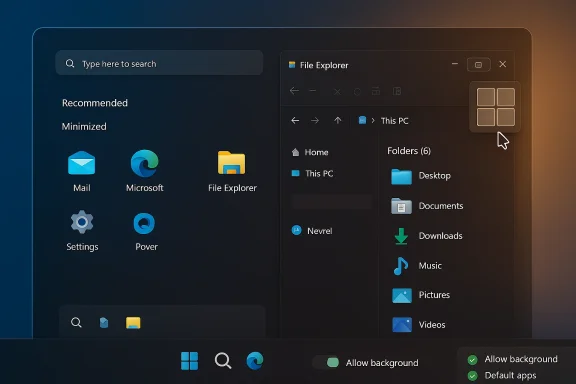
Neowin’s “10 quick tweaks” piece is effective because it focuses on changes that are easy to understand and easy to reverse. It does not ask users to install a shell replacement or replace core Windows behavior with a script. Instead, it highlights built-in adjustments that are available to ordinary users right now: Start menu recommendations, file extensions, dark mode, startup apps, background permissions, Snap Layouts, taskbar clutter, Clipboard History, default apps, and notifications. In other words, it is a reminder that Windows 11 is already more tunable than it often feels.
That matters because the modern Windows experience is increasingly shaped by small decisions. A single extra click in File Explorer, an unwanted background app, or a noisy notification stream may seem minor in isolation. But those annoyances accumulate, and they shape whether the desktop feels efficient or adversarial. Microsoft’s own support pages confirm that these are all real configuration surfaces, not hacks or workarounds.
There is also a broader platform story here. The more Microsoft makes Windows 11 configurable through supported settings, the less users need unsupported tools to get the experience they want. That is good for security, supportability, and long-term maintainability. It also makes Windows feel less like a product being done to you and more like a tool you can shape.
The practical value of disabling recommendations is not just aesthetic. It reduces visual noise, shortens the time it takes to find pinned apps, and makes the menu feel more deterministic. When the Start menu is mostly a launcher instead of a mixed launcher-and-content feed, users regain some confidence that they will see what they expect.
This matters for more than convenience. A filename that ends in.jpg,.png,.docx, or.exe tells you something important about how Windows will treat the file. That visibility helps when file formats are finicky, when an app rejects a format you thought was valid, or when you simply want to avoid opening something suspicious by accident.
These are not performance tweaks in the strict sense, but they have a measurable effect on how pleasant the PC feels to use. Dark mode lowers visual brightness across the shell and supported apps. Night Light shifts the display toward warmer tones, which can be easier on the eyes in evening use. Together, they make late-night work less punishing.
This is where “feels faster” often comes from. A machine that boots with fewer auto-launchers and fewer hidden background services tends to reach a usable state sooner. It also tends to waste less battery and memory throughout the day.
For anyone juggling browser tabs, documents, chat windows, and spreadsheets, this is not cosmetic. It is a workflow shortcut. You spend less time arranging your workspace and more time actually using it. That is exactly what a good shell feature should do.
Removing Search, Widgets, Task View, and other unneeded elements can make an immediate difference. The taskbar sits in view all day long, so even small reductions in clutter pay off. A cleaner taskbar can make the whole desktop feel more composed.
That sounds small until you start using it in real workflows. Copy a password, a paragraph, a link, a code snippet, and a screenshot reference, and suddenly clipboard history becomes a working memory layer. For support work, writing, research, and data entry, it saves a surprising number of repetitive steps.
This is more than a browser preference question. It affects PDFs, media files, images, mail, maps, and more. If Windows keeps asking the wrong app to open your files, the whole system starts to feel slightly off. Setting the right defaults restores consistency.
The best notification setup is not silence. It is selectivity. You want alerts that matter, not a steady stream of distractions that arrive while you are trying to work, game, or concentrate. A little tuning goes a long way here.
That is exactly why built-in settings matter so much. They solve problems at the source. Instead of layering tools on top of Windows, you are changing how Windows behaves. In support terms, that is cleaner. In user terms, it is more satisfying.
The other trend to watch is whether Microsoft continues to simplify core shell decisions without making the system feel stripped down. That balance is tricky. Users want a modern interface, but they also want to stop being nudged, interrupted, and reconfigured by surprise.
Source: Neowin 10 quick tweaks that make Windows 11 a lot better
 Overview
Windows 11 launched with a cleaner visual language, but that polish came with trade-offs. The centered Start menu, the slimmer taskbar, and the more opinionated layout made the system feel modern, yet many longtime Windows users immediately noticed that the OS had become less flexible in the places they touched most often. That tension has defined much of Windows 11’s reception ever since. Microsoft has steadily added back bits of control, but the platform still rewards users who know where to look.Neowin’s “10 quick tweaks” piece is effective because it focuses on changes that are easy to understand and easy to reverse. It does not ask users to install a shell replacement or replace core Windows behavior with a script. Instead, it highlights built-in adjustments that are available to ordinary users right now: Start menu recommendations, file extensions, dark mode, startup apps, background permissions, Snap Layouts, taskbar clutter, Clipboard History, default apps, and notifications. In other words, it is a reminder that Windows 11 is already more tunable than it often feels.
That matters because the modern Windows experience is increasingly shaped by small decisions. A single extra click in File Explorer, an unwanted background app, or a noisy notification stream may seem minor in isolation. But those annoyances accumulate, and they shape whether the desktop feels efficient or adversarial. Microsoft’s own support pages confirm that these are all real configuration surfaces, not hacks or workarounds.
There is also a broader platform story here. The more Microsoft makes Windows 11 configurable through supported settings, the less users need unsupported tools to get the experience they want. That is good for security, supportability, and long-term maintainability. It also makes Windows feel less like a product being done to you and more like a tool you can shape.
1) Start menu recommendations: the first thing to trim
The Start menu is still the most symbolic part of Windows, which is why its recommendations can feel so intrusive. Microsoft describes the Start menu as a place that can surface recently added and frequently used apps, plus recently opened files, but many users understandably interpret the Recommended area as clutter they did not ask for. Microsoft also makes clear that Start can be personalized through Settings > Personalization > Start.The practical value of disabling recommendations is not just aesthetic. It reduces visual noise, shortens the time it takes to find pinned apps, and makes the menu feel more deterministic. When the Start menu is mostly a launcher instead of a mixed launcher-and-content feed, users regain some confidence that they will see what they expect.
Why this tweak lands so well
This is one of those rare changes that benefits both casual and power users. Casual users get a cleaner menu. Power users get less distraction and a more predictable launch surface. Microsoft’s own privacy and recommendations settings also show that Windows can personalize Start based on app launches, so the choice here is really about whether you want the OS to infer your preferences or whether you want to keep things minimal.- It removes clutter from a high-traffic part of the UI.
- It reduces the impression that Start is pushing content.
- It makes pinned apps easier to scan at a glance.
- It better suits users who already know their workflow.
- It can make Windows feel less promotional.
2) File extensions: a tiny switch with real security value
Showing file extensions is one of the simplest and most underrated Windows 11 adjustments. Microsoft’s support documentation confirms that Windows file names have two parts and that file name extensions identify the file type; it also provides the exact path in File Explorer to turn extensions on.This matters for more than convenience. A filename that ends in.jpg,.png,.docx, or.exe tells you something important about how Windows will treat the file. That visibility helps when file formats are finicky, when an app rejects a format you thought was valid, or when you simply want to avoid opening something suspicious by accident.
The security angle is the bigger story
Cybersecurity advice often sounds abstract, but file extensions are one of the few safety improvements users can see instantly. Seeing the actual type makes it harder for malicious files to masquerade as harmless documents. It also helps users avoid the classic “double extension” trap, where something looks like a PDF or image at first glance but is actually executable content.- It helps you verify real file type quickly.
- It reduces the chance of opening disguised malware.
- It helps diagnose format problems faster.
- It is useful when apps are picky about supported formats.
- It makes file management more transparent.
3) Dark mode and Night Light: comfort is a feature
Windows 11 offers two related but distinct display comfort tools: dark mode for the interface and Night Light for the screen’s color temperature. Microsoft documents dark mode as a color setting under Personalization > Colors, and Night Light as a display setting accessible through system settings and supported by thems-settings:nightlight shortcut.These are not performance tweaks in the strict sense, but they have a measurable effect on how pleasant the PC feels to use. Dark mode lowers visual brightness across the shell and supported apps. Night Light shifts the display toward warmer tones, which can be easier on the eyes in evening use. Together, they make late-night work less punishing.
Separate the jobs: dark mode is not Night Light
That distinction matters because people often treat them as interchangeable. They are not. Dark mode changes the theme of Windows and many apps. Night Light changes the display’s color output. One is mostly about interface comfort and style; the other is about reducing harsh blue-heavy light.- Dark mode makes the shell feel calmer.
- Night Light reduces visual glare in dim environments.
- They can be used together for a softer setup.
- Dark mode often looks cleaner in mixed-light rooms.
- Night Light is especially helpful in evening sessions.
4) Startup apps and background permissions: reclaiming performance
Few changes make Windows feel quicker faster than cutting down on unnecessary startup and background activity. Microsoft’s support documentation explicitly covers startup apps in Settings > Apps and background app activity control for supported apps. Windows can also manage power use more intelligently through optimized background behavior.This is where “feels faster” often comes from. A machine that boots with fewer auto-launchers and fewer hidden background services tends to reach a usable state sooner. It also tends to waste less battery and memory throughout the day.
Why background control is more important on laptops
Desktop users mostly notice startup bloat when the system feels sluggish or crowded. Laptop users feel it in battery life and fan noise. A chat client, launcher, cloud sync tool, or vendor helper app may not seem like much, but several of them combined can quietly drain resources all day.- Reduces boot-time overhead.
- Cuts memory and CPU use.
- Can improve battery life.
- Lowers the chance of hidden activity.
- Makes the system easier to reason about.
5) Snap Layouts: the best productivity feature most people underuse
Snap Layouts remains one of Windows 11’s smartest interface additions. Microsoft has repeatedly promoted snapping and touch-enhanced window arrangement as a core productivity behavior, and for good reason: it turns window management from a drag-and-resize routine into a quick hover-and-pick decision.For anyone juggling browser tabs, documents, chat windows, and spreadsheets, this is not cosmetic. It is a workflow shortcut. You spend less time arranging your workspace and more time actually using it. That is exactly what a good shell feature should do.
Why it scales especially well on big screens
Snap Layouts is useful everywhere, but it shines on larger monitors and multi-display setups. The more screen real estate you have, the more valuable it becomes to place windows into consistent zones instead of manually dragging them into position every time. That keeps attention on the content rather than the chrome.- Speeds up multitasking.
- Works well on ultrawides and dual monitors.
- Reduces manual window resizing.
- Makes layouts repeatable.
- Helps keep workspaces tidy.
6) Simplify the taskbar: less is often more
Windows 11’s taskbar has been controversial because it looks cleaner but also feels more constrained than previous versions. Microsoft does give users some control through Taskbar settings, and support guidance shows that relevant taskbar options are still organized under Personalization.Removing Search, Widgets, Task View, and other unneeded elements can make an immediate difference. The taskbar sits in view all day long, so even small reductions in clutter pay off. A cleaner taskbar can make the whole desktop feel more composed.
Minimalism is not just about looks
The real reason to simplify the taskbar is cognitive, not decorative. Every always-visible icon competes for attention. When you strip out functions you never use, the taskbar becomes a utility strip again instead of a promotional surface.- Reduces visual clutter.
- Frees screen space on smaller displays.
- Makes the desktop feel calmer.
- Improves focus by cutting distractions.
- Helps you keep only the essentials visible.
7) Clipboard History: a hidden productivity multiplier
Clipboard History is one of the most quietly powerful Windows 11 features. Microsoft documents clipboard settings directly in the Settings app, and the feature itself is accessible with the Win+V shortcut. It extends the classic copy-and-paste model by retaining multiple recent items instead of just the last one.That sounds small until you start using it in real workflows. Copy a password, a paragraph, a link, a code snippet, and a screenshot reference, and suddenly clipboard history becomes a working memory layer. For support work, writing, research, and data entry, it saves a surprising number of repetitive steps.
Why power users love it
Clipboard History turns copy-and-paste into a small clipboard stack rather than a single-slot queue. That alone makes it more useful than many people realize. It is particularly good when you need to shuttle several items across apps without constantly jumping back and forth.- Stores multiple recent clipboard items.
- Reduces repeated copy-paste cycles.
- Supports richer workflow patterns.
- Helps with writing, support, and editing.
- Can sync across devices if you want that behavior.
8) Default apps: make Windows behave like your Windows
Default app settings remain one of the most important ways to make Windows feel personal. Microsoft now centralizes default app management under Settings > Apps > Default apps, and its support pages make clear that Windows expects users to choose preferred programs for common tasks.This is more than a browser preference question. It affects PDFs, media files, images, mail, maps, and more. If Windows keeps asking the wrong app to open your files, the whole system starts to feel slightly off. Setting the right defaults restores consistency.
Why defaults shape trust
Default apps are one of the clearest signs of whether a platform respects user intent. If the OS repeatedly pushes you toward another choice, it feels intrusive. If it obeys your preferences, it feels cooperative. That may sound emotional, but it has practical consequences for how efficient the system feels.- Stops repeated prompts.
- Prevents accidental app switching.
- Makes common tasks predictable.
- Reduces friction after every click.
- Helps the PC feel more like yours.
9) Notifications: keep the useful ones, lose the rest
Windows 11’s notification system is flexible enough to be helpful, but also noisy enough to become exhausting. Microsoft’s support pages and set that notification controls, including Do Not Disturb and app-specific permissions, live under System > Notifications.The best notification setup is not silence. It is selectivity. You want alerts that matter, not a steady stream of distractions that arrive while you are trying to work, game, or concentrate. A little tuning goes a long way here.
Calmer alerts mean better focus
Notifications are supposed to interrupt only when interruption is justified. When every app demands attention, the desktop stops being a tool and starts becoming a stress machine. Windows 11 gives users the controls to fix that.- Schedule Do Not Disturb for focus time.
- Disable noisy apps you do not need.
- Keep priority alerts limited.
- Turn off disruptive sounds if needed.
- Make alerts feel intentional instead of constant.
10) Why these tweaks matter as a group
The value of this list is not that any single tweak is revolutionary. It is that each one removes a different kind of drag: visual clutter, hidden activity, awkward defaults, or needless interruption. The cumulative effect is a system that feels calmer and more responsive, even though you have not installed any new software.That is exactly why built-in settings matter so much. They solve problems at the source. Instead of layering tools on top of Windows, you are changing how Windows behaves. In support terms, that is cleaner. In user terms, it is more satisfying.
The real payoff is control
Windows 11 often feels better when it stops trying to anticipate every user’s preferences and instead lets the user decide. That is the through-line connecting the Start menu, file extensions, taskbar customization, background control, and default apps. The OS becomes less intrusive and more aligned with personal workflow.- Less clutter means less friction.
- Better defaults mean fewer interruptions.
- More visibility improves security awareness.
- More control increases user confidence.
- Small wins add up quickly over a workweek.
Strengths and Opportunities
These tweaks are strong because they are low-effort, supported, and broadly useful. They do not require a deep technical background, and they directly address the kinds of annoyances that make a PC feel heavier than it should. They also show how much of Windows 11’s quality still lives in plain sight, waiting to be configured.- They are fast to apply.
- They are easy to reverse.
- They improve daily usability immediately.
- They reduce dependence on third-party tools.
- They help both consumers and power users.
- They can improve security awareness.
- They make Windows feel more personal.
Risks and Concerns
These are safe recommendations overall, but they are not completely free of trade-offs. Some settings, especially background app control and clipboard sync, can affect convenience or privacy if used without thought. Others may need to be revisited after updates or when a new app joins the system.- Over-disabling notifications can hide important alerts.
- Aggressive background restrictions can break useful syncing.
- Clipboard sync may not suit privacy-focused users.
- Default app settings can be reset or nudged by updates.
- Removing too much from the taskbar can hurt discoverability.
- Night Light and dark mode are preference-driven, not universal fixes.
- Startup app changes can affect vendors’ support software.
Looking Ahead
The bigger lesson from this kind of Windows 11 tuning is that Microsoft still has room to make the OS feel more respectful by default. The company has already exposed many of the needed controls, which is a good sign, but discoverability remains part of the problem. The more users have to hunt for these settings, the more Windows feels like it is working against them rather than with them.The other trend to watch is whether Microsoft continues to simplify core shell decisions without making the system feel stripped down. That balance is tricky. Users want a modern interface, but they also want to stop being nudged, interrupted, and reconfigured by surprise.
- More Start menu control would be welcome.
- Cleaner taskbar options should stay a priority.
- Default app management should remain stable.
- Notification tuning should get even easier.
- Background activity controls should be clearer.
- Clipboard features should become more discoverable.
- File Explorer should keep prioritizing transparency.
Source: Neowin 10 quick tweaks that make Windows 11 a lot better
