10 Simple File Explorer Tweaks for Windows 11 to Boost Productivity

  • Thread Author
PCMag UK’s round‑up of “10 Simple File Explorer Tweaks” is a timely reminder that the files and folders on your PC deserve the same attention as the apps you use to open them — and that a few small changes in File Explorer can dramatically reduce friction. The list — from pinning folders in Quick Access to asking Copilot questions about a file — covers both long‑standing, low‑risk usability settings and newer, more powerful features Microsoft is rolling into Windows 11. In this feature I verify the key steps, explain what changed between Windows 10 and Windows 11, cross‑check claims with multiple sources, and surface the trade‑offs you should weigh before making larger changes (like registry edits or enabling on‑device AI access). rview
File Explorer remains the primary interface millions use every day to move, preview, compress, and share files. Over the last few Windows releases Microsoft has reshaped the app: it added tighter OneDrive integration, a condensed modern context menu, new panes and preview tools, Ask Copilot and other AI‑driven actions, and native support for more archive formats. Those changes can make File Explorer more powerful — but also introduce new complexity and, in a few cases, reliability or privacy concerns. I verified the step‑by‑step tips you’ll read below against Microsoft documentation and recent coverage from trusted Windows outlets to ensure accuracy.
A light-blue file explorer UI featuring Quick access, folders, and a ZIP/7z/TAR compression menu.1. Customize Quick Access / File Explorer Home​

Quick Access (Windows 10) and File Explorer Home (Windows 11) give you one‑click access to frequently used and pinned folders. It’s the fastest way to jump to the folders you use daily.
  • How to pin: Right‑click any folder and choose Pin to Quick Access (or drag it into the Quick Access area). This works for local folders, network locations, and many cloud‑synced folders.
  • Stop automatic clutter: File Explorer shows recent files and frequently used folders by default. To stop the automatic population, open File Explorer Options (See More / Options on Windows 11; View → Options in Windows 10) and uncheck Show recently used files and Show frequently used folders. You can also change the default open view from Quick Access to This PC.
Why this matters: a curated Home view speeds navigation and reduces the likelihood of accidentally exposing recently opened files. If you share a machine, disabling automatic history reduces leak risk.
Practical tip: pin network folders and cloud folders you access daily so they behave like local favourites — but remember network paths require the network to be available before File Explorer can open them.

2. Show or Hide File Extensions — why it isn’t just cosmetic​

File extensions (.docx, .jpg, .pdf) reveal file type and help you spot disguised malware (for example "earnings.pdf.exe" disguised as a PDF). By default Windows hides known extensions, but you can turn them on in seconds.
  • In Windows 11: open File Explorer → ViewShow → check File name extensions.
  • In Windows 10: View → check File name extensions in the ribbon.
Why enable extensions: it’s a small security habit that prevents social‑engineering tricks and makes bulk operations (rename, search by extension) easier.
Caveat: hiding extensions will not stop malware, but it does remove a basic layer of user awareness. For admins, enforcing visible extensions via policy is a simple, high‑value control.

3. Display and use Libraries​

Libraries let you virtually gather related folders (Documents, Pictures, Music) into a single view without moving files. They’re disabled from view by default in newer Windows 11 releases but can be re‑enabled.
  • To show Libraries in Windows 11: open File Explorer → See More (ellipsis) → Options → View tab → check Show libraries. In Windows 10 the Navigation pane menu has Show libraries.
Why use them: libraries are particularly helpful if your files live across multiple drives or on both local and network storage. They give you a consolidated search and preview surface without breaking folder organization.
Tip: If you use cloud sync (OneDrive), include the synced folder in a library to see local and cloud copies together.

4. Use the Preview and Details Panes effectively​

File Explorer offers three main panes: Navigation (left), Preview, and Details. The Preview pane shows the content (images, PDFs, Office files) without opening the full app; the Details pane exposes metadata (size, modified date, tags, sharing status).
  • Toggle the panes from File Explorer → ViewShowPreview pane or Details pane (they’re mutually exclusive). In Windows 11, the behavior and availability can vary slightly by build and update channel.
Strengths and limits:
  • The Preview pane accelerates triage when cleaning folders — but not all file types preview reliably (PDFs and some proprietary formats may need apps or preview handlers installed).
  • The Details pane in modern File Explorer can show collaboration status and share info for cloud files, which is useful for teams.
Risk: heavy use of previews for many large files can cause Explorer to feel sluggish. If Explorer crashes when previewing certain file types, narrow down to that file type’s preview handler or temporarily disable the pane.

5. The modern context menu and the classic menu registry hack​

The right‑click (context) menu changed considerably in Windows 11: Microsoft condensed the menu into a modern, icon‑driven layout and pushed some commands under “Show more options.” That reduces visual clutter but makes advanced actions less discoverable. Many users prefer the classic (Windows 10 style) menu and a widely circulated Registry tweak recreates it.
  • The registry trick: create HKEY_CURRENT_USER\SOFTWARE\CLASSES\CLSID{86ca1aa0-34aa-4e8b-a509-50c905bae2a2}\InprocServer32 with an empty Default value and then restart Explorer or the machine. That restores the legacy menu for many users. Multiple community guides document this exact key.
Caveats and risks:
  • This is an unsupported system modification. Some users have reported Explorer instability or inability to revert the change on certain versions (reports differ across builds and updates). Proceed only after creating a System Restore point and backing up the registry. Community threads show both success stories and failure modes; results depend on the Windows 11 build and installed shell extensions.
Safer alternatives:
  • Instead of a registry hack, try third‑party utilities that selectively restore classic menus (they’re easier to undo and often sandbox their changes).
  • For occasional access to the extended menu, remember Shift+Right‑click or Show more options in the modern context menu.

6. Compress and uncompress files — native support has expanded​

Historically Windows supported only ZIP archives natively, forcing users to install tools like 7‑Zip, WinRAR or PeaZip for other formats. Recent Windows 11 updates have added native creation and extraction for additional formats such as 7z and TAR.
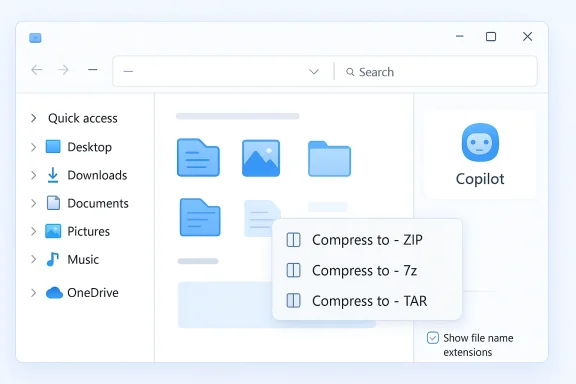
  • In modern File Explorer builds you’ll see a Compress to submenu in the modern context menu with choices such as ZIP, 7z, and TAR, plus an Additional options wizard in some builds. This feature appeared in preview and beta builds and has propagated into mainstream updates for many users.
Benefits:
  • Native 7z/TAR support reduces the need for third‑party archivers for basic compression/extraction tasks.
  • The File Explorer compress UI integrates with the rest of Explorer flows (drag and drop, right‑click, ribbon).
Performance and compatibility notes:
  • Native extraction is convenient but not always as thread‑optimized or feature‑rich as dedicated tools. For advanced compression settings (passwords, recovery records, high compression tuning), continue to use 7‑Zip or WinRAR.
  • Compression format choice matters for recipients: 7z gives better compression ratios but may not be readable by older OSes without third‑party tools; ZIP remains the broadest supported format.
Quick step: select files → Right‑click → Compress to → choose ZIP / 7z / TAR (or open Additional options for more control).

7. Share folders and files from File Explorer​

Sharing from File Explorer uses the modern Share UI and integrates with OneDrive when files are in your cloud folders. The native Share command provides a list of apps and people you can share to — and when a file is stored in OneDrive, the Share flow may default to a cloud link rather than sending the file itself.
Important behaviour to understand:
  • Files that live in OneDrive will often be shared as cloud links (which preserves storage and enables access controls). This is expected, but it changes the semantics compared with attaching a local file to an e‑mail. Some apps listed in the Share UI depend on the file type and installed apps on your machine.
Privacy and collaboration tips:
  • When sharing sensitive files, confirm whether the Share flow sends the file itself, creates a view‑only link, or grants edit access. Use OneDrive’s link settings to enforce expiration or restrict access to specified users.
  • If you rely on Nearby Share or local network shares, remember those options appear in the same Share UI but require device and network readiness.

8. Manage photos and images without leaving Explorer​

File Explorer includes quick photo tasks in the right‑click menu: rotate images, set as desktop background, and in modern builds, route image edits into built‑in apps (Photos, Paint) for actions like blur background or erase objects via AI‑powered commands. These are surfaced under AI Actions and the new Manage file submenu in some builds.
Practicalities:
  • For quick orientation fixes (Rotate left/right) and to set a wallpaper, the built‑in commands are fine and fast.
  • For object removal, background erasure or advanced retouching, use dedicated photo editors — AI Actions act as convenient shortcuts but will often open the Photos or Paint app to perform the work.
Privacy note: some AI actions run locally; others may use cloud services depending on the specific feature and your privacy settings. Check the Copilot and OneDrive privacy controls before using AI image features on sensitive photos.

9. Search for files and documents — faster and more precise​

File Explorer’s search box accepts wildcards (*, ?) and supports filters for kind, size, and date modified. A few practical search techniques:
  • Name search: type a filename fragment and press Enter.
  • Extension search: type .png or .docx to list all files of that type.
  • Advanced filters: use the Search ribbon (or Search menu in modern File Explorer) to refine by Kind, Size, Date modified, and other properties.
Tip: the indexed Windows Search service powers fast results. If you need deep, content‑level search for large repositories, consider dedicated desktop search tools (they index differently and may support more file types).

10. Ask Copilot for help — power and precautions​

Microsoft has been integrating Copilot deeper into Windows. The right‑click command Ask Copilot opens the Copilot window and lets you ask questions about selected files (summarize a PDF, describe an image, extract key points from a document). Microsoft’s documentation describes using Copilot from the File Explorer context menu or the Copilot button for up to five selected files.
What Copilot can do:
  • Summarize documents or extract action items.
  • Describe images and perform image‑based queries (Copilot Vision).
  • Trigger AI Actions (e.g., send a photo to Photos for object removal).
Privacy and risk analysis:
  • Copilot may process file contents locally or via cloud services depending on your settings and the specific Copilot feature. If you’re handling sensitive corporate or regulated data, consult your organization’s policy before using Copilot on those files. Microsoft provides tenant‑level controls for Copilot features in managed environments.
  • If you don’t want Copilot in your context menu, Windows provides ways to disable it or remove the Ask Copilot entry — either through settings or, in some builds, via the registry. Community reports show that admins have used Group Policy or registry edits to suppress the feature in enterprise deployments.
Recommendation: try Copilot with non‑sensitive files first to see the outputs and performance. If you like the convenience, check whether your use requires changes to privacy or security posture for enterprise environments.

Critical analysis — strengths, blind spots, and practical safeguards​

Strengths
  • Microsoft is bringing genuine productivity improvements into File Explorer: native 7z/TAR compression, AI‑assisted image edits, and Copilot integration reduce the number of context switches between small tasks and full apps. The consolidated Manage file menu and Preview/Details panes improve discoverability for many workflows.
  • Many changes preserve familiar flows (right‑click → task) while modernizing the plumbing; casual users get convenience, and power users keep heavier tools.
Blind spots and risks
  • Registry tweaks (classic context menu) can create instability on some Windows 11 builds. Community reports show mixed outcomes; always create a System Restore point and export the registry key before editing.
  • AI features can surface privacy and compliance concerns. Copilot’s convenience comes with the need to verify where models run (local vs cloud) and how data is handled. Enterprises should assess Copilot on a per‑policy basis.
  • Native compression is useful but not a full replacement for third‑party archivers in e advanced encryption, splitting, or recovery records. Test cross‑platform compatibility before switching to 7z by default.
  • Quick Access’s recent files can expose sensitive filenames. If you share a machine, disable the recent files list and pin only the folders you want available.
Practical safeguards
  • Export the registry and create a System Restore point before making registry changes.
  • For sensitive data, disable Copilot or restrict its use until you confirm data handling policies.
  • Keep backup copies when compressing or batch‑renaming large sets of files.
  • Use dedicated tools (7‑Zip, Adobe, dedicated photo editors) when you need advanced features not yet supported natively.

Recommended workflow for a safer, faster File Explorer​

  • Enable File name extensions for transparency.
  • Pin your top 8–10 folders to Quick Access / Home and disable automatic recent files.
  • Use the Preview pane for quick triage; disable it if Explorer becomes sluggish.
  • If you want the classic context menu, test the registry hack on a disposable machine or virtual machine first. Export the key and snapshot the system.
  • Try the native Compress to options for everyday archives, but keep 7‑Zip or WinRAR for advanced tasks. Confirm recipients can open 7z/TAR files before making them your default.
  • Test Ask Copilot with non‑sensitive files to evaluate its usefulness and data handling in your environment. Use admin controls in organizational deployments.

Final verdict​

PCMag UK’s tips are solid, practical beats for most users — they cover immediate wins (show extensions, pin Quick Access), medium‑risk customization (enable libraries, toggle panes), and higher‑impact options that deserve caution (registry restores, Copilot). The most meaningful improvements Microsoft has shipped are the deeper File Explorer integration with OneDrive and Copilot, and the addition of multiple native archive formats; these reduce friction for everyday tasks. But convenience should not trump caution. For power users and IT pros the payoff is real, provided you pair tweaks with standard safeguards: backups, system restore, and a policy review for AI features in managed environments. If you follow a careful, staged approach, File Explorer can be transformed from a basic file browser into a fast, contextual workbench that truly speeds the way you work with files.

Source: PCMag UK 10 Simple File Explorer Tweaks for a More Organized Windows PC
 

Windows 11’s quiet push to move your Desktop, Documents and Pictures into the cloud is more than an annoyance — it’s a systemic change that can consume your OneDrive quota, confuse applications, and create real risk when you try to unwind it. That behavior — where Windows redirects known folders into your OneDrive folder and begins syncing them automatically — is now baked into the default consumer experience, and many users discover it only after their free 5 GB allotment is exceeded or local files behave unexpectedly.

Illustration showing folders syncing from a computer to the cloud for backup.Background / Overview​

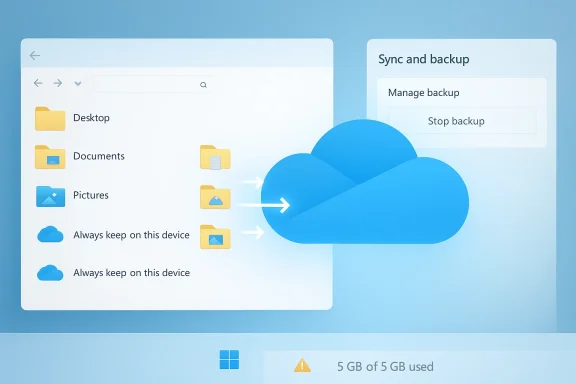
Microsoft’s OneDrive is tightly integrated with Windows 11 as a convenience: sign in with a Microsoft account and Microsoft will offer to protect your important folders by backing them up to OneDrive. Under the hood that feature is Known Folder Move (often surfaced as “Folder Backup” or “Back up your folders”), which relocates your Desktop, Documents and Pictures into your OneDrive folder so those files are synced and available across devices. That relocation is not a separate “copy” by default — it changes where those folders live.
This behavior has two sides. When you pay for Microsoft 365 and get 1 TB of OneDrive storage, the automatic sync can be a practical cross-device backup that “just works.” But for the millions of users on the free OneDrive tier (currently 5 GB), the automatic redirection can rapidly eat your quota, trigger persistent low‑storage warnings, and nudge users into a Microsoft 365 subscription they didn’t intend to buy.

How Windows 11’s Folder Backup actually works​

What Windows changes when Folder Backup is enabled​

When Folder Backup (Known Folder Move) is activated, Windows does the following:
  • Moves the target known folders — typically Desktop, Documents, and Pictures — into your OneDrive folder (e.g., C:\Users\<You>\OneDrive\Documents).
  • Keeps the original “known” path (so apps still save to Documents, for example), but the authoritative copy is now the OneDrive-synced location.
  • Begins syncing that OneDrive folder to the cloud and to any device signed in to the same OneDrive account.
That relocation is the essential point: the files are not just being backed up in the background — they are being moved into a folder that is owned by the OneDrive client and synchronized to the cloud. Many users read “back up” and expect a secondary copy; the practical reality is a redirection of the primary folder.

Files On‑Demand and storage-saving behavior​

OneDrive’s Files On‑Demand feature reduces local disk usage by marking files as “online-only” until you open them. When enabled, a file can appear in File Explorer while its content is stored in the cloud; Windows downloads it on demand. The OneDrive client can also automatically offload local copies to save space, leaving only placeholders on disk. That saves SSD space but complicates assumptions about where the data actually lives.
Files On‑Demand is a double-edged sword: it preserves access while minimizing local footprint, but it also means you may think files are local when they are just cloud placeholders, or that deleting a local placeholder will remove the cloud master if you’re not careful.

Why this default behavior is a problem for many users​

1) Hidden consent and setup friction​

Windows 11 often encourages or requires signing in with a Microsoft account during setup, and Folder Backup can be enabled as part of that flow — sometimes without a crisp, obvious opt‑in explaining the consequences. For users who skim prompts, the change happens behind an innocuous “back up your files” label. That has led to widespread surprise and frustration.

2) Rapid quota exhaustion and the upsell loop​

The default free OneDrive tier is small compared to typical modern storage needs. Microsoft’s consumer OneDrive offering gives a basic free allowance (commonly 5 GB) while Microsoft 365 subscriptions include larger allotments (1 TB per user in many plans). When Windows redirects Documents, Pictures and Desktop into OneDrive, it’s easy to blow through the free limit — particularly if you have photos, videos, or large application/cache files in those folders — and then face persistent low‑storage prompts that steer you toward paying for more cloud storage. That sequence feels like a product-led upsell built into the OS experience.

3) App compatibility and broken expectations​

Many Windows applications expect Documents or AppData to be local. Game saves, developer tool temp files, and some legacy apps don’t tolerate being redirected or encountering placeholders. Users have reported desktop shortcuts that launch nothing because a shortcut synced from another machine points to a program not installed locally. Others find cache and temp files now consume cloud quota without providing value. The result is a mismatch between user expectations and the behavior of the ecosystem.

4) Unwinding the change is risky and confusing​

Turning off Folder Backup is not always a simple “undo.” Historically, stopping the backup could leave the local folder empty except for a link pointing to the OneDrive location; users then have to manually copy files back. More recently Microsoft has introduced a clearer “Stop backup and choose where to keep files” dialog that offers Only on my PC to move files back, but that option is not always obvious and the entire flow remains fragile for non‑technical users. If a user turns off Folder Backup and then deletes the cloud copy before confirming local recovery, data loss can follow.

Verifying the core technical claims​

  • Microsoft documents the OneDrive Files On‑Demand behavior and how it saves local disk space; it explicitly describes online-only vs local file states and how to make files “Always keep on this device.” This is the basis for OneDrive offloading behavior.
  • Microsoft’s OneDrive plan comparison lists the free and paid storage tiers that make the quota problem real: the free tier is limited while Microsoft 365 subscriptions provide far larger allocations. That difference is precisely why automatic redirection can quickly become a sales lever.
  • Multiple independent reporting and community threads document the move of known folders into OneDrive, confusion when turning backup off, and the appearance of a newer “Stop backup and choose where to keep files” flow that can restore files back to local folders when selected. Those coverage pieces corroborate the user experience and show how Microsoft has iterated the UI.
  • OneDrive retains deleted personal-account items in the online Recycle Bin for up to 30 days, which provides a limited safety net — but relying on that 30‑day window is not a substitute for clear local backups. For business or school tenants, retention timings differ and administrators can impose varied policies.

How to tell if this has already affected your PC​

Check these indicators to see whether your Desktop, Documents or Pictures folders have been redirected:
  • Right‑click the OneDrive icon in the taskbar and open Settings → Sync and backup → Manage backup. If Desktop, Documents or Pictures show as “Backed up”, Folder Backup is active.
  • Open File Explorer and inspect the folder path (select the folder and check Properties). If your Documents path is C:\Users\<You>\OneDrive\Documents (or similar), it’s been moved.
  • Look for cloud status icons (online-only, locally available, always keep on this device) next to files. Those indicate Files On‑Demand is active.
  • Check your OneDrive usage: the OneDrive desktop client settings and Microsoft account portal show how much of your quota is consumed. If usage is near or above 5 GB and you did not intentionally upload large files, Folder Backup is likely responsible.

Step-by-step: safely stopping OneDrive Folder Backup and moving files back (practical checklist)​

If you want your known folders returned to local storage, follow these steps carefully. The exact labels and dialog text may vary slightly depending on your OneDrive client and Windows 11 build.
  • Pause OneDrive syncing temporarily. Right‑click the OneDrive cloud icon → Help & Settings → Pause syncing (select 2 hours). This reduces the chance of race conditions during the move.
  • Open OneDrive settings: Help & Settings → Settings → Sync and backup → Manage backup. Confirm which folders show as backed up.
  • For each folder to stop backing up, click Stop backup. When prompted, choose Stop backup and choose where to keep files. Then select Only on my PC (or the option that moves files back to the original local location). This is the crucial choice — select Only on my PC if you want OneDrive to place files back in C:\Users\<You>\Documents etc.
  • Verify local folders after the operation: inspect C:\Users\<You>\Documents and C:\Users\<You>\Desktop for the expected files. If files remain missing, open the OneDrive folder (e.g., C:\Users\<You>\OneDrive\Documents) and manually copy items back to the local path.
  • If you need files to remain local long-term, right‑click the parent folder in File Explorer and choose Always keep on this device to prevent Files On‑Demand from making them online-only later.
  • Once satisfied, resume or close the OneDrive process according to your preference.
Important cautions:
  • Do not delete files from the OneDrive web interface until you confirm a local copy exists. Deleted items go to the OneDrive Recycle Bin and are kept for up to 30 days on personal accounts, but recovery is not guaranteed beyond that window.
  • If you have several devices signed into the same OneDrive account, changes propagate everywhere. Coordinate across devices if necessary.

Alternatives and safer workflows​

If you value local ownership but still want cloud redundancy, consider these options:
  • Use a dedicated cloud provider or a paid OneDrive tier intentionally for the files you want synced, and keep large, ephemeral, or app-managed folders local.
  • Use selective folder sync: only sync specific subfolders to OneDrive instead of redirecting entire known folders. This keeps app-generated or cache files local while protecting documents you explicitly choose.
  • Maintain regular local backups (image + file backups). Consider using Windows’ built-in backup options or a third‑party backup solution that writes to an external drive or network storage — a cloud sync service is not a true replacement for a proper backup.

What Microsoft has changed — and where the UX still fails​

Microsoft has responded to user pain by iterating the stop-backup flow: more recent clients present the Stop backup and choose where to keep files option that allows users to move content back to local folders when they disable Folder Backup. That is a meaningful improvement, and it addresses one of the most common failure modes.
But the underlying UX issues remain:
  • The initial activation of Folder Backup can feel too seamless, with consent buried in setup or brief prompts. Default-on behavior for a cloud service that changes where your files live is a questionable design choice.
  • Files On‑Demand and automatic offloading are powerful but opaque. Users can be left with placeholders they think are local, and the interplay with apps that expect local files produces errors.
  • The sales pressure created by quota warnings — where your machine begins nagging for Microsoft 365 because your redirected Documents hit a 5 GB free cap — creates a perception that the OS is pushing a subscription rather than informing a choice. That’s a legitimate user-experience concern.

Practical recommendations (for users and for Microsoft)​

For users who want control​

  • Audit your OneDrive configuration immediately after setting up a new Windows 11 device. Don’t assume “backup” equals “copy.” Check Manage backup in the OneDrive settings and confirm whether known folders were redirected.
  • If you prefer local-first storage, stop Folder Backup and choose the option to move files back to the PC — and then confirm the files are present locally before deleting any cloud copies.
  • Use a hybrid approach: keep Documents and Desktop local, but sync a curated subfolder (e.g., Documents\Work) to OneDrive for cross-device access. This reduces accidental syncing of irrelevant or large files (game saves, installer caches).

For Microsoft (policy and UX fixes we’d like to see)​

  • Make Folder Backup an explicit, clearly explained opt‑in during setup with a short, plain‑English description of what will happen (move vs copy), space implications, and the default option clearly labeled.
  • In the stop-backup flow, make Only on my PC the prominent, recommended option and surface an automated audit that lists files that will remain cloud-only or online-only after the change.
  • Improve Files On‑Demand visibility: show an easily discoverable toggle and an explanation of the difference between placeholders and local files. Provide a one‑click way to “download all files for this folder” to remove ambiguity.

Real-world damage scenarios and how to avoid them​

  • A photographer with many RAW images signs into a new PC, Folder Backup is enabled, and their Pictures folder is moved into OneDrive. The free 5 GB cap is exceeded; OneDrive shows “storage full.” The user, panicked, deletes files from the cloud to free space — later discovering no local copy was preserved. The files are gone from both PC and cloud after the 30‑day horizon. Prevent this by checking storage before enabling backup and by moving large media out of known folders before any full-folder redirect.
  • A gamer’s Documents folder contained save files and mod data. OneDrive redirected the folder and began syncing. On a second device, a synced desktop shortcut points to a mod path that doesn’t exist, causing errors. The underlying issue is the assumption that desktop and Documents are portable across machines. Keep game data in dedicated game folders or exclude those folders from sync.
  • An enterprise user’s account is deactivated; their OneDrive content becomes subject to tenant retention rules and administrative cleanup. For organizations, admin policies and retention settings matter more than the personal 30‑day window. Businesses must plan for license churn.

Conclusion​

Windows 11’s deep OneDrive integration offers real convenience: seamless access to important documents across devices, built-in cloud continuity, and powerful space-saving features. But when those conveniences are delivered by default in ways that move your primary folders into a service with tight free quotas, it becomes a policy and UX problem rather than a pure feature.
The technical reality is clear: OneDrive’s Folder Backup (Known Folder Move) changes where files live, Files On‑Demand can convert local content into cloud placeholders, and the default free allotment can be exhausted without the user realizing what happened. These are verifiable behaviors documented by Microsoft and corroborated by widespread reporting and community experiences.
If you value control, audit OneDrive settings on every new Windows 11 device, choose selectively which folders to sync, and keep robust local backups that don’t rely solely on a cloud sync client. And if you are a power user or an IT admin, push for clearer defaults and better undo flows from Microsoft so that the OS protects people’s files without usurping their choices. The technology can help — but it must ask first, and then act clearly and reversibly.


Source: PCMag UK This Windows 11 Feature Can Fill Your OneDrive Storage Without You Realizing
 

Microsoft’s Clipchamp video editor is undergoing one of the most consequential storage changes in its consumer history, and the practical result is simple: if you want to keep editing, OneDrive is no longer optional for many personal accounts. That shift has sparked confusion, frustration, and a fresh wave of “why is my project missing?” complaints as users discover that Clipchamp’s newer workflow now leans on Microsoft’s cloud infrastructure by default. Microsoft’s own support materials make the direction clear: the personal version is moving to OneDrive-backed project storage, while work and school accounts already live in that ecosystem.

Clipchamp interface with a “OneDrive-backed projects” banner and cloud upload illustration showing 5GB.Overview​

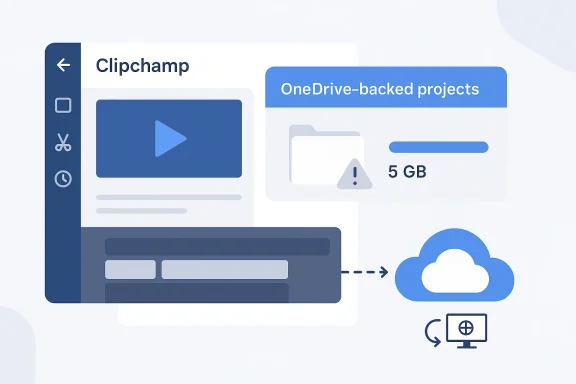
The most important thing to understand is that this is not a random bug or a temporary policy quirk. Microsoft has explicitly documented that, for Clipchamp personal accounts, the service is rolling out an updated cloud-storage model that stores editing projects in OneDrive and surfaces storage status inside the editor itself. The company says free users get 5 GB of cloud storage, while Microsoft 365 Personal and Family subscribers can use OneDrive-backed project storage as part of their subscription experience.
That matters because video editors tend to think in local files, folders, and drive letters, not in cloud containers and entitlement checks. With Clipchamp’s new model, access to a project can depend on whether OneDrive is active on the account, whether the entitlement is properly provisioned, and whether the migration from older project storage completed cleanly. Microsoft’s support pages now even describe scenarios where users cannot open or save projects until OneDrive is reactivated or a migration step is retried.
The timing also explains why the issue feels abrupt. Microsoft says the change for the free tier started in late August 2025, while premium-related changes began earlier in January 2025. So what many users are encountering now is less a brand-new policy than the full operational ripple effect of a rollout that has been building for months.
For Microsoft, the logic is obvious: cloud storage makes projects portable across devices, simplifies backup, and ties the editor more tightly to Microsoft 365. For users, especially those who expected a more traditional local-editing workflow, it feels like a loss of control. That tension is at the center of the current Clipchamp debate, and it is why this change has become bigger than a feature update; it is a product identity shift.

What Actually Changed​

Clipchamp’s consumer experience is now being reoriented around OneDrive-backed project storage. Microsoft says the updated personal version stores projects in the cloud and lets users see available storage from the Clipchamp homepage, with the ability to archive projects locally if they do not want them actively synced for editing.
That sounds harmless until you hit the edge cases. If the account’s OneDrive entitlement is inactive, Clipchamp may refuse to open projects, report access problems, or get stuck during the save/setup process. Microsoft’s own troubleshooting guidance states that inactive OneDrive access can block Clipchamp project access, and the fix may involve signing into OneDrive directly to reactivate the entitlement.

Why this feels stricter than before​

The difference is not just where files live. It is where the editor believes the project exists. In the new model, the project is not simply a local document with a cloud copy; the cloud copy is increasingly the canonical version. That means cloud sync is not an accessory feature anymore, but a dependency for basic access.
This also explains why users report seeing messages about projects being saved to OneDrive, or being unable to continue when the setup is interrupted. Microsoft’s support guidance suggests retrying setup, choosing a folder, or manually downloading and re-uploading projects if the automatic path fails.
  • Clipchamp personal accounts are moving to cloud-first storage.
  • OneDrive is now a core dependency for many projects.
  • Local storage remains available mainly as an archive option.
  • Project access can fail if the OneDrive entitlement is not active.
  • The workflow is designed for portability, not purely offline editing.

The OneDrive Dependency Explained​

The big technical change is that Clipchamp is no longer treating OneDrive as a sidecar; it is treating it as the backbone. Microsoft says the editor can show storage status in the app, and support documentation specifically notes that project access depends on OneDrive being active.
For people who already use Microsoft 365, this may not be dramatic. Their photos, documents, and other assets may already live in OneDrive, so Clipchamp’s integration can feel natural. For everyone else, especially users who expected a simple desktop editor, the requirement creates a new dependency chain that can fail in several places: account entitlement, cloud quota, network access, or the migration of older projects.

What Microsoft says users should do​

Microsoft’s support advice is telling because it shows where the company expects failure to occur. The recommended remedies include re-running the Clipchamp and OneDrive setup, opening OneDrive directly to reactivate entitlements, downloading projects locally, or using the web app if the desktop app is problematic.
That last point matters. Microsoft says the web app and desktop app are functionally identical for the personal experience, which is a strong signal that the desktop client is being framed more as a convenient shell than as a distinct offline-capable editor. In other words, the platform is being designed around service continuity, not around local autonomy.
  • OneDrive entitlement problems can block project access.
  • The desktop app is not necessarily a refuge from cloud issues.
  • The web app is presented as a fallback, not a second-class editor.
  • Local downloads are now more like insurance than the default workflow.

Why Users Are Pushing Back​

The resistance is easy to understand. Video projects are often time-sensitive, and creators do not want a cloud policy to stand between them and an export deadline. When a save path changes without enough frictionless transition, users interpret it as a forced migration rather than a convenience upgrade.
Microsoft 365 subscribers may be less upset because the change is bundled into a broader subscription story. But free users and monthly Clipchamp subscribers are confronting a more obvious trade-off: if you want the newer cloud experience, you accept OneDrive’s limits, storage quotas, and account dependencies. If you do not, you may need to move elsewhere or change how you manage projects.

The usability cost​

This is where the product gets trickier in practice. Users who once thought in terms of “my project file is on my PC” now have to think about entitlement state, cloud storage allocation, and sync recovery. That is a meaningful cognitive burden, especially when something goes wrong and the editor appears to lose access to work already in progress.
It also changes support expectations. Instead of diagnosing only local corruption or codec problems, help desks now have to consider account state, OneDrive provisioning, and migration locks. Microsoft’s own support threads show that these issues are already surfacing in the wild.
  • Creators dislike surprise dependency changes.
  • Cloud-first storage can feel like a hidden paywall.
  • Account migration issues are harder to self-diagnose.
  • The new workflow adds administrative complexity.
  • Users lose the comfort of simple local file ownership.

The Enterprise and Education Picture​

The enterprise story is much less dramatic. Microsoft says Clipchamp Work or Education subscriptions already store editing projects in OneDrive or SharePoint, and those experiences remain unchanged. That suggests Microsoft is not inventing a new business-grade workflow so much as extending a model that already exists in managed environments.
That difference is important because work and school users typically operate in environments where cloud identity, storage quotas, and device management are already standardized. For them, a OneDrive-centered editor is an extension of existing policy. For home users, it can feel like a newly imposed system that arrived after the fact.

Why IT teams may actually prefer it​

From an IT administration standpoint, the move has some clean advantages. Centralized storage makes backup, access control, and continuity easier to explain. It also aligns Clipchamp with the broader Microsoft 365 ecosystem, where files, collaboration, and device access increasingly converge around cloud identity.
But enterprises should not mistake familiar for risk-free. Any dependency on cloud entitlements can create account provisioning issues, especially during onboarding, offboarding, or tenant changes. That is manageable in a controlled organization, but it still requires policy and support planning.
  • Work and school accounts are already designed for this model.
  • Central management reduces some operational friction.
  • Identity and storage policies become more important.
  • Migration behavior is less likely to surprise enterprise users.
  • Support teams still need clear recovery procedures.

How This Affects Free Users​

Free users are where the pressure will likely be felt most sharply. Microsoft’s FAQ says free users receive 5 GB of cloud storage, and users with more than that are encouraged either to download projects locally or upgrade to Microsoft 365 Personal for more cloud capacity.
That is not a minor adjustment for anyone building larger projects, especially if video assets, raw footage, and project backups are all included in the same storage picture. The practical result is that heavy users may hit the ceiling quickly and be pushed toward a paid tier or another tool entirely.

The storage math is the real story​

The most revealing part of Microsoft’s FAQ is not just the number, but the logic. The company is effectively saying that if you want your projects to remain accessible across devices, the cloud is the proper home for them. That is a sensible engineering position, but it is also a monetization strategy, because storage consumption naturally nudges users toward subscriptions.
This also changes how casual creators should think about project hygiene. If you keep long-running drafts, raw assets, and exported variants in the same environment, 5 GB disappears quickly. What used to be a modest editing habit can now become an account management problem.
  • 5 GB is enough for light use, not always for serious editing.
  • Larger projects may force a subscription decision.
  • Storage management now matters as much as editing skill.
  • Free users may prefer local archiving for older work.
  • Casual editors may not realize how fast cloud space fills.

Troubleshooting and Recovery​

When Clipchamp breaks under the new model, Microsoft’s guidance focuses on a fairly specific recovery path. Users are told to check OneDrive status, retry setup, inspect available storage, and in some cases use the web app or manually move projects outside the editor before bringing them back in.
This is useful, but it also reveals a weakness: the number of moving pieces has increased. A local-only editor can fail because of local conditions. A OneDrive-backed editor can fail because of local conditions, cloud conditions, identity conditions, or migration conditions. That is more flexible overall, but it is also more brittle when something goes wrong.

A practical recovery sequence​

For users already stuck, the best order of operations is fairly clear. Start with the account and storage layer, then move to the app layer, then fall back to local export if possible. That approach matches Microsoft’s own support guidance and minimizes the risk of making a migration problem worse by repeatedly forcing the wrong client state.
  • Sign into OneDrive directly and confirm the account is active.
  • Reopen Clipchamp and check whether the project appears.
  • Retry the OneDrive setup if Clipchamp prompts for it.
  • Verify available cloud storage in the editor.
  • Use the web app if the desktop app continues failing.
  • Download projects locally if you need to preserve work immediately.
The hidden lesson here is that Clipchamp troubleshooting now resembles cloud service administration more than classic desktop repair. That is not inherently bad, but it is a big shift in what users are expected to understand.

Competitive Implications​

Microsoft’s move also puts pressure on rival editors that still emphasize local-first workflows. Some creators will welcome cloud continuity, but others will see OneDrive dependence as a reason to revisit tools that prioritize direct file ownership and offline resilience. In the editing market, trust is often as valuable as features.
At the same time, Microsoft is clearly betting that tighter integration wins over convenience objections. If Clipchamp becomes easier to resume across devices, easier to back up, and easier to bundle with Microsoft 365, then the company can justify the added complexity as an ecosystem benefit. That is a classic platform strategy, and one Microsoft has used before in other productivity areas.

Why this may work anyway​

The surprising part is that many consumers will accept the trade if the workflow feels seamless enough. They already use cloud accounts for photos, documents, and notes, so video may become just another synced asset category. The real test is whether Microsoft can make the storage transition invisible enough that most users never think about it.
If it cannot, competitors will benefit from the perception that Clipchamp is moving from “simple editor” to “managed service.” That branding shift can matter a great deal in consumer software, where small friction points often drive app abandonment.
  • Cloud continuity is a legitimate competitive advantage.
  • Forced dependence can also push users toward alternatives.
  • Ecosystem bundling favors Microsoft 365 retention.
  • Simplicity remains a powerful counter-message for rivals.
  • Perception may matter more than technical superiority.

Strengths and Opportunities​

Microsoft’s Clipchamp transition is not without merit. For users who already live in the Microsoft ecosystem, the new model improves portability, creates a clearer backup story, and makes it easier to resume work across devices without manual file shuffling. It also gives Microsoft a cleaner path to unify personal, business, and education experiences around shared cloud principles.

Where the change could pay off​

The biggest opportunity is consistency. If the rollout stabilizes, users may eventually appreciate having their projects available from anywhere with far less fiddling than the old local-file approach. That could make Clipchamp feel less like a lightweight editor and more like a mainstream creative service.
  • Better cross-device continuity for projects.
  • Easier recovery after device loss or reinstall.
  • More natural integration with Microsoft 365.
  • Clearer storage visibility inside the editor.
  • Stronger alignment between consumer and enterprise workflows.
  • Potentially simpler sharing and collaboration later on.
  • A more modern cloud-native product model.

Risks and Concerns​

The central risk is that Microsoft has made a core creative workflow feel dependent on account plumbing. If OneDrive is inactive, misconfigured, full, or slow to provision, the user experience can collapse at exactly the moment when people need the editor to be dependable. That makes the product feel less like software and more like a service with preconditions.

The downside of cloud centralization​

There is also a trust risk. Users may worry that Microsoft is narrowing their options, especially if the local-save path feels secondary rather than equal. Once users believe an app is trying to corral them into a storage plan, even useful cloud features can start to look coercive. Perception becomes the story, not the engineering.
  • Cloud dependency can block editing in unexpected ways.
  • Migration issues create support burden and user frustration.
  • Free-tier limits may push users away.
  • Local workflows feel less protected than before.
  • The desktop app may not offer the independence users expect.
  • Storage quotas can become a creative bottleneck.
  • Product goodwill may erode if changes feel forced.

Looking Ahead​

What happens next depends on whether Microsoft can make the transition feel intentional rather than disruptive. If the company smooths out entitlement issues, improves migration messaging, and keeps the web and desktop experiences aligned, Clipchamp could settle into a more coherent cloud-first identity. If not, the current complaints may harden into a long-term reputation problem.
The broader lesson is bigger than one video editor. Microsoft is signaling that even consumer creative tools are now part of the same cloud-storage architecture that powers the rest of its productivity stack. That may be efficient for the company, but it also means users should expect more services to treat identity and storage as inseparable parts of the product.

Key things to watch​

  • Whether Microsoft clarifies the distinction between archive and active editing more clearly.
  • Whether OneDrive entitlement errors become less common after migration settles.
  • Whether the desktop app retains any meaningful offline value.
  • Whether free users receive more flexible storage options.
  • Whether competing editors use this moment to market local-first simplicity.
  • Whether Microsoft updates help flows to reduce confusion around project access.
In the end, Clipchamp’s OneDrive requirement is less about a single checkbox and more about the direction Microsoft wants consumer software to take. The company is betting that cloud convenience will outweigh the frustration of a harder setup path, and it may well be right for mainstream users. But for anyone who values straightforward local ownership, the change is a reminder that “simple” in modern software often hides a very complicated backend.

Source: Windows Report https://windowsreport.com/editing-in-clipchamp-just-got-trickier-with-onedrive-requirement/
 

Back
Top