

Windows 11’s taskbar redesign left a lot of people frustrated — tidy, modern, and often frustratingly minimal — but the lively third‑party ecosystem around “taskbar flyouts” has quietly restored the small comforts power users miss. After years of tweaking my own setups across tablets, laptops, and desktop workstations, I keep coming back to a handful of lightweight flyout apps that turn the taskbar corner into a set of focused, human‑scale controls: media controls that actually work, per‑monitor brightness sliders, a proper battery readout, per‑app volume mixing, and an Ink launcher that makes pen input useful again. Below are ten of those utilities, why they matter, what they do well, and the important caveats every Windows user should know before installing them.
Windows 11 consolidated a lot of small system affordances into the unified Quick Settings and Notification Center. That tidy approach made the shell feel cleaner, but it also removed a number of task‑focused micro‑surfaces users relied on: independent media overlays, compact agenda views, dedicated battery or brightness popups, and single‑click access to pen tools.
Developers in the Windows community responded by rebuilding those micro‑surfaces as lightweight flyout apps that live in the system tray. These flyouts restore fast, one‑click workflows while often improving functionality beyond what Microsoft ships — for example, exposing per‑monitor DDC/CI brightness controls, showing battery graphs for Bluetooth peripherals, or surfacing an actionable “Agenda” in the clock flyout. Many of the restoration efforts and Insider‑era changes to the calendar flyout have been discussed in community threads and preview notes. d these ten
My selection focuses on tools that:
Why it matters: Windows 11 merged many system flyouts into Quick Settings. Fluent Flyouts brings back the focused, single‑purpose popups people liked in Windows 10 while using modern visuals that match Windows 11 aesthetics. It’s particularly good for users who prefer discrete surfaces rather than the consolidated Quick Settings modal.
Key features:
Why it matters: Windows 11’s battery flyout is minimalist. Battery Flyout gives you a glanceable history, quick profile switching (which restores the convenience of earlier Windows’ power quick actions), and peripheral battery telemetry — all useful on laptops and tablet hybrids. Reviews and reporting show the app is a popular, paid Microsoft Store utility by a small developer who maintains multiple complementary tools.
Technical note:
Why it matters: While Windows 11 includes a built‑in volume mixer inside Quick Settings, EarTrumpet’s interface is faster, more intuitive, and feels like a natural extension of the taskbar. It also supports quick switching of input/output devices per app and shows detailed session names.
Key sources and status:
Why it matters: On pen devices, the difference between a usable and a frustrating inking experience is milliseconds: a fast pen launcher that opens your note app or sketch tool without hunting through the Start menu is invaluable. Third‑party Ink Workspace implementations have added customization and restored convenience that Microsoft’s built‑in tool sometimes deprioritized.
Tips:
Why it matters: External displays often have clumsy on‑monitor buttons. Monitorian centralizes brightness control, letting you adjust each screen quickly. It’s perfect for docking setups, multi‑monitor desks, and anyone who wants consistent brightness across panels.
Technical requirements and caveats:
Why it matters: The old Windows media overlay was useful for quickly pausing, skipping, or switching sources. Windows 11 moved media into a less convenient spot, and Media Flyout restores the muscle memory many users still expect.
Features:
Why it matters: FluentFlyout bundles several small but useful surfaces into a unified theme so your flyouts look consistent and feel native. It has gained traction because the developer releases frequent updates and keeps the project community‑friendly.
Notes:
Why it matters: For users who switch between a laptop display and external monitors, or who use multiple sources on a single monitor, Input Switcher reduces friction. It often supports customizable hotkeys, which makes it ideal for fast context changes.
Technical reality check:
Why it matters: It’s a polished alternative to Monitorian with a slightly different feature set and UI taste. If Monitorian doesn’t work on a particular setup, Twinkle Tray is one of the best followups to try.
Risks and tips:
Why it matters: For many users, the ability to see the next few meetings without opening a full calendar app is essential for context switching and timeboxing.
What to watch for:
These ten apps are not miracles — they won’t fix major architectural problems — but they restore a layer of frictionless control to the Windows 11 taskbar. They’re pragmatic, community‑driven solutions that prioritize fast interactions over feature bloat. Install them thoughtfully, keep an eye on permissions and compatibility, and you’ll find the taskbar returning to its old role: a small, dependable hub of everyday productivity.
Source: Pocket-lint 10 flyout apps that made me love my Windows 11 taskbar again
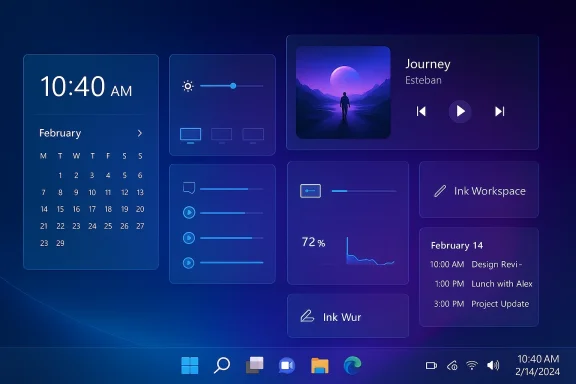 Background: why flyouts still matter on Windows 11
Windows 11 consolidated a lot of small system affordances into the unified Quick Settings and Notification Center. That tidy approach made the shell feel cleaner, but it also removed a number of task‑focused micro‑surfaces users relied on: independent media overlays, compact agenda views, dedicated battery or brightness popups, and single‑click access to pen tools.Developers in the Windows community responded by rebuilding those micro‑surfaces as lightweight flyout apps that live in the system tray. These flyouts restore fast, one‑click workflows while often improving functionality beyond what Microsoft ships — for example, exposing per‑monitor DDC/CI brightness controls, showing battery graphs for Bluetooth peripherals, or surfacing an actionable “Agenda” in the clock flyout. Many of the restoration efforts and Insider‑era changes to the calendar flyout have been discussed in community threads and preview notes. d these ten
My selection focuses on tools that:
- Solve one high‑value, frequent annoyance (e.g., missing per‑app volume controls).
- Have a small footprint and start in the system tray.
- Are actively maintained or demonstrably stable across recent Windows 11 updates.
- Offer sensible defaults but meaningful customization for power users.
Fluent Flyouts — modernized system flyouts with extra polish
Fluent Flyouts (note: there are two similarly named projects; see the distinction below) is a free, open‑source collection of modernized system flyouts that restores separated flyouts for clock, calendar, and brightness — and it does so with a crisp Fluent‑style UI and a custom “GlowUI” treatment.Why it matters: Windows 11 merged many system flyouts into Quick Settings. Fluent Flyouts brings back the focused, single‑purpose popups people liked in Windows 10 while using modern visuals that match Windows 11 aesthetics. It’s particularly good for users who prefer discrete surfaces rather than the consolidated Quick Settings modal.
Key features:
- Dedicated clock and calendar flyouts with clearer information density.
- Brightness and media controls presented in a consistent Fluent‑styled UI.
- Open‑source with community builds available; Microsoft Store packages often include an optional small fee to support the developer.
- There are two projects with similar names: FireCubeStudios’ Fluent Flyouts (a WinUI-based project) and the separate FluentFlyout project that focuses on media and lock‑key overlays. Both are actively developed; check the repo descriptions to choose the one that fits your needs.
Battery Flyout — the elegant battery manager
Battery Flyout is a polished third‑party app that places a rich battery readout and quick power‑profile controls in a dedicated flyout from the system tray. It shows a battery life graph, battery percentage on the taskbar, and battery status for connected peripherals such as Bluetooth mice and keyboards.Why it matters: Windows 11’s battery flyout is minimalist. Battery Flyout gives you a glanceable history, quick profile switching (which restores the convenience of earlier Windows’ power quick actions), and peripheral battery telemetry — all useful on laptops and tablet hybrids. Reviews and reporting show the app is a popular, paid Microsoft Store utility by a small developer who maintains multiple complementary tools.
Technical note:
- Battery Flyout is a Microsoft Store title; the one‑time fee varies by region (commonly in the single dollars range). Pricing can change, so check the Store entry before purchasing.
- Because it interacts with system battery APIs and shows peripheral levels, occasionally store apps need updates after OS changes. Always confirm compatibility after major Windows updates and keep a restore point or backup.
EarTrumpet — the classic per‑app volume control
EarTrumpet has been the go‑to utility for per‑app volume control for years. It lives in the system tray and exposes each audio session with independent sliders and routing options.Why it matters: While Windows 11 includes a built‑in volume mixer inside Quick Settings, EarTrumpet’s interface is faster, more intuitive, and feels like a natural extension of the taskbar. It also supports quick switching of input/output devices per app and shows detailed session names.
Key sources and status:
- EarTrumpet is open source and distributed through GitHub and the Microsoft Store; it remains actively developed and widely recommended in the community.
- Rare driver or Windows audio stack updates can temporarily affect session visibility. EarTrumpet is low‑risk and doesn’t require elevated permissions, but always install from official channels.
Ink Workspace — a pen‑first launcher for tablets and convertibles
Ink Workspace recreates and extends the old pen‑focused launcher with quick access to inking tools, note apps, and recent files — useful for Surface and other pen‑enabled devices.Why it matters: On pen devices, the difference between a usable and a frustrating inking experience is milliseconds: a fast pen launcher that opens your note app or sketch tool without hunting through the Start menu is invaluable. Third‑party Ink Workspace implementations have added customization and restored convenience that Microsoft’s built‑in tool sometimes deprioritized.
Tips:
- Confirm your device supports pen/touch and that Windows recognizes the digitizer before relying on the app.
- If you have strict enterprise policies, check whether the app is allowed in your environment; pen features can sometimes be impacted by account or group policy settings.
Monitorian — per‑monitor brightness control made simple
Monitorian exposes brightness sliders for each connected monitor in a single flyout. It communicates using the DDC/CI protocol, which lets software send brightness changes directly to the monitor.Why it matters: External displays often have clumsy on‑monitor buttons. Monitorian centralizes brightness control, letting you adjust each screen quickly. It’s perfect for docking setups, multi‑monitor desks, and anyone who wants consistent brightness across panels.
Technical requirements and caveats:
- Your monitor (and the cable/docking solution) must support DDC/CI. Many modern monitors do, but some docking stations or cheap adapters break the DDC/CI path. The Monitorian GitHub page explains DDC/CI dependencies and how to troubleshoot incompatible hardware.
- Monitorian is free; optional advanced features or store distributions may exist.
Media Flyout — the media controller Windows should have built
Media Flyout surfaces rich playback controls, album artwork, and a list of active audio streams directly from the taskbar. Compared with the sparse default media controls that appear inside Quick Settings, Media Flyout provides a full‑featured media overlay.Why it matters: The old Windows media overlay was useful for quickly pausing, skipping, or switching sources. Windows 11 moved media into a less convenient spot, and Media Flyout restores the muscle memory many users still expect.
Features:
- Album artwork, seek bars, shuffle and loop toggles, and a list of concurrent media sources.
- Broad compatibility with players that expose standard Windows media controls. The project is available from community repos and the Microsoft Store in various forms (some paid, some donationware) depending on author packaging.
- Not all apps expose full metadata via the System Media Transport Controls (SMTC) API; therefore, some players might show limited artwork/metadata.
- If Windows changes how SMTC works, third‑party media flyouts will need updates.
FluentFlyout — a full suite of modern PC flyouts
Not to be confused with “Fluent Flyouts,” FluentFlyout (different project) is an open‑source suite that offers a polished media flyout, up next features, and smaller indicators for Lock Keys (Caps, Num, Scroll). The project emphasizes Fluent 2 design principles and rapid responsiveness.Why it matters: FluentFlyout bundles several small but useful surfaces into a unified theme so your flyouts look consistent and feel native. It has gained traction because the developer releases frequent updates and keeps the project community‑friendly.
Notes:
- The Microsoft Store builds sometimes include a small one‑time payment to support development, but the core project remains open source.
Input Switcher — one click to swap display signal sources
Input Switcher presents a tiny flyout for switching between monitor input sources (USB‑C, DisplayPort, HDMI). For machines that use docking stations or monitors with multiple active inputs, it shortens what was previously a multistep on‑monitor menu into a single click from the taskbar.Why it matters: For users who switch between a laptop display and external monitors, or who use multiple sources on a single monitor, Input Switcher reduces friction. It often supports customizable hotkeys, which makes it ideal for fast context changes.
Technical reality check:
- Like other monitor control tools, Input Switcher depends on monitor support (DDC/CI or other vendor extensions). Some docks or cables may prevent software‑level input switching. Confirm compatibility before buying or relying on it.
- Input‑switching APIs are inconsistent across monitor vendors; some features can be brittle after GPU or docking firmware updates.
Twinkle Tray — another excellent multi‑monitor brightness utility
Twinkle Tray is a mature, well‑designed brightness slider for multi‑monitor setups. It uses DDC/CI to control panels and includes features such as grouped sliders, scheduled brightness changes, and "link levels" to adjust multiple displays at once.Why it matters: It’s a polished alternative to Monitorian with a slightly different feature set and UI taste. If Monitorian doesn’t work on a particular setup, Twinkle Tray is one of the best followups to try.
Risks and tips:
- DDC/CI reliability depends on drivers and hardware. If Twinkle Tray loses access to a display after a driver update, check GPU and docking firmware; the GitHub issue tracker is a good first stop.
Calendar Flyout (third‑party) — bring back an Agenda
Several third‑party calendar flyouts replicate the Windows 10 “Agenda” experience: a compact, chronological list of upcoming events accessible from the taskbar clock. While Microsoft has been working to reintroduce an official Agenda view into Windows 11’s calendar flyout, the rollout has been delayed and fluctuated in preview schedules. Until Microsoft finishes its work, community apps fill the gap.Why it matters: For many users, the ability to see the next few meetings without opening a full calendar app is essential for context switching and timeboxing.
What to watch for:
- Calendar sync depends on the account(s) you connect (Outlook, Google via bridge, etc.). Third‑party flyouts may require authorization and background access to your calendar — always check permissions and audit what accounts you connect.
Crosscutting analysis: strengths, risks, and best practices
The strengths: speed, focus, and ergonomics
- These flyout apps restore muscle memory and reduce the cognitive cost of simple tasks: change brightness, skip a song, check battery, or open a pen tool in one click.
- Most projects follow modern UI principles and integrate visually with Windows 11, so they feel like native extensions rather than tack‑ons. FluentFlyout and Fluent Flyouts, for example, are explicitly designed with Fluent design patterns in mind.
- Several apps are open source and actively maintained. Open source projects typically provide transparency, community review, and a mechanism for users to build or inspect binaries.
The risks: compatibility, security, and update fragility
- Low‑level integration: Tools that use DDC/CI, SMTC, or battery/peripheral APIs rely on device drivers, docking station firmware, and vendor support. When any of those move, the tool may break until an update arrives. Monitorian and Twinkle Tray explicitly document DDC/CI dependencies.
- Permission scope: Calendar and battery tools may require access to account or system information. Treat those permissions as you would any app with system‑visible rights — verify the publisher and prefer Microsoft Store or GitHub releases with reproducible builds where possible.
- Store vs. direct install: Some projects keep the core open‑source code free but offer a convenience package on the Microsoft Store for a small fee. Store packages are safer for automatic updates, but check whether the Store listing and the GitHub repo match the same publisher to avoid fake clones. FluentFlyout and others explicitly note optional store payments for convenience builds.
Best practices before installing
- Check the project’s official page and GitHub issues to confirm recent activity and compatibility with your Windows 11 build.
- Install from official channels (Microsoft Store or the project’s official GitHub releases) to avoid tampered binaries.
- Create a system restore point before installing utilities that modify or hook into system surfaces.
- If an app requires sign‑in to a calendar or exposes system telemetry, review permissions and revoke access through account settings if you stop using the app.
Installation and configuration tips I use
- Keep a small “toolbox” folder with installers and a short README for each utility: this speeds fresh setups and allows quick rollback.
- For DDC/CI brightness tools: try direct DisplayPort or HDMI first. If using a dock or USB‑C adapter that breaks DDC/CI, connect the monitor directly to verify behavior before purchasing a paid tool.
- Use EarTrumpet in combination with Windows’ native audio settings: it’s lightweight and doesn’t replace system-level sound drivers, so it behaves well during driver updates.
- For media flyouts: ensure your frequently used players expose SMTC (most modern UWP/Win32 players do). If a specific player shows blank artwork, test with another player to narrow whether the issue is the app or the system API.
Alternatives and complementary tools
- ModernFlyouts: another community project that replaces system media/brightness overlays; worth trying if you prefer a compact alternative to FluentFlyout variants.
- Display Dimmer and other monitor utilities: if DDC/CI fails, gamma‑based software dimming can be a fallback (less ideal but sometimes necessary).
- ExplorerPatcher and Windhawk: for users who want deeper shell customization (taskbar behavior, start menu), these larger mods complement flyouts but increase the surface area for breakage. Use with caution.
The state of native Windows features and where third‑party flyouts help
Microsoft has been receptive to feedback about taskbar flyouts: internal preview notes and reporting indicate Microsoft planned to restore a compact Agenda view and to refine the Notification Center and Quick Settings surfaces. That work has progressed unevenly and some features were delayed or reworked in preview cycles. Until the official timeline stabilizes, third‑party flyouts remain the pragmatic way to regain or extend the small conveniences many of us rely on daily.My personal workflow and recommended stack
If you asked which tools I reinstall immediately on any new Windows 11 setup, my minimal stack would be:- EarTrumpet — per‑app audio control. Essential for multitasking with multiple audio sources. ([github.com](GitHub - File-New-Project/EarTrumpet: EarTrumpet - Volume Control for Windows (or the Fluent Flyouts variant) — for consistent, modern media and system flyouts. Choose the variant that matches your needs.
- Monitorian or Twinkle Tray — pick one for DDC/CI brightness control depending on which works best with your hardware.
- Battery Flyout — if you use a laptop or want peripheral battery info and a graph. Consider the Store build for convenience.
- Ink Workspace — on pen devices, to make pen shortcuts and quick annotations reliably accessible.
Final verdict: why these flyouts matter in 2026
Small things add up. The missing agenda, the absent media overlay, the clumsy brightness controls — each might feel trivial in isolation, but together they change the rhythm of a day. The third‑party flyout ecosystem demonstrates a simple but important truth: A modern OS is not just about big AI features or platform roadmaps; it’s also about those micro interactions that either smooth or sabotage your flow.These ten apps are not miracles — they won’t fix major architectural problems — but they restore a layer of frictionless control to the Windows 11 taskbar. They’re pragmatic, community‑driven solutions that prioritize fast interactions over feature bloat. Install them thoughtfully, keep an eye on permissions and compatibility, and you’ll find the taskbar returning to its old role: a small, dependable hub of everyday productivity.
Quick reference: technical checklist before installing any taskbar flyout
- Verify your Windows 11 build and ensure the app’s repo/release notes list compatibility.
- For brightness/input utilities: confirm monitors and cables support DDC/CI.
- For calendar sync: know which account(s) you will authorize and review granted access.
- Prefer Microsoft Store or signed GitHub releases; check publisher identity to avoid clones.
- Create a restore point or backup before installing shell‑level utilities.
Source: Pocket-lint 10 flyout apps that made me love my Windows 11 taskbar again
