

Windows is the invisible workhorse in millions of workflows — but beneath the familiar desktop lies a toolkit that can turn a good user into a true power user. This feature walks through ten practical, tested hacks that accelerate common tasks, reduce friction, and give you more control over how Windows behaves. Each entry explains what to do, why it matters, and the risks or trade-offs to watch for so you can apply these tips safely and confidently.
Windows 11 has layered new productivity features on top of decades of legacy behavior, and the result is a platform that’s both more capable and more opinionated. Some of the best gains come from small changes: a faster launcher, a smarter window manager, or a better file manager. Others require third‑party tools — official and community projects that restore lost features or add entirely new capabilities. These hacks are a mix of built‑in Windows tools, Microsoft PowerToys utilities, and vetted third‑party apps that the enthusiast community uses to regain speed and predictability in day‑to‑day work. Many of them are documented in official guidance and supported by community projects and reviews; where behavior is changing or brittle, that is explicitly called out.
Windows still rewards the curious user. These ten practical hacks—ranging from launcher upgrades and file‑manager swaps to automated theme switching, quick installs, and workflow timers—are repeatable, reversible, and credited by official docs and community projects. They won’t fix every performance problem, but they unblock daily friction and let you work in a way that’s faster, calmer, and more deliberately organized. Test changes gradually, prefer per‑user setups where possible, and keep one or two rollback plans handy so experimentation never becomes a headache.
Source: Lifehacker 10 Hacks Every Windows Power User Should Know
 Background / Overview
Windows 11 has layered new productivity features on top of decades of legacy behavior, and the result is a platform that’s both more capable and more opinionated. Some of the best gains come from small changes: a faster launcher, a smarter window manager, or a better file manager. Others require third‑party tools — official and community projects that restore lost features or add entirely new capabilities. These hacks are a mix of built‑in Windows tools, Microsoft PowerToys utilities, and vetted third‑party apps that the enthusiast community uses to regain speed and predictability in day‑to‑day work. Many of them are documented in official guidance and supported by community projects and reviews; where behavior is changing or brittle, that is explicitly called out. 1) Control everything with the Command Palette (PowerToys)
What it is
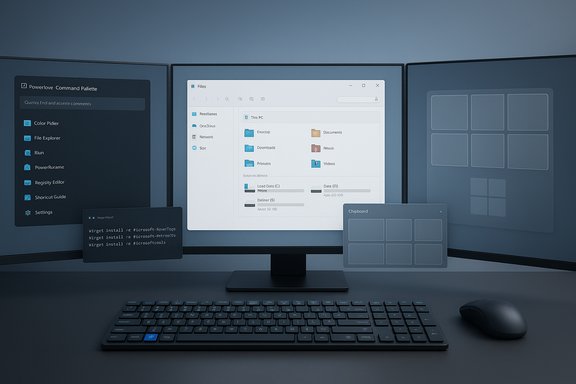
PowerToys’ new Command Palette is a keyboard launcher that’s intended to be PowerToys Run’s modern successor: a fast, extensible palette where you can launch apps, search files, run quick commands, do math, and jump straight to Settings pages. By default it’s bound to Win + Alt + Space, and it supports command prefixes (for example, type > to run a shell command or $ to open Settings). This elevates the launcher from a “program finder” to a mini command console for daily tasks.Why it helps
- Instant app/file launching without hunting menus.
- Inline calculations and direct Windows Settings navigation reduce context switching.
- Extensibility through plugins lets you add custom actions or integrate with other tools.
How to enable and use
- Install Microsoft PowerToys and open the PowerToys Settings.
- Enable Command Palette (it may appear as “Run → Command Palette” depending on PowerToys version).
- Press the default hotkey (Win + Alt + Space) and start typing. Use > for commands, = for calculator mode, and $ for Settings pages.
Caveats and risks
- Shortcut conflicts: older default bindings (Alt+Space / Alt+Tab combos) may conflict with other apps; adjust the hotkey in settings if needed. Some users reported remapping issues on certain key combos; use a nonstandard binding if you rely on those keys.
- Because the Command Palette can execute commands, consider restrictions on shared machines and be cautious when running elevated actions.
2) Replace File Explorer with Files (community file manager)
What it is
Files is an open‑source, modern file manager built by the community as an alternative to Windows’ File Explorer. It brings features that power users often miss: tabs, a dual‑pane mode, column view (macOS‑style), quick previews, theming, and a more responsive UI than Windows 11’s default Explorer. The project is actively maintained on GitHub and is available through the Microsoft Store or direct installers.Why it helps
- Tabs and dual panes let you copy/move between folders without juggling windows.
- Column view and file preview speed file triage on large datasets.
- Community extensions and frequent updates make it a practical replacement for users who work heavily with files.
How to try it
- Download from the Files project page or install from the Microsoft Store. Follow the app’s settings to enable features such as dual‑pane or enable a column view layout.
Caveats and risks
- Third‑party file managers interact with shell extensions and Explorer hooks; rare incompatibilities with certain enterprise shell plugins are possible. Keep a restore point or a quick way to revert to Explorer if you rely on special integrations.
3) Reclaim the taskbar and Start menu (ExplorerPatcher, Start11)
The problem
Windows 11’s taskbar and Start redesign changed how many users navigate and manage apps — and not everyone likes those choices.Options
- ExplorerPatcher is an open‑source tool that restores a Windows 10‑style taskbar and offers detailed UI tweaks (ungroup icons, move taskbar, bring back ribbon in Explorer). It’s free and community‑maintained.
- Start11 (Stardock) is a paid, polished Start menu replacement with deep customization (multiple styles, layout controls, and icon handling). Pricing and bundling options vary; Stardock often offers seasonal sales. If you prefer a supported, feature‑rich commercial product, Start11 is a longtime option.
Benefits
- Restore familiar behavior (taskbar labels, ungrouped icons).
- Gain finer control over Start layout, spacing, and themes.
Risks and best practice
- ExplorerPatcher hooks into explorer.exe and changes shell behavior — test on a non‑critical machine first and keep backups before applying system‑wide UI mods.
- Start11 requires a license for production use; evaluate the trial and check licensing terms for multi‑device needs.
4) Make dark mode functional and automated (PowerToys Light Switch)
What it is
PowerToys’ Light Switch automates switching between light and dark Windows themes using sunrise/sunset or a fixed schedule. It can apply theme changes system‑wide and provide a hotkey to toggle modes manually. Microsoft integrated Light Switch into recent PowerToys releases as an official utility.Why it helps
- Avoid manually toggling themes when working late or on OLED devices.
- Can reduce eye strain and, in some hardware, help power use on OLED panels.
Caveats
- Light Switch is powerful but has had bugs in early releases: accidental default enabling and theme oscillation issues have been reported and addressed in subsequent patches. If you rely on it, install the current PowerToys release and check the Light Switch settings; turn it off if you see unexpected behavior while updates arrive. Always keep PowerToys updated and monitor the release notes.
5) Use Snap Layouts to arrange windows faster
What it is
Snap Layouts is Windows 11’s built‑in window arrangement system. Hover the maximize button or press Win + Z to pick a multi‑pane layout (two, three, or four panes depending on screen size). Snap Groups remember layout collections for quick restoration. This tool removes manual resizing and makes large or ultrawide displays far more useful for multitasking.How to use it
- Hover over a window’s maximize button or press Win + Z.
- Click a zone to snap the active window.
- Use Snap Assist thumbnails to fill remaining zones.
Why it helps
- Quickly create focused, reproducible workspaces (e.g., browser + editor + reference doc).
- Works well with virtual desktops and multi‑monitor setups.
Caveats
- Some legacy or custom‑drawn app title bars may not show Snap Layouts; in such cases you can rely on keyboard snapping (Win + Arrow keys) or look for updated app versions.
6) Install and manage apps with winget (and UniGetUI)
What it is
winget (Windows Package Manager) is Microsoft’s command‑line package manager for Windows. You can install apps with a single command — for example, winget install Google.Chrome — and script batch installs and updates. For users who prefer a GUI, community tools like UniGetUI provide a one‑click interface that wraps winget, Chocolatey, Scoop, and other managers.Why it helps
- Automates repetitive installs on new machines.
- Simplifies updates (winget upgrade --all) and scripting for admins.
How to use (basics)
- Open an elevated PowerShell or Terminal.
- Search: winget search chrome
- Install: winget install --id Google.Chrome
- Update all: winget upgrade --all
Caveats & security
- winget pulls manifests maintained in the winget‑pkgs repository; occasionally packages may fail or require extra flags (some installers have MSI/hash issues). Check logs and the manifest repository if a package fails. Validate automation for production systems and include error handling in scripts.
- Third‑party GUIs like UniGetUI are convenient but verify downloads and be mindful of enterprise AV/endpoint rules; some organizations block or flag unofficial tooling.
7) Use Clipboard history (Windows + V) — and Ditto if you need more
What it is
Windows’ built‑in clipboard history stores up to 25 copied items (text, HTML, images under 4 MB) and is invoked with Win + V. You can pin frequently used snippets to keep them between restarts. For advanced needs, Ditto (a popular third‑party clipboard manager) offers searchable history, larger storage, and sync options.Why it helps
- No more re‑copying the same content multiple times.
- Saves time when assembling content from many sources.
How to enable and use
- Press Windows + V for the first time and toggle Clipboard History on.
- Use Win + V to open the history and select an item to paste.
- Pin items you want to keep across restarts.
Caveats
- Clipboard sync across devices requires a Microsoft account and has privacy implications; avoid enabling cross‑device sync for sensitive content such as passwords. Third‑party clipboard tools can also surface sensitive fragments — use encryption, disable cloud sync, or restrict usage in high‑security environments.
8) Focus Sessions: built‑in Pomodoro and distraction blocking
What it is
Focus Sessions in the Windows Clock app is Microsoft’s built‑in Pomodoro‑style timer. It silences notifications, integrates with Microsoft To Do for task selection, and can play Spotify playlists while you work. Starting a Focus Session enables Do Not Disturb and shows a countdown timer.Why it helps
- Structured work intervals reduce context‑switching and increase sustained concentration.
- Integrated task lists and music provide an all‑in‑one experience without extra apps.
How to use it
- Open the Clock app → Focus Sessions.
- Choose a task or create a new one, set a duration and break preferences, optionally link Spotify, and start the session. Notifications are muted while the timer runs.
Caveats
- Some users prefer standalone Pomodoro apps with advanced statistics. Focus Sessions provides quick integration but is intentionally simple. If you need advanced analytics or cross‑device history, pair it with a dedicated app or service.
9) Create custom global shortcuts and remap keys with PowerToys Keyboard Manager
What it is
PowerToys’ Keyboard Manager lets you remap individual keys and create custom shortcuts (remap a key or remap a shortcut). This is ideal for repurposing seldom‑used keys (Caps Lock, dedicated hardware keys) into productivity hotkeys—open the Command Palette, run a script, or trigger a frequently used macro.Why it helps
- Erase repetitive mouse travel by mapping frequently used actions to simple keys.
- Rescue an awkward laptop keyboard layout or reassign a broken key.
How to set a mapping
- Open PowerToys → Keyboard Manager.
- Choose Remap a Key or Remap a Shortcut.
- Assign the source key and the destination action (for example, Caps Lock → Win + Alt + Space to open Command Palette).
Caveats
- Remaps may behave differently in elevated contexts (processes running as admin), and some applications may bypass low‑level hooks. Test your changes and keep a profile of remaps so you can revert if needed.
10) PowerShell / Terminal automation and background jobs for repetitive tasks
What it is
Power users leverage PowerShell for scripting repetitive file ops, bulk renames, NTFS permission audits, and background jobs. PowerShell’s Get‑FileHash, Test‑NetConnection, Start‑Job, and Get‑Acl pipelines are indispensable for administrators and power users who want repeatable, automatable workflows.Why it helps
- Automate repetitive maintenance and auditing.
- Create reliable, documented processes for system tasks.
Example quick wins
- Hash a file to verify integrity: Get-FileHash -Path "C:\path\to\file" -Algorithm SHA256.
- Run a long directory scan in the background: Start-Job -ScriptBlock { Get-ChildItem -Recurse C:\Data }.
- Export NTFS ACLs for auditing: Get-ChildItem D:\Data -Recurse | Get-Acl | Export-Csv C:\permissions.csv.
Caveats and safety
- PowerShell commands can alter many files quickly — test scripts in a VM or noncritical folder first and include logging and an undo path. Prefer scoped (HKCU) or per‑user changes when experimenting with registry or system settings.
Putting it together: a short workflow for a polished Power User setup
- Install PowerToys and enable Command Palette, Keyboard Manager, and Light Switch (optional). Configure shortcuts so the tools feel natural.
- Replace Explorer with Files if you manage lots of files daily; otherwise tune Explorer via ExplorerPatcher if you prefer Windows 10 behavior.
- Use Win + Z to create a consistent layout (Snap Layouts) and build a Snap Group for your main workspace.
- Use winget + UniGetUI to script or one‑click install your essential apps. Save your install script for new machines.
- Turn on Clipboard History (Win + V) and pin key snippets. Use Focus Sessions during high‑value work blocks.
Final analysis — strengths, tradeoffs, and safety checklist
- Strengths: These hacks recover lost productivity features (tabs, classic taskbar), add modern conveniences (Command Palette, Light Switch), and enable automation at scale (winget, PowerShell). When combined they reduce context switching, speed commonplace tasks, and make Windows behave more predictably for power users.
- Tradeoffs and risks:
- Third‑party shell modifications (ExplorerPatcher) or UI replacements (Seelen UI) can conflict with Windows updates; always keep backups and be ready to revert.
- PowerToys features like Light Switch are powerful but have seen regressive bugs when first released; keep PowerToys updated and disable experimental features if you need stability.
- Package managers and GUIs simplify installs but rely on external manifests and installer sources; validate packages before wide deployment and monitor for packaging issues (some winget manifests occasionally break).
- Safety checklist before applying these hacks:
- Create a System Restore point or full image backup.
- Export the registry keys you plan to edit and test registry changes in a VM first.
- Keep install media and an account with local admin credentials handy.
- Use per‑user (HKCU) changes when possible and prefer reversible tools (those with uninstall and update options).
- Validate downloaded binaries (checksums, signed installers) and vet community tools if you’re in a managed environment.
Windows still rewards the curious user. These ten practical hacks—ranging from launcher upgrades and file‑manager swaps to automated theme switching, quick installs, and workflow timers—are repeatable, reversible, and credited by official docs and community projects. They won’t fix every performance problem, but they unblock daily friction and let you work in a way that’s faster, calmer, and more deliberately organized. Test changes gradually, prefer per‑user setups where possible, and keep one or two rollback plans handy so experimentation never becomes a headache.
Source: Lifehacker 10 Hacks Every Windows Power User Should Know
