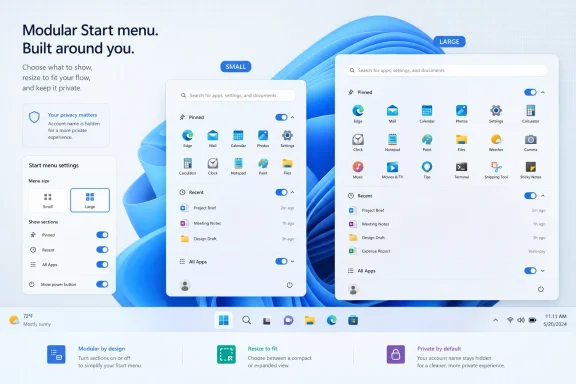
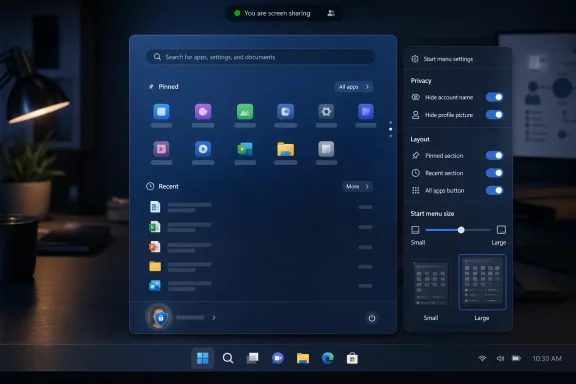
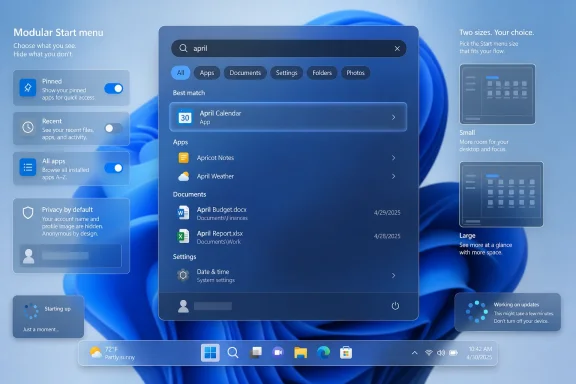
Microsoft released Windows 11 Insider Preview Build 26300.8553 to the Experimental Channel on May 29, 2026, adding a more modular Start menu that can hide or show individual sections, switch between small and large layouts, and remove the visible account name and profile image. The update is not a revolution, but it is a meaningful retreat from one of Windows 11’s most stubborn design bets. After years of treating the Start menu as a fixed expression of Microsoft’s priorities, the company is finally admitting that the most personal surface in Windows has to become personal again. For users and administrators, the signal matters as much as the pixels: Windows 11 is slowly trading enforced coherence for controlled choice.

Windows Start menu search results for “april,” showing modular pinned, recent, and size options on a blue desktop.Microsoft Finally Lets the Start Menu Stop Being a Billboard​

The Windows 11 Start menu has always carried a contradiction. Microsoft pitched it as cleaner, calmer, and more modern than the Windows 10 tile grid, but the result often felt less like a user launcher and more like a company-curated panel: pinned apps above, recommendations below, and relatively little room for disagreement.
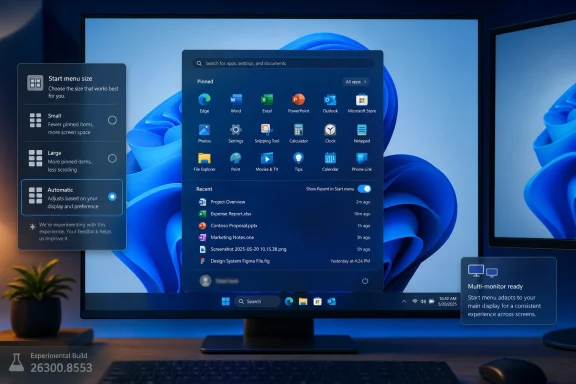
Build 26300.8553 changes that posture. The headline is not merely that the Start menu can be resized, though that will be the part many users notice first. The more important change is that Microsoft is separating pieces of the Start experience that were previously welded together.
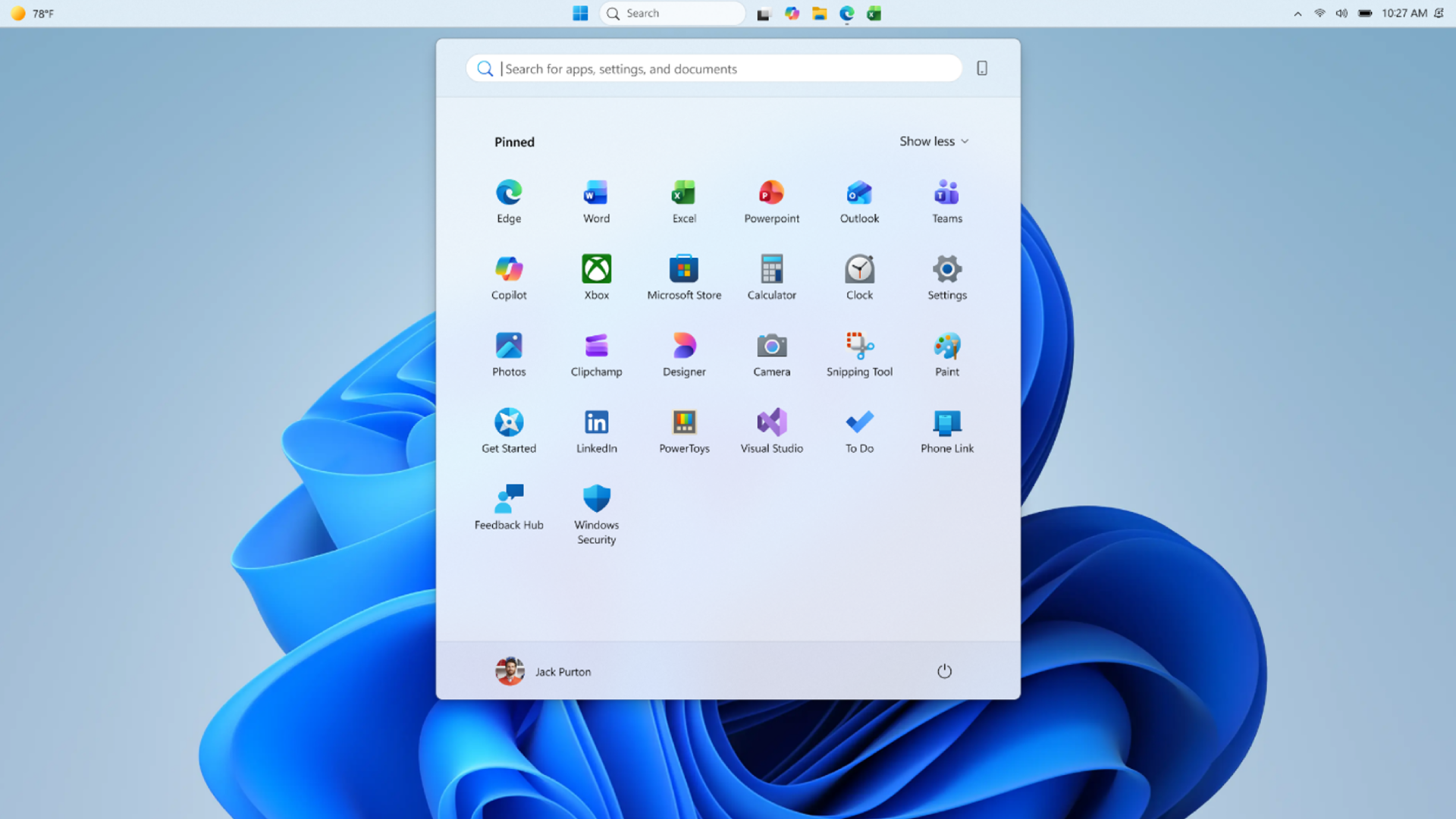
Users can now independently show or hide Pinned, Recent, and All sections. The “Recommended” label has been renamed “Recent,” a small linguistic change that gives away a larger product correction. “Recommended” sounded like Microsoft choosing what mattered; “Recent” sounds like Windows reflecting what the user actually did.
That distinction is not cosmetic. Windows users have spent decades building habits around Start as a launch surface, not a feed. When the lower half of the menu became a recommendation area, even a benign one, it invited suspicion that Microsoft was once again looking for engagement real estate inside the shell.
The new modular design does not abolish that tension. But it gives users more ways to opt out without breaking the rest of the menu, and that is exactly the sort of compromise Windows 11 should have offered from the beginning.

The Real Upgrade Is Independence Between Features​

The most practical improvement in this build is the ability to remove one part of Start without sacrificing another. That sounds obvious until you remember how often modern Windows settings bundle related-but-distinct choices together, leaving users to accept a package instead of selecting a preference.
The example Microsoft is surfacing is particularly telling: users can remove recommendations while continuing to use jump lists. That is the kind of granular control power users expect and casual users benefit from without knowing the vocabulary. Jump lists are useful because they are contextual and action-oriented; recommendations have often felt fuzzier, especially when they occupy limited space in a menu people open to get somewhere quickly.
This is where the Start menu update becomes more than a design tweak. It recognizes that different parts of the Start menu serve different jobs. Pinned apps are deliberate. Recent files are memory. All apps is inventory. Jump lists are shortcuts into specific tasks. Treating those as independent modules makes the menu more honest about what users are trying to do.
It also gives Microsoft room to experiment without making every experiment feel compulsory. A modular Start menu can evolve section by section. If Microsoft wants to test richer Recent behavior, better app grouping, or new enterprise controls later, users are less likely to revolt if they can turn off the piece they dislike.
For administrators, this is a familiar lesson from the enterprise side of Windows: policy matters because defaults are never neutral. A consumer-facing toggle is not the same as Group Policy or MDM control, but it flows from the same principle. The more Microsoft separates shell behaviors into discrete switches, the easier it becomes for organizations to decide what belongs on managed desktops.

Resizing Start Is a Small Concession With a Long Memory​

The option to choose a small or large Start menu, alongside an automatic default mode, is the sort of change that looks minor in release notes and large in daily use. Start is a repetitive interface. A few extra rows, a less cramped layout, or a smaller footprint can change the feel of the desktop because users encounter it dozens of times a day.
Windows 11 arrived with a striking confidence in centered minimalism. The centered taskbar, simplified Start layout, and absence of long-standing taskbar options all seemed to say that Microsoft knew which defaults would carry Windows forward. The backlash was not just nostalgia. It was the predictable response of a user base whose workflows had been compressed into a narrower design language.
Resizable Start is part of the slow unwind of that overconfidence. The same broader wave has brought renewed attention to taskbar position, taskbar size, and other shell behaviors that Windows 10 users regarded as ordinary flexibility. Windows 11’s original sin was not that it looked different; it was that it removed familiar forms of agency while insisting that simplicity was enough compensation.
There is a reason these changes are landing in Insider builds rather than being dumped straight into production. Shell changes are high-risk because they touch muscle memory. A Start menu that misbehaves is not like a bad widget or a glitchy inbox feature; it is a problem at the front door of the operating system.
Still, the direction is clear. Microsoft is no longer merely polishing the Windows 11 shell. It is restoring pressure valves.

Hiding the Account Identity Is a Privacy Feature Wearing a Cosmetic Jacket​

The option to hide the user name and profile picture in Start may sound like a vanity preference, but it has practical value in shared, public, and recorded environments. Screen sharing has turned many minor UI details into accidental disclosures. A name and profile photo in a prominent system menu can be harmless at home and awkward in a classroom, conference room, support session, or livestream.
This is the kind of feature that rarely drives an upgrade decision but improves trust in the product. Users increasingly expect operating systems to offer more control over what is shown by default. That expectation is not limited to telemetry dialogs or privacy dashboards; it extends to visible identity cues across the shell.
Microsoft’s account strategy complicates this. Windows has spent years nudging users toward Microsoft accounts, cloud sync, OneDrive integration, and identity-aware experiences. The account badge in Start is part of that ecosystem. It gives the OS a face, but it also turns a local interaction into another reminder that Windows is tied to a cloud identity.
Letting users hide it is a modest but welcome concession. It does not dismantle Microsoft’s account-centric design, and it probably is not intended to. But it acknowledges that not every surface needs to advertise identity all the time.
For IT departments, the value is less about aesthetics than reducing friction. Employees share screens. Help desks remote into devices. Kiosks and lab machines often operate in contexts where visual identity should be minimized. A cleaner Start menu can be a security-adjacent improvement even if it is not marketed as one.

“Recommended” Becomes “Recent” Because Words Shape Trust​

The renaming of “Recommended” to “Recent” is easy to dismiss until you ask why it was necessary. Microsoft did not need a new rendering engine to change a label. It needed to concede that the old label carried baggage.
“Recommended” is one of the most overused words in modern software. It can mean relevant, sponsored, algorithmic, recently used, cloud-derived, organizationally assigned, or simply something a vendor wants you to click. In a Windows Start menu, that ambiguity was always dangerous.
“Recent” is narrower and more defensible. It implies chronology rather than persuasion. If a file or app appears there, the user can understand why. That matters because system UI depends on predictability. Users tolerate automation when it feels accountable; they resist it when it feels like a black box.
The change also fits a broader retreat from engagement-scented language in core OS surfaces. Windows users are not opening Start because they want a discovery feed. They are opening it because they want to launch Excel, find Settings, open a recent document, or shut down the machine. The more the menu speaks that language, the less it feels like a contested space.
This is a small win for product humility. Microsoft can still use recommendations elsewhere, and it almost certainly will. But in Start, the company appears to be moving toward a vocabulary that better matches user intent.

Search by Substring Fixes a Problem Users Should Never Have Had​

Build 26300.8553 also adds substring search improvements, allowing files with compound names or matching content to be found by partial terms. Microsoft’s example is straightforward: a file named MeetingNotesApril should surface when the user types “april,” and ProjectStatusReport should be discoverable through “status.”
This is the kind of improvement that makes Windows feel less broken rather than more advanced. Users do not think in tokenization rules. They remember fragments. They remember that a file had “budget” somewhere in the name, or that a document mentioned “status,” or that a meeting note happened in April. Search that fails those mental models trains users not to trust the system.
Windows search has had a complicated reputation for years. It is fast in some contexts, surprisingly weak in others, and often overshadowed by third-party launchers, indexing tools, and cloud search experiences. Substring matching will not solve all of that, but it addresses a highly visible class of annoyance.
It also pairs naturally with the Start menu changes. If Start is becoming more modular and more task-focused, search must become more forgiving. A launcher that cannot find what users half-remember is not a launcher; it is a form with strict validation.
For administrators, better local discovery has a productivity angle. The more users can find files and apps through built-in search, the fewer workarounds they need. That does not remove the need for disciplined file management, but it reduces the daily tax imposed by imperfect naming conventions.

The Taskbar Fixes Show the Shell Is Still Under Renovation​

The same Experimental build includes small visual polish fixes for alternate taskbar positions and adds support for using a touch swipe to invoke the taskbar when it is placed somewhere other than the default location. These are not marquee features, but they matter because taskbar mobility is only useful if the rest of the shell behaves as though Microsoft expected people to use it.
Windows 11’s renewed taskbar flexibility is arriving with the awkwardness of a renovation performed while the house is occupied. Moving the taskbar to the top or sides is a long-requested restoration, but every restored option creates edge cases. Animation, hit testing, touch gestures, overflow behavior, system tray placement, and app assumptions all have to be revisited.
That is why the visual polish line in the changelog is more meaningful than it looks. It suggests Microsoft is still sanding down the interaction model around alternate positions, not simply checking a box marked “movable taskbar.” Windows users have been burned before by features that technically return without feeling complete.
Touch support is especially important. A side or top taskbar may be a power-user feature on a desktop monitor, but Windows still has to account for tablets, convertibles, and touch-first devices. If taskbar repositioning breaks touch ergonomics, it becomes a nostalgia feature rather than a modern one.
The Start and taskbar work should be understood together. Microsoft is revisiting the foundations of the Windows 11 desktop experience, and the theme is customization after years of consolidation.

The Beta Build Shows Microsoft Is Polishing the Boring Parts Too​

While the Experimental Channel gets the Start menu story, Beta Channel Build 26220.8544 tells a different but related story: Microsoft is working on the parts of Windows users notice only when they look old, inconsistent, or unreliable. The new solid “donut” spinners across boot, logon, restart, shutdown, and update flows are not transformative. They are housekeeping.
But housekeeping matters in an operating system. Windows has long carried visual fossils from multiple eras, and those fossils become especially visible during transitions: boot screens, update messages, shutdown flows, and sign-in moments. When those surfaces do not match, users may not articulate the inconsistency, but they feel it as roughness.
The spinner change is therefore not about the spinner. It is about perceived reliability. A consistent animation with consistent status text can make an update feel less like a mysterious hang and more like a managed process. That does not make updates faster, but it can make them less alarming.
There is a risk, of course, in polishing around pain points instead of fixing them. Users frustrated by long updates will not be mollified forever by a prettier wheel. But visual coherence is not worthless. In enterprise environments, where users often assume every unfamiliar system screen is either broken or malicious, consistency is a security and support asset.
The Beta build also includes the same substring search improvement, suggesting that better discovery is not confined to the more experimental branch. That is a good sign. Search improvements belong in the mainstream Windows pipeline, not only in the playground.

Windows Ready Print Is the Enterprise Story Hiding in the Changelog​

The Beta build’s Windows Ready Print toggle may be less flashy than the Start menu changes, but it could matter more in managed environments. Microsoft is adding a Settings control that lets users choose whether new supported printers install using IPP by default. When the toggle is enabled, Windows uses the modern IPP path where supported; when disabled, Windows may use other available installation methods.
This fits Microsoft’s broader move away from traditional third-party printer drivers and toward a more standardized print stack. Anyone who has administered Windows fleets knows why Microsoft wants this. Printer drivers have been a compatibility swamp, a deployment nuisance, and a security concern for decades.
The new branding, Windows Ready Print, is doing a lot of work. Microsoft is trying to frame the transition as simplification rather than subtraction. That is understandable, because printing is one of those domains where “modernization” often reads to users as “the thing that used to work now fails differently.”
The toggle is therefore politically smart. It gives Microsoft a path to make IPP the default without making every printer installation feel like a forced migration. Users and administrators can see the direction of travel while retaining an escape hatch.
The success of this effort will depend less on the wording in Settings than on hardware reality. If supported printers install cleanly, the new path will feel inevitable. If edge cases pile up, Windows Ready Print will become another name administrators say with a sigh.

Insider Builds Are Product Strategy in Public​

It is tempting to treat Insider builds as grab bags: one Start menu feature, one taskbar fix, one printer toggle, one spinner refresh. But the more useful reading is strategic. Microsoft is using the Insider Program to test how much choice it can reintroduce into Windows 11 without fragmenting the user experience it spent years simplifying.
That tension runs through the entire release. The Start menu becomes modular, but within a designed settings page. The taskbar becomes more flexible, but the team is still shaping gestures and polish. Printing moves toward a standardized driver model, but with a toggle. Even the spinner update is about making different system phases feel like one coherent product.
This is Microsoft’s Windows problem in miniature. The company serves consumers, gamers, enterprise administrators, developers, schools, kiosks, governments, and hardware partners with one desktop OS family. Every simplification angers someone with a workflow. Every restored option increases testing complexity. Every cloud-connected feature raises suspicion that the shell is being monetized or managed for someone else’s benefit.
Windows 11 initially leaned hard toward design control. These builds suggest the pendulum is moving back toward configurability. The move is not dramatic enough to satisfy every critic, but it is real.
The Experimental Channel label also matters. Microsoft’s renamed channel structure gives the company more room to float ideas without promising that every change will arrive exactly as shown. That is healthy, provided Microsoft remains clear about what is experimental and what is on a production track.

Users Get Choice, Administrators Get Questions​

For everyday users, the Start menu changes are likely to be welcomed because they address visible friction. People who dislike recommendations can hide them. People who want a denser or roomier Start menu can resize it. People who do not want their name and face on the menu can remove them.
For administrators, the story is more complicated. New options are good, but each option raises a policy question. Should organizations standardize the Start layout? Should Recent be visible on shared devices? Should account identity be hidden by default in conference-room environments? Should Windows Ready Print be enabled across the fleet, piloted, or delayed?
The best Windows features are often the ones that let organizations answer those questions deliberately. The worst are the ones that arrive as consumer defaults and leave IT to reverse-engineer control after users notice the change. Microsoft has improved on this over the years, but Windows 11 still has a habit of introducing shell changes faster than some enterprises can digest them.
That is why administrators should watch these builds even if they do not deploy Insider builds broadly. The release notes are advance weather. They show which surfaces Microsoft is preparing to change, and they give IT teams time to think about communications, policy baselines, documentation, and help desk scripts.
The Start menu, in particular, is not just a cosmetic surface in enterprise Windows. It is part of onboarding, app discovery, support, and compliance. A modular Start menu could be a gift if it comes with the right management hooks. Without them, it is another set of screenshots that differ from one user to the next.

The New Start Menu Makes Windows 11 Feel Less Afraid of Its Users​

The most concrete lesson from these builds is that Microsoft is beginning to trust users with the Windows 11 shell again. That does not mean the company is abandoning its design system or returning to the maximalism of older Windows releases. It means the clean default is being allowed to coexist with practical escape routes.
The updated Start menu is still recognizably Windows 11. It is not a Windows 10 resurrection, and it is not a concession to every demand from the taskbar nostalgia crowd. But it is less rigid, less presumptive, and more willing to let users decide which parts of the menu deserve space.
That is the right direction for a mature operating system. Windows does not win by pretending all users behave alike. It wins by making the common path simple while letting serious users, edge-case users, and organizational users bend the system without breaking it.
The risk is that Microsoft will stop halfway. A few toggles can relieve pressure, but they do not replace a coherent customization philosophy. If Start is modular, users will expect other shell surfaces to become modular too. If taskbar position is back, users will expect the experience to be polished in every position. If Windows Ready Print has a toggle, administrators will expect policy-grade control.
The Build Notes Hide a Bigger Course Correction​

This week’s Insider releases are easy to reduce to interface trivia, but they point to several practical consequences for Windows users and IT teams.
  • Windows 11 Experimental Build 26300.8553 gives the Start menu independent controls for Pinned, Recent, and All sections, making the menu less of an all-or-nothing design.
  • Microsoft’s rename from “Recommended” to “Recent” narrows the feature’s promise and makes the Start menu feel less like a recommendation surface.
  • The new small, large, and automatic Start menu sizing options continue the broader rollback of Windows 11’s early rigidity around the shell.
  • Substring search should make Windows better at finding files from partial words inside compound names or content, which matches how users actually remember documents.
  • Beta Build 26220.8544’s Windows Ready Print toggle shows Microsoft is modernizing printer installation while trying to avoid another forced-change backlash.
  • The consistent donut spinners are a small visual update, but they reflect a larger push to make Windows system transitions feel less patched together.
Microsoft’s challenge now is to turn these Insider experiments into dependable production behavior without sanding away the very choice that makes them worthwhile. Windows 11 does not need to become endlessly configurable to regain trust, but it does need to stop treating user preference as a threat to design integrity. If these builds are a preview of where the desktop is headed, the next phase of Windows 11 may be less about selling a new look and more about admitting that the best shell is one users can make their own.

References​

  1. Primary source: Neowin
    Published: Fri, 29 May 2026 17:26:15 GMT
  2. Official source: blogs.windows.com
  3. Related coverage: bleepingcomputer.com
  4. Related coverage: windowscentral.com
  5. Official source: learn.microsoft.com
  6. Related coverage: computerworld.com
 

Microsoft made its latest Windows 11 Start menu personalization changes available to Insiders on May 29, 2026, through Experimental build 26300.8553, adding new size controls, section-level visibility toggles, a renamed “Recent” area, and privacy options for hiding account identity in Start. The update is small in file size but large in symbolism. After years of treating the Windows 11 Start menu as a carefully curated surface, Microsoft is now testing something closer to user negotiation. The company is not surrendering control of Start, but it is admitting that the old bargain has worn thin.

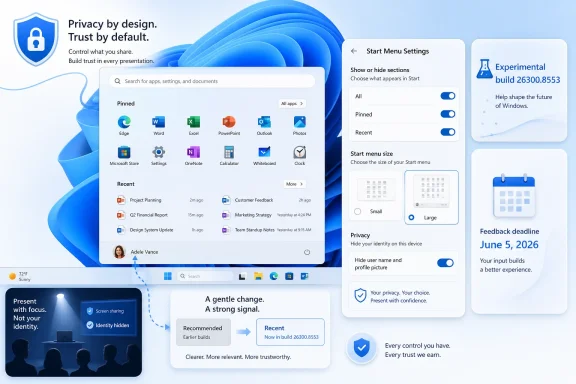
Windows 11 Start menu settings preview with privacy controls and build update callouts.Microsoft Finally Lets Start Become a Place Users Can Edit​

The Windows 11 Start menu has always been more than an app launcher. It is Microsoft’s front door, billboard, document shelf, search entry point, cloud prompt, and sometimes an argument about what the company thinks a PC should be. That is why even modest Start menu changes tend to land with more force than, say, a Settings tweak or a new icon.
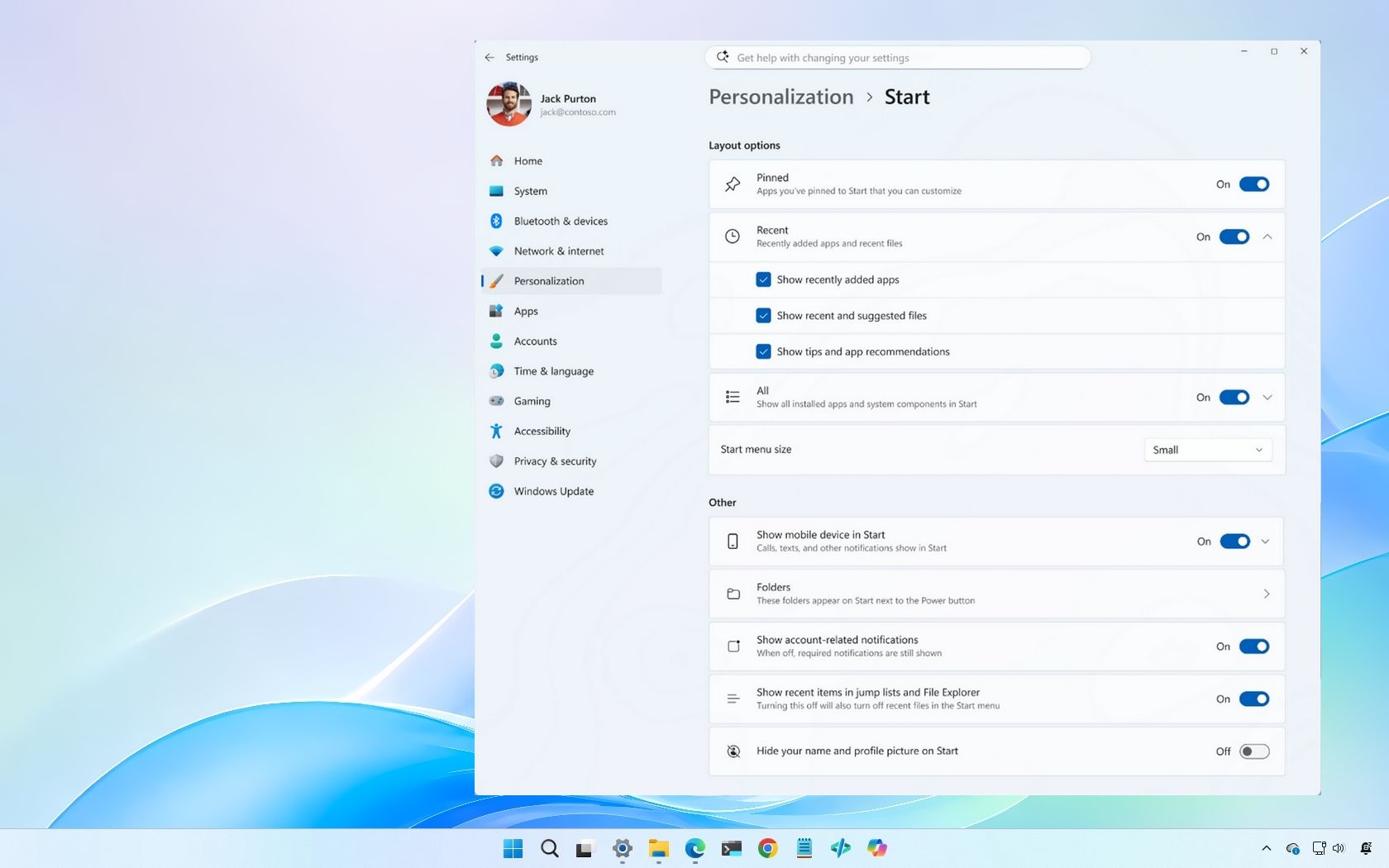
The new Experimental build gives Insiders a redesigned Start menu settings page, a choice between small and large Start menu sizes, and controls to show or hide the “All,” “Pinned,” and “Recent” sections independently. It also lets users hide their name and profile picture from Start, a small privacy improvement with obvious value for presenters, streamers, and anyone who has ever shared a screen and suddenly remembered how much identity Windows exposes by default.
This is not a return to the maximalist Start menu of Windows 10, nor is it the freeform tile playground of Windows 8. It is a more constrained evolution: Microsoft is giving users switches, not a canvas. But switches matter when the previous answer was, in effect, “use the layout we shipped.”
The most telling change is the renaming of “Recommended” to “Recent.” That sounds cosmetic until you remember how much distrust the word “recommended” has accumulated in Windows. “Recent” describes a user-centered behavior; “Recommended” implies a vendor-mediated one. Microsoft is not just moving pixels here. It is trying to lower the emotional temperature around one of Windows 11’s most disliked surfaces.

The Word “Recommended” Had Become a Product Liability​

Windows users have spent the past few years developing an allergy to recommendation language. Sometimes the feature is benign, as with recently opened files. Sometimes it feels like a soft ad, a prompt, or a nudge toward a Microsoft service. The problem is that users have learned not to assume the difference.
That is why “Recommended” was such an unfortunate label in Start. Even when the area contained legitimate recent documents or apps, it carried the scent of something algorithmic and imposed. It suggested that Windows knew better than the person sitting in front of the keyboard.
“Recent” is less ambitious, and therefore more honest. It tells users what the section is supposed to do without implying editorial judgment from Redmond. In an operating system already filled with Copilot prompts, account banners, OneDrive nudges, Edge entreaties, and Microsoft 365 cross-sells, semantic humility is not a trivial design choice.
The new section-level toggles go further. If an Insider wants a Start menu that is mostly pinned apps, they can move closer to that. If they want the app list visible but not recent items, that becomes possible too. Windows still defines the available modules, but users finally get more say over which modules earn space.
This is the kind of change that tends to look obvious after Microsoft makes it. Of course users should be able to hide sections they do not use. Of course a privacy-conscious presenter should be able to suppress their account photo. Of course Start menu size should not be a one-size-fits-all decision in an era of ultrawides, handhelds, tablets, and compact laptops.
The fact that these changes are arriving in 2026 tells us less about engineering difficulty than institutional priority. Microsoft has spent years rebuilding Windows around cloud identity, subscription surfaces, and AI entry points. It is now rediscovering that the PC’s most valuable interface is still the one users feel they own.

The Experimental Channel Is Becoming Microsoft’s Pressure Valve​

The rollout also matters because of where it is happening. Microsoft’s newer Experimental channel is becoming the place where the company can test interface ideas without immediately promising that they belong to a broad Windows release. That gives Microsoft more flexibility, but it also makes the Insider landscape harder to parse.
Build 26300.8553 is tied to Windows 11 version 25H2 via an enablement-package path, while separate Experimental branches are being used for 26H1 and future platform work. That distinction is not trivia for enthusiasts. It determines whether a build is a feature test on today’s Windows foundation or part of a more disruptive platform transition.
For years, Windows Insiders have had to read between the lines of Dev, Beta, Canary, and Release Preview. The new structure is supposed to make that clearer, but for now it also creates a vocabulary problem. “Experimental” can mean UI changes that may someday ship broadly, or it can mean testing on a Windows core that ordinary PCs may never receive.
That ambiguity is especially important this week because Microsoft is also warning Insiders testing 26H1 that they should move back to 25H2 before June 5, 2026, if they do not want to stay on that path. The catch is severe: moving back from 26H1 to 25H2 requires a clean install. That is not a casual toggle. That is a wipe-and-rebuild decision.
So the Start menu news arrives wrapped in a larger Insider Program reality. Microsoft is offering more granular feature testing at the same time it is splitting Windows development into more specialized tracks. For hobbyists, this is interesting. For IT pros who use Insider builds to understand what is coming, it is a reminder that the channel name alone is no longer enough.

26H1 Is a Silicon Story, Not a Mainstream Upgrade Story​

The 26H1 warning is the part of the announcement that should make administrators sit up. Microsoft has said that Windows 11 version 26H1 is targeted at devices using new silicon, including Qualcomm’s Snapdragon X2 Series processors. It is based on a different Windows core and will not simply upgrade to Windows 11 version 26H2 later this year.
That is a very different kind of Windows release from the annual cadence most users have grown used to. It is not “the next version of Windows for everyone.” It is a platform branch designed to support specific hardware innovation. Microsoft’s message is essentially that 26H1 is a road for certain future devices, not a highway the installed base should casually enter.
This is where the Insider Program can become dangerous for the curious. An enthusiast sees a higher version number and assumes it is newer, therefore better. In the old Windows world, that assumption was often safe enough. In this world, a higher number may mean “built for a different destination.”
The clean-install requirement to return from 26H1 to 25H2 makes that distinction concrete. If an Insider enrolls a daily driver in the wrong branch, the exit plan is not a quick settings change. It is backup, reinstall, restore, and hope nothing important was tied too tightly to the previous installation.
For enterprises, the lesson is sharper. Test rings need governance, not just enthusiasm. If Microsoft is going to use Windows branches to track hardware-specific foundations, IT departments will need to treat Insider enrollment as a configuration-management issue rather than a playground setting.

The Start Menu Is Where Microsoft’s Bigger Windows Tensions Surface​

The Start menu improvements are welcome because they address real annoyances. But they also expose the unresolved tension at the heart of modern Windows: Microsoft wants Start to be personal, useful, commercial, cloud-aware, AI-adjacent, and administratively manageable all at once. Those goals do not always coexist peacefully.
A user wants Start to open quickly, show the apps they care about, and stay out of the way. Microsoft wants Start to surface recent files, promote continuity across devices, reinforce account identity, and make Windows feel connected to the broader Microsoft ecosystem. IT wants Start to be predictable, supportable, and resistant to user confusion.
The new toggles are a compromise among those audiences. They let users remove friction without dismantling Microsoft’s model. They offer privacy without removing identity from Windows. They allow a smaller Start without restoring the old Windows 10 menu.
That compromise may be enough for many people. The Windows 11 Start menu has improved over time, and the ability to strip it down to a more focused arrangement will satisfy users who mainly want a launcher. But it does not fully answer the deeper complaint that Windows increasingly treats the desktop as a managed experience rather than a personal environment.
The most enthusiastic response to these changes will likely come from users who can now hide what they never wanted in the first place. That is both a win and an indictment. A personalization feature is useful; a personalization feature that feels like a delayed correction has a different aftertaste.

Privacy in Start Is Small, Practical, and Overdue​

The option to hide the user’s name and profile picture deserves more attention than it will probably get. It is not flashy, and it will not dominate screenshots. But it addresses a class of real-world Windows behavior that has aged badly in the era of constant screen sharing.
A PC is no longer viewed only by the person using it. It is projected into Teams calls, streamed to audiences, recorded for tutorials, mirrored in classrooms, and shared in support sessions. The operating system’s habit of displaying account identity in prominent surfaces can be harmless in private and awkward in public.
Microsoft’s own explanation frames the feature around privacy when presenting or streaming, and that is exactly right. The profile photo in Start may not be sensitive in the traditional security sense, but identity leakage is cumulative. A name here, an email address there, a recent document title somewhere else: the desktop can reveal more than users realize.
This is one reason the “Recent” change also matters. Recent files are useful, but they are context-sensitive. A document that is convenient at home may be inappropriate on a projector. A work item that is harmless inside a company may be sensitive during a vendor call.
The best privacy features are often not dramatic. They simply let users reduce accidental exposure without changing how they work. Hiding identity in Start fits that category, and Microsoft should apply the same thinking more broadly across Windows surfaces that appear during sharing and presentation.

The Taskbar’s Return to Choice Frames the Start Menu Shift​

The Start menu update follows Microsoft’s earlier testing of alternative taskbar positions in the Experimental channel. Together, these changes suggest a broader rebalancing after Windows 11’s initial rigidity. The original Windows 11 shell was cleaner than Windows 10, but it often achieved that cleanliness by removing choices power users had relied on for years.
Taskbar placement was one of the clearest examples. For many users, the inability to move the taskbar was not merely a missing preference; it was evidence that Windows 11 had prioritized visual consistency over muscle memory and workflow. The return of alternative positions signals that Microsoft now sees some of those omissions as debts to be repaid.
Start menu customization belongs in the same category. A centered, simplified Start menu made Windows 11 feel modern in screenshots. But daily use is not a screenshot. People develop highly specific habits around launching apps, finding documents, and clearing visual clutter.
The Experimental channel lets Microsoft test whether more choice breaks the design or strengthens it. That is the right place for this work. Shell changes can produce subtle regressions, especially across different display sizes, scaling modes, languages, accessibility settings, and input methods.
Still, Microsoft should resist the temptation to treat every restored option as a special favor. Windows earned much of its loyalty by being adaptable. If the company wants enthusiasts to believe Windows 11 is becoming more personal, it needs to make personalization feel like a design principle, not a staged concession.

IT Pros Should Read This as a Deployment Signal​

For administrators, the immediate Start menu changes are not a deployment event. They are Insider-only tests, and production policy should not pivot around Experimental builds. But they are a signal about where Microsoft is taking the shell and where future policy questions may land.
Start menu layout has long mattered in managed environments. Schools, kiosks, frontline workstations, shared PCs, and heavily standardized enterprises often care deeply about what appears when a user clicks Start. The more modular Start becomes for consumers, the more pressure there will be for equivalent controls in policy and provisioning tools.
That does not mean every consumer toggle needs a Group Policy twin. But the concepts matter. If users can hide Recent, administrators will ask whether they can enforce it. If users can choose Start size, admins will ask whether that setting roams, resets, or conflicts with deployed layouts. If identity can be hidden, security teams will ask whether that is a privacy default worth mandating in some contexts.
The 26H1 branch warning is even more operationally relevant. It is a reminder that Windows testing now requires attention to servicing path, silicon target, and rollback cost. A test machine on the wrong Insider branch may not be representative of the fleet at all.
The old rule still applies: never test Windows previews on machines you cannot afford to rebuild. But in 2026, that rule needs an addendum. Never assume that a Windows preview with a higher version number is testing the future of your current hardware.

The Menu Microsoft Is Testing Is Really a Trust Repair Job​

The Start menu has become a trust barometer for Windows. When it feels useful, users rarely praise it. When it feels promotional, cluttered, or presumptuous, it becomes proof of everything they dislike about modern Microsoft.
That is why these changes are more important than their modest scope suggests. Letting users hide sections, resize Start, and remove identity markers communicates that Microsoft understands some of the annoyance. It says the company is willing to retreat from a single canonical layout.
But trust repair depends on consistency. If Microsoft adds toggles in one build and then continues to inject promotional surfaces elsewhere, users will read the Start menu improvements as tactical rather than philosophical. The company cannot personalize with one hand and nag with the other forever.
Windows enthusiasts are particularly sensitive to this contradiction because they remember when the operating system felt less mediated. Not simpler, necessarily; older Windows versions could be messy and chaotic. But they often felt more directly under the user’s control.
The future Microsoft appears to be building is not a return to that world. It is a managed, cloud-connected, AI-capable Windows with more optionality layered on top. The question is whether those options are deep enough to make users feel respected rather than merely accommodated.

The June 5 Deadline Turns Curiosity Into a Decision​

The calendar gives this announcement a sharper edge. Insiders who selected 26H1 under Advanced options have until the June 5 rollout point to reconsider if they do not want that version. After that, the path back to 25H2 is a clean installation.
That deadline matters because Insider builds often attract users who are comfortable with risk but not always clear on the type of risk. A buggy feature is one thing. A servicing branch that strands a device away from the mainstream upgrade path is another.
Microsoft is not hiding the warning, but the broader complexity of the Insider Program makes it easy to miss. Experimental build numbers, 25H2 enablement packages, 26H1 silicon targeting, future platform channels, and feature flags are a lot for even engaged users to track. For casual Insiders, it can become alphabet soup with consequences.
This is the paradox of a better testing program. More precise channels can reduce chaos for Microsoft’s engineering teams while increasing cognitive load for testers. The company needs to make branch risk visible in the product itself, not just in blog prose read by the most diligent participants.
A preview program should encourage curiosity. It should not punish misunderstanding with a reinstall unless the warning is unmistakable. If 26H1 is truly a specialized silicon path, Windows should say that in plain language before a user crosses the line.

This Is the Windows 11 Shell Learning to Bend​

The practical message from build 26300.8553 is straightforward: Microsoft is testing a Start menu that bends more easily to user preference. The strategic message is more interesting. Windows 11’s shell is being softened after years of hard edges.
The company is not abandoning its modern design language. It is not bringing back Live Tiles, cascading menus, or the full sprawl of legacy customization. Instead, it is adding controlled flexibility where the lack of flexibility caused the most irritation.
That may be the right compromise for a platform used by hundreds of millions of people across consumer, education, enterprise, developer, and specialized hardware contexts. Infinite customization can become support debt. Too little customization becomes resentment.
The best version of Windows has always lived somewhere between those extremes. It gives ordinary users a coherent default and gives demanding users enough control to stop fighting the machine. Windows 11 has sometimes leaned too hard toward coherence at the expense of control.
The Start menu changes suggest Microsoft knows that. The real test is whether these options graduate from Experimental builds into mainstream Windows quickly, cleanly, and without being offset by new clutter.

The Concrete Things Hidden Inside This Small Build​

The safest reading of this release is that Microsoft is using the Experimental channel to test both visible shell improvements and deeper platform branching discipline. Users get welcome Start menu controls, while Insiders on 26H1 get a reminder that preview choices now carry more architectural weight than they once did.
  • Experimental build 26300.8553 adds Start menu size choices, including small and large layouts alongside the automatic default.
  • The Start menu settings page is being redesigned to expose more granular controls in one place.
  • Users can independently show or hide the All, Pinned, and Recent sections instead of accepting Microsoft’s default composition.
  • The “Recommended” area is being renamed “Recent,” a small wording change that better describes the feature and reduces suspicion.
  • Users can hide their name and profile picture in Start, which is especially useful during screen sharing, streaming, and presentations.
  • Insiders testing 26H1 should decide before June 5, 2026, whether they want to remain on that branch, because returning to 25H2 requires a clean install.
Microsoft’s Start menu work in this build is not revolutionary, but it is directionally correct: less presumption, more control, and a quieter acknowledgment that Windows users do not all want the same front door. The risk is that Microsoft treats this as a cosmetic pass rather than a lesson. If the company carries the same philosophy into the taskbar, search, sharing surfaces, AI entry points, and policy controls, Windows 11 could become meaningfully more personal without becoming chaotic. If not, this will be remembered as another moment when Microsoft gave users just enough choice to remind them how much choice was still missing.

References​

  1. Primary source: thurrott.com
    Published: Fri, 29 May 2026 19:13:06 GMT
  2. Official source: blogs.windows.com
  3. Official source: learn.microsoft.com
  4. Related coverage: windowscentral.com
  5. Related coverage: dataconomy.com
 

Microsoft released Windows 11 Insider Preview Build 26300.8553 on May 29, 2026, bringing a redesigned, highly configurable Start menu to the Experimental channel, while Beta Build 26220.8544 shipped alongside it without the same Start customization controls for now. The change matters because Start is not a decorative surface in Windows; it is the operating system’s front door. After nearly five years of treating Windows 11’s Start menu as a fixed design statement, Microsoft is finally treating it as a workspace users should be allowed to shape. The result is not a full return to Windows 10 freedom, but it is the clearest sign yet that Redmond has heard the complaints it spent too long minimizing.

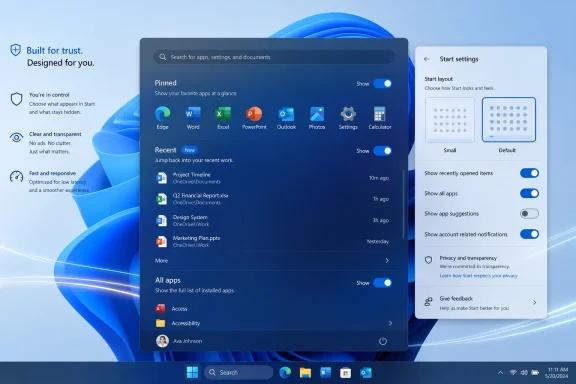
Windows Start menu and settings panels over a blue abstract desktop background.Microsoft Finally Admits the Centered Start Menu Was Too Rigid​

Windows 11 launched with a Start menu that looked clean in screenshots and felt strangely constrained in daily use. It centered the taskbar, flattened the menu into a tidy panel, removed Live Tiles, and replaced much of the old spatial flexibility with a fixed arrangement of pinned apps and recommendations. The design was coherent, but coherence was not the same as usefulness.
The deeper issue was not that Microsoft changed Start. Windows users have lived through Start menu reinventions before, from the cascading menus of Windows 95 through the tile-first shock of Windows 8 and the hybrid compromise of Windows 10. The problem with Windows 11 was that Microsoft removed choice while insisting the new structure was calmer, simpler, and more modern.
That argument worked better for product decks than for people who actually used the menu all day. Users who wanted a launcher saw recommendations. Users who wanted recent files saw a layout that still felt like an advertising surface. Users who wanted app organization found themselves boxed into a design that allowed some pinning, some folders, and some hiding, but not enough control over the menu’s basic anatomy.
The new Insider build changes that premise. Pinned apps, Recent, and All apps can now be shown or hidden independently, and the settings live in a redesigned Start settings page rather than scattered compromises. That is the important shift: Microsoft is not merely adding another preference toggle; it is decomposing the Start menu into parts the user can decide to keep or discard.
For an operating system that often treats defaults as destiny, that is a meaningful course correction. Windows 11’s original Start menu asked users to adapt to Microsoft’s idea of calm. The new one asks a more useful question: what do you actually want Start to do?

The “Recommended” Rebrand Is More Than Cosmetic​

One of the smartest moves in this redesign is the retreat from the word “Recommended.” In the old Windows 11 Start menu, Recommended was a small label with an outsized reputational problem. It sounded like Microsoft was suggesting things, and in the Windows 11 era, users have learned to be suspicious of suggestion surfaces.
That suspicion is not paranoia. Windows has accumulated too many places where the line between helpfulness, promotion, cloud nudging, and engagement engineering feels blurry. When a user sees “Recommended,” they do not necessarily think “recently opened document.” They think “something Microsoft wants me to click.”
Renaming and reframing the area as Recent is therefore not just a branding tweak. It gives the feature a job that users can understand. Recent files, recently added apps, and current activity are practical. They belong in a launcher because they reflect what the user has done, not what the platform hopes the user might do next.
This matters because Start is a trust surface. A Start menu can contain search, app lists, files, web hooks, account controls, and promotional affordances, but every extra role makes the user wonder whose interests are being served. By making Recent feel more like a live reflection of local activity and less like a recommendation engine, Microsoft reduces that friction.
The customization also matters here. Users can show recently added apps, recent files, both, or neither. That makes Recent less of an imposition and more of a tool. If it proves useful, it earns space. If it does not, it disappears.
That is how personalization should work. The user should not have to disable broad Windows behaviors elsewhere just to clean up one section of Start. The old design made “turning off recommendations” feel like a system-level tradeoff. The new design moves closer to common sense: this surface should have its own controls.

Empty Space Becomes a Feature, Not a Failure​

The screenshots and hands-on reports make one thing clear: the new Start menu can look odd when users aggressively disable sections. Turn off Pinned and Recent, and the remaining layout can expose white space. Turn everything off, and the menu becomes a kind of minimalist shell. Hide the account name and profile picture, and the familiar Windows identity strip disappears too.
That will invite jokes, and some of them will be deserved. A Start menu with almost nothing in it is not an obvious triumph of interface design. But the fact that Windows now allows this state is more important than whether most people will use it.
For years, Microsoft’s Start design has been too afraid of user-created ugliness. The company has tended to prefer a polished default over a flexible system that might be configured badly. That instinct produces beautiful screenshots, but it also produces resentment among power users, administrators, accessibility-minded users, and anyone with a workflow that does not map neatly onto Microsoft’s intended path.
A configurable interface must tolerate edge cases. Some users will create empty menus. Some will hide everything except pins. Some will use All apps as the main view. Some will make Start small enough that it stops dominating the desktop. That is not a design failure; it is the cost of returning agency to the person sitting at the keyboard.
The new size controls are especially significant. Microsoft is not restoring Windows 10-style freeform drag resizing, which will disappoint users who want direct manipulation rather than presets. But the presence of multiple Start sizes, including a smaller layout, addresses one of the most persistent Windows 11 complaints: the menu often felt too large for what it contained.
Windows 11’s Start menu has long had a density problem. It occupied generous space while showing a modest amount of information. That imbalance made the menu feel less like a launcher and more like a stage. A smaller Start option restores some proportionality, particularly on laptops and compact displays where every inch of screen real estate matters.

The All Apps View Is Becoming the Real Battleground​

The ability to hide Pinned or Recent will get much of the attention, but the All apps experience may be where this redesign wins or loses in practice. For many users, All apps is the real Start menu. It is the place they go when muscle memory fails, when search misses, or when a newly installed application does not land where expected.
Windows 11 historically buried All apps behind an extra click, which was one of those small decisions that accumulated disproportionate irritation. The operating system had a complete app list, but the primary Start surface did not treat it as primary. Microsoft seemed to assume that pins, recommendations, and search would carry the load.
That assumption was only partly right. Search is fast when it works, but it is not a substitute for browsing. Pins are excellent for favorites, but they do not help when the user cannot remember the exact name of a tool. Recommendations are useful only when the system correctly infers intent, and users have every reason to distrust that inference when cloud services and web results lurk nearby.
The newer All apps layouts, including grid and list-style presentations and a category-oriented view, suggest Microsoft is finally recognizing that browsing remains a first-class interaction. That may sound old-fashioned in an age when every platform wants users to type or ask an assistant, but it is true. People still scan. People still organize visually. People still remember roughly where something is before they remember what it is called.
The category view is particularly interesting because it gestures toward a Start menu that can be both compact and informational. A pure alphabetical list is predictable but long. A grid is visually efficient but can become noisy. Categories offer a middle path, assuming Microsoft’s grouping logic is transparent and not too clever for its own good.
This is where the company must be careful. If categories become another opaque layer of “Microsoft knows best,” the feature will repeat old mistakes. If they are stable, legible, and fast, they could make All apps feel less like a fallback and more like the menu’s main event.

Performance Is the Other Half of the Start Menu Problem​

Customization fixes only one side of the Windows 11 Start complaint. The other side is responsiveness, and it has been harder to excuse. A Start menu should feel instant. When it hesitates, stutters, or animates unevenly, the whole operating system feels heavier than it is.
That perception matters even on powerful hardware. Users judge operating systems by the surfaces they touch constantly: Start, taskbar, search, notification center, File Explorer, context menus. If those feel sluggish, benchmark numbers become academic. A fast PC that hesitates at the shell feels slow.
Microsoft’s recent Low Latency Profile work, included in the May 2026 optional update KB5089573, reportedly improves the feel of core shell experiences such as Start, Search, and Action Center. Hands-on accounts suggest the Start menu opens more smoothly and that some animation stutter is reduced. That is welcome, but it also highlights how long this problem has lingered.
A CPU boost profile can make the shell feel snappier, but it is not the same as making the shell lean. There is a difference between optimizing the system around a heavy component and rebuilding the component so it no longer needs special treatment. Windows enthusiasts understand that distinction instinctively because they have spent years watching modern Windows layer web-connected, framework-heavy surfaces on top of an operating system that once prized immediacy.
Microsoft’s broader push toward more native Windows components, including work tied to WinUI 3, is therefore the more consequential performance story. If Start becomes more native, more consistent, and less prone to the micro-lag that has haunted parts of Windows 11, then the customization work will land on a stronger foundation. If it does not, users will have a prettier set of toggles attached to a menu that still occasionally feels like it is waking from sleep.
This is the trap Microsoft must avoid. Users may forgive a limited menu if it is instantaneous. They may forgive a feature-rich menu if it is smooth. They are less forgiving when a menu is both constrained and sluggish. The new Start redesign tackles the constraint; now the engineering must finish the job on latency.

Windows 8 Still Haunts Every Start Menu Decision​

Microsoft’s caution around Start did not come from nowhere. The Windows 8 Start screen was a dramatic bet that one interface could bridge tablets and PCs, and the backlash permanently changed how the company approaches the desktop. Ever since, Start has been less a menu than a political settlement between competing Windows identities.
Windows 10 was the compromise: tiles for modernity, a menu shape for continuity, resize handles for flexibility, and enough configurability that most users could bend it into something tolerable. It was not elegant in the way Windows 11 wanted to be elegant, but it respected the messy habits of desktop users. That messiness was part of its success.
Windows 11 tried to clean house. It removed Live Tiles, simplified the layout, centered the experience, and made Start feel more like a mobile launcher. There was a logic to that decision, especially for new users and touch-adjacent devices. But it underestimated how much Windows loyalty is bound up in the ability to make the system slightly ugly in a personally useful way.
That is why this new redesign feels like a philosophical retreat. Microsoft is not bringing back the Windows 10 Start menu. It is not resurrecting Live Tiles or full-screen Start as a mainstream desktop option. But it is acknowledging that the Windows 11 model was overcorrected.
The lesson of Windows 8 was not simply “do not change Start.” The lesson was “do not seize control of Start from the user.” Windows 11 forgot that lesson in a quieter, more polished way. This Insider build remembers it.
There is also a generational difference in how users think about Start. Some want it to be an app launcher. Some want it to be a dashboard. Some want it to be invisible because they launch everything from search, PowerToys Run, Windows Terminal, or pinned taskbar icons. A modern Start menu must survive all of those use cases without insisting that one is more legitimate than the others.

Administrators Will Like the Direction but Watch the Defaults​

For managed environments, the interesting question is not whether enthusiasts can make a cleaner Start menu. It is whether Microsoft’s new flexibility can be governed predictably. IT departments do not merely care about what a feature can do; they care about what it will do by default, how it behaves after updates, and whether policies can control the experience without brittle workarounds.
Windows 11 has already put administrators through several rounds of Start and taskbar adjustment. Default pins, consumer-facing apps, cloud account prompts, search behavior, and recommendation surfaces have all been recurring points of friction. Even when Microsoft provides management hooks, the cadence of UI change can make desktop standardization feel like a moving target.
The new Start controls could help if they map cleanly to policy and provisioning. A company that wants a pin-only Start menu should be able to deploy one. A school lab that wants All apps visible and Recent hidden should be able to enforce that without elaborate scripts. A regulated environment that does not want recent files surfaced in a shared or semi-shared context should not have to rely on users finding the right Settings page.
But there is a second administrative concern: discoverability after change. When Microsoft ships a visible UI redesign, help desks inherit the first wave of confusion. Users ask where their apps went, why a section disappeared, or why Start looks different from a colleague’s machine. The more configurable Start becomes, the more important it is for Microsoft to make the settings understandable and stable.
That is not an argument against customization. It is an argument for Microsoft to treat Start settings as a serious management surface, not just a consumer preference panel. Windows is still the operating system of fleets, labs, call centers, clinics, classrooms, and government offices. A Start menu redesign that delights enthusiasts but complicates fleet consistency would be only half a win.
The better outcome is obvious: give users more agency on personal machines, give administrators stronger controls on managed machines, and stop tying unrelated shell behaviors together behind one overloaded toggle. The move from Recommended to more granular Recent controls suggests Microsoft understands at least part of that.

The AI Era Makes a User-Controlled Start Menu More Important​

There is a broader context around this Start redesign that Microsoft cannot avoid: Windows is being rebuilt in the shadow of Copilot. The company wants AI to become a more natural part of the desktop, and the taskbar and Start menu are obvious places to put that ambition. That makes user control over these surfaces more important, not less.
Start has always been a launcher, but in modern Windows it is also a search entry point, a content surface, an account surface, and a staging ground for Microsoft services. Every time Microsoft adds intelligence to that mix, it increases the risk that users will see Start as something being done to them rather than something working for them. The only antidote is transparent control.
A customizable Start menu therefore becomes a kind of trust infrastructure. If Microsoft wants to introduce more assistive features, it must also prove that users can decline, hide, simplify, and reconfigure. Otherwise, every new surface will be interpreted through the lens of past annoyances: ads in the OS, web results in local search, unwanted prompts, and features that arrive before users ask for them.
The irony is that AI makes the old-fashioned app launcher more valuable. When an operating system grows more ambient and predictive, users need stable places where cause and effect remain obvious. Click Start, see apps, open app. That simplicity is not primitive. It is grounding.
This is why the ability to hide profile identity, remove sections, and reduce the menu’s footprint matters symbolically. It tells users that Start does not have to become a billboard for Microsoft’s roadmap. It can still be a tool. In 2026, that is a bigger statement than it sounds.
Microsoft will almost certainly continue to integrate Copilot and related experiences into Windows. The question is whether those integrations arrive as optional enhancements or as gravity wells that bend the shell around them. A Start menu with stronger user controls gives Microsoft a better chance of threading that needle.

This Is Still an Insider Build, Not a Victory Lap​

The usual Insider caveats apply, and they matter. Build 26300.8553 is not a general availability release. Features can change, rollouts can be staged, A/B tests can produce different behavior across machines, and Microsoft can still adjust or remove pieces before they reach mainstream Windows 11 users.
That uncertainty is particularly relevant because Start is a high-visibility component. Microsoft may discover layout bugs, localization problems, accessibility issues, policy conflicts, or telemetry suggesting that certain combinations confuse users. The empty-menu edge cases alone are likely to provoke internal debate about how much freedom is too much.
The Beta channel split is also worth noting. Microsoft released Build 26220.8544 alongside the Experimental build, but the new Start menu controls are only part of the Experimental rollout for now. That suggests the company is still testing confidence, feedback, and compatibility before moving the experience more broadly through the Insider pipeline.
For enthusiasts, that is both exciting and frustrating. The new controls are close enough to feel real, but not close enough to assume they will arrive unchanged on stable PCs next month. Windows development has become increasingly fluid, with enablement packages, controlled feature rollouts, and server-side switches complicating the old idea that a build number tells the whole story.
Still, the direction is difficult to dismiss. Microsoft has now publicly framed Start and taskbar personalization as part of a Windows quality push. That framing matters because it places customization in the same conversation as reliability and responsiveness. In other words, this is not just eye candy; it is part of the company’s attempt to repair Windows 11’s relationship with its most demanding users.

The Best Start Menu Is the One Microsoft Stops Overexplaining​

The encouraging thing about this redesign is that it does not require a grand theory to justify itself. Users want to hide sections. Users want a smaller menu. Users want All apps to be more useful. Users want recent activity to be practical rather than promotional. None of that is exotic.
For too much of the Windows 11 cycle, Microsoft seemed to treat these requests as nostalgia. The implication was that critics wanted the past back because they disliked change. Some did, of course. But many users were making a more precise complaint: Windows 11 had reduced control over a core workflow without delivering enough speed or intelligence to compensate.
That is the central lesson here. A modern desktop interface does not become better by removing knobs. It becomes better by choosing sensible defaults and then letting users depart from them. The default can be clean. The customization can be deep. These are not opposing values unless the design team insists they are.
The new Start menu suggests Microsoft is rediscovering that balance. It still has a Windows 11 visual identity. It still avoids the tile chaos of earlier eras. It still channels users toward a calmer, more centered experience out of the box. But it no longer treats that default as the only respectable configuration.
That is why the redesign feels larger than its individual toggles. It marks a shift from prescription to permission. For Windows, a platform whose strength has always been breadth, permission is not a luxury feature. It is part of the bargain.

The Start Menu Redesign Gives Windows 11 a Rare Chance to Unannoy People​

The practical take is simple: this is one of the more promising Windows 11 interface changes in years, but its success depends on whether Microsoft ships it broadly, keeps the controls granular, and finishes the performance work underneath. A configurable Start menu that still stutters will feel unfinished. A fast Start menu that reverts to Microsoft-knows-best defaults will feel cynical.
  • Users in the Experimental channel on Build 26300.8553 are seeing the new Start customization controls first, while Beta Build 26220.8544 does not appear to receive the same Start changes yet.
  • The redesigned settings let users independently show or hide Pinned, Recent, and All apps, which is a major departure from the more rigid Windows 11 Start model.
  • The shift from Recommended to Recent is important because it makes the section feel tied to user activity rather than platform suggestion.
  • The new preset Start sizes help address Windows 11’s long-running density problem, even though Microsoft still has not restored freeform drag resizing.
  • Performance improvements from the Low Latency Profile are encouraging, but a more native and consistently responsive Start menu remains the real test.
  • Administrators should welcome the direction while watching closely for policy support, default behavior, and how these settings survive updates.
Microsoft spent the first phase of Windows 11 asking users to accept a Start menu that looked modern but felt overmanaged; with this Insider redesign, it is finally offering a more Windows-like bargain, where the default can be polished without trapping everyone inside it. If the company carries that philosophy through to performance, policy, and the inevitable Copilot-era additions, Start may stop being a symbol of Windows 11’s stubbornness and become proof that Microsoft can still course-correct where users actually live.

References​

  1. Primary source: Windows Latest
    Published: Sat, 30 May 2026 01:47:11 GMT
  2. Related coverage: windowscentral.com
  3. Related coverage: techradar.com
  4. Official source: microsoft.com
  5. Official source: blogs.windows.com
  6. Official source: learn.microsoft.com
 

Microsoft released Windows 11 Insider Experimental Preview Build 26300.8553 on May 29, 2026, adding Start menu size presets, section visibility controls, a renamed Recent area, and options to hide account identity from the menu. The move is small in code terms but large in Windows-politics terms. After years of defending Windows 11’s Start menu as a deliberate reset, Microsoft is now conceding that a modern desktop shell cannot be both personal and rigid. For users and administrators, the important part is not just that Start can be resized; it is that Microsoft is finally treating the Start menu as a configurable surface again.

Windows 11 Start menu on a dual-monitor desktop, with app grid and customization prompts.Microsoft Stops Pretending One Start Menu Fits Everyone​

Windows 11 launched in 2021 with a Start menu that felt less like an evolution of Windows 10 and more like a product manager’s mood board. Live Tiles disappeared, the centered layout became the default visual identity, and much of the spatial memory that power users relied on was replaced with a cleaner but narrower model. The design was polished, but it was also prescriptive.
Build 26300.8553 does not bring back Windows 10’s tile wall, and it does not fully restore the old Start experience. What it does instead is more interesting: it gives users a sanctioned way to reduce the amount of Microsoft-defined structure inside Start. The new Size and Layout submenu offers Small, Large, and Automatic modes, ending the long-standing assumption that the Windows 11 Start menu should have one default physical footprint.
Automatic remains the politically safe option. It lets Microsoft preserve the default experience and adapt it based on display characteristics. But Small and Large matter because they acknowledge different desktop realities: a 13-inch laptop, a 49-inch ultrawide, a shared kiosk, and a sysadmin’s multi-monitor workstation should not all be forced into the same Start menu geometry.
This is the kind of change that sounds trivial until you remember how much muscle memory lives in the Windows shell. Start is not just an app launcher. It is where search, app pinning, recent documents, account controls, power options, and Microsoft’s own engagement surfaces collide. When Microsoft hard-codes that space, it is not merely choosing a layout; it is choosing a hierarchy of what the user is supposed to value.

The “Recommended” Era Gives Way to a More Honest “Recent”​

The most symbolically loaded change is the renaming of Recommended to Recent. Microsoft’s old label always strained credibility because the section mixed useful recency with corporate ambition. To many users, Recommended felt less like a neutral convenience layer and more like a place where Windows could reserve screen real estate for suggestions, documents, nudges, and eventually whatever else the company wanted surfaced.
Calling the section Recent is cleaner and more honest. It describes a behavior rather than implying editorial judgment. If Windows shows a file or app because it was recently used, the user can understand the logic. If Windows calls the same thing Recommended, it invites skepticism: recommended by whom, for whose benefit, and according to what incentives?
The new build goes further by allowing users to hide that section entirely. That is the real win. Many Windows 11 users have spent years trying to minimize or neutralize Recommended through partial settings, registry workarounds, third-party shell tools, or simple resignation. A checkbox is less glamorous than a redesign, but it is more durable than a hack.
The same logic applies to Pinned apps and All apps. Right-clicking the Start menu now exposes Customize sections, with independent controls for Pinned, Recent, and All. That means Start can become a lean launcher, a recency dashboard, a full app index, or some mixture of the three. The OS stops assuming that everyone wants the same balance of discovery, history, and manual curation.

Privacy Finally Reaches the Account Corner​

The option to hide the account name and profile image is another quiet but meaningful correction. On a personal laptop, the account badge may seem harmless. On a conference room PC, a classroom machine, a support desk workstation, a lab system, or a device captured in screenshots and remote sessions, it can be unnecessary exposure.
Microsoft has spent years pushing Windows toward account-linked identity, cloud sync, Microsoft 365 integration, and increasingly visible user-context surfaces. Some of that is useful. Some of it is simply the modern operating system acting as the front end for a services business. But shared and enterprise environments have different expectations, and the Start menu has often treated identity as decorative rather than sensitive.
Letting users hide account identity does not solve every privacy concern in Windows 11. It does, however, show that Microsoft is listening to a complaint that was easy to dismiss until you saw it in the wild. A name and profile image in Start can leak context during presentations, remote troubleshooting, screen recordings, classroom demos, or public-facing deployments.
For administrators, this also hints at a future policy surface. If these options graduate beyond Insider builds, the natural next question is whether they become manageable through Settings, provisioning, MDM, Group Policy, or configuration profiles. Consumer choice is useful; fleet-level consistency is what turns a nice tweak into an enterprise feature.

The Experimental Channel Becomes the Real Message​

The build arrives under Microsoft’s updated Insider structure, and that context matters. Build 26300.8553 is in the Experimental channel, not the Beta channel. That means the feature is visible enough for public testing but not yet close enough to treat as a near-term production promise.
This distinction is especially important because Microsoft shipped Beta Build 26220.8544 at the same time, and that build does not include the Start menu changes. Beta gets polish items: modernized loading spinners, substring search improvements, and a Windows Ready Print toggle. Experimental gets the shell fight.
That split tells us how Microsoft sees the risk. Changing spinners and improving search matching are quality-of-life improvements. Reworking the Start menu touches identity, habit, accessibility, productivity, branding, and IT support expectations. Microsoft may be willing to test it publicly, but it is not yet ready to tell mainstream testers that this is the future.
The channel naming also risks confusion. Microsoft is in the middle of reshaping the Insider Program, and some users may still see older labels while release notes use newer ones. For enthusiasts, that is merely annoying. For IT shops that use Insider builds to anticipate policy, support, training, and imaging changes, it is another reminder that the build number and branch matter more than the marketing label.

Beta Gets the Boring Changes That May Matter More at Work​

The Beta build’s additions lack the emotional charge of a customizable Start menu, but they may have more immediate operational value. Build 26220.8544 introduces modern loading spinners across Boot, Logon, Restart, and Shutdown, replacing older animations with a more consistent solid donut-style indicator. It is the sort of visual cleanup that users notice only when it looks wrong, but consistency during system transitions still matters for perceived polish.
More consequential is substring matching in Windows Search. If a file is named MeetingNotesApril, searching for “april” should find it. That sounds obvious because users have been trained by web search, email search, and cloud storage search to expect partial matching. Windows Search has too often felt like a system that knew a file existed but refused to admit it unless the user guessed the right token boundary.
For office workers and administrators, substring search is not a gimmick. File names in real organizations are messy: project codes, dates, initials, version tags, client names, and department abbreviations often get jammed into compound strings. Better substring behavior can reduce the number of times users abandon local search and start digging manually through folders, Teams downloads, SharePoint sync locations, or Outlook attachments.
The Windows Ready Print toggle is another enterprise-flavored change hiding in plain sight. Microsoft has been moving Windows printing toward a more modern driver model, and the new toggle lets users control whether newly added printers default to Internet Printing Protocol rather than legacy drivers. Printing remains one of the least glamorous and most failure-prone parts of desktop administration; any change to defaults deserves attention from IT before it quietly becomes the baseline.

The Start Menu Fight Was Always About Trust​

The Windows 11 Start menu controversy was never only about pixels. It was about whether Microsoft trusted users to shape the most familiar interface in desktop computing. Windows has historically won loyalty not because every default was perfect, but because users could bend the system around their habits.
Windows 11 broke that bargain more than Microsoft seemed to appreciate at launch. The centered Start button could be moved left, but the broader Start experience remained constrained. Users who wanted density, hierarchy, folders with more expressive layout, or a less intrusive recommendation area were told, implicitly, that the new way was the way.
That posture may have made sense from a design-system perspective. Microsoft wanted Windows 11 to look cleaner, calmer, and more coherent than the accumulated compromises of Windows 10. But the desktop is not a phone home screen, and Windows users are not a single audience. The OS serves gamers, accountants, developers, hospital staff, students, accessibility users, retail workers, executives, hobbyists, and administrators who live in Remote Desktop windows all day.
Customization is not nostalgia. It is a recognition that the desktop is a working environment. The more central a surface is to daily behavior, the less credible it becomes to lock it down in the name of simplicity.

Microsoft Is Relearning the Difference Between Defaults and Decisions​

The best version of this change is not a retreat from design discipline. It is a better separation between defaults and decisions. Microsoft can still ship a polished default Start menu. It can still guide new users toward a simple layout. It can still use Automatic sizing as the recommended path.
But a default becomes a problem when it masquerades as the only reasonable choice. The new Start menu controls suggest Microsoft is returning to a more mature Windows principle: opinionated out of the box, adjustable after that. That is the model that tends to survive contact with real users.
There is also a strategic reason for Microsoft to loosen up. Windows 11 is now competing not only with macOS and ChromeOS, but with user expectations shaped by launchers, tiling window managers, browser profiles, mobile widgets, and cloud workspaces. A rigid Start menu does not feel premium in that environment. It feels unfinished.
The timing is useful, too. As Microsoft continues to push AI features, account integration, cloud backup prompts, Copilot surfaces, and service-connected experiences, it needs credibility when it says user control still matters. Letting people hide Start sections and account identity is not a grand privacy revolution, but it is a practical concession in a product that often feels like it is negotiating with the user rather than serving them.

Insiders Should Treat 26300.8553 as a Signal, Not a Promise​

The temptation with any Insider feature is to draw a straight line from preview to general availability. That is dangerous here. Experimental channel features can change, stall, disappear, or arrive in production with different defaults and policy hooks. Microsoft’s own release cadence has become more fluid, especially as enablement packages, staged rollouts, and controlled feature deployments blur the old meaning of a “version.”
The submitted report suggests these controls could reach Beta within a few months and possibly general availability in the 26H2 timeframe. That is plausible, but not guaranteed. The safer reading is that Microsoft has moved the Start menu customization work from rumor and internal testing into visible public validation.
That matters because public validation creates a feedback trail. If users like the controls, complain about missing options, or discover accessibility and scaling bugs, Microsoft now has a channel for that data. If enterprises ask for policy controls, Microsoft can see that demand before the feature reaches broader deployment.
For AMD users, the known issue around machines with System Guard support is also a reminder that Insider participation is still real testing, not early access theater. Microsoft says affected Windows Insider Program devices with that configuration will not be offered the Experimental Future Platforms build this week, while the 26300.8553 Experimental build itself is not affected. The practical advice is simple: check the channel, check the branch, and do not assume every Experimental build is aimed at the same class of hardware or risk.

The 26H1 Deadline Turns Channel Choice Into a One-Way Door​

The warning for Insiders on the 26H1 branch adds another layer to the story. Users reportedly have until June 5, 2026, to decide whether to stay on that branch, with a return to 25H2 requiring a clean install. That is not a footnote; it is the operational cost of living close to the front of Microsoft’s development pipeline.
For enthusiasts, a clean install may be an acceptable weekend project. For anyone using Insider builds on a primary machine, it is a reminder that channel changes can carry real consequences. Apps, settings, credentials, development environments, virtual machines, and local data all complicate the idea of “just going back.”
This is where the new Insider model has to prove itself. If Microsoft wants more meaningful testing of features like Start customization, it needs testers to understand what branch they are on and what exit options remain available. Confusing labels or poorly communicated branch transitions will reduce the quality of feedback because users will hesitate to enroll machines they cannot easily recover.
That is especially true for IT pros who test ahead of deployment cycles. A Start menu change may be worth evaluating, but not if the cost is trapping a lab device on an awkward branch. Microsoft’s challenge is to make the Insider Program adventurous without making it opaque.

Notebookcheck’s Scoop Lands Because Users Were Already Waiting​

The Notebookcheck framing resonates because it captures a frustration that has been building since Windows 11’s debut. The Start menu was one of the most visible symbols of Microsoft’s new design language, and it also became one of the most visible symbols of reduced user agency. Nearly five years later, Microsoft is finally addressing the complaint in the product rather than asking users to adapt around it.
This is why the story is bigger than a submenu. Windows users have always tolerated change better when they can negotiate with it. Remove Live Tiles? Fine, some users disliked them anyway. Center the taskbar? Fine, as long as left alignment remains. But shrink the range of acceptable workflows too far, and every missing toggle becomes evidence of a company that has forgotten its own platform culture.
The new controls do not satisfy every old demand. They do not recreate Windows 7’s Start menu. They do not bring back Windows 10’s spatial tile groups. They do not settle the debate over web search, ads, account prompts, or Microsoft 365 surfacing inside the shell. But they move the argument from “why can’t I change this?” to “how far will Microsoft let this go?”
That is progress, and it is exactly the kind of progress Windows 11 has needed. The OS has improved substantially since launch, but many of those improvements have arrived as slow reversals of overconfident simplifications. The Start menu now joins the taskbar and other shell elements in the category of Windows 11 features that looked cleaner on day one but needed years of user pressure to become flexible again.

The New Start Menu Gives IT a Policy Problem to Watch​

If these changes graduate to production, administrators will need to decide whether customization is a user benefit, a support risk, or both. A more configurable Start menu can reduce friction for power users, but it can also create inconsistent screenshots, training materials, help desk scripts, and remote support assumptions.
That does not mean Microsoft should avoid customization. It means the company should expose the right management controls when the feature matures. Enterprises may want to hide account identity by default, preserve Pinned apps, disable Recent on shared devices, or enforce a simplified layout for frontline worker PCs.
The balance is delicate. Too much policy control turns a user-facing improvement into another locked-down corporate surface. Too little policy control leaves administrators to script around registry keys, provisioning packages, or undocumented behavior. Microsoft’s best move would be to make the consumer setting straightforward and the enterprise management story explicit.
There is also an accessibility dimension. Start menu size is not merely aesthetic; it affects pointer travel, readability, touch targets, high-DPI behavior, and usability across multiple display setups. Automatic sizing may handle some of that, but manual presets give users another way to make the desktop fit their bodies, screens, and habits.

The Start Menu Is Becoming a Negotiation Again​

The concrete lesson from Build 26300.8553 is that Microsoft is no longer treating the Windows 11 Start menu as a finished monument. It is becoming a negotiation between design intent and user control, which is exactly what the Windows shell should be.
  • Microsoft released Build 26300.8553 to the Experimental channel on May 29, 2026, with Start menu size presets and section-level customization.
  • The former Recommended section is now called Recent, and users can hide it entirely if they do not want that surface in Start.
  • Users can separately toggle Pinned apps, Recent items, and All apps, allowing Start to function as a launcher, history view, app index, or hybrid.
  • The account name and profile image can now be hidden, which matters for shared devices, presentations, screenshots, and managed environments.
  • Beta Build 26220.8544 does not include the Start changes, but it adds modern loading animations, substring search, and Windows Ready Print controls.
  • Insiders should treat the feature as promising but not guaranteed, because Experimental channel behavior can change before production release.
Microsoft’s next test is not whether it can add three layout presets to Start; it is whether it can rebuild trust without turning every concession into another staged experiment that arrives late, ships half-managed, or disappears behind rollout logic. If the company carries these controls into Beta, documents the management path, and keeps listening to the people who live in Start all day, Windows 11 may finally turn one of its most stubborn launch-era mistakes into a model for how the rest of the shell should evolve.

References​

  1. Primary source: Notebookcheck
    Published: Sun, 31 May 2026 16:46:00 GMT
  2. Official source: learn.microsoft.com
  3. Related coverage: windowslatest.com
  4. Related coverage: fdaytalk.com
  5. Related coverage: windowsforum.com
  6. Related coverage: pureinfotech.com
 

Microsoft released Windows 11 Insider Experimental Preview Build 26300.8553 on May 29, 2026, giving testers new Start menu controls to resize the menu, hide or show Pinned, Recent, and All Apps sections, and remove the account name from the Start surface. The change is not a revolution, but it is a retreat from one of Windows 11’s most stubborn design bets: that Microsoft knew better than users how the Start menu should behave. After nearly five years of complaints from Windows 10 holdouts, enterprise admins, and everyday users who simply wanted less clutter, Redmond is finally treating the Start menu as a user-owned space again.

Two Windows 11 start menu mockups show a modular, resizable layout with app icons and settings.Microsoft Rediscovers the Radical Idea of Letting Users Choose​

Windows 11’s original Start menu was a statement of control. Microsoft removed Live Tiles, centered the interface, simplified the layout, and presented a cleaner launcher that looked more like a mobile app drawer than the messy, malleable Windows interface many users had spent decades shaping around their own habits.
That was not inherently wrong. Windows 10’s Start menu had become a strange hybrid of app launcher, widget board, advertising space, and tile garden. A reset made sense. But Windows 11 replaced one kind of excess with another kind of rigidity, and the problem was never just that the new menu looked different.
The problem was that users could not meaningfully negotiate with it. The Recommended area occupied prime real estate even when people did not want recommendations. The All Apps list was tucked behind Microsoft’s preferred flow, then later surfaced more aggressively. The menu’s size adapted to Microsoft’s assumptions, not to the user’s hand, monitor, scaling, or workflow.
Build 26300.8553 does not fully undo that history. It does, however, acknowledge it. The new options allow users to turn major Start sections on or off, choose a smaller or larger layout, and hide the account name for privacy or presentation scenarios. In Windows terms, that is not merely a settings update. It is a design confession.

The Start Menu Was Never Just an App Launcher​

The Start menu is Windows’ front door, and that is why every change to it becomes political. Microsoft sees it as a navigation surface, a discovery surface, a cloud surface, and occasionally a promotional surface. Users see it as the place where they go to open the things they already chose to install.
Those two visions have been colliding since Windows 8, but Windows 11 made the tension feel especially sharp. The operating system looked calmer than Windows 10, yet it often felt less personal. The centered taskbar could be moved back to the left, but the Start menu itself remained strangely non-negotiable.
This matters because Windows users are not one audience. A home user with a handful of pinned apps, a developer with dozens of tools, a sysadmin jumping between consoles, and a presenter sharing a screen on a call all expect different things from Start. A fixed design turns those differences into irritations.
Microsoft’s new modular approach is the right instinct. Let the Pinned section exist without Recent. Let All Apps exist without recommendations. Let someone build a minimalist launcher, or a dense app board, or a nearly empty menu if that is what they want. A desktop operating system should not be frightened by edge cases.

The New Modular Menu Is a Small Break With Windows 11 Dogma​

The most important change in the preview build is the ability to independently show or hide Start menu sections. Users can toggle Pinned apps, the renamed Recent section, and the All Apps list. Taken to its logical extreme, the system even permits a Start menu with every visible section disabled, at which point Windows shows a message saying all Start menu sections are off and points users back to settings.
That sounds absurd, and in one sense it is. A Start menu with no Start menu in it is a very Windows kind of punchline. But it is also evidence that Microsoft is, for once, allowing a configuration because it is possible rather than blocking it because a designer thinks no one should want it.
The more useful version is obvious: a Start menu with pinned apps and nothing else. That has been one of the most common requests since Windows 11 launched. Many users do not want recently opened files, suggested content, recently installed apps, or Microsoft’s interpretation of what might be useful next. They want a clean grid of shortcuts and a search box.
There is a practical wrinkle. If a user hides All Apps, discovering and pinning newly installed programs becomes less obvious. Neowin notes that apps can still be pinned through Windows Search, which is true, but that assumes users already know what they are looking for. For many people, the All Apps list remains the inventory view of the PC.
Still, this is exactly where customization earns its keep. A power user who launches everything from search may not care about All Apps. A kiosk-like setup may want Pinned only. A minimalist user may want almost nothing. The correct answer is not one Microsoft-blessed layout; it is a set of choices that do not punish users for having different habits.

Resizing Arrives, But Windows 10 Still Haunts the Room​

The second headline feature is Start menu sizing. In Build 26300.8553, users can choose between small and large layouts, with the larger version showing more columns of apps and categories. According to hands-on reports, the large layout supports eight columns of pinned apps and four category columns, while the smaller layout drops to six app columns and three category columns.
That is progress, but it is not the same as true resizing. Windows 10 allowed the Start menu to behave more like a conventional resizable panel. You could grab an edge or corner and make it fit your screen, your hand, and your tolerance for visual density. Windows 11’s new model is closer to choosing a shirt size: small or large, with Microsoft still deciding the cut.
For many users, that will be enough. The old Windows 11 Start menu could feel comically oversized on some machines and cramped on others, especially when scaling, screen resolution, and the newer category layout interacted badly. A smaller layout gives laptop users relief. A larger layout gives desktop users more visible pins.
But the comparison to Windows 10 will not go away, because Windows users remember when the interface was more physically negotiable. Microsoft’s modern design language prizes consistency and composure. Windows’ long-standing appeal, however, has been its willingness to let users make ugly, efficient, deeply personal choices.
That is the philosophical gap still visible in this preview. Microsoft is offering more control, but within a controlled vocabulary. It is a better Start menu, not yet a truly user-shaped one.

Renaming Recommended to Recent Fixes the Label, Not the Trust Problem​

The Recommended section has long been a source of irritation because the word carried baggage. “Recommended” sounded like Microsoft was deciding what belonged in front of you. It also blurred together recent files, recently installed apps, and content that could feel less like utility and more like nudging.
Renaming that area to Recent is a smart move because it is more honest. Users understand recency. A recently opened document, a newly installed app, or a file that was just touched has a clear reason to appear. The label describes a behavior rather than a judgment.
But the trust problem is not solved by vocabulary alone. Windows users have become wary of any surface that seems capable of becoming promotional. The Start menu, Search, Widgets, Edge prompts, Microsoft 365 hooks, and OneDrive messaging have all trained users to ask a simple question: is this here for me, or for Microsoft?
That suspicion is not always fair in the narrow technical sense. Recent files can be genuinely useful. Recently installed apps can help users find something they just added. But the burden is now on Microsoft to keep that space disciplined, predictable, and removable.
The new section toggles help because they make the argument optional. If Recent is useful, users can keep it. If it feels intrusive, they can remove it. The ability to say no is what makes yes meaningful.

Hiding the Account Name Is a Minor Feature With Real-World Uses​

The option to hide the username in Start will not dominate release notes, but it is more practical than it first appears. Screen sharing is now an ordinary part of work, not a special event. People record tutorials, join support calls, stream workflows, and present from personal or mixed-use machines all the time.
In those contexts, the account name can reveal more than intended. It may show a legal name, an internal naming convention, a personal account identity, or simply something the user would rather not broadcast. Hiding it is a small privacy affordance that recognizes Windows is often used in public.
This is the kind of customization Microsoft should be adding everywhere. Not every privacy improvement requires a new security architecture. Sometimes it is enough to remove unnecessary identity exposure from common interface surfaces.
The feature also reflects a broader shift in how Windows is used. The desktop is no longer always private, local, and stationary. It is shared through Teams, streamed through capture tools, mirrored onto conference room displays, and recorded for asynchronous work. Interfaces designed for one person at one desk now routinely appear before many eyes.

The Category View Still Looks Like an Unfinished Bet​

The weakest part of the modern Start menu remains the category view. The idea is sound: group installed apps into recognizable buckets so the menu feels less like an alphabetical filing cabinet. On a phone, this kind of clustering can work well. On a Windows PC, with decades of software naming habits and installer behavior behind it, the result is far messier.
Neowin’s example is familiar to anyone who has tested the newer Start layouts. Major third-party apps often fall into “Other” or similarly vague buckets because Windows does not confidently know where they belong. Steam, Slack, WhatsApp, Affinity apps, niche utilities, developer tools, hardware control panels, and legacy Win32 programs do not always map cleanly to Microsoft’s taxonomy.
That turns category view from a navigational aid into a junk drawer. If the system can only categorize Microsoft Store-style apps and a subset of well-known packages, it is not really organizing the PC. It is organizing the part of the PC Microsoft understands.
This is one of the rare places where a lightweight AI-assisted approach might actually make sense, provided it is transparent and local enough to avoid becoming another trust fight. Windows could infer categories from app metadata, executable names, publisher information, Start shortcuts, and user behavior. Better yet, it could let users correct categories manually.
The missing piece is agency. Automatic categories are helpful only if users can override them. Without that, category view risks becoming another example of Microsoft mistaking a demo-friendly interface for a daily-driver feature.

Search Remains the Awkward Door Inside the Door​

Start and Search have been intertwined for years, but Windows 11 still makes the relationship feel clumsy. Clicking the search field in Start can move the user into a different search interface, creating a visual and behavioral jump. It is not catastrophic, but it breaks the illusion that Start is a coherent place.
This matters because search has become the fallback for everything Start does not expose cleanly. If All Apps is hidden, users may rely on Search to find and pin programs. If categories misfire, Search becomes the fastest route. If the Pinned grid is kept minimal, Search becomes the command palette Windows still does not quite have.
And yet Windows Search remains one of the operating system’s most uneven experiences. It mixes local apps, settings, documents, web suggestions, cloud content, and occasionally promotional or Bing-adjacent behavior in ways that do not always respect user intent. The technical challenge is hard, but the product problem is simple: users need to know whether they are searching their PC or Microsoft’s ecosystem.
A better Start menu cannot fully compensate for a confused Search experience. In fact, more Start customization may expose Search’s weaknesses more clearly. If users strip Start down to a launcher and rely on search for everything else, search quality becomes central rather than secondary.
Microsoft has spent years trying to make Windows Search more expansive. The more urgent task may be making it more obedient.

Enterprise IT Will Like the Direction and Fear the Drift​

For administrators, Start menu customization is never just aesthetic. It affects onboarding, support scripts, screenshots in documentation, training materials, kiosk scenarios, VDI images, and the muscle memory of entire departments. A Start menu that changes unpredictably can become a support ticket factory.
The new controls could be good news for enterprise environments if Microsoft exposes them cleanly through policy, provisioning, and deployment tooling. A modular Start menu makes it easier to build a sane baseline: pinned business apps, no Recent section, predictable All Apps access, and less personal information visible during screen sharing. That is the kind of practical flexibility IT teams have wanted since Windows 11 arrived.
The concern is timing and stability. These changes are in an Insider Experimental build, not a broadly deployed production release. Microsoft’s new preview channel language also signals that the company is still reshaping how it tests and labels work-in-progress features. Admins should pay attention, but not build policy around screenshots from an experimental channel.
There is also a broader lifecycle issue. Windows 10 support pressure continues to push organizations toward Windows 11, and interface regressions have been one of the soft blockers for reluctant users. A better Start menu will not decide an enterprise migration by itself, but it removes one more source of daily friction.
For IT, the ideal outcome is not maximum personalization on every managed machine. It is predictable optionality: enough controls for administrators to define the experience, enough flexibility for users where appropriate, and enough documentation that settings do not become another archeological dig through policy catalogs.

This Is Also About Windows 10 Users Running Out of Road​

The timing is hard to ignore. Windows 11 has spent years living in Windows 10’s shadow, not because Windows 10 was perfect, but because it remained familiar, flexible, and good enough. Many of the loudest Windows 11 complaints have centered on the places users touch constantly: the taskbar, the context menu, File Explorer, and Start.
Microsoft has gradually walked back some of the sharpest edges. Taskbar features have returned in stages. Context menu behavior has improved. File Explorer has gained tabs and visual changes while still provoking its own debates. Now Start is getting the kind of customization that should arguably have shipped much earlier.
This is the pattern of modern Windows development: remove or redesign aggressively, absorb years of complaints, then reintroduce parts of the old flexibility under a new design system. It produces cleaner interfaces at launch, but it also burns user goodwill. People do not enjoy waiting half a decade for a setting that feels obvious.
The charitable reading is that Microsoft is listening. The less charitable reading is that Microsoft is rediscovering old lessons under market pressure. Both can be true. Windows 11 is maturing, and maturity in Windows often means restoring the knobs that earlier design waves removed.
For users still clinging to Windows 10, these Start changes may not be enough to inspire affection. But they do make Windows 11 a little less alien. Sometimes that is the difference between an upgrade that feels imposed and one that feels survivable.

The Real Win Is Not the Blank Start Menu​

The funniest screenshot from this change will be the empty Start menu. Turn everything off, remove the pins, and Windows becomes a minimalist art project with a Start button that opens a void. It is easy to mock, and many people will.
But the blank menu is not the point. The point is that Windows is again allowing configurations that Microsoft does not need to endorse as mainstream. That is healthy. A platform with hundreds of millions of users should not pretend there is one correct way to open an app.
The better measure of this update will be how well it handles ordinary preferences. Can a user keep only pinned apps? Can a developer maintain a dense launcher without category clutter? Can a presenter hide identity details quickly? Can a laptop user shrink the menu without registry hacks or third-party mods? Can a desktop user make better use of a large monitor?
If the answer is yes, then Build 26300.8553 marks a meaningful course correction. Not because every option is perfect, but because the direction is finally aligned with Windows’ historic strength: adaptation.

The Start Menu Fight Narrows to the Details Microsoft Still Controls​

The new preview build gives Windows 11 users more authority over Start, but it does not end the argument over who the interface serves. Microsoft still controls the available sizes. It still defines the category logic. It still routes search through a separate experience that can feel disconnected. It still has to prove that “Recent” will remain a utility area rather than a new name for old annoyances.
For now, the concrete picture is encouraging:
  • Windows 11 Insider Experimental Preview Build 26300.8553 adds section-level Start menu controls for Pinned, Recent, and All Apps.
  • The Start menu can now be set to smaller or larger layouts, though it still does not offer freeform Windows 10-style resizing.
  • The old Recommended label is being replaced with Recent, a clearer name for files and activity surfaced by the menu.
  • Users can hide their account name from the Start menu, which is useful for screen sharing, recording, and privacy-sensitive workflows.
  • The category view remains limited by Microsoft’s ability to classify third-party apps accurately.
  • The changes are promising, but they are still preview-channel work and should not be treated as guaranteed production behavior until Microsoft ships them broadly.
The best version of Windows 11’s Start menu is not the one Microsoft designs most elegantly; it is the one users can bend without breaking. Build 26300.8553 suggests Microsoft has finally accepted that the Start menu is too personal to be dictated from Redmond alone, and the next test is whether the company can carry that humility from preview builds into the stable Windows experience millions of people will actually use.

References​

  1. Primary source: Neowin
    Published: Mon, 01 Jun 2026 00:46:00 GMT
  2. Related coverage: windowscentral.com
  3. Related coverage: notebookcheck.net
  4. Official source: learn.microsoft.com
  5. Related coverage: windowslatest.com
  6. Related coverage: fdaytalk.com
  1. Related coverage: pureinfotech.com
  2. Official source: microsoft.com
  3. Related coverage: windowsforum.com
  4. Related coverage: windowsreport.com
  5. Related coverage: techradar.com
  6. Related coverage: scscc.club
 

Microsoft released Windows 11 Insider Preview Build 26300.8553 on May 29, 2026, adding new Start menu customization controls in the Experimental channel, including section toggles, size presets, a renamed Recent area, and an option to hide the user name from the menu. The headline is not that Start suddenly became perfect. It is that Microsoft is finally treating one of Windows 11’s most controversial surfaces as something users should be allowed to shape. After nearly five years of telling people to accept the new Start menu on Microsoft’s terms, the company is now testing a version that admits the old complaints were not nostalgia so much as product feedback.

Windows Start menu customization screens on a laptop, showing pinned apps, privacy, and size options.Microsoft Finally Lets Start Become a User Interface Again​

The Windows 11 Start menu has always carried more symbolic weight than its modest footprint suggests. It is the front door to the operating system, the place where Microsoft reveals how much it trusts users to make their own choices. In Windows 11’s original design, that trust was rationed.
The centered, simplified Start menu was meant to look modern, calm, and touch-friendly. It also removed much of the plasticity that made Windows feel like Windows. The Windows 10 Start menu could be stretched, rearranged, filled with tiles, stripped down, or turned into something approaching a personal dashboard. Windows 11 replaced that with a fixed panel, a grid of pinned apps, and a recommendations area that many users immediately tried to remove.
That is why Build 26300.8553 matters even though it is still a preview build. Microsoft is not merely adding a cosmetic toggle. It is acknowledging that Start is not a poster image for the design team; it is daily infrastructure. If the menu wastes space, exposes recent files during a screen share, buries installed apps, or insists on showing sections a user never asked for, the annoyance is repeated dozens of times a day.
The new settings give users the ability to show or hide major parts of Start: pinned apps, the renamed Recent section, and the All apps list. That sounds obvious, almost embarrassingly so. But in Windows 11 terms, it is a philosophical reversal.

The Recommendation Box Lost the Naming War​

The old “Recommended” label was always doing too much work. It implied that Windows was making helpful suggestions, but the section often behaved more like a catchall for recent files, recently installed apps, and whatever Microsoft believed belonged in the user’s path. Many users did not see recommendation; they saw clutter.
Renaming the area to “Recent” is a small but telling concession. It makes the feature sound less like a feed and more like a utility. A list of recently used items can be useful; a recommendation engine in the Start menu invites suspicion, especially in an era when operating systems increasingly blur the line between local productivity and promotional real estate.
The deeper change is that the section can be disabled as part of the modular Start layout. Users who want a launcher can have a launcher. Users who rely on recently opened documents can keep that workflow. Users who share screens, record tutorials, or simply dislike having file history visible every time they open Start can remove it.
This is the sort of customization Windows should have had from the beginning. It does not require a grand redesign or a new AI model. It requires the humility to accept that a Start menu is not the same thing for every user.

A Blank Start Menu Is Absurd, but the Absurdity Is the Point​

One of the strangest details in the new preview is that Microsoft reportedly allows users to turn off every Start menu section. If all sections are disabled, Start displays a message saying the sections are off and points the user back to settings. If the Pinned section remains enabled but all pinned apps are removed, users can effectively create a blank Start menu.
At first glance, this is ridiculous. A Start menu with no apps, no recent files, and no app list is not much of a Start menu. It is closer to a design experiment or a prank played on the shell team.
But the fact that Microsoft allows this is also encouraging. Good customization sometimes permits configurations that most people will never use. The alternative is the old Windows 11 logic: constrain everyone because a small number of choices might create a weird result.
Power users have lived for decades inside those weird results. They hide desktop icons, remove taskbar buttons, replace launchers, disable animations, script deployments, and customize machines into workflows that would look alien to a consumer-device designer. Windows became the default workhorse of personal computing partly because it tolerated those choices. A blank Start menu may be silly, but a system that allows silliness is often more powerful than one that permits only the approved layout.

Size Presets Are Better Than Nothing and Worse Than Resizing​

The second big change is Start menu sizing. Build 26300.8553 introduces size options that let users switch between smaller and larger layouts. The larger view can show more pinned apps and app categories, while the smaller one tightens the menu into a more compact footprint.
This is a welcome improvement. One of the long-running complaints about the newer Start design is that it can feel simultaneously too large and too inefficient. A fixed panel that wastes vertical space is especially irritating on laptops, where every pixel is part of the working environment.
Still, presets are not the same as true resizing. Windows 10’s Start menu behaved more like a flexible object: grab an edge, drag, and decide how much room it should occupy. That model had its own messiness, especially with tiles, but it respected the user’s screen, app mix, and tolerance for density.
Microsoft’s new approach is safer. It is also more paternalistic. Small, large, and automatic modes are easier to test, easier to document, and less likely to break the visual rhythm of Windows 11. But they also preserve the sense that Start remains a curated component rather than a fully user-owned surface.
The practical question is whether most users will care. For many, a compact mode and a larger mode may be enough. For enthusiasts and administrators who remember what Windows customization used to feel like, the new sizing controls will look like progress wrapped in a guardrail.

The Username Toggle Solves a Real but Narrow Problem​

The option to hide the user name in Start will not change how most people use Windows. It will not speed up the shell, fix search, or make app discovery better. It is, however, the kind of privacy polish that should be normal in 2026.
Screen recording is no longer a niche behavior. Workers present desktops in video calls, teachers record lessons, creators make tutorials, and IT staff capture repro steps for support tickets. Displaying a full name or account label in a prominent system surface is often unnecessary exposure.
The toggle also reflects a broader truth about operating system design: privacy does not always mean encryption, sandboxing, or exploit mitigation. Sometimes it means giving people control over what is visible in ordinary moments. A username in Start is not a breach, but it can be an avoidable disclosure.
This is where Microsoft’s change feels mature. It does not overpromise. It simply removes one more piece of unwanted identity leakage from a UI that appears constantly in public, semi-public, and recorded contexts.

The All Apps Toggle Is the Most Controversial Freedom​

The ability to hide the All apps list is the change most likely to divide users. On one hand, All apps is the closest thing Start has to an inventory of installed software. Remove it, and Start becomes less of a complete launcher and more of a curated panel.
On the other hand, many users already launch apps through Search, taskbar pins, desktop shortcuts, PowerToys Run, package-manager commands, or third-party launchers. For them, All apps is not a necessity; it is a drawer they rarely open. Hiding it makes sense if the Start menu is being used as a focused launch pad rather than a full catalog.
The awkward part is discoverability. If a user hides All apps and later installs something new, they may need to rely on Windows Search or another route to find and pin it. That is not impossible, but it does expose the tension in Microsoft’s design: Start is being made modular before every workflow around it feels equally coherent.
For managed environments, the toggle could be useful. A kiosk-like or narrowly scoped desktop may benefit from hiding the full application list while leaving a small set of pinned apps visible. But that same flexibility will require administrators to think carefully about supportability. A hidden All apps list may reduce clutter for one user and create confusion for another.

Categories Still Look Like a Good Idea Trapped in a Bad Filing Cabinet​

The new Start menu’s category view remains one of the more frustrating parts of the design. In theory, grouping apps by category should reduce scanning and make large software collections easier to navigate. In practice, Windows often struggles to classify third-party desktop applications in a way that feels intelligent.
When apps such as game clients, creative tools, messaging apps, and utilities are dumped into a generic “Other” category, the feature stops being organization and becomes decoration. A category system is only as good as its confidence. If too much ends up in the junk drawer, users learn to ignore the whole system.
This is one place where Microsoft’s AI ambitions could actually be useful if applied with restraint. Not every Windows feature needs a Copilot button, and not every workflow benefits from a chatbot. But local, privacy-conscious classification of installed apps is exactly the sort of mundane intelligence that could improve the shell without turning it into theater.
The better answer may be even simpler: let users move apps between categories. If Windows guesses wrong, the user should be able to correct it. The operating system does not need to be omniscient if it is editable.

Search Remains the Seam Microsoft Cannot Hide​

The Start menu’s search behavior is still a sore point. Clicking into search can shift the user from Start into the separate Windows Search experience, creating the feeling of being pulled from one interface into another. It is not catastrophic, but it is inelegant.
This matters because Microsoft has increasingly trained users to treat search as the universal launcher. If Start becomes more modular and users hide All apps or reduce pinned items, search becomes even more important. The smoother the handoff, the more believable the new Start menu becomes.
Windows Search has improved over the years, but its reputation remains mixed for good reason. Local app and file search can feel inconsistent, web integration can feel intrusive, and the interface has long seemed more interested in being a portal than a precision tool. For IT pros, the issue is not merely aesthetics. Search behavior affects training, troubleshooting, and user confidence.
A customizable Start menu paired with a messy search experience is only half a solution. Microsoft can let users remove clutter from Start, but if the replacement path is an unpredictable search panel, the company has merely relocated the friction.

This Is Microsoft Relearning the Difference Between Clean and Rigid​

Windows 11’s original sin was not that it tried to be cleaner. Windows 10 had accumulated enough visual and conceptual baggage to justify a reset. The problem was that Microsoft too often confused clean design with fixed design.
A clean interface can still be flexible. It can expose advanced options without overwhelming normal users. It can choose sensible defaults while allowing departures. Windows has historically done this better than many platforms, sometimes to a fault.
The early Windows 11 Start menu felt like a product of a company trying to impose coherence after years of sprawl. That instinct was understandable. But the execution landed hardest on the users most likely to notice: enthusiasts, administrators, developers, and people who build muscle memory around small efficiencies.
The new Start customization work suggests Microsoft has become more willing to separate the default experience from the permitted experience. That distinction is crucial. Most users will never turn off every Start section or obsess over app columns. But the ability to do so changes the relationship between the operating system and its most demanding users.

Preview Builds Are Promises Written in Pencil​

It is important to keep the channel in view. Build 26300.8553 is an Insider Experimental build, not a guaranteed production release. Microsoft tests features, changes them, delays them, and sometimes removes them entirely before general availability.
That caveat matters more with shell features than with many under-the-hood changes. The Start menu is highly visible, heavily localized, and tied to telemetry, policy, accessibility, app installation, search, identity, and enterprise customization. A feature that works for testers in May can still arrive later than expected, arrive differently, or be staged across markets and device classes.
Administrators should therefore treat the build as a signal, not a deployment plan. The signal is strong: Microsoft is investing in a more configurable Start menu. The exact policy controls, default states, rollout timing, and interaction with managed layouts remain the details to watch.
For enthusiasts, the calculus is different. Preview builds are where the fun is, but they are also where shell experiments can be rough. Anyone installing Experimental builds for Start menu customization should do so because they want to test, not because they need a stable daily driver.

Enterprise IT Will Care Less About Beauty Than Predictability​

For corporate desktops, the Start menu is not an emotional object. It is a support surface. Every new customization option can be a benefit, a risk, or both depending on how Microsoft exposes it to management.
A modular Start menu could help organizations build cleaner default experiences. A company might show pinned business apps, hide consumer-facing recent content, and reduce visual clutter for frontline workers. Schools, call centers, labs, and shared-device environments could all benefit from Start layouts that do less.
But flexibility without policy is just drift. If every user can create a different Start menu and the help desk has no reliable way to reason about what they are seeing, support gets harder. The ideal version of this feature gives users room while giving administrators a way to define baselines.
Microsoft has spent years nudging Windows management toward cloud policy, provisioning packages, and modern device management. Start customization needs to fit that world cleanly. Otherwise, what looks like empowerment on a personal PC can become another variable in the enterprise troubleshooting matrix.

The Real Competition Is Windows 10’s Memory​

Microsoft is not only competing with macOS, ChromeOS, Linux desktops, or third-party launchers. In this case, it is competing with the remembered flexibility of its own previous operating system. Windows 10 may not have been elegant, but many users felt they could bend it.
That memory is powerful because Start is muscle memory. People do not evaluate it like a new app. They evaluate it in tiny bursts of irritation or satisfaction across thousands of interactions. A missing resize handle, an unwanted recommendation, or a poorly classified app becomes part of the emotional texture of the OS.
Windows 11 has made real gains since launch. The taskbar has recovered some lost functionality, Start has been revised, and the operating system as a whole has become more capable. But those repairs have also reinforced the criticism that Windows 11 shipped with avoidable regressions.
The new Start settings are therefore both progress and evidence. They show Microsoft responding to users. They also show that users were right to complain.

The Most Interesting Part Is Microsoft’s New Willingness to Back Down​

Large platform companies rarely say, “We were too restrictive.” They ship a new option and let the toggle speak for them. That is effectively what is happening here.
The modular Start menu does not abandon Windows 11’s design language. It does not restore Live Tiles, bring back the Windows 10 menu, or turn the shell into a free-for-all. It simply loosens the grip.
That restraint may be why the feature has a real chance. Microsoft does not have to admit that the original Start menu was wrong in every respect. It only has to accept that one fixed composition cannot serve hundreds of millions of users.
This is the healthier version of Windows evolution: keep the default polished, then let people diverge. It is not radical. It is the bargain Windows should never have forgotten.

The New Start Menu Still Has to Earn Its Place on Real Desktops​

The practical lessons from Build 26300.8553 are clear enough, even if the final release path is not. Microsoft is testing a Start menu that gives users more control over size, visibility, identity, and clutter. The remaining question is whether those controls will feel like a complete rethink or a partial patch over deeper shell problems.
  • Microsoft is testing Start menu section toggles that can show or hide Pinned, Recent, and All apps independently.
  • The old Recommended area is being reframed as Recent, which better matches how many users understand the feature.
  • Start menu sizing is improving, but preset sizes still fall short of the free resizing many Windows 10 users remember.
  • The ability to hide the user name is a modest but useful privacy improvement for screen sharing and recording.
  • Category view still needs better app classification or user-editable categories before it can become a dependable navigation model.
  • Windows Search remains the weak seam if Microsoft expects users to rely on it when Start becomes more minimal.
The encouraging part is not that every complaint has been solved. It has not. The encouraging part is that Microsoft appears to be moving away from the idea that Start must be a single, immutable statement of design intent. If these changes survive the Insider pipeline and arrive broadly, Windows 11 will feel a little less like an operating system asking users to adapt and a little more like Windows again: opinionated by default, but willing to get out of the way when the person at the keyboard knows what they want.

References​

  1. Primary source: Neowin
    Published: 2026-06-01T01:20:11.602748
  2. Related coverage: windowscentral.com
  3. Related coverage: notebookcheck.net
  4. Official source: learn.microsoft.com
  5. Related coverage: windowslatest.com
  6. Related coverage: fdaytalk.com
  1. Related coverage: pureinfotech.com
  2. Official source: microsoft.com
  3. Related coverage: windowsforum.com
  4. Related coverage: techradar.com
 

Microsoft released Windows 11 Insider Preview Build 26300.8553 to the Experimental channel on May 29, 2026, adding new Start menu controls that let testers hide or show major sections, pick small or large sizing, and conceal account identity details. The change is not a reinvention of Start so much as an admission that Windows 11’s original Start menu traded too much user agency for visual neatness. After years of insisting that the centered, simplified launcher was the modern answer, Microsoft is now rebuilding the case for Windows by giving back pieces of the desktop it took away. The important story is not that the Start menu got a few toggles; it is that Microsoft has rediscovered that Windows loyalty is built in the margins, one small control at a time.

Windows Start menu customization screen with pinned apps and privacy settings on a blue desktop.Microsoft Finally Treats Start as a Work Surface, Not a Poster​

The Windows 11 Start menu has always looked more confident than it behaved. It floated above the centered taskbar, rounded and sparse, as if Microsoft had solved the hard problem of decades of Windows UI inheritance by hiding most of it behind a calmer face. But that confidence came at a price: users lost density, muscle memory, and several kinds of control they had taken for granted in Windows 10.
The new Experimental-channel changes move in the opposite direction. Pinned, Recent, and All can now be managed as separate sections. The Start menu can be set to Automatic, Small, or Large. The account name and profile picture can be hidden for people who present, stream, screen-share, or simply dislike having their identity displayed in a launcher.
None of that sounds revolutionary because none of it should have needed a revolution. The scandal of Windows 11’s Start menu was never that it looked different. It was that Microsoft mistook a default layout for a universal workflow.
This is the distinction that matters for WindowsForum readers. A Start menu is not just a product surface; it is an operating habit. People build personal systems around where icons live, how many clicks it takes to reach a tool, and whether recent files are useful signals or unwanted noise. When Microsoft flattened those choices in 2021, it turned personal computing into a corporate taste test.

Windows 10X Still Haunts the Center of the Desktop​

The story begins before Windows 11 shipped. The modern Start menu grew out of Windows 10X, Microsoft’s abandoned attempt to rethink Windows for a new generation of devices. Windows 10X was supposed to modernize the platform with a cleaner interface and a more contained app model, including stronger separation between traditional Win32 desktop software and the rest of the system.
The containerization dream proved too difficult to deliver at the time, but the visual language survived. Windows 11 inherited the simplified launcher, the centered taskbar, and the mobile-influenced insistence that fewer visible controls meant a more modern PC. Microsoft carried over the showroom but not the architectural renovation that was supposed to justify it.
That explains why the first Windows 11 Start menu felt oddly underpowered. It was designed for a world in which Windows would behave less like old Windows, but it arrived on machines still running the full mess and glory of Win32, enterprise agents, legacy utilities, Store apps, web apps, and user-created shortcuts. The result was a launcher that looked like a tablet idea imposed on a desktop reality.
The initial October 2021 version of Windows 11 gave users Search, Pinned, and Recommended, but very little authority over how those pieces behaved. You could remove pinned icons and still be left with wasted space. You could dislike Recommended and still have to live around it. You could use Start every day and still feel as if the most personal part of Windows had become one of its least negotiable.

The Recommended Section Became a Trust Problem​

Microsoft’s decision to rename Recommended to Recent is more than cosmetic. “Recommended” has always carried baggage in Windows because the word blurs the line between user convenience and vendor agenda. A recent file is yours. A recommended app, tip, or promotion may be Microsoft’s.
That ambiguity is why the section became such a sore point. In theory, surfacing recent documents and newly installed apps is useful. In practice, Windows users have learned to be suspicious of any system area that can mix personal activity, suggestions, Store discovery, tips, and promotional nudges. The more Microsoft pushes services through Windows, the less patience users have for vague recommendation surfaces.
The new controls acknowledge that problem without fully saying it. Users can now individually toggle recently added apps, recent and suggested files, and tips or app recommendations. That matters because it separates different kinds of content that should never have been treated as one bucket.
A sysadmin may want users to see recently installed line-of-business tools but not tips. A writer may want recent files but not Store suggestions. A privacy-conscious user may want none of it. A developer may live entirely from Search and pinned tools. These are not edge cases; they are normal Windows use cases.
The renaming to Recent also narrows the promise. If Microsoft keeps the section focused on user activity, it has a chance to become useful rather than resented. If it becomes another soft landing zone for engagement experiments, the new label will not save it.

The New Toggles Are Small Because the Original Mistake Was Big​

The most practical addition is section-level control. Pinned, Recent, and All can each be shown or hidden from Start settings, with the result that Start can become a minimal pinned-app launcher, a fuller all-apps surface, or something in between. This is the kind of option that reads as trivial until you remember how long Windows 11 users have been asking for exactly this kind of triviality.
Windows power users are not asking Microsoft to abandon defaults. They are asking Microsoft to stop confusing defaults with destiny. A user who wants a clean Start menu with only pinned apps should not need registry edits, third-party shell replacements, or ritualistic unpinning to get there.
The same applies to the new size controls. Automatic sizing adapts to the display, while Small and Large let users force a preference where possible. This is especially relevant across multi-monitor setups and laptops that move between internal and external displays, where a Start menu that feels reasonable on one screen can feel absurd on another.
The limitation is obvious: these are presets, not true free resizing. Windows 10 let users resize Start more directly, and some longtime users will see Small and Large as a compromise rather than a restoration. They are right. But presets are still better than a launcher that behaves as if 13-inch laptops and 32-inch monitors are merely different viewing distances for the same design.
There is a philosophical difference between “the system adapts for you” and “the system lets you decide.” Windows 11 spent too much time on the former. This build begins to restore the latter.

Hiding the Account Profile Is a Privacy Feature Wearing a Cosmetic Hat​

The option to hide the user name and profile picture in Start may seem minor, but it says something important about modern Windows. The PC is no longer only a private machine used at a desk. It is a presentation device, a streaming device, a remote-work terminal, a classroom screen, and a support-session endpoint.
Displaying identity information in a place as frequently opened as Start creates unnecessary exposure. It may reveal a legal name during a screen share, show a profile photo in a recorded demo, or simply add visual clutter for users who do not need account switching from the launcher. The new option recognizes that privacy is often about reducing incidental disclosure, not just locking down telemetry.
The implementation, at least in early hands-on testing, appears imperfect. Hiding the name and picture can still leave the account button area functionally present, meaning the submenu may remain accessible even if the identity details disappear. That is typical Insider roughness, but it also reflects a broader Windows habit: Microsoft sometimes hides UI elements before fully rethinking why they exist.
Still, the direction is welcome. Account surfaces in Windows have increasingly become places where Microsoft can promote OneDrive, Microsoft accounts, backup prompts, subscriptions, and other service tie-ins. Giving users the ability to reduce that footprint in Start is a small but meaningful retreat from the idea that every OS surface should double as an account billboard.

The All Apps Integration Is the Change That Should Have Arrived First​

The earlier Start redesign that integrated All apps into the main Start UI was arguably the more important usability shift. The original Windows 11 Start menu forced All apps into a separate view, adding a layer between the user and the installed software list. That was always strange for an operating system whose biggest advantage remains the breadth of software it can run.
Bringing All apps inline, with Category, Grid, and List views, made Start feel more like a launcher again. It reduced the sense that Windows 11 was hiding the machine from its owner. The new Experimental controls build on that by allowing All to be shown or hidden alongside Pinned and Recent.
The category view is especially interesting because it reflects Microsoft’s ongoing desire to make app discovery less alphabetic and more semantic. That can help users who do not remember exact app names, but it also introduces the classic problem of automatic organization: the computer’s idea of a category may not match yours. A bad category system is worse than a dumb list because it gives the user a map they cannot edit.
That is why the List and Grid options matter. Microsoft can experiment with intelligence, but it must preserve predictable alternatives. Windows users tolerate novelty best when escape hatches are visible.

Taskbar Changes Make the Start Menu Shift Feel Less Isolated​

The Start menu work is part of a larger correction around the Windows 11 shell. Microsoft is also testing the ability to move the taskbar to different screen edges, along with a smaller taskbar option. These features existed in earlier Windows versions in some form, disappeared in Windows 11, and are now returning as if rediscovered artifacts from a lost civilization.
That cycle is frustrating, but it is also revealing. Windows 11 launched with a simplified shell that made sense from a design-deck perspective: fewer modes, fewer legacy options, fewer ways for users to create inconsistent layouts. But Windows is not iOS, and the desktop is not a controlled appliance. Its strength is that it absorbs different working styles.
For developers, vertical taskbars can reclaim precious vertical space. For ultrawide monitor users, side placement can be more efficient than a bottom bar. For laptop users, smaller taskbar buttons can mean more usable room for apps. These are not nostalgia requests. They are ergonomic ones.
The Start menu benefits from the same thinking. A smaller Start menu is not merely aesthetic. It changes how interruptive the launcher feels. A Start menu that can be stripped down to pins changes how quickly it can function as a command surface. A full Start menu with All apps visible changes how useful it is for browsing installed software.
Taken together, the taskbar and Start changes suggest Microsoft is relearning an old Windows lesson: customization is not clutter when it maps to real workflows.

The Insider Program Is Becoming Microsoft’s Public Apology Tour​

The timing matters. Microsoft has spent 2026 talking more openly about Windows quality, pain points, performance, and Insider feedback. The company has reorganized parts of the Insider experience, introduced an Experimental channel for earlier feature work, and started publishing more explanation around why shell changes are happening.
That transparency is useful, but it also functions as reputation repair. Windows 11 has not lacked features; it has lacked trust. Users have watched Microsoft add Copilot entry points, web-powered surfaces, account prompts, and promotional nudges while basic desktop complaints sat unresolved. When a company moves quickly on its priorities and slowly on yours, you notice.
The Experimental channel gives Microsoft a place to test changes without promising immediate stable availability. That is sensible engineering. It also means users should be cautious about assuming any specific Start behavior will land unchanged in production. Build 26300.8553 is a preview, not a contract.
Still, previews shape expectations. Once users see that section-level Start toggles are possible, it becomes harder for Microsoft to justify withholding them. Once taskbar placement returns in testing, the old argument that Windows 11’s shell simply cannot support it becomes less persuasive. The Insider Program is where Microsoft can experiment, but it is also where users can see which limitations were technical and which were choices.

Performance Is the Unfinished Half of the Promise​

The current Start menu changes are mostly about layout and control. Microsoft has also talked about improving performance, latency, reliability, and consistency across core shell experiences, including Start and Search. That work may prove more important than the visible toggles.
A launcher that looks customizable but opens slowly still feels broken. A Start menu that mixes native and web technologies can become a symbol of everything users dislike about modern Windows if it stutters, flashes, or waits on components that feel disconnected from the local machine. Responsiveness is not polish; it is the contract between input and trust.
Microsoft has said it is moving more experiences to WinUI 3 and working on responsiveness across core OS scenarios. The hard part is that users do not care which framework caused a delay. They care that pressing the Windows key should produce an immediate result every time, on clean installs and corporate images, on high-end desktops and aging laptops.
Search is part of this too. Microsoft says it wants more consistent search across Start, the taskbar, File Explorer, and Settings. That is the right goal, but Windows Search has long suffered from a split personality: local indexer, web search box, settings finder, app launcher, and Microsoft services funnel. Consistency will require more than making the boxes look alike.
The Start menu cannot be considered fixed until it is fast, predictable, and locally useful even when the network and cloud services are irrelevant. For many WindowsForum readers, that is the line between a shell improvement and another coat of paint.

Enterprise IT Will Like the Direction and Still Wait for Policy​

For home users, the new Start controls are about preference. For enterprise IT, they are about manageability. The modern workplace includes shared screens, locked-down desktops, kiosk-like environments, hybrid identity, app catalogs, and carefully staged user experiences. A more flexible Start menu is helpful only if administrators can control it reliably.
Microsoft already provides ways for OEMs and organizations to customize Start layouts, but Windows 11’s evolving Start design has made this area feel more fluid than many admins would like. Every redesign raises questions: Will existing layout policies still apply? Can Recent be disabled without breaking useful recent-file behavior elsewhere? Will profile hiding be exposed through policy? Can All apps be hidden or forced? What happens across feature updates?
Those questions matter because Start is often one of the first things users blame when a migration feels wrong. A Windows 10-to-Windows 11 deployment can be technically successful and still generate complaints if users feel lost at the launcher. The more Microsoft changes Start, the more it needs crisp administrative controls and stable documentation.
The good news is that section-level design maps naturally to policy. If Microsoft exposes the same toggles to IT that it exposes to users, organizations can create simpler, role-specific experiences without resorting to brittle workarounds. A frontline device may not need Recent. A developer workstation may benefit from All apps. A classroom machine may need identity details hidden by default.
The bad news is that Microsoft’s consumer and enterprise instincts often collide in the shell. The company wants discovery surfaces. Admins want determinism. Start sits directly on that fault line.

The Real Win Is Microsoft Admitting One Size Never Fit All​

The most encouraging part of this update is not any single setting. It is the cumulative retreat from a rigid design posture. Windows 11 began with the idea that Start could be simplified into something broadly acceptable. The 2026 changes say, implicitly, that broadly acceptable is not good enough for the most-used surface in a desktop operating system.
This is where Microsoft differs from Apple and Google, whether it likes it or not. Windows runs everywhere, for everyone, in workflows Microsoft cannot anticipate. The same shell must serve gamers, accountants, teachers, developers, help desk technicians, accessibility users, kiosk builders, executives, students, and people who just want Solitaire and a browser. The design answer to that diversity cannot be “trust the default.”
Defaults still matter. Most users will never touch these settings, and Microsoft should make the out-of-box Start menu sensible. But the existence of deeper controls changes the relationship between the user and the OS. It says the machine can be adapted, not merely accepted.
That has always been part of Windows’ appeal. It is why people tolerate its inconsistencies, legacy corners, and occasional absurdities. Windows is at its best when it feels like a platform that can be shaped around the user rather than a product funnel that happens to run local apps.

The New Start Menu Is a Beta Test of Microsoft’s Humility​

For now, the practical advice is simple: treat this as promising Insider work, not a reason to reinstall your main PC. Build 26300.8553 is in the Experimental channel, and Experimental means exactly what it says. Features can be incomplete, unstable, renamed, delayed, or changed before they reach the stable branch.
But the direction is clear enough to judge. Microsoft is giving users more Start menu control, cleaning up the Recommended/Recent distinction, adding size preferences, and reducing identity exposure. Paired with taskbar placement and compact taskbar work, this is the most meaningful shell course correction Windows 11 has seen in some time.
The catch is that Microsoft still needs to finish the job. Preset sizes are useful, but true resizing would be better. Section toggles are useful, but policy support will decide enterprise value. Renaming Recommended is useful, but the section must stay user-centered rather than promotional. Performance promises are useful, but Start has to feel instant.

The Settings That Actually Change the Daily Desktop​

This build is worth paying attention to because its small controls land exactly where Windows users feel friction every day. The Start menu is not a once-a-month settings panel; it is a repeated gesture, and repeated gestures magnify annoyance.
  • Users can now shape Start around Pinned, Recent, and All instead of accepting Microsoft’s preferred mix of sections.
  • The Recommended area’s shift toward Recent only earns trust if Microsoft keeps promotional content clearly separated from user activity.
  • Small, Large, and Automatic sizing are welcome, but they do not fully replace the freeform resizing many users remember from Windows 10.
  • Hiding the account name and profile picture is a practical privacy improvement for screen sharing, streaming, classrooms, and shared workspaces.
  • The Start changes matter more because they arrive alongside taskbar positioning and compact taskbar work, signaling a broader retreat from Windows 11’s original rigidity.
  • IT administrators should watch for matching policy controls before treating these features as deployment-ready improvements.
Microsoft’s latest Start menu work does not erase the mistakes of Windows 11’s launch, and it does not yet prove that the company has solved the tension between user control and service-driven design. But it is a meaningful pivot in the right place: the everyday shell. If Microsoft keeps listening, keeps the promotional instincts in check, and ships these controls with the performance and manageability they deserve, Windows 11 may finally start to feel less like a design imposed on users and more like a desktop returned to them.

References​

  1. Primary source: thurrott.com
    Published: 2026-06-01T14:43:39.920755
  2. Related coverage: notebookcheck.net
  3. Related coverage: windowslatest.com
  4. Related coverage: techradar.com
  5. Related coverage: dataconomy.com
  6. Official source: learn.microsoft.com
  1. Related coverage: pureinfotech.com
  2. Related coverage: windowscentral.com
  3. Related coverage: tomsguide.com
  4. Related coverage: pcgamer.com
  5. Related coverage: scscc.club
  6. Official source: blogs.windows.com
 

Microsoft has added a hidden Windows 11 fix in Insider Experimental Build 26300.8553, released May 29, 2026, that targets the bright white flash seen in File Open and Save As dialogs when Dark Mode is enabled, but the change is not yet rolling out publicly.
That one sentence sounds almost comically small beside the usual Windows roadmap: Copilot integrations, Start menu redesigns, AI search, Recall, Arm PCs, and the endless choreography of channels and build numbers. But this is exactly the sort of defect that explains why Windows 11’s polish still feels uneven five years into its life. The white flash is not a missing feature; it is a reminder that the operating system still contains old seams Microsoft has spent years trying to hide.

Windows 11 interface shows open and save dialogs switching to dark mode on a blue desktop.A Tiny Flash Exposes a Very Large Windows Problem​

The File Open and Save As dialogs are among the most ordinary surfaces in Windows, which is why they matter. They appear inside productivity apps, creative tools, browsers, IDEs, compression utilities, installers, and almost every program that asks the user to choose a file. If a system-wide Dark Mode still produces a burst of white light at that moment, the operating system is effectively breaking its own promise in one of the most repeated workflows on the PC.
That promise is simple: choose a theme once, and the system should respect it everywhere. Windows 11 has grown much better at this than early Windows 10 ever was, but it remains a patchwork of modern WinUI surfaces, older Win32 plumbing, Control Panel leftovers, shell components, and third-party application frameworks. The result is a Dark Mode that often looks finished until the user hits a legacy edge.
The newly discovered feature flag, reportedly named WhiteFlashOnFileOpenSaveDialog and tracked internally as Feature ID 61372722, appears aimed at one of those edges. It is not advertised in Microsoft’s public release notes for Build 26300.8553, and that matters. This is not a headline feature Microsoft is selling; it is plumbing work, the kind of fix users only notice because something irritating finally stops happening.
That also makes it a useful signal. Windows 11’s future is not only about the features Microsoft announces on stage. It is also about whether the company can keep sanding down the old surfaces that make a modern operating system feel unfinished.

Build 26300.8553 Is Already a Polish Build in Disguise​

Officially, Build 26300.8553 is best understood as an Experimental channel release tied to Windows 11 version 25H2 through an enablement-package model. Microsoft’s public notes emphasize Start menu personalization, substring-based Windows Search improvements, taskbar refinements for alternate positions, and a fix around Reset this PC. The Dark Mode dialog flash fix is not listed among those public changes.
That distinction is important because Windows Insider builds often contain more than Microsoft says they contain. Feature flags, staged rollouts, dormant code paths, A/B testing hooks, and disabled experiments are part of the normal machinery now. The build that lands on an Insider PC is not a single uniform product; it is a container full of switches, some visible, some gradual, some hidden, and some never meant to ship.
Build 26300.8553 is a particularly good example of that model. On the surface, Microsoft is giving users more control over the Start menu, including size options, visibility controls for sections, and privacy-minded account presentation changes. Underneath, watchers have found evidence of a smaller visual fix that addresses something Microsoft did not put in the changelog.
That mismatch should not be read as scandalous. It is how Windows development works in 2026. But it does mean users should treat the white-flash fix as promising rather than guaranteed. Hidden does not mean imminent, and present in a build does not mean committed to general availability.

The File Dialog Is Where Windows History Keeps Leaking Through​

The reason this problem has survived for so long is not that Microsoft forgot dark colors exist. It is that the Windows file picker sits at the intersection of old application compatibility, shell behavior, theme rendering, and third-party app expectations. The common file dialog has to work across decades of software habits, and that obligation makes it much harder to modernize than a Settings page or a new inbox app.
Windows is not macOS, where Apple can more aggressively reshape platform conventions and expect developers to follow. Windows remains the operating system of old line-of-business tools, specialized hardware utilities, government procurement cycles, engineering apps, medical systems, games, plug-ins, and bespoke enterprise software. A common dialog that misbehaves visually is annoying; a common dialog that breaks compatibility is a crisis.
That is why so many Windows visual improvements arrive unevenly. Microsoft can repaint the obvious rooms, but the hallways and service corridors are harder. Dark Mode in File Explorer can improve, the context menu can be modernized, Settings can absorb more Control Panel pages, and Notepad can become a modern app — yet a file picker can still betray the age of the house with a flash of white.
The white flash is probably not one bug in the way users imagine a bug. It is likely a timing and rendering problem: a dialog initializes, a default light surface appears, theme-aware styling catches up, and the user sees the transition. Fixing that may require changing when the surface is painted, how it inherits theme state, or how the shell avoids showing an intermediate frame.
That is why the fix is more interesting than its size suggests. If Microsoft has isolated the issue enough to give it a named internal feature flag, it suggests the company is no longer merely accepting the visual defect as an unavoidable legacy artifact.

Dark Mode Has Become an Accessibility Expectation, Not a Fashion Setting​

It is tempting to reduce this story to aesthetics. After all, the complaint is about a white flash in a dialog box. But Dark Mode has moved beyond taste, especially for people who work late, use multiple monitors, sit in dim rooms, suffer from light sensitivity, or spend hours in document and code workflows.
For those users, a sudden bright flash is not just ugly. It is physically jarring. It breaks concentration, makes the system feel inconsistent, and can turn a routine action into a small but repeated annoyance. The damage is cumulative precisely because File Open and Save As dialogs appear so often.
This is where Microsoft’s design language has sometimes lagged behind its accessibility rhetoric. Windows 11 talks fluently about focus, calm, personalization, and inclusive design. But users judge those values not by marketing language but by what happens when they open a PDF at midnight or save a project file from an image editor.
A fully credible Dark Mode requires more than black backgrounds in the obvious places. It requires the operating system to avoid surprise brightness, respect contrast choices, and handle transitions without visual shocks. The white-flash fix is therefore a quality-of-life change with accessibility implications, even if it is not branded as an accessibility feature.
It also matters for professional perception. In an enterprise setting, polish is not superficial. A system that flickers between eras feels less coherent, and less coherence often translates into less trust. Windows does not need to look fashionable to satisfy administrators, but it does need to feel predictable.

Microsoft Is Learning That Users Notice the Millisecond Bugs​

Windows users have always tolerated a certain amount of visual weirdness because Windows historically prioritized compatibility, configurability, and hardware breadth over pristine consistency. That bargain still holds. But the tolerance level has changed, because the PC now competes with phones, tablets, web apps, and modern desktop environments that condition users to expect smoother transitions.
The white flash belongs to a category of bug that is easy to dismiss in triage and hard to ignore in daily life. It does not corrupt data. It does not crash the shell. It does not break authentication, networking, printing, or storage. It just reminds the user, again and again, that some part of the interface loaded in the wrong visual state before correcting itself.
These are the millisecond bugs that define perceived quality. A late animation, a janky menu, a mismatched corner radius, a context menu that appears in the wrong style, a theme transition that flashes white — none is catastrophic alone. Together, they determine whether an operating system feels engineered or assembled.
Microsoft has spent much of the Windows 11 era trying to close that gap. The company has modernized Notepad, Paint, Snipping Tool, File Explorer tabs, the Settings app, window snapping, system tray behavior, and parts of the taskbar. It has also repeatedly revisited Start, because Start is both a product surface and a political object in Windows design.
But the file dialog flash is different. It is not a glamorous surface. It is not a monetizable entry point. It is one of the quiet utility layers that makes the OS feel like itself. Fixing it suggests Microsoft understands that a mature platform wins credibility not only by adding capabilities but by removing friction.

The Hidden Flag Tells Us How Windows Now Ships​

The presence of Feature ID 61372722 also tells a familiar story about modern Windows delivery. Users no longer receive the operating system as a monolithic package in which every feature is either present or absent. Instead, Microsoft ships code early, disables it by default, turns it on for subsets of machines, monitors feedback, and gradually ramps availability.
This model has obvious advantages. Microsoft can reduce blast radius, compare behavior across cohorts, and avoid pushing unfinished features to every Insider at once. It also lets the company test whether a fix creates regressions in obscure configurations, particularly in something as widely used as file dialogs.
But the model also creates confusion. A user may install Build 26300.8553 and not see a change that another person has identified in the same build. A release note may omit a hidden feature. A third-party tool may reveal an internal name that sounds definitive even though the experience is dormant. The build number alone no longer answers the question, “Do I have this?”
That is especially true in the Experimental channel, where Microsoft explicitly reserves the right to test ideas that may change, disappear, or never ship. The channel formerly associated with Dev is now part of a shifting Insider structure, and users need to read build information with more caution than they did in the old ring-based era.
For enthusiasts, hidden features are part of the fun. For administrators, they are a reminder that preview builds are not deployment roadmaps. A disabled flag is a clue, not a commitment.

The Start Menu Got the Notes, the Dialog Fix Got the Whisper​

The public face of Build 26300.8553 is the Start menu. Microsoft is adding more ways to tailor Start, including size choices and section-level visibility controls, after years of complaints that Windows 11’s Start experience was too rigid. That is the change most users will recognize immediately.
The contrast with the white-flash fix is telling. Start menu customization is easy to explain and easy to screenshot. It speaks to user agency, personalization, and Windows 11’s ongoing attempt to recover from the shock of moving away from the Windows 10 Start model. A file dialog rendering fix, by comparison, is hard to market because its ideal state is invisibility.
Yet invisibility is exactly what makes it valuable. The best operating-system polish often disappears into the background. You do not celebrate the absence of a white flash every time you save a file; you simply stop being interrupted by it.
This is one of the tensions in Microsoft’s Windows strategy. The company needs big narrative features to sell momentum, especially now that AI dominates executive messaging. But Windows users often want the opposite: fewer interruptions, fewer half-modern surfaces, fewer inconsistent controls, fewer surprises after updates, and fewer places where the operating system seems to argue with itself.
The hidden dialog fix sits squarely in that second category. It is not a platform vision. It is housekeeping. But Windows needs housekeeping as badly as it needs vision.

The Fix Also Shows Why Dark Mode Took So Long to Mature​

Dark Mode sounds simple until you try to apply it to a platform as old and extensible as Windows. A modern app can define a palette, follow a theme token system, and update surfaces predictably. Windows must coordinate shell components, classic controls, app compatibility, high-contrast modes, registry-era assumptions, third-party frameworks, and software that may never be updated again.
That is why Windows 11 has often looked like two operating systems wearing the same coat. Open a modern Settings page and the system looks refined. Dig into an older dialog and the illusion breaks. The problem is not merely that older UI exists; it is that older UI often appears at moments when the user expects the modern shell to remain in control.
The File Open and Save As dialogs are a perfect trap. Users encounter them from modern apps, classic apps, browsers, and development tools alike. The surrounding application may be beautifully themed, but the common dialog is supplied by the platform. If it flashes white, the user blames Windows even if the app triggered the surface.
This is one reason Microsoft cannot solve Dark Mode solely by telling developers to update their apps. Some of the most important pieces are platform responsibilities. A consistent Windows theme depends on Microsoft fixing the shared infrastructure that applications rely on.
That is what makes the newly spotted flag encouraging. It appears to target the common experience rather than a single app. If the fix works broadly, it could remove a defect from countless workflows without requiring every software vendor to do anything.

The Enterprise Angle Is Boring, Which Means It Matters​

Enterprise IT departments are unlikely to file emergency tickets over a Dark Mode flash in Save As. They have more urgent concerns: patch reliability, identity, endpoint security, driver compatibility, application packaging, compliance, and user training. But visual consistency still matters in managed environments because it affects support perception and adoption friction.
When organizations move users to Windows 11, they often face resistance from people who do not care about kernel architecture or feature enablement packages. They care that familiar workflows changed, that the taskbar behaves differently, that Start feels less useful, or that the interface seems less predictable. Small irritations become part of the migration story.
A white flash in a common dialog is not going to derail a deployment. But it joins a larger pile of “why does Windows still do that?” moments that shape user sentiment. Reducing those moments helps IT teams because fewer annoyances mean fewer complaints, fewer workarounds, and less pressure to customize the OS into submission.
For accessibility-minded organizations, the issue is more direct. Light sensitivity is real, and workplace software should not casually produce bright flashes during routine operations. Even if the fix is not formally categorized as accessibility work, its effect may support users who depend on darker visual environments.
There is also a credibility issue for Microsoft. Windows 11 is marketed as a modern, secure, AI-ready platform. That pitch is easier to accept when the basics feel cared for. A platform that wants to host the future should not still be startling users with a white dialog frame from the past.

Enthusiast Discovery Keeps Microsoft Honest​

The discovery of hidden Windows features has become its own cottage industry. Independent watchers inspect builds, compare feature stores, test disabled IDs, and surface changes long before Microsoft documents them. This ecosystem can be messy, but it performs a useful function: it reveals the direction of Windows development between official blog posts.
In this case, the reporting around Feature ID 61372722 gives users an early look at a fix Microsoft has not publicly framed. That early look should be handled carefully. Hidden features can be experimental, incomplete, region-limited, channel-specific, or dependent on other code paths. They can also change names or disappear.
Still, these discoveries often prove meaningful. Microsoft’s public Windows messaging tends to favor coherent narratives, while the actual builds reveal hundreds of incremental decisions. The gap between those two views is where enthusiasts live.
There is a healthy tension here. Microsoft benefits from controlled rollout discipline, but the Windows community benefits from transparency. When a long-standing annoyance is finally addressed, even quietly, users want to know. The company does not need to turn every fix into a campaign, but it should recognize that polish work earns goodwill.
That goodwill is especially valuable because Windows enthusiasts have long memories. They remember years of mismatched menus, half-migrated settings, inconsistent context menus, and theme gaps. A small fix can carry symbolic weight when it touches a complaint that users have repeated for years.

The Rollout May Be Slower Than the Applause​

The most important practical point is that ordinary users should not expect this fix to appear immediately just because it exists in Build 26300.8553. The feature is reportedly disabled, not rolling out publicly, and absent from Microsoft’s visible release notes. That means most users will not see a change today.
Even Insiders on the relevant build may not get the fix unless Microsoft enables it for their machines. Windows feature rollout is now governed by flighting, server-side controls, staged enablement, and channel policy. A build can contain a feature without exposing it.
There is also the possibility that the fix will require more testing than a casual observer expects. File dialogs are ubiquitous and sensitive. A change that prevents a white flash must not delay dialog creation, break theming in high-contrast scenarios, interfere with third-party shell extensions, or create regressions in older applications.
Microsoft may also choose to ship the fix only after validating it against other visual changes. Dark Mode rendering is rarely isolated. The company may be coordinating this with broader shell work, File Explorer refinements, or framework-level changes that do not have obvious user-facing labels.
So the right response is cautious optimism. The fix appears real enough to take seriously, but not public enough to treat as delivered. Users should wait for Microsoft to enable it through Insider rollout or mention it in future release notes before assuming it is part of the stable Windows experience.

The Bigger Story Is Windows 11’s Slow Reconciliation With Its Past​

Windows 11 has always been a negotiation between modern ambition and historical obligation. Microsoft wants a cleaner, calmer, more secure, more cloud-connected, more AI-capable operating system. Users want that too, provided it does not trample muscle memory, break workflows, or expose unfinished transitions.
The white flash in File Open and Save As dialogs is one of those unfinished transitions. It is not the future of Windows, but it is a residue of the past that interrupts the present. Fixing it is not dramatic, but it is aligned with the work Windows 11 still needs.
The same build that contains this hidden fix also advances Start menu customization, which tells a parallel story. Microsoft initially shipped Windows 11 with a more opinionated Start experience, then gradually walked toward giving users more control. The company is learning, sometimes slowly, that refinement is not weakness.
That lesson applies broadly. A mature Windows 11 should not merely add features; it should make old compromises less visible. It should reduce the number of places where users feel the operating system is unfinished. It should let Dark Mode be dark, let settings be coherent, let common dialogs behave predictably, and let administrators understand what is changing before users do.
This is not as exciting as a new AI assistant, but it may be more important for daily trust. Windows remains the environment where millions of people do their actual work. The fewer times it distracts them from that work, the better.

The Dark Mode Flash Fix Is Small Enough to Ship and Big Enough to Matter​

The most concrete lesson from Build 26300.8553 is that Microsoft appears to be addressing a specific, long-running visual defect in a widely used Windows surface. That does not guarantee timing, and it does not mean the fix is production-ready. But it does suggest the company is still investing in the unglamorous parts of Windows 11 that shape how the OS feels hour by hour.
For users tracking the change, the practical read is straightforward:
  • Build 26300.8553 was released to the Experimental channel on May 29, 2026, and is not a general availability Windows release.
  • The public release notes focus on Start menu customization, improved search behavior, taskbar polish, and a Reset this PC fix.
  • The Dark Mode file dialog change is reportedly present as a hidden feature under ID 61372722 and is not yet enabled for normal rollout.
  • The fix targets the bright white flash that can appear when File Open and Save As dialogs initialize while the system is using Dark Mode.
  • Users should treat the discovery as a sign of active testing rather than proof that the fix will arrive in the next stable cumulative update.
  • If Microsoft ships it broadly, the change will be most noticeable precisely because the dialog will stop drawing attention to itself.
The story here is not that Microsoft has solved Windows theming forever. It has not. The story is that a company often criticized for chasing the next platform narrative is still, at least in this build, touching the small rough edges that make Windows feel old in daily use. If Microsoft can keep doing that work — quietly, consistently, and without breaking the compatibility that made Windows indispensable — then Windows 11’s most meaningful modernization may arrive not as a spectacle, but as the absence of one more flash.

References​

  1. Primary source: thewincentral.com
    Published: 2026-06-01T17:30:37.392097
  2. Official source: learn.microsoft.com
  3. Related coverage: notebookcheck.net
  4. Official source: blogs.windows.com
  5. Related coverage: notebookcheck.org
  6. Related coverage: notebookcheck.info
  1. Related coverage: fdaytalk.com
  2. Related coverage: windowscentral.com
  3. Related coverage: windowsforum.com
  4. Related coverage: notebookcheck-tr.com
  5. Related coverage: windowsreport.com
 

Microsoft is testing a Windows 11 Start menu update in Insider Experimental builds as of May 29, 2026, adding controls to hide the user name and profile picture, resize Start, and toggle major sections such as Pinned, Recent, and All apps. The visible change is small enough to look like housekeeping. The strategic change is larger: Microsoft is finally admitting that Start is not a billboard, a feed, or a design manifesto, but shared working space. After five years of Windows 11 arguments, the company is moving from trust us toward configure it yourself.

Windows start menu and settings panel open on a desktop screen, with privacy toggles and layout options.Microsoft Finally Gives Start Back to the Person Sitting at the Keyboard​

The Start menu has always been more than an app launcher. It is the psychological front door of Windows, the place where a user’s sense of ownership either begins or breaks down. When Microsoft changes it, the reaction is never just about pixels; it is about whether the PC still feels like a machine under the user’s control.
Windows 11’s original Start menu arrived in October 2021 with a clean, centered, almost appliance-like design. It removed Live Tiles, deemphasized hierarchy, and presented a fixed grid of pinned apps above a Recommended area that many users neither asked for nor trusted. Microsoft framed that design as modern and simplified, but for many longtime Windows users it felt like subtraction dressed as taste.
The new Insider work reverses some of that posture. Microsoft is not restoring the Windows 10 Start menu, and it is not giving power users a full layout editor. But it is adding the kinds of controls that should have existed from the beginning: the ability to choose a smaller or larger Start menu, hide major content sections, and suppress account identity from the menu surface.
The user profile change is especially telling. The option to hide your name and profile picture may seem minor, but it lands in the real world of screen sharing, streaming, conference-room demos, classroom machines, lab systems, and support calls. For an operating system that increasingly assumes cloud identity and account integration, a simple privacy toggle is not cosmetic. It is a concession that identity surfaces can leak context.

The Account Menu Became a Privacy Problem Because Windows Became a Stage​

On a personal laptop used only at home, a name and avatar in Start may feel harmless. On a work PC connected to Teams, Outlook, OneDrive, Entra ID, and a dozen browser profiles, it is a different story. The desktop is now routinely projected, recorded, streamed, remotely controlled, and screen-shared.
That change has made Windows’ small identity disclosures more consequential. A profile photo can reveal a personal account on a machine where only a corporate identity should appear. A display name can expose a legal name where a presenter uses a different public identity. Even when nothing sensitive is exposed, the presence of identity furniture makes Start feel less like a neutral launcher and more like an account portal.
Microsoft’s answer is appropriately boring: a toggle. That is exactly why it matters. The best privacy features are not grand speeches about security architecture; they are switches that prevent accidental disclosure before a user has to think about it.
The company’s stated framing is that hiding the name and profile picture helps when sharing a screen, presenting, or streaming. That is credible, but it also hints at a deeper problem with Windows 11’s design era. Microsoft made the shell more personal at the same time work made the desktop more public. Those two trends were always going to collide.

“Recommended” Loses the Marketing Fight and Becomes “Recent”​

Microsoft is also renaming the Recommended section to Recent, a change that sounds semantic until you remember how much of the Windows 11 Start backlash centered on that area. “Recommended” carried a whiff of algorithmic interference. It suggested that Windows was not just showing what you had used, but deciding what you should see.
“Recent” is a less presumptuous word. It describes a mechanical relationship to user activity rather than an editorial one. For a company trying to rebuild trust in the Windows shell, that distinction matters.
The Recommended area has long sat at the intersection of convenience and suspicion. In its best form, it can surface documents a user genuinely needs. In its worst form, it feels like empty real estate reserved for Microsoft’s priorities. Windows users have been conditioned by years of prompts, ads, account nudges, Edge pushes, and OneDrive invitations to inspect every shell surface for ulterior motives.
Renaming the section does not solve all of that. But it does reveal that Microsoft understands the brand damage baked into the word “recommended.” A Start menu should not sound like a content platform. It should sound like a place where your own stuff lives.

The Fixed Start Menu Was Always the Wrong Hill to Die On​

The more important change is not any single toggle; it is Microsoft’s willingness to let Start become modular. In the new Experimental build, users can independently show or hide Pinned, Recent, and All apps. They can choose between small and large layouts in addition to an automatic default.
This is not radical customization by historical Windows standards. It is not a return to the intensely configurable Start experiences of earlier eras, nor does it offer the full freedom that third-party utilities like Start11 have made a business of supplying. But compared with Windows 11’s original fixed Start menu, it is a philosophical retreat.
That retreat is overdue. The original Windows 11 shell treated consistency as if it were the same thing as usability. Centered icons, simplified menus, reduced density, and limited taskbar choices produced a cleaner screenshot, but they also removed spatial habits that many users had built over years.
The Start menu suffered most because it sits at the center of muscle memory. People do not merely “use” Start; they build routines around where items appear, how quickly lists open, and which sections can be ignored. A fixed design imposes not only a look, but a rhythm.

The New Controls Are Small Because the Political Fight Was Big​

One reason these changes feel modest is that they are technically straightforward. Hiding a section, changing a menu size, or suppressing an account picture is not a moonshot. The hard part was institutional: Microsoft had to decide that letting users make Start less Microsoft-designed was not a defeat.
That institutional shift is the story. Windows 11 launched with a design language that seemed to prioritize coherence across devices over the messy variety of real PC use. Yet PCs are messy by nature. A gaming desktop, a managed enterprise laptop, a kiosk, a developer workstation, a classroom machine, and a family computer do not need the same Start menu.
The new settings acknowledge that the Start menu is not a universal object. Some users want pinned apps and nothing else. Some want an all-apps list. Some want recent files. Some want a compact surface that stays out of the way. Some want none of the identity ornamentation that Microsoft has layered into the shell.
Windows has traditionally won by absorbing those differences rather than pretending they do not exist. The Start menu’s new controls are a partial return to that older bargain.

Enterprise IT Will Read This as Risk Reduction, Not Personalization​

For consumers, this update is about taste. For administrators, it is about reducing accidental exposure and support friction. A Start menu that can hide account identity and remove unwanted sections is easier to standardize for classrooms, shared workstations, call centers, conference rooms, and regulated environments.
That does not mean admins will suddenly embrace Insider builds or rush toward Experimental channel features. They will not. The practical enterprise question is whether these controls eventually become manageable through policy, provisioning, or deployment tooling. If they remain purely end-user settings, their usefulness in managed fleets will be limited.
Still, the direction is welcome. Every unnecessary shell surface is another thing help desks must explain, lock down, or work around. If a user opens Start during a screen share and exposes a personal profile photo, that is not a catastrophic breach, but it is the kind of small operational embarrassment IT teams prefer to prevent.
The same applies to the renamed Recent area. In a managed workplace, the Start menu’s document surface can be helpful, but it can also display items at awkward moments. The ability to hide that section independently gives organizations and users more room to decide whether convenience is worth the exposure.

The Experimental Channel Is a Warning Label, Not a Delivery Date​

These changes are currently in the Windows Insider Experimental channel, which matters. Experimental is where Microsoft can test interaction models, collect telemetry, and change its mind before broader release. Users should not treat this as a finished feature drop for stable Windows 11 systems.
The timing also sits inside Microsoft’s broader reshuffling of the Windows Insider Program. Build labels, channels, and platform branches have been in motion, with Microsoft distinguishing between mainstream Windows 11 development and future-platform work. That makes the Start changes both visible and provisional.
For enthusiasts, that creates the usual temptation to enable preview builds just to get a long-awaited shell option. For most people, that is still a bad trade. A better Start menu is not worth the instability risk of running pre-release Windows on a primary machine.
The useful lesson is not “install this now.” It is that Microsoft has moved these ideas from rumor and feedback into shipping test builds. That gives the Windows community something concrete to evaluate, complain about, and refine before the settings reach normal users.

Microsoft Is Learning the Difference Between Personal and Personalized​

Windows 11 has often blurred two ideas that users experience very differently. A personal computer is one the user controls. A personalized system is one that adapts, suggests, decorates, and integrates based on identity and behavior.
Microsoft likes the second idea because it connects Windows to Microsoft accounts, cloud services, AI assistance, recommendations, and cross-device workflows. Users often prefer the first idea because it preserves autonomy. The tension between those two definitions runs through nearly every modern Windows argument.
The new Start work is interesting because it moves toward the first definition. Letting a user hide sections is personal. Letting a user choose a compact layout is personal. Letting a user remove their visible name and photo is personal. These are not algorithmic flourishes; they are acts of subtraction.
That is why the update feels more meaningful than the size of the feature list suggests. It is Microsoft saying, however quietly, that a user may want less Windows in Windows. In 2026, after years of complaints about prompts, promotions, defaults, and cloud nudges, that is not a small admission.

The Start Menu Is Still Carrying Too Much Strategy​

Even with these changes, Start remains burdened by Microsoft’s broader ambitions. It is expected to launch apps, surface documents, reinforce account identity, connect to phone experiences, host search entry points, and participate in whatever AI-adjacent workflow Microsoft wants to elevate next. No amount of polish can fully resolve that contradiction.
The best Start menus have tended to be boring. They help users launch, find, resume, and shut down. They do not ask to be admired. They certainly do not need to serve as a canvas for every product group that wants a place in the shell.
Windows 11’s Start menu became controversial because Microsoft forgot that restraint cuts both ways. A simplified layout can be elegant, but only if users do not feel trapped inside it. A recommendation area can be useful, but only if users trust its purpose. A profile surface can be friendly, but only if it does not expose more than the moment requires.
The new customization work does not erase those tensions. It gives users escape hatches. In Windows shell design, escape hatches are often the difference between annoyance and acceptance.

The Third-Party Start Menu Market Was a Symptom Microsoft Could Not Ignore​

The persistence of third-party Start menu replacements has always been a referendum on Microsoft’s confidence. When users pay for utilities to restore behaviors the operating system used to provide, the market is sending a message. It is not merely nostalgia; it is unmet demand.
Windows 11 gave that market fresh oxygen. Users who wanted denser menus, left-aligned workflows, more traditional app lists, or deeper layout control found Microsoft’s defaults too narrow. Utilities filled the gap not because they were gimmicks, but because they treated user preference as a feature rather than a threat.
Microsoft does not need to clone those tools. In fact, it probably should not. The built-in Start menu must remain simple enough for mainstream users and manageable enough for enterprise deployments. But it does need to cover the most common complaints so that ordinary users do not feel forced into shell surgery.
The Experimental changes are a start in that direction. Small and large layouts address density. Section toggles address clutter. The privacy option addresses identity exposure. None of these will satisfy the most demanding tweakers, but they reduce the sense that Microsoft is deaf to everyday feedback.

Search Improvements Matter Because Start Is Also a Retrieval System​

Alongside the Start changes, Microsoft is testing Windows Search improvements, including better substring matching for files with compound names or content. That may sound unrelated, but it belongs in the same usability story. Start is no longer just where users browse apps; it is where many users expect to retrieve work.
If a user types part of a file name and Windows fails to find it, the entire Start experience feels unreliable. If search only works when users remember exact prefixes or naming conventions, it punishes the messy reality of human memory. Better substring search is one of those changes that should be invisible when it works and infuriating when absent.
This is where Microsoft can make Windows feel genuinely smarter without forcing a branded assistant into the foreground. Finding “April” inside “MeetingNotesApril” is not glamorous. It is useful. The Windows shell needs more of that kind of intelligence and fewer moments where “smart” means “promotional.”
Start, Recent, Search, and File Explorer form a continuum of retrieval. Microsoft’s challenge is to make that continuum faster and more predictable without turning it into another feed. The renamed Recent section and improved search behavior both point in the right direction, provided the execution remains user-centered.

The Windows 10 Deadline Gives Start a New Political Role​

These Start changes are arriving in the shadow of Windows 10’s support deadline. With free support for Windows 10 scheduled to end on October 14, 2025, Microsoft has spent the past year pushing holdouts toward Windows 11 while also trying to soften the landing for users who disliked the newer shell. In 2026, that migration pressure has not disappeared; it has simply changed shape.
For many Windows 10 users, the Start menu was one of the emotional blockers. Hardware requirements got the headlines, but interface friction drove daily irritation. Users who could tolerate a TPM requirement on paper still had to live with centered taskbar icons, simplified context menus, and a Start menu that felt less capable.
By making Start more configurable, Microsoft is lowering one of the psychological costs of migration. That does not mean every Windows 10 loyalist will be persuaded. But it does suggest Microsoft understands that adoption is not only about compatibility and security updates. It is also about whether the new OS respects the habits people bring with them.
The company’s mistake was treating those habits as legacy baggage. In Windows, habit is infrastructure. Break enough of it at once, and even technically superior changes feel hostile.

The Real Test Is Whether Microsoft Can Stop “Improving” the Shell Into Distrust​

Windows users have become wary of improvement language. Too often, a new Windows experience has meant another prompt, another default reset, another cloud upsell, another panel that cannot be removed, or another setting buried under friendlier wording. That history makes even good changes arrive under suspicion.
The Start menu update has a chance to be different because its core direction is subtractive. It adds controls that let users remove things. It renames a section in a way that reduces overreach. It offers sizing choices instead of forcing one geometry. It acknowledges privacy without turning the answer into a subscription feature.
That does not make Microsoft a born-again champion of user control. It makes the company pragmatic. The Windows shell is too important to be governed entirely by design ideology, and the backlash to Windows 11’s rigidity has lasted too long to dismiss as a power-user tantrum.
The lesson Microsoft should take is simple: configurable defaults age better than perfect defaults. A design that can be shaped survives more use cases than a design that must be defended.

The Menu Microsoft Should Have Shipped Is Finally Coming Into View​

The practical read on this Insider build is not complicated, but the implications are larger than the changelog. Microsoft is testing a Start menu that behaves more like a user surface and less like a fixed corporate artifact.
  • Microsoft is testing these Start menu controls in Windows 11 Insider Experimental builds, so they should be treated as preview features rather than guaranteed stable-channel behavior.
  • The new option to hide the account name and profile picture is a meaningful privacy improvement for screen sharing, streaming, classrooms, support sessions, and shared machines.
  • The renamed Recent section is a tacit acknowledgment that “Recommended” sounded too much like algorithmic steering for a core Windows surface.
  • Section-level controls for Pinned, Recent, and All apps matter because they let users remove clutter instead of merely rearranging it.
  • Small and large Start menu options address one of Windows 11’s oldest shell complaints: Microsoft’s assumption that one density fits everyone.
  • The value for IT departments will depend on whether these settings become manageable at scale through policy, provisioning, or other administrative controls.
The best version of Windows 11’s Start menu will not be the one Microsoft can most elegantly explain in a launch video. It will be the one users can make boring enough to forget about. If these Experimental changes survive the trip to mainstream Windows, they will not end the Start menu wars, but they may finally move the conflict onto healthier ground: less argument over what Microsoft thinks Start should be, and more control over what each PC actually needs.

References​

  1. Primary source: thurrott.com
    Published: 2026-06-01T23:10:24.728041
  2. Related coverage: windowscentral.com
  3. Official source: learn.microsoft.com
  4. Related coverage: pcworld.com
  5. Official source: microsoft.com
  6. Official source: support.microsoft.com
  1. Related coverage: techradar.com
  2. Related coverage: tomsguide.com
  3. Related coverage: scscc.club
  4. Related coverage: fullcirclecomputing.com
  5. Official source: blogs.windows.com
  6. Related coverage: notebookcheck.net
  7. Related coverage: windowslatest.com
  8. Related coverage: notebookcheck.org
  9. Related coverage: dataconomy.com
  10. Related coverage: windowsreport.com
  11. Official source: download.microsoft.com
 

Windows 11 Insider Experimental Preview Build 26300.8553 reportedly includes a hidden Settings page that lets testers inspect installed local AI models and uninstall at least one of them, Phi Silica, on supported Copilot+ PCs. That sounds like a small Settings tweak, but it cuts into a much larger Windows argument: Microsoft has spent two years making AI feel increasingly native to the operating system while giving users comparatively little say over what lands on disk. If this experiment ships, it will not end that argument. It will, however, mark a useful admission that local AI components are software, and software installed by the platform still needs visibility, lifecycle controls, and an exit ramp.

Windows settings show “Local AI Models” managing the installed “Phi Silica” model with an uninstall prompt.Microsoft’s AI Push Finally Meets the Uninstall Button​

The interesting part of this reported change is not that Windows 11 may gain another page in Settings. Windows is full of pages in Settings, many of them half-migrations from Control Panel, some of them more decorative than decisive. The interesting part is that Microsoft appears to be testing a dedicated management surface for AI models with the kind of metadata administrators expect from ordinary software: publisher, version, install date, size, and usage.
That matters because Microsoft has increasingly described on-device AI as infrastructure. Phi Silica is not just another app tile; it is a small language model optimized for the neural processing units inside Copilot+ PCs and used to support local language intelligence across Windows features and apps. Microsoft’s support material frames these components as part of the operating system foundation for privacy-preserving, low-latency AI tasks.
But the more Microsoft leans on that infrastructure argument, the more important it becomes to expose the infrastructure clearly. A local model may run on the device rather than in the cloud, but that does not make it invisible to governance, storage planning, vulnerability management, or user consent. If Windows Update can install and update model packages, Windows Settings should be able to identify and remove at least some of them.
The reported page does not appear to be officially announced, and Pureinfotech had to enable it manually on a test system. That puts it squarely in the “promising but provisional” bucket. Still, hidden Windows features often reveal product intent before the marketing copy catches up, and this one points in a direction many Windows users have been asking for: less mystery around the AI substrate Microsoft is adding underneath familiar desktop workflows.

Phi Silica Is the Test Case Because Copilot+ PCs Changed the Boundary​

Phi Silica is a good first candidate for this debate because it sits at the boundary between Windows as operating system and Windows as AI runtime. It is not the Copilot chat app, which users increasingly understand as a removable application. It is also not merely a cloud shortcut. It is a local model component designed to run on Copilot+ hardware and provide language capabilities to Windows and applications through on-device APIs.
That makes it more consequential than a bundled consumer app, even if it occupies less emotional space than Recall. Microsoft’s pitch for Copilot+ PCs depends on the idea that a modern Windows machine should have a local AI layer, much as it has a graphics stack, a security stack, and a browser engine. Developers can target that layer, Windows features can call into it, and Microsoft can service it through update channels.
The catch is that users and administrators do not experience this as an abstraction. They see update entries, disk usage, background components, and new Settings categories. They see features arrive with names that suggest intelligence, assistance, summarization, indexing, and recall. Some welcome that. Others see an operating system broadening its mandate without asking whether the device owner wants the broader mandate.
Copilot+ PCs sharpen the issue because they make AI hardware part of the Windows purchasing story. A neural processing unit sitting idle is a marketing problem for Microsoft and OEMs. A neural processing unit fed by opaque model packages is a trust problem for users. The model management page is therefore more than a nicety; it is a pressure valve between hardware ambition and user control.

The Hidden Page Says Microsoft Understands the Optics​

The reported AI Components interface appears to expand on the basic Settings view already present in Windows 11, where users can see AI-related components installed on supported devices. The newer version reportedly goes further by exposing more detailed information and, crucially, an uninstall option for Phi Silica. That difference moves the feature from inventory to agency.
Inventory alone is useful. It lets a curious user confirm what is installed and gives an administrator a starting point for documentation. But inventory without action can also be infuriating. It says, in effect, “Here is the thing we put on your PC; no, you cannot meaningfully manage it here.”
The uninstall button changes the tone. It does not necessarily mean Microsoft is abandoning its strategy of embedding AI throughout Windows. More likely, it means the company recognizes that AI components need the same basic product hygiene as other platform elements. Users may tolerate automatic installation more readily when they can later remove, repair, or audit what was installed.
There is also a regulatory and enterprise subtext. Microsoft sells Windows into environments where software inventories, data handling assumptions, and change control are not optional rituals. A hidden Settings page in an Insider build is not an enterprise control plane, but it suggests Microsoft is building the plumbing that could later be exposed through policy, provisioning, or management tools.

The Real Complaint Was Never Just Disk Space​

It is tempting to frame this as a bloatware story: Microsoft installs AI models, users want to reclaim storage, and Settings may finally provide the broom. Storage is part of the story, especially as model files become common across browsers, productivity apps, and operating systems. But disk space is not the deepest complaint.
The deeper complaint is asymmetry. Microsoft can add an AI component through Windows Update, tie it to system features, and describe it as part of the modern Windows experience. The user, meanwhile, often has to discover it after the fact, search for workarounds, or decide whether a PowerShell script from the internet is worth the risk. That is not a healthy management model for a platform as widely deployed as Windows.
This asymmetry has been visible in the broader backlash to Windows AI features. Recall became the most obvious example because it touched privacy nerves directly, but it was not the only one. Copilot buttons, AI-powered search, app-level AI additions, and local model updates all contribute to the feeling that Windows is evolving around a bet the user did not necessarily make.
A clean uninstall path does not resolve every privacy or trust question. Removing Phi Silica may break or disable features that depend on local language processing, and Microsoft will need to explain those dependencies plainly. But even that trade-off is healthier when it is explicit. The user should not have to choose between blind acceptance and unsupported surgery.

Local AI Needs Local Governance​

Microsoft’s strongest argument for Phi Silica is that on-device AI can be more private and responsive than cloud-only AI. If a language task runs locally on a Copilot+ PC, data may not need to leave the machine, latency can fall, and offline scenarios become plausible. For developers and accessibility features, that can be genuinely valuable.
But “runs locally” is not a magic phrase that ends the governance conversation. Local models still have versions. They still receive updates. They still may have bugs, performance regressions, security implications, licensing questions, and compatibility boundaries. They can change system behavior even when no cloud service is involved.
For home users, governance may simply mean knowing what is installed and being able to remove it. For IT departments, it means asset visibility, policy enforcement, deployment rings, rollback options, and documentation. For developers, it means understanding which models are present and what happens when the user uninstalls them.
That is why the metadata reportedly shown in the new Settings page matters. Publisher, version, installation date, size, and usage are not glamour features. They are the boring details that turn AI from a mystical platform promise into manageable software. Windows needs more of that boring detail, not less.

The Insider Build Is Doing Double Duty​

Build 26300.8553 was already notable for more conventional Windows improvements. Reports around the build mention expanded Start menu customization, better Search behavior through substring matching, and touch swipe gestures for revealing the taskbar when it is docked in a nonstandard position. Those are the kinds of changes that speak to everyday Windows friction rather than Microsoft’s AI road map.
That contrast is useful. Microsoft is trying to modernize Windows in two directions at once. One direction is ergonomic: make Start, Search, taskbar behavior, and touch interaction less rigid. The other direction is architectural: make Windows a home for AI models, AI APIs, and Copilot+ experiences.
The AI model management page sits between those efforts. It is a Settings improvement in the service of a platform strategy. It does not generate text, summarize a document, or create an image. It simply gives the user a place to see and potentially remove the machinery that enables those experiences.
That may be why it feels more important than the feature count suggests. Windows users do not only judge new features by what they can do. They judge them by whether the operating system still feels accountable to the person sitting at the keyboard. A Settings page with an uninstall button is accountability in miniature.

Microsoft Has Been Here Before​

Windows has a long history of turning optional software into platform plumbing and then spending years negotiating the fallout. Internet Explorer, OneDrive, Edge, Teams integrations, widgets, and consumer app bundles have all forced Microsoft to define where the operating system ends and bundled services begin. AI components are the latest version of that old argument, but with higher sensitivity.
The difference this time is that AI carries a heavier payload of user suspicion. A browser engine or sync client can be controversial, but most users understand its category. A local language model is harder to reason about. It raises immediate questions: What does it process? When does it run? Which apps can call it? Can it be disabled? Can it be removed? Will Windows reinstall it?
Microsoft can answer some of those questions technically, but technical answers do not always repair product trust. Trust is built when the controls match the claims. If Microsoft says local AI is privacy-preserving and user-benefiting, it should not be afraid to show the components, document their purpose, and allow removal when feasible.
There will be limits. Some AI components may become dependencies for core Windows experiences, and Microsoft may choose not to make every package removable. But limits should be stated, not discovered through grayed-out buttons and failed removal attempts. The more Windows behaves like an AI platform, the more it needs platform-grade transparency.

Enterprise IT Will Want Policy, Not Just a Button​

For enthusiasts, the uninstall option is the headline. For administrators, it is only the beginning. A button in Settings is useful on one machine; it is not a fleet-management strategy for thousands of PCs across regions, compliance regimes, and hardware classes.
Enterprise IT will want to know whether AI components can be blocked, deferred, inventoried, approved, or removed through supported management channels. They will want Intune settings, Group Policy or configuration service provider hooks, PowerShell support, update classifications, and clear reporting. They will also want to know which Windows features degrade when a model is absent.
This is especially important because AI components are tied to hardware capability. A mixed fleet may include Qualcomm, Intel, and AMD Copilot+ PCs alongside older Windows 11 devices with no qualifying NPU. Microsoft already ships different Phi Silica updates for different processor platforms and Windows versions. That complexity is manageable, but only if Microsoft treats model servicing as a first-class administrative domain.
There is also a procurement angle. Organizations considering Copilot+ PCs need to know whether local AI features can be governed in line with internal policy. If the answer is “mostly, but only after Microsoft decides what Settings page to expose,” cautious IT shops will hesitate. If the answer is “yes, with documented controls,” Copilot+ hardware becomes easier to justify.

Uninstalling Models Could Break the AI Promise in Useful Ways​

There is an obvious tension in letting users remove AI models from a platform sold on AI. If Phi Silica enables local language features, uninstalling it may disable or degrade the very experiences Microsoft wants reviewers, developers, and customers to notice. From a product manager’s perspective, that looks like fragmentation.
But fragmentation can be useful when it reflects user choice. Windows has always run across absurdly varied hardware and software configurations. Microsoft already supports systems with and without touch, pens, discrete GPUs, biometric cameras, virtualization features, and enterprise security modules. AI should not be treated as uniquely sacred.
The right model is graceful degradation. If an app or Windows feature depends on Phi Silica, it should say so. If the model is missing, the feature should offer to reinstall it, use an alternative path where appropriate, or explain why the option is unavailable. That is not a failure of platform strategy; it is mature dependency management.
In fact, making AI components removable could improve adoption among skeptics. Users who know they can undo a change are more likely to try it. Administrators who know they can roll back a model are more likely to pilot it. Control is not the enemy of experimentation. It is often the condition that makes experimentation safe.

The Settings App Is Becoming the Trust Surface​

Microsoft has spent years trying to make Settings the modern face of Windows configuration, even as Control Panel continues to haunt the operating system like an elderly relative who refuses to move out. For AI, Settings has a chance to be more than a replacement UI. It can become the place where Windows explains itself.
That explanation needs to be practical. A component page should not simply list “Phi Silica” and assume the user knows whether that is a model, a runtime, an app dependency, or a brand name. It should describe what the component does, which Windows features use it, whether it runs locally, what data it can process, how large it is, and what removal changes.
The reported page appears to move in that direction by surfacing usage and package details. But Microsoft should avoid the trap of building a decorative dashboard that looks transparent while withholding meaningful choices. The presence of one uninstallable model would be a start, not a destination.
The company should also be careful with language. “AI Components” is technically accurate, but it can become a dumping ground phrase. If components include models, runtimes, execution layers, and feature packages, the UI needs to distinguish among them. Users do not need a machine-learning course, but they do need to know what kind of thing they are managing.

The Third-Party Script Era Is a Warning Sign​

One reason this reported feature matters is that Windows users have already been building their own escape hatches. Guides and scripts that remove or disable AI features exist because the official controls have felt incomplete, fragmented, or temporary. Some of those scripts may be useful. They also carry obvious risks.
A third-party debloating script can remove the wrong package, break updates, trip security tools, or leave the system in a configuration Microsoft never tests. That risk does not make users foolish for seeking control. It makes the absence of supported controls more costly. When official software does not provide a clean switch, unofficial switches proliferate.
Microsoft should read that as product feedback, not merely resistance to AI. Many Windows enthusiasts are not rejecting every local model on principle. They are rejecting surprise installations, ambiguous dependencies, and the sense that the operating system is being used as a distribution channel for strategic priorities rather than user-chosen capabilities.
A supported uninstall path can drain some energy from the script ecosystem. It will not satisfy everyone, especially those who want a completely AI-free Windows image. But it gives ordinary users and cautious administrators a safer baseline. In Windows, safer baselines are often the difference between manageable customization and brittle folklore.

The AI Stack Needs the Same Discipline as Drivers​

One useful way to think about local AI models is not as apps but as something closer to drivers or codecs: specialized components that expose hardware or software capability to the rest of the system. Drivers are not glamorous, but Windows users understand that they need versioning, rollback, compatibility notes, and vendor accountability. AI models need an equivalent discipline.
That does not mean model management should be buried in Device Manager. It means Microsoft should treat these components as serviced, inspectable, and supportable parts of the system. If a Phi Silica update improves latency or changes behavior, users should be able to see that. If a bad update causes failures, administrators should have rollback options and known-issue documentation.
The analogy also highlights the danger of overpromising. A driver update can unlock performance, but it can also break a workflow. An AI model update can improve summarization, but it can also change output quality, resource usage, or feature compatibility. Calling these components “AI” should not exempt them from ordinary operational rigor.
For WindowsForum readers, this is where the story becomes practical. The question is not whether Phi Silica is good or bad in the abstract. The question is whether Windows gives you enough control to run the system you intend to run. If the answer improves from “not really” to “yes, for some models,” that is progress worth noting and scrutinizing.

The Next Windows Fight Is About Defaults​

If Microsoft ships this feature broadly, the next dispute will be about defaults. Will AI models be installed automatically on all supported Copilot+ PCs? Will removal survive feature updates? Will Windows reinstall a model when a dependent feature is enabled? Will enterprises be able to deploy Windows images without these components unless explicitly approved?
Defaults matter because most users never change them. An uninstall button is valuable, but it is downstream from the decision to install the component in the first place. Microsoft will likely argue that Copilot+ PCs should include the local models needed for their advertised experiences. That is a reasonable product position. It is not the only reasonable governance position.
The best compromise is visible default installation with durable opt-out. If a device is marketed as a Copilot+ PC, Windows can include the necessary AI stack. But the user or administrator should be able to remove eligible components, understand the consequences, and trust that removal will not be silently reversed except where a future update clearly asks for consent or policy permits it.
Microsoft’s credibility here will depend on behavior more than UI. Windows users have long memories for settings that reset after updates, apps that return after removal, and promotional surfaces that reappear under new names. If AI model uninstall becomes another decorative control that Windows later ignores, it will worsen the trust problem it was meant to solve.

A Small Door Opens in Microsoft’s Walled AI Room​

The reported build does not justify triumphalism, but it does offer a few concrete signals about where Windows AI management may be heading.
  • Windows 11 appears to be moving from merely listing AI components toward giving users limited control over specific installed models.
  • Phi Silica is the first meaningful test case because it is a local Copilot+ PC language model rather than a simple chat app shortcut.
  • The feature is still hidden and experimental, so users should not assume it will ship unchanged or appear in the next public Windows release.
  • Microsoft’s automatic servicing of AI model components makes metadata such as version, publisher, install date, size, and usage operationally important.
  • Enterprise customers will need policy-based controls before this becomes more than a useful consumer-facing transparency feature.
  • The value of the uninstall button will depend on whether Windows respects the user’s choice across updates and clearly explains feature dependencies.
The larger takeaway is that Microsoft may be starting to treat AI components less like destiny and more like manageable software. That is exactly where Windows needs to go if Copilot+ PCs are going to be more than a hardware branding exercise wrapped around opaque system packages.
The Windows AI era was never going to be settled by one Settings page, and Build 26300.8553 is still an experimental preview rather than a promise. But an uninstall button for Phi Silica would be a meaningful concession to the reality that users do not experience AI as a slogan; they experience it as files, updates, processes, features, and risk. If Microsoft wants local AI to become a trusted layer of Windows, it should keep moving in this direction: show the models, explain the dependencies, respect removal, and let control become part of the pitch rather than an afterthought.

References​

  1. Primary source: TechSpot
    Published: Tue, 02 Jun 2026 19:28:00 GMT
  2. Related coverage: pureinfotech.com
  3. Related coverage: windowscentral.com
  4. Official source: learn.microsoft.com
  5. Official source: support.microsoft.com
  6. Related coverage: tomshardware.com
  1. Related coverage: download.intel.com
  2. Official source: microsoft.com
  3. Related coverage: techxplore.com
  4. Related coverage: micorsosoft.com
  5. Official source: blogs.windows.com
 

Microsoft’s Windows 11 Insider Experimental Preview build 26300.8553, reported on June 3, 2026, includes a hidden Settings page for managing local AI components on Copilot+ PCs, showing model details and offering limited uninstall support for Phi Silica. The feature is not yet officially exposed, and researchers had to enable it manually, which makes it less a product launch than a signal flare. But it is still a revealing one: Microsoft appears to understand that Windows AI cannot remain a black box forever.

Windows settings page showing AI Components details for Phi Silica, with a neural/security tech diagram background.Microsoft Discovers That Local AI Needs a Control Panel​

For most of the Copilot+ PC era, Microsoft has described on-device AI as an architectural upgrade: faster, more private, more responsive, and better suited to features that should not round-trip everything through the cloud. That pitch is not wrong. A neural processing unit and a local model can do useful work when the operating system is designed to expose them responsibly.
The problem is that Windows users have been asked to trust a stack they cannot easily inspect. AI models arrive as part of the platform, sit somewhere between system component and application dependency, and often do not behave like ordinary optional software. Users can see the Copilot button, the Recall settings, or a Photos feature, but the actual local model layer has been mostly invisible.
That is why the hidden AI Components page matters. A Settings surface that lists local AI models, shows their publisher, version, installation date, size, and usage, and offers at least one uninstall button is a small but meaningful concession to the way Windows has always been managed in the real world. Administrators and power users do not merely want features. They want inventory, control, and a way to say no.
This is the same old Windows tension in a new wrapper. Microsoft wants the operating system to feel modern and intelligent by default; users want the default to be explainable and reversible. The AI Components page is where those two expectations finally collide in the Settings app.

Phi Silica Becomes the Test Case for Reversible AI​

The only removable component reportedly exposed today is Phi Silica, Microsoft’s small on-device language model for Copilot+ PCs. That makes sense technically and politically. Phi Silica is prominent enough to prove the concept, but narrow enough that Microsoft can test uninstall behavior without immediately turning the entire Copilot+ platform into a pick-and-choose component store.
Phi Silica is not just another chatbot model hiding in a consumer app. Microsoft has positioned it as a shared local model used by Windows experiences and available through developer-facing AI APIs. It is intended to run on the NPU in Copilot+ PCs, which means it sits closer to the platform than a downloaded assistant app.
That platform role is precisely what makes uninstall support tricky. If a model powers multiple Windows features, removing it may degrade search, accessibility, content generation, developer APIs, or future inbox experiences that assume the model is present. Microsoft cannot treat every AI component like a casual Store app without also designing a dependency model users can understand.
The hidden page reportedly does not answer that larger question yet. It shows that Phi Silica can be removed, but not whether Windows will clearly explain what breaks afterward, whether the model can be reinstalled cleanly, or whether organizations will be able to enforce a policy across managed fleets. Those are the details that will determine whether this becomes real control or merely a decorative uninstall button.

Transparency Is Becoming a Windows Feature, Not a Courtesy​

Windows has trained generations of users to inspect what is installed. Device Manager, Programs and Features, Optional Features, Services, Task Manager, App execution aliases, startup apps, update history, and storage usage all exist because Windows is not a sealed appliance. It is a general-purpose operating system that people troubleshoot, audit, strip down, image, and manage at scale.
Local AI components need to join that tradition. If a model consumes several gigabytes, runs on dedicated silicon, updates through Windows, and supports multiple inbox experiences, it should not be hidden behind marketing names. It should have a version number, a publisher, a footprint, and an update path.
That is especially true for Copilot+ PCs, where Microsoft’s promise depends on local execution. The company has repeatedly argued that on-device AI can improve privacy because tasks can run locally rather than in the cloud. But privacy claims get weaker when users cannot see which models exist, why they exist, or how they are updated.
The reported AI Components page appears to move Windows toward a more honest model of disclosure. It does not settle the privacy debate, and it does not make every AI feature optional. But it acknowledges that local AI is an installed resource, not magic dust sprinkled across the shell.

The Hidden Flag Tells Us This Is Still a Negotiation​

The fact that the page is not officially available is not a minor detail. Insider builds are full of half-built interfaces, staged rollouts, and feature IDs that may never ship in their current form. A hidden Settings page is evidence of engineering work, not a promise.
Still, hidden work often reveals where Microsoft is preparing to move. The company rarely builds a Settings surface for an entire class of system components unless it expects users, support teams, or administrators to need it. The existence of fields like version, size, installation date, and usage suggests more than a one-off experiment.
It also suggests Microsoft is trying to standardize AI models as manageable Windows components. That would be a necessary step if Copilot+ PCs are going to host multiple local models for language, image generation, image processing, audio, vision, and developer workloads. Once those models multiply, pretending they are invisible becomes untenable.
The uncertainty is whether Microsoft will expose this page broadly, keep it limited to Insider and diagnostic scenarios, or ship it with uninstall support so constrained that it satisfies nobody. Windows history gives us examples of all three outcomes. The Settings app is full of surfaces that began as useful administrative affordances and later became simplified consumer panels with the real knobs buried elsewhere.

Copilot+ PCs Made the Old Bundling Debate More Expensive​

Bundled software has always been controversial on Windows, but bundled AI changes the scale of the argument. A preinstalled note app or media widget can annoy users. A local AI model can consume storage, require updates, use specialized hardware, and raise questions about data flow even when it operates locally.
That is why storage size and usage metrics matter. They turn AI from an abstract feature into something users can measure. A model that occupies meaningful disk space and is never used looks very different from one that actively powers a workflow the user values.
For enthusiasts, this is about autonomy. For administrators, it is about fleet consistency, compliance posture, supportability, and imaging. For security teams, it is about understanding what code and model artifacts exist on endpoints and how they are serviced. For developers, it is about whether Windows can provide a stable local AI substrate without surprising the people who own the machines.
Microsoft’s challenge is that Copilot+ PCs are supposed to feel differentiated. If users uninstall the components that make them “Copilot+,” the brand story weakens. But if Microsoft refuses to expose or remove those components, the platform starts to look like a forced march into AI infrastructure that many buyers never explicitly requested.
The AI Components page is the compromise Microsoft should have been heading toward from the beginning. Let the default include the AI stack, but make the stack legible. Let system-critical components say they are required, but make that requirement explicit. Let removable components be removed, and make reinstalling them boring.

The Uninstall Button Is Less Important Than the Dependency Map​

A simple uninstall button can be misleading. Windows users know this from decades of components that appear removable until another feature, cumulative update, or app dependency brings them back. If local AI models are going to be managed properly, the operating system needs more than a list and a trash icon.
It needs to explain dependencies. If Phi Silica is removed, Windows should say which features lose functionality. If an image model powers a Photos feature, Paint feature, and accessibility feature, that relationship should be visible before removal. If a model is required for a security or core OS scenario, Microsoft should say so plainly rather than hiding behind a disabled button.
The same applies to updates. A model management page should show whether an AI component is serviced through Windows Update, the Microsoft Store, an app package, or a runtime channel. Without that information, administrators cannot build reliable patching and compliance processes.
Usage reporting is also a delicate area. The reported page includes total usage, which could be useful for deciding whether a model is worth keeping. But Microsoft will need to define what “usage” means. Does it count local inference calls, app launches, feature invocations, developer API requests, or background indexing? A vague number risks becoming another telemetry-adjacent metric users distrust.
This is where Microsoft’s enterprise discipline needs to lead its consumer UX. Windows can make AI components approachable without making them mysterious. The page should not become a toy dashboard; it should become the visible front end of a coherent component model.

The Recall Hangover Still Shapes Every AI Decision​

Microsoft’s Windows AI push is still shadowed by the original Recall backlash. Even as the company revised the feature’s security model, delayed rollout, and made opt-in commitments, the episode changed the trust environment around Copilot+ PCs. Users learned to ask not only what an AI feature does, but how it arrives, what it stores, who can disable it, and whether Microsoft anticipated obvious objections.
The AI Components page should be read against that backdrop. It is not just a storage-management convenience. It is a response, whether explicit or not, to the credibility gap created when AI features appear to outrun the controls around them.
Local models are not inherently bad for privacy. In many cases, they are preferable to cloud-only designs. But local does not automatically mean transparent, and transparent does not automatically mean optional. Microsoft has sometimes blurred those distinctions in its enthusiasm to make Windows feel AI-native.
A visible model inventory helps separate the layers. Users can distinguish between a cloud assistant, an on-device model, a Windows feature, and a developer runtime. That distinction is essential if Microsoft wants serious users to evaluate AI features on their actual behavior rather than on brand suspicion.
The company’s best argument for Copilot+ PCs is that local AI can be practical infrastructure. Practical infrastructure needs controls. Otherwise, it looks like bloatware with better hardware acceleration.

Insiders Are Seeing the Future Before the Policy Exists​

Build 26300.8553 reportedly includes more than the hidden AI page. It also brings visible experimentation around Start menu customization, improved search behavior with substring matching, and touch gestures for showing the Taskbar when it is docked in alternative positions. In isolation, those are ordinary Insider build notes. Together, they show Microsoft still tuning the shell while also laying groundwork for a more AI-aware operating system.
That split personality is typical of modern Windows development. One part of the organization is sanding down everyday usability issues; another is building the runtime layer for the next platform bet. The AI Components page sits between those worlds because it belongs in Settings, where ordinary users go, but it exposes artifacts that feel more like developer or administrator territory.
This is why Microsoft has to be careful with language. Calling these items “AI components” may be accurate, but it may not be sufficient. Users will want to know whether a component is a model, a runtime, a feature dependency, or a downloadable capability. Administrators will want identifiers, package names, policy hooks, and servicing documentation.
If the page ships only as a friendly consumer inventory, it will be useful but incomplete. If it ships with enterprise controls but hides them from regular users, it will feed the perception that Microsoft trusts organizations more than individuals. The best version does both: a clear Settings interface backed by policy, PowerShell, provisioning, and documentation.
Windows has been here before with optional features, language packs, capabilities, and app packages. AI models should not require an entirely new philosophy. They require Microsoft to apply the old philosophy consistently to a new class of component.

The Enterprise Question Is Who Gets to Decide​

The consumer version of this story is simple: can I remove an AI model I do not want? The enterprise version is harder: who decides what “not wanted” means across thousands of machines?
Organizations may want local AI models enabled for developers but disabled for regulated departments. They may want Copilot+ features on new hardware but not on shared workstations. They may want to prevent consumer-facing AI experiences while permitting approved on-device inference through managed applications. A single Settings page cannot express that entire policy landscape.
But it can be the front door. If Windows exposes installed AI components in a consistent way, management tools can follow. Inventory systems can report them. Compliance baselines can audit them. Security teams can ask whether a model version is present across a fleet. Help desks can troubleshoot missing or corrupted components without resorting to folklore.
The risk is that Microsoft treats uninstall support as a consumer gesture while keeping enterprise policy narrow. We have already seen versions of this with Copilot app removal, where the ability to uninstall can depend on edition, management state, install origin, and usage history. That kind of conditional control may make sense internally, but it often feels arbitrary to administrators who need predictable behavior.
For Microsoft, the right balance is not “everything removable.” Some components may genuinely be required for supported Windows experiences. The right balance is explicit classification: required, optional, removable, reinstallable, managed by policy, and used by these features. Give IT that map and the debate becomes operational. Withhold it and the debate becomes ideological.

Developers Need Stability More Than Magic​

Microsoft also has a developer problem to solve. If Phi Silica is part of the local AI story for Windows apps, developers need to know whether it is present, whether it can be removed, how to handle absence, and how to trigger installation or fallback. An uninstall button without a corresponding developer contract creates uncertainty.
That does not mean users should lose control because developers want convenience. It means the platform must make absence a supported state. Apps should be able to query model availability, request capabilities, degrade gracefully, and explain what is missing. Windows should avoid turning local models into hidden assumptions that break apps in confusing ways.
This is especially important because Microsoft is positioning Windows as a local AI development environment, not merely as a host for first-party features. Shared models can be attractive because they reduce duplication and give developers access to optimized local inference without shipping their own giant artifacts. But shared components only work when lifecycle management is predictable.
If a model can be removed, that removal must be part of the API story. If a model can be updated independently, version compatibility must be part of the API story. If the model is available only on Copilot+ PCs with certain NPUs, hardware detection must be part of the API story.
The hidden Settings page is therefore not just a user-control feature. It is a sign that Windows AI is maturing from demo layer to platform layer. Platforms need boring contracts more than flashy keynotes.

Microsoft’s Best AI Argument Is Control, Not Inevitability​

The least persuasive argument Microsoft can make is that AI is simply where Windows is going and users should adapt. That may be true at a strategic level, but it is a poor operating-system posture. Windows succeeds because it runs everywhere, serves contradictory audiences, and survives in environments Microsoft does not fully control.
A gamer with a Copilot+ laptop, a law firm with strict data rules, a school district with limited storage budgets, a developer experimenting with local inference, and an accessibility user relying on AI-assisted features do not need the same defaults. They need a platform that can explain itself.
The AI Components page moves Microsoft toward that better argument. It says, implicitly, that AI features are not beyond user governance. They are components with metadata. Some may be removable. Others may not. But they can at least be named.
That naming matters. The backlash against AI in Windows is not only about ideology or fear of change. It is also about Windows users noticing that features appear, consume resources, change workflows, and then resist normal methods of removal. Transparency lowers the temperature because it gives critics something concrete to evaluate.
Microsoft does not need to make Windows an anti-AI operating system to satisfy skeptics. It needs to make Windows an accountable AI operating system. That distinction will matter more as the number of local models grows.

The Settings App Becomes the Battleground for Trust​

The modern Settings app has long been a symbol of Microsoft’s unfinished migration away from Control Panel. It is cleaner, touch-friendlier, and more consumer-oriented, but it has often lagged behind the older administrative surfaces in depth. Adding AI model management to Settings is therefore both promising and risky.
It is promising because users should not need registry edits or third-party tools to understand what AI components are installed. If Microsoft wants AI to be mainstream, its controls must be mainstream too. Hiding model inventory in developer tooling would defeat the point.
It is risky because Settings pages can oversimplify. A polished card showing model size and version is useful, but not if the underlying dependency and servicing details remain hidden. Windows users have learned to distrust interfaces that show only the part Microsoft wants them to see.
The ideal design would let casual users make safe choices while letting advanced users drill down. A model card could show what the component does, how much storage it uses, when it was installed, when it last ran, and whether removing it affects specific Windows experiences. An advanced view could expose package identity, policy state, update channel, and repair options.
That is not overkill. That is the cost of making AI a first-class OS subsystem. If Microsoft can build elaborate onboarding flows for Copilot, it can build a competent component-management interface for the models that power it.

The First Real Win Would Be Reinstallation​

Uninstall support gets the headline, but reinstall support may matter more. Windows users are understandably cautious about removing components when the path back is unclear. If deleting Phi Silica requires a repair install, a feature update, or command-line spelunking, the uninstall button becomes a trap for enthusiasts and a support headache for everyone else.
A mature AI Components page should include repair and reinstall flows. If a model is optional, users should be able to remove it and later restore it from the same interface. If an app needs it, Windows should be able to offer installation at the point of need, with a clear description and size estimate.
This is how optional platform capabilities should work. Fonts, language packs, speech components, RSAT tools, and media features have all gone through versions of this lifecycle. AI models may be larger and more sensitive, but the user expectation is familiar.
Reinstallation also matters for system integrity. Local models can be corrupted, partially updated, or mismatched with runtimes. If Microsoft wants third-party apps to depend on shared AI components, Windows needs a way to validate and repair them.
Without that, the ecosystem will drift toward duplication. Developers will ship their own models. OEMs will preload their own stacks. Users will accumulate multiple AI runtimes with overlapping capabilities. The whole point of a shared Windows AI substrate is to prevent that mess.

The Signal From Build 26300.8553 Is Small, But the Direction Is Right​

This Insider discovery should not be oversold. The page is hidden. The uninstall support is limited. Microsoft has not announced a rollout date. The feature could change, disappear, or arrive in a narrower form than enthusiasts hope.
But it should not be dismissed either. Windows rarely exposes a new class of system inventory by accident. The fact that Microsoft is experimenting with a detailed AI Components page suggests the company knows it needs a visible management story for local models.
That story is overdue. Copilot+ PCs have shifted AI from a web service into the hardware-and-OS stack. Once models live locally, they become part of the endpoint. Endpoints are managed. They are audited. They are cleaned up. They are locked down. They are repaired.
Microsoft’s consumer messaging has often treated AI as an experience. The Windows installed base will treat it as infrastructure. Build 26300.8553 hints that Microsoft is beginning to meet users on that terrain.

A Small Button Points to a Bigger Contract​

The concrete lesson from this build is not that Windows 11 suddenly lets users de-AI their PCs. It does not. The lesson is that Microsoft appears to be prototyping the control surface it will need if local AI becomes as ordinary as graphics drivers, language packs, or media codecs.
For now, the practical reading is narrow:
  • The AI Components page is reportedly present in Windows 11 Insider Experimental Preview build 26300.8553 but is not officially enabled for normal users.
  • The page exposes more detailed information about installed local AI models, including publisher, version, installation date, size, and usage.
  • Phi Silica is currently the only AI component reportedly shown with uninstall support.
  • The feature is most relevant to Copilot+ PCs because those systems are designed to run local AI workloads on NPUs.
  • Microsoft has not publicly committed to a release timeline or said whether more AI components will become removable.
  • The long-term value of the page depends on whether Microsoft adds clear dependency information, reinstall options, and enterprise policy support.
That is not a revolution. It is the beginning of a contract. If Microsoft wants Windows users to accept local AI as part of the operating system, it must accept that users will manage it as part of the operating system.
The best version of Windows AI is not the one where every model is mandatory, nor the one where every component can be ripped out without consequence. It is the one where Microsoft tells users what is installed, why it is there, what depends on it, how much it costs in storage and activity, and what happens if it goes away. Build 26300.8553 does not deliver that future yet, but the hidden AI Components page shows the outline of a Windows that treats AI less like destiny and more like software — which is exactly what it has to become.

References​

  1. Primary source: gHacks
    Published: Wed, 03 Jun 2026 07:59:26 GMT
  2. Official source: support.microsoft.com
  3. Official source: learn.microsoft.com
  4. Official source: microsoft.com
  5. Official source: blogs.windows.com
  6. Related coverage: tomshardware.com
  1. Related coverage: windowscentral.com
  2. Related coverage: libraryfreedom.org
 

Microsoft is testing an uninstall button for Windows 11’s built-in Copilot+ AI model components in Insider build 26300.8553, with early screenshots showing Phi Silica removable from Settings after a reboot. That small button matters because it turns Microsoft’s local AI stack from an invisible platform assumption into something users can inspect, question, and potentially remove. The change does not mean Microsoft is retreating from AI in Windows. It means the company is learning that an operating system filled with gigabyte-scale models needs an escape hatch.

Windows settings page shows an AI components manager with “Phi Silica” model and storage impact details.Microsoft Discovers That Local AI Has a Weight​

For the last two years, Microsoft has sold on-device AI as the civilized alternative to sending everything to the cloud. Copilot+ PCs, we were told, would do more locally, respond faster, preserve more privacy, and make better use of the neural processing units now embedded in new laptops. That pitch is not wrong, but it has always skipped over a mundane constraint: local intelligence occupies local storage.
The newly spotted uninstall button makes that trade-off visible. Phi Silica, Microsoft’s small language model tuned for Copilot+ PCs, reportedly consumes more than 2.5GB on the system shown by Windows enthusiast PhantomofEarth. Other Windows AI components, including image creation, image processing, and image transformation models, can add more weight to the installation.
On a 1TB workstation, that may sound like accounting dust. On a 256GB Copilot+ laptop shared between Windows, recovery partitions, Office, browser caches, games, developer tools, OneDrive placeholders, and a few months of accumulated cruft, it is not nothing. Microsoft’s own Copilot+ baseline has normalized 16GB of memory and 256GB of storage, but the storage number is a floor, not a comfort zone.
This is the first important point: the controversy is not simply that Microsoft is putting AI into Windows. It is that Microsoft is putting models into Windows, and models behave more like apps, language packs, game assets, or optional feature payloads than like a traditional system DLL. They are large, hardware-sensitive, updated over time, and useful only if the user or installed apps actually call them.

The Button Is Small Because the Policy Shift Is Large​

Windows has always carried optional components, but Microsoft has often been reluctant to expose a clean remove button for features it considers strategic. Internet Explorer, Edge, Teams integrations, OneDrive hooks, widgets, web search, and Copilot have each, in their own era, tested the boundary between “part of Windows” and “Microsoft would prefer you not uninstall this.”
The AI model uninstall button sits directly on that fault line. If Phi Silica can be removed from Settings, then Microsoft is implicitly admitting that at least some of the Copilot+ substrate is modular. That is not the same as saying every AI feature can be deleted, but it weakens the old argument that these pieces are too deeply baked into the operating system to be user-serviceable.
The reported implementation is also telling. The button appears inside the Settings interface for the AI component and says removal completes after a restart. That is exactly the kind of familiar Windows lifecycle users understand: select component, uninstall, reboot, reclaim space. It makes AI model management look less like policy hacking and more like uninstalling a language pack.
That may sound obvious, but obvious design often arrives late in Windows. Microsoft tends to build platform capability first, management clarity second, and user trust third. The uninstall button suggests the company is trying to move the trust step earlier, likely because Copilot+ PCs are no longer a narrow launch stunt. They are becoming a mainstream hardware class across Qualcomm, AMD, and Intel systems.

Copilot+ Changed the Shape of a Windows Install​

The phrase Copilot+ PC has always been more than a sticker. It defines a class of Windows 11 machines with a neural processing unit capable of more than 40 TOPS, at least 16GB of RAM, and storage expectations far beyond the official baseline for ordinary Windows 11. The NPU is not just a marketing accelerator; it is the hardware premise behind features such as local language processing, live captions translation, image generation, image enhancement, and eventually more agent-like workflows.
That creates a split personality inside Windows 11. On a conventional PC, AI may be something reached through cloud services, browser sidebars, app buttons, or Microsoft 365 integration. On a Copilot+ PC, AI is also an operating-system payload: local runtimes, local models, local APIs, and feature plumbing that developers can call.
Phi Silica is the flagship example. It is Microsoft’s NPU-optimized local language model for Windows, designed to power text generation, rewriting, summarization, and related tasks without necessarily round-tripping everything through a remote service. The image components serve a parallel role for generating, analyzing, and transforming visual content.
That is a meaningful architectural turn. Windows is no longer merely hosting AI applications; it is becoming an AI application platform in its own right. The problem is that platforms accumulate mass. Once Microsoft ships local models, it must answer the same questions users ask about any other bundled payload: How much space does it take? What uses it? Can I remove it? Will it come back after an update?

Disk Space Is the Proxy Fight for Consent​

The Neowin report frames the new button as a possible disk-space saver, and that is the cleanest consumer angle. A few gigabytes reclaimed here and there can matter, especially on entry-level laptops or systems with soldered storage. But the deeper argument is about consent.
Most users do not audit model files. They discover the issue only when storage settings show several gigabytes assigned to components they did not knowingly request. At that point, even a technically reasonable feature can feel like encroachment. The machine has crossed a psychological boundary: it is no longer just receiving updates, it is reserving disk for a computing agenda the user may not share.
Microsoft has already learned this lesson the hard way with Recall. The original Recall rollout triggered a security and privacy backlash not because every user understood the implementation details, but because the feature sounded like the operating system was quietly remembering too much. Microsoft eventually reworked the feature around opt-in setup, Windows Hello, encryption, and clearer controls. The lesson was simple: AI features need visible governance.
Local models need a similar bargain. If Microsoft wants users to accept gigabytes of AI components as normal parts of Windows, the company must make them legible. Storage size, purpose, dependencies, and removal behavior cannot be hidden behind system mystique. The uninstall button is one piece of that bargain.

Microsoft Wants Developers to Treat Windows as the AI Runtime​

There is another audience for this change: developers. Microsoft’s Windows AI APIs and Microsoft Foundry on Windows strategy are meant to make local models available to app builders without each app shipping its own model stack. In theory, that is a better world. Instead of ten applications each bundling separate language or vision models, Windows supplies common models and acceleration paths.
That model has obvious advantages. It can reduce duplication, simplify hardware targeting, and let applications offer AI features that behave consistently across supported Copilot+ PCs. It also gives Microsoft a reason to keep improving the underlying model and runtime without requiring every developer to become an AI infrastructure team.
But shared platform components become a dependency. If a user removes Phi Silica, what happens to an app that expects local summarization? Does the app fall back to the cloud? Does it prompt to reinstall the model? Does it fail gracefully? Does enterprise policy prevent reinstallation? These are not edge cases; they are the basic contract of optional platform features.
The uninstall button therefore forces Microsoft to mature the AI platform story. A removable component needs discovery, reinstall, versioning, policy control, and developer guidance. Windows cannot simply expose a delete switch and hope the ecosystem guesses correctly.

The Chrome Comparison Is Uncomfortable for Microsoft​

The Neowin piece invokes Google Chrome’s local AI model footprint, reportedly around 4GB in a recent case, and the comparison is apt. Browsers and operating systems are converging around the same idea: ship local models once, use them across many features, and claim privacy and performance benefits. The result is that software once measured in hundreds of megabytes now quietly behaves like a game install.
For Google, the model lives inside a browser users can replace. For Microsoft, the model lives inside Windows, on hardware marketed around AI acceleration. That raises the stakes. A large Chrome component may annoy users; a large Windows component can feel like a tax on the whole PC.
Microsoft’s defenders will argue that Copilot+ buyers knowingly purchased AI PCs. That is partly fair. If you buy hardware advertised around local AI, you should expect some disk space to be used for local AI. But that argument has limits. A user can want Studio Effects and Live Captions without wanting every image-generation payload. A business can approve one local model for accessibility workflows while disallowing another for data-handling or compliance reasons.
Bundling everything together would be the lazy answer. Granular uninstall controls are the more mature one.

Enterprise IT Will See the Button and Ask for Policy​

Consumer users want a button. Enterprise administrators want policy. The moment AI components become removable in Settings, IT departments will ask whether those components can be inventoried, blocked, staged, repaired, or reinstalled through management tooling.
This is where Microsoft’s consumer-friendly experiment becomes a systems-management issue. If local AI models are part of Windows servicing, they need to appear in the places admins already look: Intune, Group Policy where applicable, Windows Update for Business controls, PowerShell inventory, DISM-style component management, and compliance reporting. If they are Store-delivered or separately serviced, that needs to be equally clear.
The risk is drift. One user removes Phi Silica to save space. Another keeps it installed. A line-of-business app silently uses it on one device but not another. A help desk script assumes the model exists. A privacy review assumes it does not. Before long, “AI-capable” becomes another ambiguous state administrators must decode.
Microsoft can avoid that by treating AI models as first-class managed components. The uninstall button should be the visible tip of a larger control plane, not a one-off concession to enthusiasts running hidden-feature tools.

Removing a Model Is Not the Same as Removing AI​

There is a danger of overreading this change. An uninstall button for Phi Silica does not mean Windows 11 is becoming an AI-free operating system. It does not remove Copilot from Microsoft’s product strategy. It does not stop cloud AI from appearing in Edge, Office, Windows search, Paint, Photos, Notepad, or future shell experiences.
What it does is separate one layer of the stack from the others. There is the Copilot app. There are AI buttons inside inbox apps. There are cloud-connected Microsoft 365 features. There are local Windows AI APIs. There are model packages such as Phi Silica and the image components. Users often collapse all of that into “AI in Windows,” but Microsoft does not build it as one thing.
That distinction matters because control over one layer should not be marketed as control over all layers. If Microsoft gives users a model uninstall button while continuing to surface cloud Copilot prompts elsewhere, critics will accuse the company of cosmetic compliance. If Microsoft explains the layers clearly, users can make more rational choices.
The best Settings page would not merely say “Uninstall.” It would say what the component does, which Windows features and apps may use it, how much storage it consumes, whether it runs locally, whether data leaves the device, and how to restore it. That is the difference between a button and a trust interface.

Windows Enthusiasts Are Once Again Doing Microsoft’s Product Discovery​

It is also worth pausing on how this feature surfaced. According to the report, Windows enthusiasts discovered the hidden option in an Insider build, as so often happens with Windows changes before Microsoft formally documents them. This has become a familiar rhythm: Microsoft ships latent code, the feature-hunting community finds it, tech outlets report it, and Microsoft either confirms, ignores, or later reframes the discovery.
That unofficial discovery pipeline is useful, but it is also messy. Hidden features are not promises. Screenshots from Insider builds can represent experiments, abandoned prototypes, staged rollouts, or region-specific behavior. Microsoft may alter the UI, change the component list, or remove the button before it reaches stable Windows.
Still, the existence of the control is newsworthy because it aligns with a broader direction. Microsoft has been under steady pressure to make Windows AI features more transparent and more optional. It has also been expanding local AI developer tooling, which makes model management increasingly unavoidable. Even if this exact Settings page changes, the underlying product problem will not disappear.
In that sense, enthusiasts did not merely find a button. They found a policy question Microsoft was always going to have to answer.

The Storage Math Will Get Worse Before It Gets Better​

Today’s 2.5GB example is manageable. Tomorrow’s AI platform may not be. As models become more capable, specialized, multilingual, multimodal, and hardware-optimized, the temptation will be to ship more of them. Language models, OCR models, image description models, segmentation models, super-resolution models, audio models, translation models, embedding models, and safety classifiers can all make plausible claims on local storage.
Compression and quantization help, but they do not abolish the trade-off. A useful local AI stack is not free. It consumes disk, memory, update bandwidth, battery, silicon area, and engineering attention. The industry’s marketing language tends to make “on-device AI” sound elegant and weightless. Users eventually meet it in Storage settings.
This is why a simple uninstall button is more important than it looks. It establishes the precedent that local models are not sacred. They are assets installed for capabilities, and capabilities can be removed when users do not value them enough to pay the storage cost.
Microsoft should lean into that precedent. Windows already lets users install optional features, language packs, speech packages, fonts, Hyper-V components, OpenSSH, developer tools, and media features. AI models belong in that family. The operating system should not pretend they are metaphysical extensions of the Start menu.

The AI PC Needs an Off-Ramp to Be Credible​

The irony of the AI PC push is that optionality may make it more successful, not less. Users distrust features they cannot remove. Administrators distrust components they cannot govern. Developers distrust platform dependencies that appear and disappear without clear contracts. An uninstall button, properly implemented, reduces all three anxieties.
Microsoft’s biggest challenge is that it is trying to sell AI as both ambient and intentional. Ambient AI is everywhere, embedded into the flow of work. Intentional AI is something the user invokes, configures, and understands. Windows cannot rely entirely on the first mode without triggering backlash; it cannot rely entirely on the second without making AI feel bolted on.
Model management is where those modes meet. A user may never think about Phi Silica while using a summarization feature, but that user should be able to discover why the model is installed. An administrator may allow image description for accessibility while blocking image generation. A developer may use the local model if present and degrade gracefully if removed. That is what a healthy platform looks like.
The worst version of Windows AI would be one where models arrive silently, consume space indefinitely, reappear after feature updates, and power experiences that are difficult to audit. The better version is one where Windows says: here are the local AI components, here is what they do, here is what they cost, and here is how to remove or restore them.

The Reboot Requirement Is a Reminder That This Is Still Windows​

The reported need to reboot after uninstalling the component is not surprising. These models may be loaded by system services, indexed as part of feature packages, tied into runtime registration, or protected by servicing mechanisms. Windows has spent decades teaching users that meaningful system changes often end with “Restart required.”
But the reboot detail also signals that this is not merely deleting a folder. It is component removal, presumably with system state changes that need to settle cleanly. That is good if it means Windows is tracking dependencies properly. It is bad if the process becomes opaque, fails silently, or leaves behind partially removed payloads.
The user experience should be boring. Click uninstall, see affected features, confirm, reboot, reclaim space. If an app later needs the component, Windows should offer a clear reinstall path rather than dumping the user into an error code or a Store mystery.
This is one of those moments where Microsoft’s history cuts both ways. The company has the servicing infrastructure to do this properly. It also has a long record of confusing users with overlapping Settings pages, legacy Control Panel paths, optional feature lists, app packages, Store updates, and Windows Update payloads. AI components should not become another scavenger hunt.

The First Button Should Not Be the Last​

The Phi Silica uninstall button should be treated as the beginning of a larger unbundling. If Windows ships multiple local AI components, each should have an intelligible lifecycle. Users should not need leaked screenshots or third-party scripts to understand which models live on their machines.
The same principle should apply across Microsoft’s inbox apps. If Paint, Photos, Notepad, Snipping Tool, or File Explorer relies on AI components, the dependency should be visible somewhere. If a feature uses the cloud instead, that should be visible too. The dividing line between local and cloud AI is one of the few distinctions ordinary users actually care about once it is explained clearly.
There is also a competitive angle. Apple has leaned heavily on privacy and on-device processing in its AI positioning, while Google is embedding Gemini-era capabilities across Android and ChromeOS. Microsoft’s differentiator on the PC could be manageability. Windows does not need to be the platform where AI is most aggressively inserted; it could be the platform where AI is most explicitly controlled.
That would be a very Windows kind of advantage. Not elegant, perhaps, but practical.

The Useful Lesson Hidden in a 2.5GB Model​

The immediate story is simple, but the implications are concrete:
  • Microsoft is testing a Settings-based uninstall path for at least one Windows 11 Copilot+ AI component discovered in Insider build 26300.8553.
  • Phi Silica is not just a Copilot brand flourish; it is a local NPU-optimized language model that can occupy gigabytes of disk space.
  • Removing local AI models may save storage, but it may also affect Windows features or third-party apps that rely on Windows AI APIs.
  • Copilot+ PCs make local AI part of the operating-system footprint, which means model management must become as normal as managing optional features.
  • Enterprise administrators will need policy, inventory, and deployment controls if AI components become removable at scale.
  • The uninstall button is promising only if Microsoft pairs it with clear explanations, reliable reinstall paths, and honest separation between local and cloud AI.
The real test is not whether Microsoft can hide or reveal a button in an Insider build. The test is whether Windows can absorb AI without repeating the old pattern of bundling first and explaining later.
Microsoft’s AI ambitions for Windows are not going away, and they probably should not; local models can make PCs more capable, more private, and less dependent on round trips to remote servers. But the company’s path to acceptance runs through control, not inevitability. If Copilot+ PCs are to become ordinary PCs, Microsoft must make their AI payloads ordinary too: visible, manageable, removable, and boring enough that users no longer have to wonder what their operating system is carrying on their behalf.

References​

  1. Primary source: Neowin
    Published: Wed, 03 Jun 2026 08:04:00 GMT
  2. Official source: support.microsoft.com
  3. Official source: learn.microsoft.com
  4. Related coverage: pcworld.com
  5. Official source: blogs.windows.com
  6. Official source: microsoft.com
  1. Related coverage: windowscentral.com
  2. Related coverage: download.intel.com
  3. Official source: news.microsoft.com

  4. Related coverage: na.ingrammicro.com
  5. Official source: download.microsoft.com
  6. Related coverage: libraryfreedom.org
 

Microsoft is testing a hidden Windows 11 Settings option in Insider build 26300.8553 that lets users uninstall on-device Copilot+ AI model components, including Phi Silica, with removal apparently completed after a reboot. The button is small, but the concession is not. It suggests Microsoft has finally run into the physical limits of its “AI everywhere” strategy: local models do not merely occupy marketing slides, they occupy disks, update channels, admin policies, and user patience.
The discovery, surfaced by Windows watchers PhantomOfEarth and techosarusrex and amplified by Neowin, is not yet a mainstream Windows feature. It is hidden, experimental, and therefore subject to the usual Insider-build caveats. But the direction is unmistakable. Microsoft is preparing for a world in which Windows ships not just with apps and services, but with model inventory — and in that world, uninstall buttons become a form of trust.

Windows AI Components settings screen shows uninstalling Phi Silica with restart required, alongside an NPU graphic.Microsoft’s AI PC Pitch Finally Meets the Storage Meter​

For most of Windows history, the operating system’s bloat arguments centered on apps, background services, telemetry, games, widgets, and the occasional deeply unloved assistant. The Copilot+ PC era changes the shape of that argument. AI features are not just UI affordances or cloud endpoints; they increasingly depend on local model files measured in gigabytes.
That matters because local AI was sold as the more private, responsive, and capable alternative to round-tripping every prompt to a server. If the model runs on the device, Microsoft can argue that sensitive input stays closer to the user, latency drops, and the NPU earns its place on the silicon floor plan. But local execution means local weight. The model must live somewhere.
The screenshot circulated by PhantomOfEarth reportedly shows the Phi Silica component consuming more than 2.5GB. That is not catastrophic on a 1TB workstation, but it is not trivial on a 256GB Copilot+ laptop once Windows, recovery partitions, hibernation files, user profiles, OneDrive caches, browser data, games, developer tools, and OEM utilities take their share. Storage pressure is not an abstract grievance for the class of thin-and-light machines Microsoft is trying to make synonymous with AI PCs.
The irony is that Copilot+ PCs already start with higher storage and memory requirements than ordinary Windows 11 machines. Microsoft’s own baseline for the category includes 16GB of RAM, 256GB of storage, and an NPU capable of more than 40 TOPS. That specification was meant to reassure buyers that these systems are meaningfully different from commodity PCs. It also creates an expectation that Windows will use those resources aggressively.
The uninstall button is therefore more than housekeeping. It is Microsoft acknowledging that on-device AI components are now first-class installed software, not invisible magic.

The Hidden Button Is a Small Feature With a Large Subtext​

The reported implementation appears straightforward: Windows Settings lists AI components, shows their storage footprint, and offers an Uninstall button that removes a component after reboot. That sounds almost boring, which is precisely why it matters. Boring controls are how experimental platform ambitions become administrable operating systems.
Windows users have long complained that Microsoft’s modern feature rollouts often arrive as fait accompli. Widgets, Teams integrations, Copilot entry points, Start menu promotions, Edge nudges, account prompts, and cloud backup banners have all produced variations of the same reaction: why is this here, and how do I remove it? The AI model uninstall button appears to answer a narrower but more technically important version of that complaint.
Model components are not the same as apps. A user can understand uninstalling Clipchamp or Copilot as a visible application choice. Removing Phi Silica is more complicated because Phi Silica is a platform component: Microsoft describes it as an NPU-optimized local language model used by Windows experiences and exposed through Windows AI APIs for developers. If it disappears, the breakage may not be obvious until a feature, app, or API call expects it.
That makes the Settings treatment important. If Microsoft is going to let people remove these components, Windows must explain what depends on them. The burden is not only on the user to know what Phi Silica is; it is on the platform to make dependency chains legible. A one-click uninstall button is welcome, but a one-click uninstall button without a clear reinstall path, dependency warning, and policy story could easily become another support trap.
Still, the presence of the button suggests Microsoft knows the old answer — “this is part of Windows” — will not be enough. AI models are too large, too visible, and too politically charged to hide behind that phrase forever.

Phi Silica Is Not Bloat in the Old Sense, Which Makes the Debate Harder​

Calling every unwanted component “bloat” is emotionally satisfying and technically lazy. Phi Silica is not a coupon app, a trial antivirus suite, or a consumer engagement widget. It is part of Microsoft’s attempt to turn Windows into a local AI runtime, one where developers can call on preinstalled models rather than bundling their own or sending every task to the cloud.
That is a serious platform play. If Windows provides local text generation, summarization, image analysis, OCR, background manipulation, and related AI primitives, developers can build features that feel native and avoid the cost and privacy tradeoffs of remote inference. The NPU becomes useful not because Microsoft puts a Copilot key on the keyboard, but because the OS gives software something productive to do with it.
This is the charitable reading of Microsoft’s strategy, and it should not be dismissed. A world in which every app downloads its own local model is worse for users. It duplicates storage, fragments updates, complicates security review, and creates a mess of vendor-specific runtimes. A shared Windows-managed model layer could be cleaner, safer, and more efficient.
But platform components still require consent and control. The more central Microsoft makes these models, the more the company must behave like a steward rather than a landlord. Users and administrators may accept preinstalled models if they understand why they are there, how large they are, when they update, what data they touch, and how to remove or restore them. They are less likely to accept them if Windows treats model storage as an entitlement.
That is where the uninstall button becomes strategically useful. It lets Microsoft argue that Windows is not trapping users inside the AI stack. It also gives AI skeptics a less destructive alternative to third-party debloaters, registry spelunking, and unsupported scripts.

Chrome’s Gemini Nano Flap Was a Warning Shot​

The timing is difficult to ignore. Recent reporting around Chrome’s local Gemini Nano model turned a browser AI component into a storage controversy, with users objecting to multi-gigabyte model files appearing for features they did not necessarily request. The exact technical and policy details differ between Google’s browser and Microsoft’s operating system, but the user reaction rhymes: local AI may be privacy-preserving, but it still feels invasive when it arrives silently and eats disk.
Windows is especially exposed to that backlash because it is the host environment. A browser can be uninstalled, swapped, or constrained. Windows, for most users, is the ground beneath everything else. When the operating system starts managing local AI models, it inherits the obligation to make that management visible.
Microsoft also has enterprise customers to satisfy. Consumer irritation can be managed with blog posts and gradual UI changes; enterprise distrust turns into procurement friction, baseline hardening, and group policy demands. If local AI models are installed and serviced like system components, IT departments will want to know how to inventory them, remove them, block them, approve them, and document them.
That is why the Settings button should not be viewed as a concession to a few X users who dislike AI. It is part of the normalization of AI as managed software. The same way Windows eventually needed clear controls for optional features, language packs, app execution aliases, and app permissions, it now needs controls for local models.
The difference is that model files are bigger, their behavior is more opaque, and their branding is more politically loaded.

Copilot+ PCs Split Windows Into Two Operating Realities​

Windows 11 version 24H2 made the split more visible: ordinary Windows PCs on one side, Copilot+ PCs on the other. The latter are not just faster laptops with a sticker. They are machines whose hardware profile allows Microsoft to light up experiences that older PCs cannot run, or cannot run efficiently enough to meet Microsoft’s promises.
That split is uncomfortable for Windows because the platform’s traditional strength has been breadth. Windows runs on cheap desktops, gaming towers, corporate laptops, classroom machines, industrial boxes, and enthusiast rigs assembled from parts. Copilot+ PCs introduce a more curated tier where the OS can assume an NPU of a certain class, modern memory, and enough storage to host AI components.
The uninstall button exposes a tension inside that tiering strategy. If Copilot+ features are part of what makes the device valuable, removing their model components might make the machine less “Copilot+” in practice. But if users cannot remove them, Microsoft risks turning Copilot+ into a synonym for mandatory AI payloads.
That tension is not easily resolved. Some buyers purchased Copilot+ PCs specifically for AI features such as local image generation, enhanced camera effects, Live Captions translation, Recall-related capabilities where available, and developer-facing AI APIs. Others bought them because the best new Windows laptops happened to meet the Copilot+ spec. The same hardware category contains enthusiasts, skeptics, corporate users, students, developers, and people who just wanted battery life.
A mature OS must serve all of them. That means AI components need to be modular enough to remove, durable enough to restore, and documented enough that removal does not become a guessing game.

The Real Enterprise Story Is Lifecycle Control​

For administrators, the most interesting part of the discovery is not the end-user button. It is what the button implies about componentization. If Windows can identify AI models as removable components in Settings, then those components likely sit somewhere in Microsoft’s servicing and provisioning model in a way that could eventually be exposed to policy, deployment tools, or management APIs.
That is the story enterprise IT will care about. A Fortune 500 endpoint team does not want to walk users through clicking Uninstall on Phi Silica. It wants a baseline. It wants an Intune setting, a CSP, a PowerShell command, a DISM-visible package, or a policy that says which AI components are allowed on which device groups.
The reasons vary. Some organizations will remove models to save storage on constrained devices. Others will disable them until legal, compliance, or security teams sign off. Some will keep Microsoft-managed models but block third-party model downloads. Others will do the opposite, preferring a sanctioned internal AI stack over consumer-facing Windows features.
The security questions are not science fiction. Local models can process sensitive data on-device, which is good if it prevents cloud leakage, but they can also enable new data flows inside applications. If an app can call a Windows-provided language model, administrators need to understand whether that interaction is logged, governed, permissioned, or available to any desktop app under the current user. Local does not automatically mean harmless.
A visible uninstall button is a consumer affordance. The enterprise requirement is a control plane.

Microsoft Needs to Avoid the Optional-Feature Trap​

Windows has a long history of components that are theoretically optional but practically sticky. Internet Explorer became removable in some senses but remained entangled for years. Edge can be hidden more easily than erased. OneDrive can be unlinked, uninstalled, reintroduced, or resurrected depending on edition, update path, and policy. Copilot has already moved through several identities: sidebar, app, web experience, Windows integration, and enterprise-controlled feature.
AI models could fall into the same trap if Microsoft is not careful. If Phi Silica can be removed but returns during a feature update, users will treat the button as theater. If uninstalling one model causes obscure errors in built-in apps, users will treat modularity as unsafe. If reinstalling requires a full OS repair or undocumented package retrieval, administrators will treat the feature as unfinished.
The better path is boring and explicit. Windows should show AI components with names, sizes, versions, publishers, last updated dates, dependent features, and reinstall options. It should let administrators export inventory. It should document whether a component is required for Windows security, accessibility, productivity features, or third-party developer APIs. It should separate model weights from runtime frameworks, because removing a model should not necessarily remove the entire AI substrate.
This is not just for skeptics. Enthusiasts who like local AI need these controls too. They may want to remove image generation but keep Phi Silica. They may want to reclaim space before travel, then reinstall models later. Developers may want to test app behavior when a model is absent. Sysadmins may want one baseline for executives with Copilot+ laptops and another for regulated departments.
Modularity is only valuable when users can predict the consequences.

The Disk-Space Argument Is Really a Trust Argument​

The headline number — more than 2.5GB for Phi Silica in the reported screenshot — is attention-grabbing but not the whole story. Windows users routinely tolerate large components when they believe those components are useful. Games install 100GB asset packs, development environments sprawl across disks, and creative apps cache enormous libraries without becoming culture-war symbols.
AI model storage feels different because the perceived benefit is unevenly distributed. A developer experimenting with Windows AI APIs may see Phi Silica as a free local capability. A student with a 256GB laptop and no interest in AI sees dead weight. A privacy-conscious user may prefer local models to cloud inference but still object to not being asked. An administrator may want local AI in principle but not before governance catches up.
That is why “huge disk space” is a proxy for agency. The complaint is not only that Microsoft used 2.5GB. It is that Microsoft used 2.5GB for a component many users cannot name, may not use, and might not have known existed. The uninstall button addresses that agency problem more than the storage problem.
Microsoft should understand this well. Windows survived decades of OEM crapware not because users liked it, but because power users knew how to remove it and enterprises knew how to image around it. The resentment grew when software became difficult to distinguish from the OS itself. AI risks repeating that mistake at a higher technical level.
The company’s challenge is to make AI feel like capability, not colonization.

Developers Get a Platform, but They Also Get a New Failure Mode​

For Windows developers, preinstalled AI models are attractive because they lower the barrier to adding local intelligence. If the OS supplies a supported local language model, a developer can build summarization, rewriting, extraction, classification, and assistive features without packaging a model or negotiating cloud costs. That is especially compelling for small developers who could not otherwise absorb the infrastructure burden of generative AI.
But any removable platform component creates a failure mode. Apps must detect whether Phi Silica or an image model is present, handle absence gracefully, and explain what the user needs to install. If Windows exposes these models through APIs, those APIs need clear capability checks and predictable error handling. “This feature requires a Copilot+ PC” is no longer precise enough; the PC may qualify, but the model may be gone.
That is not a reason to avoid removability. It is a reason to design for it. Windows already has a pattern here with optional capabilities, media features, language packs, and hardware-dependent APIs. Good apps query the system, adapt, and guide the user. Bad apps crash or display cryptic messages.
The difference is that AI features often sit directly in user-facing workflows. If an email client’s summarize button, a photo editor’s object removal tool, or a note app’s rewrite feature depends on a Windows model, the user will blame the app when it fails. Developers will then blame the platform if Windows does not make model state easy to inspect and restore.
An uninstall button starts the conversation. Developer ergonomics will determine whether the ecosystem can live with it.

AI Components Need Servicing Discipline, Not Just UI Polish​

Once Windows ships local models, Microsoft also takes on a servicing problem that looks more like browser security than traditional OS feature delivery. Models may need updates for quality, safety, performance, hardware compatibility, and bias mitigation. They may be tuned for Qualcomm, Intel, or AMD NPUs. They may be superseded by smaller or better versions. They may be implicated in vulnerabilities not because they are executable in the usual sense, but because model behavior can be manipulated or abused.
That makes versioning important. Users should not merely see “Phi Silica” as a blob. They should know which version is installed, whether it is hardware-specific, how it arrived, and whether it is current. Administrators should be able to approve or defer model updates separately from cumulative OS patches if the risk profile warrants it.
The Windows Update model may eventually absorb this cleanly. Microsoft already delivers drivers, feature experiences, Store app updates, Defender definitions, and optional components through different channels. AI models could become another managed payload. But if the plumbing is opaque, users will perceive models as mysterious disk growth rather than maintained components.
There is also a rollback question. If a model update degrades quality, breaks an app, or changes behavior in a regulated workflow, can an organization revert? Traditional software has binaries and versions. AI models have weights, prompts, safety layers, runtime dependencies, and hardware execution paths. Treating all of that as a black box will not satisfy serious customers.
The uninstall button is the first visible control. It cannot be the last.

The Backlash Is Not Anti-AI So Much as Anti-Ambush​

It is tempting for vendors to frame complaints about AI integration as resistance to progress. Sometimes that is true; there is a cohort of users who simply do not want generative AI anywhere near their machines. But the broader Windows reaction is more nuanced. Many users like local OCR, smarter search, camera effects, translation, background blur, and image repair. They object less to intelligence than to surprise.
Surprise has become Microsoft’s recurring Windows problem. Features appear after updates. Defaults shift. Cloud prompts become harder to avoid. Search boxes advertise. Start menu real estate changes hands. A new button arrives on the taskbar. Users wake up to discover that the operating system has been rearranged around a corporate strategy.
AI magnifies that sensitivity because the term itself now carries baggage. For some, it means productivity and accessibility. For others, it means slop, surveillance, job anxiety, environmental cost, hallucination, or yet another subscription funnel. Microsoft cannot assume that “AI” is a universally positive label, even on hardware sold as AI-ready.
A visible uninstall path is a way to lower the temperature. It says: this is here, this is what it costs, and you can remove it. That does not settle every privacy or policy concern, but it changes the posture from imposition to negotiation.
Windows needs more of that posture.

The AI PC Needs a Control Panel as Much as a Copilot Key​

The physical Copilot key was Microsoft’s symbolic bet that AI would become a new primary interaction layer on PCs. The hidden uninstall button is the less glamorous companion bet: if AI is going to be infrastructure, it needs management surfaces. The first is marketing. The second is operations.
This is where Microsoft’s consumer and enterprise worlds converge. Enthusiasts want to know what is installed. Sysadmins want to control it. Developers want stable APIs. Security teams want a threat model. Privacy teams want data-flow documentation. Ordinary users want disk space back. None of those demands are exotic.
The challenge is that Microsoft’s AI branding often compresses too many things into one word. Copilot the chat assistant is not the same as Phi Silica. Phi Silica is not the same as image generation. Local models are not the same as cloud services. Recall is not the same as Live Captions. An NPU is not a policy decision. Yet to many users, all of it arrives under the broad glow of “AI in Windows.”
A proper AI control surface would separate these layers. It would show cloud-connected features apart from local models, user-facing apps apart from developer runtimes, and removable components apart from required dependencies. It would let users make informed choices instead of forcing them to become Windows archaeologists.
The reported Settings button hints that Microsoft is moving in that direction. The question is whether it will move fast enough.

The Button That Makes Copilot+ More Credible​

The most concrete lesson from this Insider discovery is not that everyone should uninstall Phi Silica. Many Copilot+ PC owners should probably leave it alone, especially if they use Windows AI features or apps that rely on Microsoft’s local model stack. The lesson is that a credible AI platform must let users say no without breaking the machine.
That is counterintuitive in a launch culture obsessed with activation metrics. Vendors want features enabled, models present, and usage graphs climbing. But Windows is not a disposable app; it is a long-lived environment that must accommodate dissent, experimentation, compliance, scarcity, and repair. Optionality is not weakness. In Windows, optionality is often the difference between adoption and backlash.
The uninstall button also gives Microsoft a better answer to the inevitable storage criticism. Instead of arguing that 2.5GB is insignificant, the company can say the component is useful, explain what it powers, and let users remove it if they disagree. That is a stronger position because it treats users as owners of their devices rather than tenants in Microsoft’s roadmap.
The same logic should apply to every local AI model Windows ships. If the component is not essential to booting, securing, or maintaining the system, Microsoft should presume removability. If removal disables features, Windows should say so plainly. If the user changes their mind, reinstall should be obvious.
That is how AI becomes a Windows capability instead of another Windows argument.

What This Insider Toggle Tells Us About the Next Windows Fight​

The reported uninstall option is still hidden and experimental, so it should be treated as a signal rather than a promise. But the signal is strong enough to draw a few practical conclusions for WindowsForum readers watching the Copilot+ rollout.
  • Microsoft is beginning to expose local AI models as removable Windows components rather than pretending they are invisible parts of the operating system.
  • Phi Silica’s reported footprint of more than 2.5GB makes model storage a real concern on entry-level Copilot+ PCs with 256GB drives.
  • Removing AI components may disable Windows features or third-party app capabilities that depend on local model APIs, so Microsoft needs clear dependency warnings and reinstall paths.
  • Enterprise IT will care less about the Settings button itself than about whether the same control becomes available through policy, provisioning, inventory, and update management tools.
  • The broader fight is not simply about AI enthusiasm versus AI skepticism; it is about whether Windows users and administrators retain meaningful control over large, evolving model payloads.
If Microsoft follows through, the AI model uninstall button could become one of the more sensible additions to Windows 11’s Copilot+ era: not because everyone will use it, but because its existence makes the rest of the AI stack easier to trust. The future Windows PC may well include local models, NPU-first workflows, and developer APIs that make on-device intelligence feel ordinary. But that future will land better if the operating system remembers a very old rule of personal computing: the person who owns the disk should get a say in what lives on it.

References​

  1. Primary source: Neowin
    Published: 2026-06-03T08:10:17.721594
  2. Official source: microsoft.com
  3. Related coverage: tomshardware.com
  4. Related coverage: itdaily.com
  5. Related coverage: windowslatest.com
  6. Official source: support.microsoft.com
  1. Related coverage: itdaily.be
  2. Related coverage: software-supplies.co.uk
  3. Related coverage: windowscentral.com
  4. Related coverage: techradar.com
  5. Related coverage: pcgamer.com
  6. Official source: news.microsoft.com
  7. Related coverage: na.ingrammicro.com
  8. Related coverage: dandh.com
  9. Official source: learn.microsoft.com
  10. Related coverage: pcworld.com
  11. Official source: devblogs.microsoft.com
  12. Related coverage: venturebeat.com
  13. Official source: cdn-dynmedia-1.microsoft.com
 

Microsoft is testing a hidden Windows 11 Settings option in Insider Experimental build 26300.8553 that would let users uninstall locally installed AI models from compatible PCs, according to findings shared June 1, 2026, by Windows feature watchers. The button is not a public commitment, and it may never ship. But the direction is unmistakable: Windows’ AI layer is becoming substantial enough that Microsoft now has to answer a very old Windows question in a very new context — who gets to remove the parts they do not want?
That is the real story behind a single “Uninstall” button. It is not merely a storage-saving convenience for Copilot+ PC owners. It is an early sign that Microsoft understands local AI cannot be treated as invisible plumbing forever, especially when models occupy gigabytes, trigger servicing events, require reboots, and sit close enough to the operating system that users reasonably ask whether they are features, dependencies, or baggage.

Windows settings screen showing installed on-device AI models with NPU hardware graphic background.Microsoft’s AI Layer Is Starting to Look Like a Windows Component​

The discovery appears in Windows 11 Insider Experimental Preview Build 26300.8553, a late-May 2026 build tied to Windows 11 version 25H2 testing. Microsoft’s published notes for the build focus on visible interface work such as Start menu changes, but the local AI uninstall work was reportedly found hidden beneath the surface in Settings. That distinction matters. Microsoft often stages code before it is ready for public testing, and hidden Settings pages can represent anything from an imminent feature to an abandoned experiment.
Still, the reported behavior is specific enough to be interesting. AI components in Settings now appear to have deeper subpages for installed models, and those subpages include an uninstall control. After removal, Windows reportedly asks for a reboot, which suggests these models are not being handled like ordinary Store apps or loose files in a user profile.
That reboot requirement is the tell. It implies Microsoft is treating at least some local models as serviced system components, possibly with registered dependencies, scheduled update behavior, or integration points used by shell features. A model that can be deleted like a downloaded video is one thing. A model that needs Windows to restart before removal is complete is something closer to a driver, language pack, feature-on-demand package, or framework dependency.
This is where Windows’ AI strategy becomes more than branding. Copilot started as a sidebar and a service. Copilot+ PCs moved the center of gravity toward local inference, NPUs, and system features that can work without sending every request to the cloud. Once AI models live on the machine and participate in operating-system experiences, they become part of Windows’ install footprint — and Windows users have decades of muscle memory around fighting that footprint.

The Button Exists Because Local AI Has Physical Weight​

Cloud AI is easy to market as a button, a chat box, or a subscription. Local AI is harder to hide because it has mass. It consumes disk space, requires update channels, depends on hardware acceleration, and may sit idle for users who never asked Windows to summarize, rewrite, recall, classify, or generate anything.
That physicality is especially visible on Copilot+ PCs. Microsoft’s new class of AI-forward Windows machines is built around neural processing units and on-device models. Features such as Recall, Click to Do, image generation, semantic search, and other shell-level intelligence rely on local model execution to reduce latency and keep some processing on the PC. That is the pitch: faster responses, less dependence on the network, and better privacy boundaries than cloud-only inference.
But those benefits are not universal. A developer with a 2TB workstation may barely notice several gigabytes of model assets. A student with a 256GB laptop absolutely will. A security-conscious administrator may care less about reclaimed storage and more about having a clear inventory of executable AI components. A home user who never uses Copilot may simply resent seeing disk space consumed by a feature category they did not choose.
Windows has always struggled when optional features become default infrastructure. Internet Explorer, Media Player, OneDrive, Teams, widgets, web search in Start, and Copilot have all passed through some version of the same argument: Microsoft sees integration; users see encroachment. Local AI makes the argument sharper because the components are not just icons or shortcuts. They are model packages, runtime dependencies, and hardware-facing experiences that can grow over time.

Settings Is the Right Battlefield for a Trust Problem​

If Microsoft ships this feature, putting it in Settings is more important than the button itself. Power users can already remove many Windows components through PowerShell, DISM, provisioning package tricks, policy, registry edits, or unofficial tooling. The problem is not that determined users lack tools. The problem is that ordinary users are often left with a choice between accepting Microsoft’s defaults or following risky advice from a forum thread.
A Settings-based uninstall path changes the legitimacy of the action. It says removal is supported, reversible or at least expected, and part of the product’s own management model. That matters for admins writing documentation, for help desks supporting mixed fleets, and for cautious users who do not want to break Windows just to reclaim space.
The setting also forces Microsoft to define what an “AI component” is. Today, that category can blur together several things: the Copilot app, cloud-connected assistants, local small language models, image models, OCR and vision models, semantic indexing, Windows Studio Effects, and developer-facing AI runtimes. A clean uninstall page would need to distinguish between components the user can safely remove, components required by specific features, and components Windows will reinstall because another feature depends on them.
That last point is where trust will be won or lost. If users click Uninstall and the model returns after the next cumulative update, Microsoft will have created yet another fake off switch. If removal persists, is documented, and clearly explains the consequences, the company will have taken a meaningful step toward treating AI as a manageable capability rather than an inevitability.

Copilot+ PCs Need Consent Mechanisms, Not Just Demos​

Microsoft’s Copilot+ PC push has been built around performance-per-watt gains, NPUs, and local AI experiences that the company argues make Windows more personal and capable. That pitch is not inherently unreasonable. Local inference can be genuinely useful, and Microsoft’s effort to move smaller models onto the device reflects where the broader industry is headed.
But Copilot+ also arrived under the shadow of Recall, the screenshot-based timeline feature that quickly became a case study in how not to introduce ambient AI into a desktop operating system. Microsoft revised Recall’s security model, made it opt-in, tightened authentication requirements, and reworked privacy controls, but the damage to the narrative was already done. For many users, Windows AI became associated not with convenience but with surveillance anxiety and loss of control.
An uninstall button for local AI models does not solve the Recall trust problem by itself. It does, however, move in the right direction. The more Windows does on-device, the more users will demand not only toggles for visible features but controls over the underlying assets that make those features work. Turning off a UI switch is not the same as removing the local model behind it.
This is particularly important because Microsoft’s AI roadmap is no longer limited to a single assistant. Recent Windows developer messaging has emphasized local models, Windows AI APIs, Foundry-style model distribution, and small language models such as Aion 1.0 designed for local or hybrid use. In that world, AI becomes a platform layer. Platform layers need administration.

Enterprise IT Will Read This as a Servicing Signal​

For consumers, the appeal of uninstalling local AI models may be straightforward: free up space, reduce clutter, avoid unused features. For enterprise IT, the more interesting question is lifecycle control. How are these models installed? How are they updated? Can they be inventoried? Can they be blocked? Can they be removed at scale without breaking supported Windows configurations?
The enterprise version of this story is not anti-AI. Many organizations are actively testing local AI because it promises lower latency, better data locality, and reduced cloud cost for certain workloads. The concern is governance. A model installed on thousands of endpoints is an asset, a potential attack surface, a compliance concern, and a patching obligation.
If Microsoft treats local AI models as individually removable components, it opens the door to more granular management. Admins could imagine policy that allows OCR models but blocks generative models, enables NPU-backed accessibility features but disables Recall-related assets, or permits developer machines to use local LLMs while keeping frontline devices lean. That kind of control is not just nice to have. It is how Windows remains acceptable in regulated environments.
The reboot requirement may be inconvenient, but it also suggests the kind of formal componentization enterprises prefer. A removable AI model that participates in Windows servicing is easier to audit than an opaque payload hidden inside a monolithic feature update. The question is whether Microsoft will expose that structure through Intune, Group Policy, PowerShell, DISM, Windows Update for Business, and inventory tooling — or whether Settings will remain the only visible surface.

The Storage Argument Is Real, but It Is Not the Whole Case​

The easiest way to explain this feature is storage. Local AI models can be large, and Windows PCs still ship with storage configurations that look stingy once you account for the operating system, recovery partitions, Office caches, game launchers, developer tools, phone backups, and the usual sediment of modern computing. A few gigabytes matter more than Microsoft sometimes seems willing to admit.
But storage is only the beginning. Local models also raise questions about updates, telemetry, power use, device performance, and user expectations. If a model is updated independently of a major Windows release, users and administrators need to know when that happens and why. If a model runs background preparation or indexing, users need to understand the cost. If a feature depends on an NPU, Windows needs to explain why behavior differs across otherwise similar PCs.
Microsoft has been here before with language packs, optional features, and inbox apps. The lesson should be obvious: users tolerate defaults better when removal is simple and consequences are clear. They resent defaults when removal feels like a trap, especially when the component is tied to a strategic priority the company is pushing across the product.
AI intensifies that resentment because it is culturally loaded. For some users, “AI” means productivity. For others, it means bloat, surveillance, job anxiety, hallucinations, or unwanted cloud integration. Microsoft cannot assume the label carries positive value. Giving users a supported way to remove local models is a small but useful acknowledgment that AI enthusiasm is not universal.

Hidden Does Not Mean Harmless, and Experimental Does Not Mean Imminent​

There is a temptation in Windows watching to treat every hidden feature as a product announcement. That is a mistake. Insider builds contain dormant code, A/B experiments, UI shells without backend support, abandoned prototypes, and features that only ship months later in altered form. Build 26300.8553 tells us Microsoft is testing an idea, not that Windows 11 stable builds are about to receive it next Patch Tuesday.
That caveat should cut both ways. Skeptics should not claim victory over Windows AI because a hidden uninstall button exists. Enthusiasts should not dismiss the discovery as meaningless simply because Microsoft has not announced it. Hidden work often reveals internal product pressure before marketing is ready to talk about it.
The pressure here is obvious. Microsoft wants Windows to be the AI PC platform. To do that credibly, it needs local models. To distribute local models broadly, it needs servicing. To service them responsibly, it needs controls. And once controls exist, users will expect them to be understandable, persistent, and available beyond Insider experiments.
The worst outcome would be a cosmetic control that removes a Settings entry but leaves the underlying model assets in place, or a button that works only until the next feature update rehydrates everything. The best outcome would be a clear model management page showing name, purpose, size, publisher, version, dependencies, last update, and removal impact. Windows does not need to become a package manager for casual users, but it does need to stop hiding strategic components behind vague labels.

Microsoft’s Broader AI Push Makes Removal More Necessary, Not Less​

The timing is instructive. Microsoft is expanding local AI work across Windows while also presenting ambitious next-generation computing narratives, from small local models to quantum hardware. Aion 1.0, described as a smaller and more efficient Windows-focused language model family, fits the company’s desire to make AI a native platform capability rather than a cloud-only service. The broader story is that Windows should become a host for agents, local reasoning, and model-powered app experiences.
That strategy almost guarantees more local model sprawl unless Microsoft imposes discipline early. Today’s model might power one shell feature. Tomorrow’s PC may have separate models for semantic search, screenshots, document understanding, image editing, audio cleanup, accessibility, developer tooling, and third-party app acceleration. Some may come from Microsoft. Some may come through frameworks, app stores, browsers, or OEM preload agreements.
Users will not parse all of that unless Windows gives them a coherent control plane. A model management page could become the AI equivalent of Storage settings, Optional features, or Startup apps: not something every user opens every day, but a place people know to look when they want to understand what the system is doing. That is how Windows can make AI feel less like an infestation and more like a set of capabilities.
The browser angle is especially relevant. Recent debate over local generative models in browsers has already shown that users react strongly when large AI payloads appear without obvious consent. Whether the payload belongs to Windows, Edge, Chrome, or a third-party app, the expectation is converging: large local AI components should be visible, manageable, and removable.

The Real Win Would Be Policy, Not Just a Pretty Button​

A consumer-facing uninstall button is useful. A policy-backed management model would be far more important. Microsoft’s enterprise credibility depends on giving administrators repeatable controls that survive updates, imaging, provisioning, and device refresh cycles.
That means the feature should not stop at Settings. It should have command-line equivalents, documented package identities, Intune configuration support, and Windows Update behavior that respects administrator intent. If Microsoft wants developers to build against local AI services, it also needs dependency reporting so an admin knows which applications or Windows experiences will degrade after a model is removed.
There is precedent for this. Windows has long exposed optional capabilities that can be added or removed by Settings, PowerShell, DISM, or enterprise management tools. Local AI models may not map perfectly onto that older framework, but the principle is the same. Capabilities that affect disk footprint, privacy posture, and supported functionality should not be managed only through hidden UI experiments.
Microsoft also needs plain-language explanations. “Phi Silica” or “Aion 1.0 Instruct” may mean something to developers and enthusiasts, but it means little to a normal Windows user deciding whether to reclaim space. A good Settings page would say what the model does, which features use it, how much space removal saves, and whether Windows will download it again if the user re-enables a feature.

A Small Button Carries a Large Admission​

If this feature ships, it will be an admission that the AI PC is not just a new class of hardware. It is a new maintenance burden. That does not make it bad. Every major Windows capability brings maintenance. Networking, printing, virtualization, language input, gaming services, Android subsystems, Linux subsystems, and security features have all added complexity in exchange for usefulness.
The issue is whether Microsoft lets users manage that complexity. Windows enthusiasts have a long memory for controls that disappear, defaults that reset, and features that return after removal. The company has improved in some areas, but its AI rollout still suffers from a credibility deficit created by aggressive branding and uneven communication.
An uninstall button can be a pressure valve. It tells users that opting out is a supported state, not a rebellion. It tells administrators that AI components may eventually be first-class inventory items rather than mysterious operating-system cargo. It tells Microsoft’s own product teams that local AI must compete for disk space and trust like everything else installed on a PC.
That is why this hidden feature matters even if it changes before release. It reframes Windows AI as something that can be administered. For a platform used by hobbyists, schools, governments, hospitals, developers, gamers, and multinational businesses, that is not a minor distinction.

The Windows AI PC Needs a Control Panel Before It Needs Another Demo​

The practical lessons from this build are narrower than the debate around AI, but they are concrete. Microsoft has not announced a public rollout, and nobody should buy or avoid a Copilot+ PC based solely on a hidden Insider control. But the discovery gives us a useful glimpse of where Windows management has to go next.
  • Windows 11 build 26300.8553 reportedly contains hidden Settings work that allows local AI models to be uninstalled from individual component pages.
  • The reported reboot requirement suggests Microsoft is treating at least some local AI models as deeper serviced Windows components rather than ordinary removable apps.
  • Copilot+ PC owners would benefit most immediately because their devices rely more heavily on local models for on-device AI experiences.
  • Storage savings are only part of the story, because model visibility, update control, privacy expectations, and enterprise governance are just as important.
  • Microsoft has not publicly committed to shipping the feature, and hidden Insider functionality can change, disappear, or arrive much later in a different form.
  • The feature will matter most if Microsoft backs it with policy, documentation, inventory, and update behavior that respects user and administrator choices.
For now, the reported uninstall button is a prototype-sized answer to a platform-sized question. Microsoft wants AI to become part of the Windows substrate, not merely another app pinned to the taskbar, and that ambition makes control more important rather than less. If the company is serious about the AI PC, it should treat local models the way serious platforms treat every powerful component: visible, documented, manageable, and removable when the owner of the machine says no.

References​

  1. Primary source: Windows Report
    Published: 2026-06-03T11:10:28.115562
  2. Official source: learn.microsoft.com
  3. Related coverage: windowscentral.com
  4. Official source: blogs.windows.com
  5. Official source: support.microsoft.com
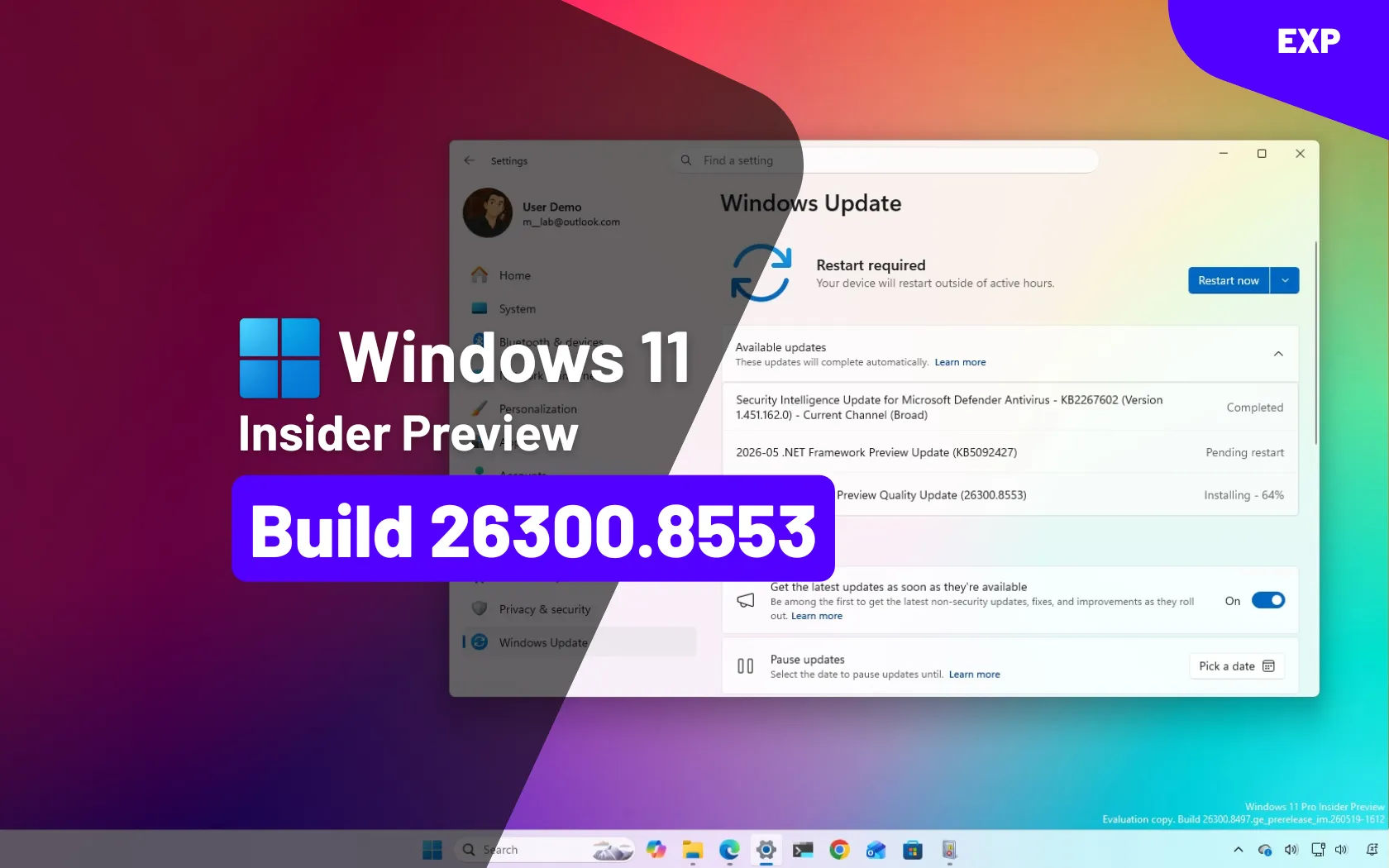
  6. Related coverage: smhn.info
  1. Related coverage: libraryfreedom.org
  2. Related coverage: partner.zetron.com
  3. Official source: download.microsoft.com

 

Microsoft is testing a hidden Windows 11 Settings control in Insider Preview Build 26300.8553 that appears to let users uninstall individual AI components or models from the operating system, according to reports published after testers found the option in early June 2026. The important word is appears, because Microsoft has not yet announced the feature in its official release notes. But even as an unadvertised experiment, the button says something larger about where Windows is heading. Microsoft is no longer merely adding AI to Windows; it is beginning to design escape hatches for users who do not want all of it.

Windows Settings page showing “AI components” with installed models and storage usage details.The Uninstall Button Is Small, but the Retreat Is Not​

The reported change lives in the least glamorous corner of Windows: Settings, under System, in an AI components area that most mainstream users have probably never opened. That is exactly why it matters. Microsoft tends to reveal its operating-system politics not in keynote demos, but in the quiet taxonomy of Settings pages, Group Policy entries, and toggles that say what the company considers optional.
The new subpages reportedly expose individual AI models or components and pair them with an uninstall button. That is a different posture from the familiar Microsoft pattern of giving users a visibility toggle while keeping the plumbing in place. Hiding Copilot from the taskbar was cosmetic. Removing a model package, if that is what this ultimately does, is architectural.
There is no evidence yet that this is a finished consumer feature. Insider builds are not promises, hidden features can vanish, and Microsoft’s public changelog for the build focused elsewhere. But Windows watchers have learned to take hidden Settings work seriously, because these experiments often reveal internal debates before marketing has settled on the language.
The larger story is that Microsoft seems to be learning that AI cannot be treated like wallpaper. A desktop operating system is not a web app where the vendor can keep rearranging the landing page and assume users will adapt. Windows sits between people and their files, credentials, workloads, battery life, storage, compliance rules, and patience. When AI features appear there, users ask harder questions.

Windows Users Have Always Known the Difference Between Features and Cargo​

The term “AI bloat” is imprecise, but it has stuck because it captures a real user experience. Many Windows 11 users did not ask for an expanding cast of assistants, agents, recall systems, context-menu actions, cloud-connected prompts, and model packages. They turned on a PC and found Microsoft increasingly eager to intermediate ordinary tasks through AI.
That does not mean every AI feature is useless. Local models can make search more forgiving, accessibility tools more capable, image editing faster, and system help less dependent on exact keywords. The problem is not that Windows contains AI; it is that Windows has often failed to make a clean distinction between useful capability and vendor ambition.
A button that uninstalls AI components would make that distinction more legible. It would tell users that some of these pieces are packages, not sacred organs. It would acknowledge that an operating system can offer intelligence without requiring everyone to carry every model, every integration, and every branded pathway.
This is especially important on new PCs, where the first-run experience has become a negotiation over defaults. A user who buys a laptop for school, gaming, accounting, field work, or development may not see local AI models as value. They may see them as occupied disk space, unexplained background complexity, or another Microsoft surface competing for attention.

The Storage Argument Is Really a Trust Argument​

Reports around the feature have naturally emphasized disk space. That is understandable, because local AI models can be large, and storage pressure remains real on budget laptops and compact business machines. A few gigabytes here and there matters when a device ships with a modest SSD and a recovery partition, update cache, OneDrive sync folder, and OEM utilities already eating into usable capacity.
But the storage angle understates the stakes. Users are not only asking whether an AI component consumes space. They are asking what it does, when it runs, what data it touches, whether it talks to the cloud, and whether removing it will break some future Windows feature. The uninstall button is meaningful because it turns an opaque system ingredient into something the user can make a decision about.
Microsoft has spent years telling users that Windows is a service. That framing helps explain frequent updates, cloud-linked accounts, and evolving features, but it also weakens the old expectation that a purchased PC is a stable appliance under the owner’s control. AI makes that tension sharper because it carries heavier implications than a weather widget or a redesigned Start menu.
If Microsoft wants users to accept AI in Windows, it has to make refusal boring. Not dramatic. Not registry-deep. Not dependent on third-party debloat scripts. Boring refusal means a visible setting, a plain description, a reversible action, and no punishment for saying no.

Insider Builds Are Where Microsoft Tests Product Philosophy​

Build 26300.8553 is an experimental Windows 11 build, and experimental builds are full of caveats. Features may be hidden behind flags. Screens may exist before backend behavior is complete. UI strings can appear months before they become real, and sometimes they are abandoned entirely.
Still, Microsoft’s Insider channels have become a live map of Windows strategy. The company tries interface ideas, measures telemetry, watches enthusiast reaction, and quietly decides which concepts are worth hardening. The fact that AI component uninstallation is being explored in Settings suggests that Microsoft is considering more granular management of AI payloads, even if the final shape changes.
That granularity matters because Windows AI is no longer a single thing. There is Copilot as an app. There are Copilot-branded experiences attached to Microsoft 365. There are AI actions in File Explorer and context menus. There are local models for semantic search and device-side inference. There are privacy-sensitive features like Recall on supported Copilot+ PCs. There are settings agents intended to translate natural language into system changes.
Lumping all of that under “AI” is convenient for marketing, but terrible for administration. A home user may want image-generation tools gone but keep accessibility improvements. A business may allow local semantic search but block cloud assistants. A school may want no generative AI entry points at all. An uninstall button per component begins to resemble the management model Windows should have had from the start.

Copilot Taught Microsoft That Presence Is Not Adoption​

Microsoft pushed Copilot hard because it saw a strategic opening: if AI assistants become the next application layer, Windows cannot afford to be merely the place where competing assistants run. The company wanted Copilot to be visible, available, and normalized. That explains the taskbar button, the keyboard key on new hardware, the sidebar experiments, and the steady branding creep across Microsoft products.
But visibility is not the same as adoption. A button users ignore becomes visual debt. A feature users disable becomes an argument against the next feature. Worse, an assistant that feels imposed can poison genuinely useful AI work elsewhere in the system.
The reported uninstall control reads like a correction to that overreach. Microsoft is not abandoning AI in Windows; that would be implausible, given the company’s investments and the industry’s direction. It is instead inching toward a more defensible model: install the parts that deliver value, expose them clearly, and let users remove the parts they do not trust or need.
This is how mature platforms absorb controversial capabilities. They stop pretending every new layer is universal. They add controls, policies, and packaging boundaries. They allow enthusiasts to opt out without turning every update cycle into a cat-and-mouse game.

Enterprise IT Will Care Less About the Button Than the Boundary​

For administrators, the existence of an uninstall button is less interesting than what sits behind it. If AI components become separable packages, they can potentially be inventoried, removed, blocked, staged, or audited. If they remain tangled into the OS image, a Settings button may be little more than theater.
Enterprise IT has specific worries that consumer coverage often compresses into “privacy.” Admins need to know whether AI components are per-user or per-machine, whether removal survives feature updates, whether dependencies reappear through cumulative updates, whether policies can enforce the state, and whether logs clearly show what changed. They also need to know whether a component is local-only or connected to Microsoft services.
The ideal outcome would be a Windows AI management model that looks boringly familiar. Components should have package identities. Policies should be documented. Removal should be scriptable. Servicing behavior should be predictable. Microsoft should describe what each component does in terms that a compliance team can understand, not merely in product adjectives.
That is not just an enterprise courtesy. It is how Microsoft avoids turning AI into the next long-running Windows trust dispute. Windows administrators have seen bundled browsers, consumer apps, telemetry settings, cloud account nudges, Teams integrations, and Start menu promotions come and go. They will not simply accept “AI” as a magic category exempt from normal governance.

The Consumer Version of Control Must Be Simpler Than the Admin Version​

The danger is that Microsoft solves this only for managed fleets. Group Policy, Intune settings, provisioning packages, and registry values are important, but they do not help the ordinary user staring at a new PC with limited storage and a growing list of unfamiliar AI surfaces. Consumer Windows needs plain controls too.
That does not mean every system component should be removable by casual clicking. Windows has dependencies, and Microsoft is right to avoid turning Settings into a self-destruct panel. But AI components are unusual because many of them are value-added experiences rather than core compatibility layers. If a model enables semantic search, Windows can explain that consequence. If an assistant powers suggested settings changes, Windows can say so before removal.
The key is specificity. “AI components” is not enough. Users need names, sizes, descriptions, and effects. They need to know whether uninstalling a component disables a feature, removes a model, stops background updates, or simply hides a UI entry. The more precise Microsoft is, the less the feature looks like an admission of guilt and the more it looks like competent platform design.
There is also a psychological benefit. Users who know they can remove something are often less hostile to trying it. Forced permanence turns optional software into a threat. Reversibility turns it into an experiment.

The AI PC Story Needs a User-Control Chapter​

Microsoft and its hardware partners have spent the past two years trying to make the AI PC feel inevitable. Neural processing units, Copilot+ branding, on-device models, and AI-enhanced workflows are now part of the premium PC sales pitch. The problem is that inevitability is not the same as desire.
Many buyers still evaluate PCs by battery life, keyboard quality, display, thermals, repairability, price, and whether Windows stays out of the way. AI features may eventually become as ordinary as GPU acceleration, but they are not there yet. They remain politically and practically charged because they are associated with surveillance fears, subscription upsell, cloud dependence, and unwanted interface churn.
That is why an uninstall button is not anti-AI. It may be the thing that makes AI in Windows more acceptable. A platform that lets users prune AI components is making a claim that its AI can stand on merit. A platform that hides removal behind unsupported tools is making the opposite claim.
The best version of Windows AI is modular. A gamer should not need the same AI footprint as a legal office. A developer workstation should not inherit every consumer assistant. A classroom laptop should be able to run with a locked-down configuration. A Copilot+ PC should be able to showcase local intelligence without making every feature feel mandatory.

Microsoft Has Been Here Before, and the Pattern Is Familiar​

Windows history is full of features that arrived as strategy and later became settings. Internet Explorer, Cortana, OneDrive integration, Teams chat, widgets, recommended content, search highlights, and promoted Start menu experiences all followed some version of this arc. Microsoft inserts a service layer, users and regulators push back, administrators demand controls, and eventually the company redraws the boundary between Windows and the bundled experience.
AI is more complicated because it is not one application. It is a capability layer that can attach to search, screenshots, file indexing, accessibility, shell commands, productivity apps, and the web. That makes the boundary harder to draw, but not impossible. In fact, it makes the boundary more necessary.
The reported Settings work suggests Microsoft may be moving from the “AI everywhere” phase to the “AI where it is justified” phase. That would be a healthier posture. The operating system should not be a billboard for the company’s strategic anxieties. It should be a platform that earns trust through clarity, performance, and restraint.
Restraint is not a fashionable word in AI product planning, but it is a valuable one in operating systems. Windows succeeds when it feels dependable. It fails when users suspect that every update is a delivery vehicle for someone else’s priorities.

The Real Test Will Be What Happens After Removal​

If this feature ships, the first wave of coverage will likely be simple: here is where the button is, here is what it removes, here is how much space you get back. That will be useful, but it will not answer the deeper question. The real test is whether removal is durable.
Windows has a habit of reintroducing components through major updates, feature enablement packages, inbox app refreshes, or Microsoft Store updates. A user removes something in June and sees it return in October. An admin strips a component from an image and finds it back after an upgrade. That pattern is what turns inconvenience into distrust.
For AI components, durability is essential. If a user uninstalls a local model, Windows should not silently restore it because a new search feature wants it. If Microsoft believes the model is necessary for a new capability, it should ask, explain, or provide policy-controlled behavior. Anything else will make the uninstall button feel performative.
There is also the question of dependencies. If one component supports multiple features, Microsoft needs to show that relationship. Removing a model might affect search, suggestions, or accessibility behavior. That is acceptable if the user is told. It is not acceptable if Windows quietly degrades and then leaves the user to troubleshoot.

A Better Settings Page Could Change the Tone of the Debate​

Imagine a Windows Settings page that treats AI the way a serious platform should. It lists installed AI components, their sizes, whether they run locally or use cloud services, what features depend on them, when they were last updated, and whether an administrator manages them. It offers uninstall, disable, repair, and reinstall where appropriate. It links privacy controls to the components that actually use them.
That would not satisfy every critic. Some users do not want Microsoft AI anywhere near the OS. Some administrators will still prefer image-level removal and strict policy enforcement. But it would move the debate out of the realm of suspicion and into the realm of configuration.
Right now, much of the frustration around Windows AI comes from diffusion. Controls are scattered. Branding overlaps. Copilot means different things in different places. A cloud assistant, a Microsoft 365 hub, a local model, and a shell integration can all appear to users as part of the same fog. A coherent AI components page would clear some of that fog.
The hidden uninstall button may be an early gesture toward that coherence. Or it may be a half-finished experiment that never ships. Either way, it points to the feature Windows needs if Microsoft intends to keep weaving AI into the OS.

The Button Microsoft Did Not Announce Says the Most​

For now, the reported AI uninstall control should be treated as a preview-build finding, not a production guarantee. It was not highlighted in Microsoft’s official notes for the build. It may require hidden feature IDs. It may change names, move locations, or disappear before ordinary users ever see it.
But Microsoft’s silence is part of the story. The company is happy to announce AI features when they demonstrate ambition. It is more cautious when the feature is about removal, retreat, or user refusal. That asymmetry reveals the tension inside Windows: Microsoft wants AI to be a selling point, while many users want it to be a choice.
A good operating system can survive that tension. It can ship ambitious features without pretending every user has the same appetite. It can promote new capabilities without making the opt-out path feel like sabotage. It can integrate AI deeply where it helps, and modularize it where it does not.
If Microsoft gets this right, the uninstall button will not be remembered as an anti-AI concession. It will be remembered as the moment Windows AI started growing up.

The Practical Reading for Windows 11 Users Right Now​

This is not yet a reason to reinstall Windows, join an Insider channel, or start ripping packages out of a production machine. It is a signpost. Microsoft is experimenting with a control that many users and administrators have been asking for in spirit, even if not always in the exact language of “AI components.”
The concrete takeaways are narrow but important:
  • The reported uninstall button is tied to an experimental Windows 11 Insider build, not a broadly available stable release.
  • Microsoft has not publicly committed to shipping this specific AI component removal interface.
  • The feature appears aimed at individual AI components or models, which would be more granular than simply hiding Copilot or removing a visible app.
  • Storage savings may be useful, but transparency, privacy confidence, and administrative control are the bigger stakes.
  • The value of the feature will depend on whether removal is documented, durable across updates, and manageable through enterprise tools.
  • Windows users should wait for official release notes or stable-channel confirmation before treating this as a supported cleanup method.
The quiet appearance of an uninstall button will not settle the argument over AI in Windows 11, but it does change the terms of that argument. Microsoft can keep insisting that AI is central to the future of the PC, and it may be right. But the future of the PC still has to leave room for the owner of the PC, and the next phase of Windows AI will be judged less by how loudly Microsoft promotes it than by how cleanly users can say no.

References​

  1. Primary source: PCWorld
    Published: Wed, 03 Jun 2026 15:28:00 GMT
  2. Official source: learn.microsoft.com
  3. Related coverage: windowscentral.com
  4. Related coverage: notebookcheck.net
  5. Related coverage: techcrunch.com
  6. Related coverage: pureinfotech.com
  1. Related coverage: techspot.com
  2. Related coverage: tomshardware.com
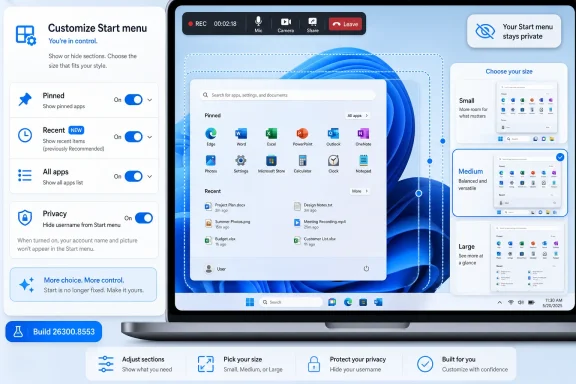
  3. Related coverage: techradar.com
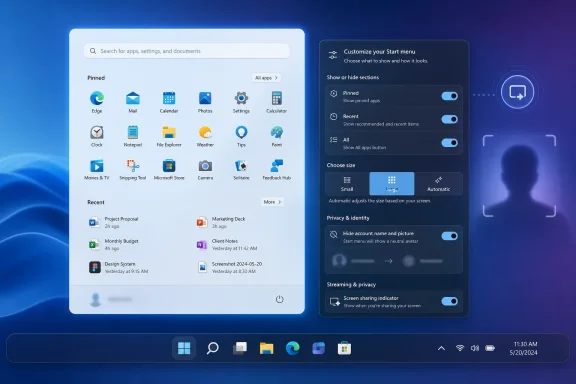
  4. Related coverage: windowsforum.com
  5. Related coverage: ddxgroup.com
  6. Related coverage: libraryfreedom.org
  7. Related coverage: welcomehomevetsofnj.org
 

Back
Top