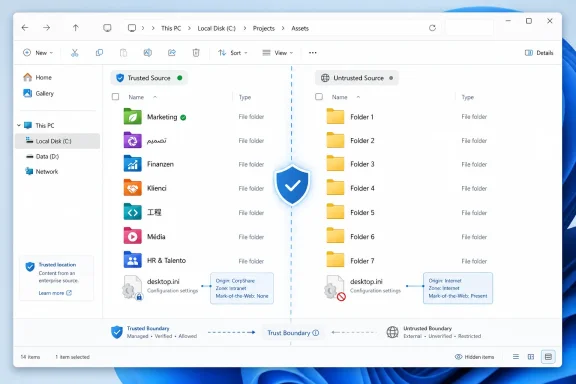
Microsoft’s June 9, 2026 Windows security updates, including KB5094126 for Windows 11 24H2 and 25H2 and KB5093998 for Windows 11 23H2, changed how File Explorer handles desktop.ini folder customizations from sources Windows does not trust. The result is not data loss, and it is not a broken Explorer shell. It is Microsoft drawing a harder line between cosmetic convenience and an old, quiet attack surface that most users never knew existed. For administrators, the lesson is blunt: if a folder’s identity depends on a hidden configuration file from a remote or internet-marked source, Windows may now refuse to play along.
Desktop.ini has always been one of those Windows details that feels too small to matter until it suddenly does. It is a hidden configuration file that lets Windows give folders custom icons, localized display names, and other Explorer presentation behavior. In ordinary use, it is why a folder can appear with a friendly translated name or a branded icon even though the underlying file system name remains more prosaic.
The June 2026 security updates change the assumption behind that convenience. Starting with updates released on or after June 9, Windows now ignores certain desktop.ini files when it cannot establish that the file’s source is trusted. When that happens, File Explorer behaves as though the desktop.ini file simply is not there.
That means a folder may still open, files may still be present, permissions may still work, and the underlying directory may still be healthy. What disappears is the presentation layer: the custom icon, the localized folder name, or the display treatment that made the folder look managed, branded, or user-friendly.
This is why the change is easy to underestimate. Nobody’s documents vanish because of it. But in managed Windows environments, the visual layer often carries operational meaning. A folder icon can signal a department share, a published application directory, a training library, or a localized system folder. When that signal disappears, users do not see “security hardening.” They see “something broke.”
Microsoft’s June change treats desktop.ini as something closer to active content than passive metadata. That is the right mental model. A file that is automatically parsed by the shell, used to pull icons or localized strings, and processed simply because a user browses into a directory is not just a decoration. It is part of the code path between untrusted content and the Windows user session.
The company’s support note frames the behavior as expected, not as a known issue. That distinction matters. This is not a temporary regression that administrators should assume will quietly disappear in July. It is a new default security posture, and Microsoft is providing workarounds because compatibility still matters, not because it believes the previous behavior was safer.
The change also lands in a Patch Tuesday month already crowded with security fixes. June 2026 brought roughly 200 Microsoft vulnerability fixes, depending on how third-party republished CVEs are counted, and several publicly disclosed zero-days were part of the conversation around the release. Against that background, a desktop.ini hardening note looks minor. Strategically, it is not minor at all.
If a desktop.ini file arrives with MotW, Windows may treat it as coming from an untrusted source and decline to apply its folder customizations. That can happen when content is downloaded directly, extracted from a downloaded archive that preserves zone information, or moved through workflows that keep internet-origin metadata intact.
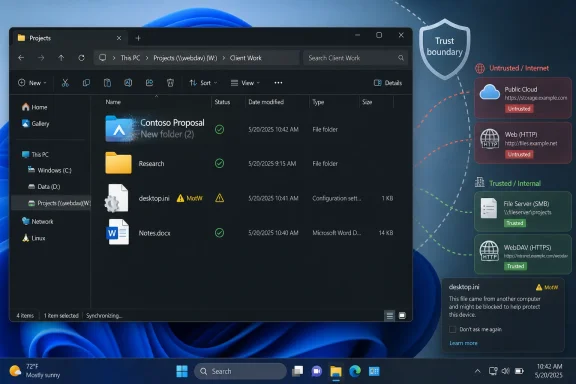
This is not the only affected path. Microsoft also calls out files copied from certain remote locations, including some WebDAV or HTTP-based locations, and network paths that are not classified as intranet or trusted by Windows zone policy. In other words, this is not simply a “downloaded from Edge” story. It is a broader zone-classification story.
That puts the burden back where Microsoft increasingly wants it: on explicit trust configuration. If an organization wants Windows to treat a remote location as safe enough to provide shell customization data, it should classify that location accordingly. The default is moving away from “it worked before” and toward “prove this source belongs inside the trust boundary.”
Enterprise environments are where this gets more interesting. Shared folders are often curated more heavily than outsiders realize. IT departments and line-of-business teams use folder icons, display names, and localized resources to make large network hierarchies navigable. A finance share might use an icon that distinguishes it from a project archive. A multilingual environment might rely on localized display names so users do not have to interpret internal English directory names.
The problem is not that the folders stop working. The problem is that Windows can make a managed structure look unmanaged. Help desks will hear reports that shared folders “changed,” “lost their labels,” or “look wrong” after the June updates. The actual fix may involve zone policy and trust classification, but the user-facing symptom is cosmetic enough to be dismissed until it becomes a support pattern.
This is precisely the sort of change that punishes informal infrastructure. If a company’s network shares are correctly classified as intranet or trusted through policy, there may be little disruption. If teams have built ad hoc WebDAV repositories, HTTP-exposed document stores, or remote paths outside clean zone governance, June’s update may expose that mess in the Explorer UI.
That recommendation is not glamorous, but it is sound. It forces administrators to distinguish between “this source is ours” and “we want the old behavior everywhere.” In security terms, that distinction is everything.
There is also a Group Policy option: “Allow the use of remote paths in file shortcut icons.” Enabling it restores the pre-June 2026 behavior for affected remote or untrusted scenarios. That is the compatibility lever for organizations that cannot quickly reclassify sources or untangle legacy folder customization workflows.
But broad opt-outs should be treated as temporary debt, not a fix. Restoring old behavior may be convenient, especially when a help desk is flooded with cosmetic complaints, but it also weakens the hardening Microsoft just introduced. If the point of the change is to prevent untrusted remote customization content from being processed automatically, telling Windows to broadly trust that content again is a retreat.
Operationally, it is easy to misuse. Removing MotW is not a cosmetic repair; it strips a security signal. That may be perfectly reasonable for a desktop.ini file staged by IT from a verified internal package. It is much harder to justify as a blanket action against a pile of downloaded archives, user-submitted content, or loosely governed shared folders.
The better pattern is to decide whether the source should be trusted, not whether the symptom is irritating. If the source is a managed repository, classify it properly. If the file is a one-off from a trusted internal package, unblock it deliberately. If nobody can explain where the desktop.ini came from, Windows ignoring it is probably doing exactly what it should.
This is where Windows administration has quietly become less about toggles and more about provenance. The old question was “how do I make Explorer show the right icon?” The new question is “why should Explorer trust this hidden file in the first place?”
The tradeoff is that Windows still carries decades of behaviors designed for a more trusting computing environment. Desktop.ini is not some exotic enterprise extension. It is part of the ordinary shell. That makes hardening difficult because every security improvement risks breaking workflows that were never documented as workflows in the first place.
There is also a communication problem. A security update that changes visual behavior in File Explorer will feel like a bug to many users. The absence of a custom icon is not obviously related to internet zone metadata. A localized folder name falling back to its real directory name does not scream “trust classification.” It screams “the update changed my folders.”
That gap between cause and symptom is where administrators need to get ahead of the story. If your organization uses customized network folders, June’s update should trigger a quick audit: where do those desktop.ini files live, how are they distributed, and does Windows classify those locations as trusted?
Desktop.ini is less powerful than many shell extension mechanisms, but the principle is the same. If untrusted content can influence what Explorer loads or how it resolves resources, it belongs in a threat model. Attackers do not need every primitive to be spectacular. They need enough small, reliable behaviors to chain into something useful.
Microsoft’s support article does not claim that every desktop.ini file is dangerous. It says Windows will ignore desktop.ini when it cannot establish trust. That is a more measured position. Trusted local and managed sources continue to work. Unknown remote or internet-marked sources are treated with suspicion.
That is the right direction for a platform that must serve home users, schools, hospitals, manufacturers, governments, and sysadmins still nursing file-share conventions from the Windows 7 era. The hard part is not the security logic. The hard part is the installed base.
 Microsoft Turns a Cosmetic File Into a Trust Boundary
Desktop.ini has always been one of those Windows details that feels too small to matter until it suddenly does. It is a hidden configuration file that lets Windows give folders custom icons, localized display names, and other Explorer presentation behavior. In ordinary use, it is why a folder can appear with a friendly translated name or a branded icon even though the underlying file system name remains more prosaic.The June 2026 security updates change the assumption behind that convenience. Starting with updates released on or after June 9, Windows now ignores certain desktop.ini files when it cannot establish that the file’s source is trusted. When that happens, File Explorer behaves as though the desktop.ini file simply is not there.
That means a folder may still open, files may still be present, permissions may still work, and the underlying directory may still be healthy. What disappears is the presentation layer: the custom icon, the localized folder name, or the display treatment that made the folder look managed, branded, or user-friendly.
This is why the change is easy to underestimate. Nobody’s documents vanish because of it. But in managed Windows environments, the visual layer often carries operational meaning. A folder icon can signal a department share, a published application directory, a training library, or a localized system folder. When that signal disappears, users do not see “security hardening.” They see “something broke.”
The Old Explorer Contract Was Too Trusting
The old behavior reflected a long-standing Windows bargain: the shell would read desktop.ini automatically and use it to decorate the user interface. That made sense in a world where most customized folders lived on local disks or tightly managed corporate shares. It makes less sense in a world where files constantly arrive from browsers, sync clients, remote WebDAV locations, collaboration systems, and loosely classified network paths.Microsoft’s June change treats desktop.ini as something closer to active content than passive metadata. That is the right mental model. A file that is automatically parsed by the shell, used to pull icons or localized strings, and processed simply because a user browses into a directory is not just a decoration. It is part of the code path between untrusted content and the Windows user session.
The company’s support note frames the behavior as expected, not as a known issue. That distinction matters. This is not a temporary regression that administrators should assume will quietly disappear in July. It is a new default security posture, and Microsoft is providing workarounds because compatibility still matters, not because it believes the previous behavior was safer.
The change also lands in a Patch Tuesday month already crowded with security fixes. June 2026 brought roughly 200 Microsoft vulnerability fixes, depending on how third-party republished CVEs are counted, and several publicly disclosed zero-days were part of the conversation around the release. Against that background, a desktop.ini hardening note looks minor. Strategically, it is not minor at all.
Mark-of-the-Web Comes for Folder Polish
The most familiar trigger is Mark-of-the-Web, the zone metadata Windows attaches to many files downloaded from the internet. For years, MotW has been central to SmartScreen prompts, Office Protected View behavior, archive extraction debates, and script-blocking decisions. Now it is also part of the trust story for folder presentation.If a desktop.ini file arrives with MotW, Windows may treat it as coming from an untrusted source and decline to apply its folder customizations. That can happen when content is downloaded directly, extracted from a downloaded archive that preserves zone information, or moved through workflows that keep internet-origin metadata intact.
This is not the only affected path. Microsoft also calls out files copied from certain remote locations, including some WebDAV or HTTP-based locations, and network paths that are not classified as intranet or trusted by Windows zone policy. In other words, this is not simply a “downloaded from Edge” story. It is a broader zone-classification story.
That puts the burden back where Microsoft increasingly wants it: on explicit trust configuration. If an organization wants Windows to treat a remote location as safe enough to provide shell customization data, it should classify that location accordingly. The default is moving away from “it worked before” and toward “prove this source belongs inside the trust boundary.”
The Enterprise Blast Radius Is Narrow but Annoying
For most home users, the impact will be close to invisible. A custom folder icon from an old theme pack may disappear. A downloaded folder template may look generic. A localized display name may fall back to the directory’s real name. Annoying, yes, but rarely business-critical.Enterprise environments are where this gets more interesting. Shared folders are often curated more heavily than outsiders realize. IT departments and line-of-business teams use folder icons, display names, and localized resources to make large network hierarchies navigable. A finance share might use an icon that distinguishes it from a project archive. A multilingual environment might rely on localized display names so users do not have to interpret internal English directory names.
The problem is not that the folders stop working. The problem is that Windows can make a managed structure look unmanaged. Help desks will hear reports that shared folders “changed,” “lost their labels,” or “look wrong” after the June updates. The actual fix may involve zone policy and trust classification, but the user-facing symptom is cosmetic enough to be dismissed until it becomes a support pattern.
This is precisely the sort of change that punishes informal infrastructure. If a company’s network shares are correctly classified as intranet or trusted through policy, there may be little disruption. If teams have built ad hoc WebDAV repositories, HTTP-exposed document stores, or remote paths outside clean zone governance, June’s update may expose that mess in the Explorer UI.
Microsoft Offers an Escape Hatch, but It Is the Wrong Default
Microsoft’s preferred mitigation is narrow trust. If affected content lives on a known internal or managed source, administrators should add that source to Trusted Sites so Windows continues processing desktop.ini customizations from that location. That keeps the hardening in place for unknown or internet-origin sources while restoring expected behavior for controlled infrastructure.That recommendation is not glamorous, but it is sound. It forces administrators to distinguish between “this source is ours” and “we want the old behavior everywhere.” In security terms, that distinction is everything.
There is also a Group Policy option: “Allow the use of remote paths in file shortcut icons.” Enabling it restores the pre-June 2026 behavior for affected remote or untrusted scenarios. That is the compatibility lever for organizations that cannot quickly reclassify sources or untangle legacy folder customization workflows.
But broad opt-outs should be treated as temporary debt, not a fix. Restoring old behavior may be convenient, especially when a help desk is flooded with cosmetic complaints, but it also weakens the hardening Microsoft just introduced. If the point of the change is to prevent untrusted remote customization content from being processed automatically, telling Windows to broadly trust that content again is a retreat.
Unblocking Files Is a Scalpel, Not a Broom
Microsoft also points to removing Mark-of-the-Web from trusted desktop.ini files as a possible workaround. In PowerShell, that means using Unblock-File against a specific desktop.ini or recursively against desktop.ini files under a known folder path. Technically, this can restore the expected folder presentation.Operationally, it is easy to misuse. Removing MotW is not a cosmetic repair; it strips a security signal. That may be perfectly reasonable for a desktop.ini file staged by IT from a verified internal package. It is much harder to justify as a blanket action against a pile of downloaded archives, user-submitted content, or loosely governed shared folders.
The better pattern is to decide whether the source should be trusted, not whether the symptom is irritating. If the source is a managed repository, classify it properly. If the file is a one-off from a trusted internal package, unblock it deliberately. If nobody can explain where the desktop.ini came from, Windows ignoring it is probably doing exactly what it should.
This is where Windows administration has quietly become less about toggles and more about provenance. The old question was “how do I make Explorer show the right icon?” The new question is “why should Explorer trust this hidden file in the first place?”
A Small Change With a Familiar Microsoft Tradeoff
Microsoft has been steadily moving Windows toward stricter defaults around files from the internet, remote content, macros, scripts, and shell-adjacent behavior. The June desktop.ini change fits that arc. It is another case where compatibility yields to a security model that assumes untrusted content will eventually be weaponized.The tradeoff is that Windows still carries decades of behaviors designed for a more trusting computing environment. Desktop.ini is not some exotic enterprise extension. It is part of the ordinary shell. That makes hardening difficult because every security improvement risks breaking workflows that were never documented as workflows in the first place.
There is also a communication problem. A security update that changes visual behavior in File Explorer will feel like a bug to many users. The absence of a custom icon is not obviously related to internet zone metadata. A localized folder name falling back to its real directory name does not scream “trust classification.” It screams “the update changed my folders.”
That gap between cause and symptom is where administrators need to get ahead of the story. If your organization uses customized network folders, June’s update should trigger a quick audit: where do those desktop.ini files live, how are they distributed, and does Windows classify those locations as trusted?
The Explorer Shell Is Still an Attack Surface
It is tempting to roll one’s eyes at security hardening around folder icons. That temptation should be resisted. The Windows shell has always been a rich attack surface because it automatically interprets so many file types, metadata formats, preview handlers, icon handlers, property sheets, and extension points. Anything that runs because a user browses a folder deserves scrutiny.Desktop.ini is less powerful than many shell extension mechanisms, but the principle is the same. If untrusted content can influence what Explorer loads or how it resolves resources, it belongs in a threat model. Attackers do not need every primitive to be spectacular. They need enough small, reliable behaviors to chain into something useful.
Microsoft’s support article does not claim that every desktop.ini file is dangerous. It says Windows will ignore desktop.ini when it cannot establish trust. That is a more measured position. Trusted local and managed sources continue to work. Unknown remote or internet-marked sources are treated with suspicion.
That is the right direction for a platform that must serve home users, schools, hospitals, manufacturers, governments, and sysadmins still nursing file-share conventions from the Windows 7 era. The hard part is not the security logic. The hard part is the installed base.
The June Patch Quietly Makes Folder Branding a Governance Problem
This update’s real message is that folder customization is no longer just a UX preference. It is now tied to Windows’ broader source-trust model, and that makes it part of endpoint governance.- Windows now ignores some desktop.ini files when their source cannot be established as trusted.
- The visible symptoms are missing custom folder icons, missing localized display names, or folders reverting to their underlying file system names.
- The change affects presentation only and does not block access to the folder or its contents.
- The most likely pain points are downloaded content, WebDAV or HTTP-based locations, and network paths not classified as intranet or trusted by policy.
- Microsoft’s preferred remediation is to trust known internal sources narrowly, not to restore legacy behavior everywhere.
- The Group Policy escape hatch should be treated as a compatibility bridge rather than a permanent security posture.
References
- Primary source: Windows Report
Published: 2026-06-11T07:10:12.521253

KB5094126 and KB5093998 Introduce New Desktop.ini Security Restrictions in Windows
Microsoft confirmed that June 2026 Windows updates now block some desktop.ini folder customizations from untrusted sources. windowsreport.com