

On April 30, 2026, Microsoft released KB5083631, a preview update for Windows 11 builds 26200.8328 and 26100.8328 that brings Xbox mode to PCs, expands File Explorer archive support, adds taskbar agent monitoring, tightens driver trust, and improves reliability across input, storage, printing, Windows Hello, and startup performance. This is not a sleepy optional update with a grab bag of fixes. It is Microsoft’s latest attempt to turn Windows 11 into a platform that can be a console, an AI host, an enterprise-managed endpoint, and a more locked-down security boundary without admitting those goals often pull in different directions. KB5083631 is small only if you measure Windows by patch size rather than strategic intent.
Preview updates are supposed to be the quiet part of Windows servicing. They arrive outside Patch Tuesday, give administrators time to test non-security changes, and let enthusiasts see what Microsoft plans to fold into the next cumulative update. KB5083631, however, reads less like a maintenance release and more like a public map of where Windows 11 is going.
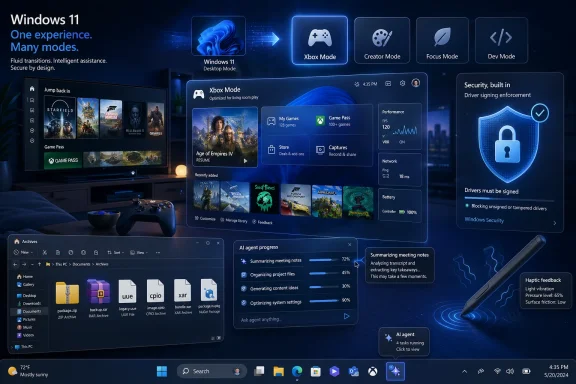
The headline feature is Xbox mode, a full-screen, controller-first interface available on Windows 11 PCs, including laptops, desktops, and tablets. Microsoft says users can enter it from the Xbox app, Game Bar settings, or by pressing Windows logo key + F11. That shortcut alone is revealing: this is not a buried experiment for handhelds anymore, but a first-class shell-adjacent experience Microsoft wants users to summon on ordinary PCs.
Yet gaming is only one thread. The same update adds taskbar progress integration for AI agents, expands enterprise controls for app removal and state roaming, changes kernel-driver trust assumptions, and gives administrators a new way to harden batch-file execution. In other words, Microsoft is using one Windows 11 preview release to tell consumers, developers, gamers, and IT departments that the operating system is being rebuilt around four ideas: full-screen experiences, AI work delegation, tighter platform security, and continuous feature delivery.
That mix is precisely what makes the update interesting. KB5083631 is not just “more stuff.” It is Windows becoming more opinionated about how people should use PCs.
That sounds simple, but it attacks one of Windows gaming’s oldest weaknesses. Windows is unbeatable when measured by compatibility, storefront choice, peripheral support, modding, and performance tuning. It is much less convincing when treated as an appliance. A console wakes, updates, navigates, and launches with a predictable rhythm; a Windows PC may need a mouse cursor, a launcher login, a GPU overlay, a notification dismissal, a focus fix, and an argument with an audio output before anyone reaches the game.
Valve understood that problem years ago with Steam Big Picture and later SteamOS on Steam Deck. Microsoft’s answer has arrived more slowly and with more baggage because Windows cannot simply become a console shell without risking the openness that makes PC gaming valuable in the first place. Xbox mode, then, is not the death of the desktop. It is Microsoft trying to create a temporary console illusion on top of the most sprawling consumer operating system in the world.
The timing matters. Microsoft has spent the past several years dissolving the borders between Xbox and Windows: Game Pass, Xbox Play Anywhere, cloud saves, cross-buy titles, PC Game Pass, and handheld gaming partnerships all point in the same direction. Xbox mode is the interface layer that makes that strategy visible to ordinary users. It tells them the Windows PC in the den can behave more like the Xbox under the television, at least long enough to make the controller feel like the primary input device.
But the risk is also obvious. If Xbox mode is merely a full-screen Xbox app with better controller navigation, players will judge it against Steam Big Picture, Playnite, handheld launchers, and the actual Xbox dashboard. If it meaningfully reduces background noise, improves focus, and makes app switching less painful, it becomes something more important: Microsoft’s first credible attempt to make Windows comfortable in the console’s physical territory.
A successful Xbox mode has to do more than frame cover art attractively. It has to respect controller input everywhere it claims to operate. It has to avoid dumping users back to desktop dialog boxes. It has to handle game launchers gracefully. It has to suppress the wrong notifications without hiding the right ones. It has to understand that the living-room PC is often connected to a television, multiple audio devices, wireless controllers, and a user who does not want to cross the room to click “OK.”
Microsoft’s description says Xbox mode minimizes background distractions. That phrase will invite scrutiny because Windows users know exactly what distractions look like: update prompts, account nags, Teams pop-ups, driver utilities, store errors, cloud sync messages, and random focus theft. If Xbox mode can corral even part of that chaos, it will deserve attention. If it only paints over it, enthusiasts will dismiss it as another shell costume.
The better interpretation is that Microsoft is taking a staged approach. First, ship a controller-first full-screen environment across Windows 11 PCs. Then tighten integration with Game Bar, the Xbox app, shader delivery, handheld profiles, and whatever future Xbox hardware strategy Microsoft is building. KB5083631 does not finish that project; it normalizes the idea that Windows can have a console posture without ceasing to be Windows.
That distinction matters for WindowsForum readers because the most interesting part of Xbox mode may not be the UI we see today. It is the precedent that Windows can now switch personas more aggressively depending on context. Desktop Windows, tablet Windows, gaming Windows, kiosk Windows, and AI-agent Windows are beginning to look less like separate product dreams and more like modes inside a single servicing pipeline.
This is not glamorous, but it is the sort of polish Windows users notice when it is absent. Archive handling has historically been one of those areas where Windows felt oddly under-equipped compared with the expectations of technical users. Third-party utilities are not going away, but the baseline matters. If Explorer can open more of what users encounter in the wild, Windows feels less brittle.
The same section includes several quality-of-life changes. View and sort preferences are now preserved in folders such as Downloads and Documents when apps launch File Explorer directly to those locations. That sounds minor until you remember how often Windows users have had folder views reset, reinterpreted, or rearranged by context. A file picker or app-triggered Explorer window should not make Downloads forget how you like to see Downloads.
Microsoft also says the update removes a white flash when opening This PC or resizing the Details pane in dark mode. This is the kind of fix that seems cosmetic until you live in dark mode all day and see the OS briefly blast your display with a white rectangle. It is not a strategic platform shift, but it is evidence that Microsoft still has plenty of basic fit-and-finish debt to pay down in Windows 11.
The Explorer reliability note may be more important than the visual tweaks. KB5083631 improves the reliability of relevant explorer.exe processes so they stop after closing File Explorer windows. Explorer remains both a file manager and a shell-adjacent piece of Windows plumbing, which means small reliability problems can look like system-wide sluggishness. If Microsoft wants users to accept more shell features, taskbar agents, trays, and full-screen modes, the old Explorer foundation has to behave.
The supported-device list begins with hardware such as Surface Slim Pen 2, ASUS Pen 3.0, and MSI Pen 2 with haptic feedback, while Microsoft says more compatible devices, including select mice such as Logitech MX Master 4, may become available as hardware partners release updates. That caveat is doing a lot of work. Haptics can make direct manipulation feel more precise, but only if the hardware ecosystem supports it consistently enough for users to remember it exists.
Still, the direction is sensible. Windows has long supported a chaotic range of input devices, but support is not the same as coherence. A pen, touchpad, mouse, keyboard, voice dictation session, and controller can all work on the same PC, yet Windows often treats them as parallel universes. Haptic signals are one small way to make input feel less abstract and more physical.
Voice typing also gets a redesign on the touch keyboard. Microsoft says the updated design removes the full-screen overlay and shows voice typing animations directly on the dictation key. That is a good change because dictation should reduce friction, not introduce a modal experience that feels bigger than the task. If the user is already composing text, the interface should confirm that listening is happening without stealing the room.
There are also fixes for Fluid Dictation persistence, emoji-panel keyboard navigation, ADLaM keyboard reliability, custom tools under Wheel settings, and the availability of the Arabic 101 Legacy keyboard layout. These are not features that will trend on social media. They are, however, reminders that Windows is global, multilingual, accessibility-adjacent infrastructure. The operating system’s credibility depends as much on these edge cases as on whatever new mode gets the marketing screenshot.
The naming shift is telling. “Drag Tray” described the gesture; “Drop Tray” describes the destination. Microsoft appears to be framing it less as a Nearby sharing feature and more as a multitasking affordance, which makes sense if the company wants drag-and-drop sharing to feel like part of window management rather than a special wireless transfer workflow.
The challenge is discoverability without annoyance. Windows has a long history of helpful surfaces that become irritating when they trigger unexpectedly. If Drop Tray appears when the user intends to move a window, select a browser tab, or interact with a title bar, it will be perceived as clutter no matter how clever it is. Shrinking the peek view is an admission that spatial UI has to be conservative near the top edge of the screen.
The broader theme is that Microsoft keeps trying to make Windows more fluid across apps, devices, and sharing targets. Some of those efforts stick; many fade into settings pages users never revisit. Drop Tray’s survival will depend on whether it becomes muscle memory or another accidental panel to dismiss.
This is a subtle but meaningful shift in how Microsoft imagines AI on Windows. The first wave of consumer AI integrations treated the assistant as a place: a chat box, a sidebar, a key on the keyboard, a panel in an app. Taskbar agents treat AI as background labor. You give the agent a job, go elsewhere, and expect the operating system to expose state, progress, and completion the way it might for a download, print job, or long-running export.
That is much closer to how AI becomes useful in daily work. A report-writing agent, data-analysis agent, file-sorting agent, or coding agent should not require the user to stare at a chat transcript while it thinks. If these systems are to be trusted with multi-step tasks, they need OS-level affordances: progress, cancellation, notifications, identity, and a reliable path back to the originating app.
The developer hook is the Windows.UI.Shell.Tasks API. That name matters because Microsoft is not merely hardcoding a Copilot trick into the taskbar. It is preparing a platform surface where apps can present agent work in a consistent Windows-native way. The first adopter being Microsoft 365 Copilot is predictable; the test will be whether credible third-party applications use it without turning the taskbar into a carnival of animated pseudo-workers.
There is a governance angle here too. Once agents become visible in the shell, users and administrators will need answers to basic questions. Which app started this task? What data is it using? Can it be paused? Can it be audited? Can it run when the device is locked, on battery, or outside a managed network? KB5083631 does not answer all of that, but it moves the AI conversation from novelty to operating-system responsibility.
The upside is obvious. Users should not have to babysit AI tasks. If Researcher is assembling a report, the taskbar is a natural place to show that something is happening and when it is done. This fits Windows’ existing mental model: long-running operations belong somewhere persistent but not intrusive.
The downside is that Microsoft’s recent history with Windows surfaces has not always been restrained. Widgets, Search highlights, Copilot entry points, recommended content, account prompts, and notification suggestions have trained many users to treat new shell features with suspicion. Even a genuinely useful agent monitor will have to prove it is there to represent user-initiated work, not to promote Microsoft’s preferred services.
For enterprises, this feature is both promising and alarming. The promise is better visibility into AI tasks that might otherwise run invisibly in application windows. The alarm is that agents blur the line between foreground user action and background automation. IT departments will want policy controls sooner rather than later, especially if third-party agents can use the same shell affordance.
This is why KB5083631 feels like a preview of an argument Microsoft will have with its customers over the next two years. Users want AI that does useful work without demanding attention. They do not want another layer of taskbar ambiguity. Microsoft has to make the distinction legible.
The update also expands policy-based removal of preinstalled Microsoft apps for Windows Enterprise and Education. Administrators can use the “Remove Default Microsoft Store packages” policy with a dynamic app removal list by specifying app package family names through Group Policy. The important limitation is that the dynamic list is not currently available in the Intune Settings Catalog, so validation must be done using Group Policy or custom OMA-URI.
That limitation will matter in the real world. Microsoft’s endpoint-management story increasingly points organizations toward cloud-first administration, but some Windows features still arrive first through older or more manual policy paths. For organizations that live in Intune, “available through Group Policy or custom OMA-URI” can feel like a half-step. It is support, but not yet the clean support many admins want.
Still, the capability addresses a real complaint. Windows Enterprise and Education customers often want tighter control over inbox apps, not because every bundled app is harmful, but because every unnecessary package is another thing to explain, patch, hide, remove, or defend in a standardized environment. Policy-based app removal gives IT a cleaner way to define the image they actually want.
Kiosk mode also gets a simplification when Microsoft Edge is one of the allowed apps. That may sound narrow, but kiosks are places where small configuration hassles become expensive at scale. Retail, healthcare, manufacturing, education, and public-sector deployments often need predictable locked-down experiences. If Microsoft wants Edge to remain central to kiosk scenarios, configuration friction has to fall.
That is a careful rollout, but the policy direction is firm. Kernel drivers are among the highest-risk components in the Windows ecosystem because they operate with deep privileges and have repeatedly been abused by attackers, cheats, rootkits, and bring-your-own-vulnerable-driver techniques. Trusting old signing pathways by default is increasingly hard to justify in a threat model where driver abuse is not exotic.
The compatibility warning is equally important. Microsoft says that after enforcement, a small number of cross-signed drivers might be blocked. “Small number” will be cold comfort to the person whose storage controller, industrial device, lab instrument, audio interface, or niche peripheral depends on one of them. Security hardening at the kernel boundary is necessary, but it tends to expose the long tail of Windows hardware history.
This is where the 100-hour and three-reboot audit period matters. Microsoft appears to be trying to observe driver compatibility before flipping enforcement, reducing the odds of sudden breakage. But administrators should treat that as a grace mechanism, not a guarantee. Environments with specialized hardware should test this update path early and identify drivers that still rely on cross-signing assumptions.
The broader security message is unambiguous. Windows is becoming less tolerant of legacy trust. That may frustrate users with old devices, but it is consistent with Microsoft’s push toward hardware-backed security, stronger code integrity, and tighter defaults. The open Windows driver ecosystem is not closing overnight, but the era of broad inherited trust is ending.
This is the kind of security improvement that sounds almost quaint until you remember how much enterprise automation still relies on CMD scripts. Batch files are old, blunt, and deeply embedded in operational workflows. They are also easy to overlook in security models focused on PowerShell, Office macros, JavaScript, and modern endpoint agents.
Preventing a batch file from changing while it runs addresses a class of tampering and race-condition abuse that can matter in controlled environments. If a script is approved to execute, the system should not allow its contents to morph mid-flight into something else. That principle is simple; implementing it without breaking legacy behavior is the hard part.
Microsoft’s decision to make this opt-in is predictable. Too many organizations have old scripts, deployment tools, and administrative routines with assumptions no one has documented. An enforced default could create mysterious failures. By exposing a registry setting and an application manifest control, Microsoft gives security-conscious administrators a way forward without forcing everyone across the line immediately.
The deeper story is that Windows hardening is becoming more granular. Rather than relying only on big switches such as application control, Smart App Control, or virtualization-based security, Microsoft is adding narrow controls around specific legacy behaviors. That is less dramatic than a new security brand, but often more useful.
Fonts get attention too, with improvements to the Leelawadee UI family for Thai, Lao, Khmer, and Lontara scripts. This is another unglamorous but important Windows maintenance area. Text rendering is not a detail for users whose language depends on correct glyph sequencing and positioning. It is the interface.
Audio compatibility improves for third-party drivers with midisrv.exe, which will be relevant to a narrower but technically demanding group of users. MIDI support lives in the strange overlap of old Windows subsystems, music production, legacy software, and specialized hardware. When it breaks, it tends to break workflows that have been stable for years.
The taskbar gets a reliability fix for loading the system tray area. Windows Hello Face reliability improves, and Windows Hello Fingerprint persistence across upgrades gets better. Display and graphics settings should preserve color-profile options more reliably for supported monitors. Delivery Optimization should use memory more responsibly, reducing the likelihood that it consumes unexpectedly large amounts.
None of these changes will sell a PC. Collectively, they make the case that Windows 11’s biggest challenge is not lack of features but accumulation of friction. The operating system has become a dense web of services, sync engines, shell surfaces, drivers, app platforms, security policies, and hardware abstractions. Reliability work is not housekeeping; it is what keeps the whole project from feeling overbuilt.
Windows has long had an odd relationship with FAT32 formatting. The file system could support larger volumes than the old Windows formatting UI limit suggested, but users often had to reach for third-party tools or workarounds. Raising the command-line limit to 2TB removes one of those unnecessary irritations.
This is not Microsoft declaring FAT32 modern. It is Microsoft acknowledging that Windows users still inhabit a world full of devices that expect old formats. Sometimes the right platform move is not forcing everyone to the preferred new thing. Sometimes it is making the old thing less annoying.
Storage settings also get performance improvements when viewing information for large volumes under Advanced Storage Settings. That fits the same theme. Modern PCs increasingly include large SSDs, external drives, network-backed workflows, and complex partition arrangements. Settings pages that stall while enumerating storage undermine confidence in the OS, especially for power users.
Windows has spent years trying to manage startup impact, but the ecosystem keeps finding ways to crowd the boot path. Every cloud service wants to sync immediately. Every peripheral utility wants a tray icon. Every collaboration app wants presence. Every update agent wants to check in. The user sees one thing: the machine is technically “started” but not yet ready.
Improving startup app launch performance is therefore not just a speed tweak. It is part of the larger battle to make Windows feel composed under load. The same update that adds taskbar agents and Xbox mode also needs to make the ordinary desktop arrive more gracefully, or users will see the new features as more weight on an already busy system.
This is the paradox of Windows 11 in 2026. Microsoft is asking the OS to do more: host AI agents, behave like a console, support richer input, enforce stricter driver policy, and manage more cloud-backed state. The only way that works is if the underlying experience feels calmer. Performance and reliability are not separate from the strategy; they are the price of admission.
That servicing model gives Microsoft room to move quickly, but it also shifts some complexity onto users and IT departments. Continuous innovation sounds pleasant in a keynote. In practice, it means Windows changes shape every month, sometimes in visible ways and sometimes in policy surfaces that matter deeply to managed environments. The line between feature update and cumulative update has become blurrier than it used to be.
The advantage is that Microsoft can respond faster. Explorer fixes, Store reliability improvements, driver trust changes, and Xbox mode rollout refinements do not need to wait for a once-a-year feature release. The disadvantage is that Windows becomes harder to describe. Even two fully updated Windows 11 PCs may differ depending on region, rollout stage, hardware eligibility, app versions, enterprise policy, and controlled feature enablement.
That complexity is manageable for Microsoft only if communication stays precise. KB5083631’s support text is unusually dense because it has to serve several audiences at once. Gamers need to know how to enter Xbox mode. Administrators need policy names and limitations. Security teams need driver-enforcement behavior. Developers need the taskbar-agent API. Users need to know whether a fix applies to their annoyance.
This is the modern Windows bargain. The OS improves continuously, but users must accept that “Windows 11” is less a single state than a moving service branch. Preview updates are where Microsoft tests not only code, but tolerance.
This is a major philosophical shift from the classic Windows idea of one desktop environment with many applications. Microsoft is increasingly building contextual experiences that appear when the device is used in a particular way: gaming with a controller, writing with a pen, dictating on a touch keyboard, running an AI research task, administering a school laptop, or locking a retail terminal to Edge and a few packaged apps.
The benefit is that Windows can better fit the situation. A gaming PC in the living room should not behave exactly like a corporate laptop docked to three monitors. A tablet with a pen should not feel like a keyboard-first workstation. A managed classroom device should not expose the same app surface as a home desktop. Modes let Microsoft tune the experience.
The danger is fragmentation inside the same OS. If Windows becomes too modal, users may struggle to understand which layer is responsible for behavior. Is a notification missing because of Xbox mode, Focus, policy, app settings, or agent state? Did an app disappear because of provisioning, a removal policy, Store failure, or edition differences? Did a driver fail because of enforcement, signing, compatibility, or hardware age?
Microsoft’s challenge is to make modes feel like purposeful transformations rather than hidden rule sets. Xbox mode can be obvious because it is full-screen and user-invoked. Driver policy enforcement is less visible but more consequential. Taskbar agents sit somewhere in between, presenting new activity in a familiar place. The design problem is not only what Windows can do; it is whether users can tell what Windows is doing.
For administrators, the update deserves more caution. Driver trust changes should be tested against hardware fleets, especially where older peripherals or specialized drivers remain in use. Policy-based app removal is useful but not yet as cleanly surfaced in Intune as many cloud-managed shops would prefer. Batch-file locking is promising, but legacy scripts need validation before any broad rollout.
For developers, the taskbar-agent API is the sleeper. If Microsoft succeeds, applications will gain a standard way to expose AI or long-running task progress directly in the shell. That could be powerful, but it will also demand restraint. Windows users will not tolerate every app pretending its background operation deserves taskbar-level attention.
For Microsoft, the update is a stress test of ambition. The company wants Windows to be more secure without abandoning hardware compatibility, more AI-native without becoming noisy, more console-like without losing PC openness, and more manageable without forcing every organization into the same tooling cadence. KB5083631 advances all of those goals, but it also shows how much coordination they require.
KB5083631 shows Microsoft pushing Windows 11 toward a future where the same PC can be a console, an AI workstation, a locked-down enterprise endpoint, and a familiar desktop depending on the moment; the success of that future will depend less on how many modes Microsoft can add than on whether Windows can make those modes feel intentional, trustworthy, and quiet when the user simply wants to get something done.
Source: Microsoft Support April 30, 2026—KB5083631 (OS Builds 26200.8328 and 26100.8328) Preview - Microsoft Support
 Microsoft Ships a Preview That Behaves Like a Platform Statement
Preview updates are supposed to be the quiet part of Windows servicing. They arrive outside Patch Tuesday, give administrators time to test non-security changes, and let enthusiasts see what Microsoft plans to fold into the next cumulative update. KB5083631, however, reads less like a maintenance release and more like a public map of where Windows 11 is going.The headline feature is Xbox mode, a full-screen, controller-first interface available on Windows 11 PCs, including laptops, desktops, and tablets. Microsoft says users can enter it from the Xbox app, Game Bar settings, or by pressing Windows logo key + F11. That shortcut alone is revealing: this is not a buried experiment for handhelds anymore, but a first-class shell-adjacent experience Microsoft wants users to summon on ordinary PCs.
Yet gaming is only one thread. The same update adds taskbar progress integration for AI agents, expands enterprise controls for app removal and state roaming, changes kernel-driver trust assumptions, and gives administrators a new way to harden batch-file execution. In other words, Microsoft is using one Windows 11 preview release to tell consumers, developers, gamers, and IT departments that the operating system is being rebuilt around four ideas: full-screen experiences, AI work delegation, tighter platform security, and continuous feature delivery.
That mix is precisely what makes the update interesting. KB5083631 is not just “more stuff.” It is Windows becoming more opinionated about how people should use PCs.
Xbox Mode Is the Consumer Feature, but the Living Room Is the Battlefield
Xbox mode is the update’s most visible addition because it promises something Windows has long struggled to deliver: a PC experience that does not feel like a PC when all you want to do is play a game from the couch. Microsoft describes it as inspired by the Xbox console experience, with a streamlined full-screen interface that puts games front and center while minimizing background distractions. The target scenario is explicit: lean back, pick up a controller, and focus.That sounds simple, but it attacks one of Windows gaming’s oldest weaknesses. Windows is unbeatable when measured by compatibility, storefront choice, peripheral support, modding, and performance tuning. It is much less convincing when treated as an appliance. A console wakes, updates, navigates, and launches with a predictable rhythm; a Windows PC may need a mouse cursor, a launcher login, a GPU overlay, a notification dismissal, a focus fix, and an argument with an audio output before anyone reaches the game.
Valve understood that problem years ago with Steam Big Picture and later SteamOS on Steam Deck. Microsoft’s answer has arrived more slowly and with more baggage because Windows cannot simply become a console shell without risking the openness that makes PC gaming valuable in the first place. Xbox mode, then, is not the death of the desktop. It is Microsoft trying to create a temporary console illusion on top of the most sprawling consumer operating system in the world.
The timing matters. Microsoft has spent the past several years dissolving the borders between Xbox and Windows: Game Pass, Xbox Play Anywhere, cloud saves, cross-buy titles, PC Game Pass, and handheld gaming partnerships all point in the same direction. Xbox mode is the interface layer that makes that strategy visible to ordinary users. It tells them the Windows PC in the den can behave more like the Xbox under the television, at least long enough to make the controller feel like the primary input device.
But the risk is also obvious. If Xbox mode is merely a full-screen Xbox app with better controller navigation, players will judge it against Steam Big Picture, Playnite, handheld launchers, and the actual Xbox dashboard. If it meaningfully reduces background noise, improves focus, and makes app switching less painful, it becomes something more important: Microsoft’s first credible attempt to make Windows comfortable in the console’s physical territory.
The Shortcut Is Easy; the Trust Problem Is Hard
The Windows logo key + F11 shortcut is a nice flourish, but it does not solve the deeper problem. The PC gaming audience is not waiting for another place to launch games. It is waiting for Windows to stop interrupting games.A successful Xbox mode has to do more than frame cover art attractively. It has to respect controller input everywhere it claims to operate. It has to avoid dumping users back to desktop dialog boxes. It has to handle game launchers gracefully. It has to suppress the wrong notifications without hiding the right ones. It has to understand that the living-room PC is often connected to a television, multiple audio devices, wireless controllers, and a user who does not want to cross the room to click “OK.”
Microsoft’s description says Xbox mode minimizes background distractions. That phrase will invite scrutiny because Windows users know exactly what distractions look like: update prompts, account nags, Teams pop-ups, driver utilities, store errors, cloud sync messages, and random focus theft. If Xbox mode can corral even part of that chaos, it will deserve attention. If it only paints over it, enthusiasts will dismiss it as another shell costume.
The better interpretation is that Microsoft is taking a staged approach. First, ship a controller-first full-screen environment across Windows 11 PCs. Then tighten integration with Game Bar, the Xbox app, shader delivery, handheld profiles, and whatever future Xbox hardware strategy Microsoft is building. KB5083631 does not finish that project; it normalizes the idea that Windows can have a console posture without ceasing to be Windows.
That distinction matters for WindowsForum readers because the most interesting part of Xbox mode may not be the UI we see today. It is the precedent that Windows can now switch personas more aggressively depending on context. Desktop Windows, tablet Windows, gaming Windows, kiosk Windows, and AI-agent Windows are beginning to look less like separate product dreams and more like modes inside a single servicing pipeline.
File Explorer Keeps Becoming an Archive Tool by Attrition
File Explorer gets a quieter but useful expansion in KB5083631: support for more archive formats, including uu, cpio, xar, and NuGet packages. The last one, nupkg, is especially notable for developers and administrators who routinely inspect package contents without wanting to install another utility or rename files by hand. Microsoft has been slowly turning File Explorer into a broader archive browser, and this update continues that work.This is not glamorous, but it is the sort of polish Windows users notice when it is absent. Archive handling has historically been one of those areas where Windows felt oddly under-equipped compared with the expectations of technical users. Third-party utilities are not going away, but the baseline matters. If Explorer can open more of what users encounter in the wild, Windows feels less brittle.
The same section includes several quality-of-life changes. View and sort preferences are now preserved in folders such as Downloads and Documents when apps launch File Explorer directly to those locations. That sounds minor until you remember how often Windows users have had folder views reset, reinterpreted, or rearranged by context. A file picker or app-triggered Explorer window should not make Downloads forget how you like to see Downloads.
Microsoft also says the update removes a white flash when opening This PC or resizing the Details pane in dark mode. This is the kind of fix that seems cosmetic until you live in dark mode all day and see the OS briefly blast your display with a white rectangle. It is not a strategic platform shift, but it is evidence that Microsoft still has plenty of basic fit-and-finish debt to pay down in Windows 11.
The Explorer reliability note may be more important than the visual tweaks. KB5083631 improves the reliability of relevant explorer.exe processes so they stop after closing File Explorer windows. Explorer remains both a file manager and a shell-adjacent piece of Windows plumbing, which means small reliability problems can look like system-wide sluggishness. If Microsoft wants users to accept more shell features, taskbar agents, trays, and full-screen modes, the old Explorer foundation has to behave.
Haptics, Voice Typing, and the Slow Campaign to Make Input Feel Modern
The input changes in KB5083631 are unusually broad. Microsoft is adding haptic feedback effects for compatible input devices during certain actions, such as aligning objects in PowerPoint or snapping and resizing windows. Users can manage these haptic signals through Bluetooth and device settings for mice, touchpads, or pens.The supported-device list begins with hardware such as Surface Slim Pen 2, ASUS Pen 3.0, and MSI Pen 2 with haptic feedback, while Microsoft says more compatible devices, including select mice such as Logitech MX Master 4, may become available as hardware partners release updates. That caveat is doing a lot of work. Haptics can make direct manipulation feel more precise, but only if the hardware ecosystem supports it consistently enough for users to remember it exists.
Still, the direction is sensible. Windows has long supported a chaotic range of input devices, but support is not the same as coherence. A pen, touchpad, mouse, keyboard, voice dictation session, and controller can all work on the same PC, yet Windows often treats them as parallel universes. Haptic signals are one small way to make input feel less abstract and more physical.
Voice typing also gets a redesign on the touch keyboard. Microsoft says the updated design removes the full-screen overlay and shows voice typing animations directly on the dictation key. That is a good change because dictation should reduce friction, not introduce a modal experience that feels bigger than the task. If the user is already composing text, the interface should confirm that listening is happening without stealing the room.
There are also fixes for Fluid Dictation persistence, emoji-panel keyboard navigation, ADLaM keyboard reliability, custom tools under Wheel settings, and the availability of the Arabic 101 Legacy keyboard layout. These are not features that will trend on social media. They are, however, reminders that Windows is global, multilingual, accessibility-adjacent infrastructure. The operating system’s credibility depends as much on these edge cases as on whatever new mode gets the marketing screenshot.
Drop Tray Shows Microsoft Still Wants to Invent Around Sharing
The feature formerly known as Drag Tray is now Drop Tray, and its settings have moved to System > Multitasking rather than Nearby sharing. Microsoft says the tray now uses a smaller peek view to reduce accidental openings and make it easier to dismiss when working near the top of the screen. This is exactly the kind of change that suggests the first design was a little too eager.The naming shift is telling. “Drag Tray” described the gesture; “Drop Tray” describes the destination. Microsoft appears to be framing it less as a Nearby sharing feature and more as a multitasking affordance, which makes sense if the company wants drag-and-drop sharing to feel like part of window management rather than a special wireless transfer workflow.
The challenge is discoverability without annoyance. Windows has a long history of helpful surfaces that become irritating when they trigger unexpectedly. If Drop Tray appears when the user intends to move a window, select a browser tab, or interact with a title bar, it will be perceived as clutter no matter how clever it is. Shrinking the peek view is an admission that spatial UI has to be conservative near the top edge of the screen.
The broader theme is that Microsoft keeps trying to make Windows more fluid across apps, devices, and sharing targets. Some of those efforts stick; many fade into settings pages users never revisit. Drop Tray’s survival will depend on whether it becomes muscle memory or another accidental panel to dismiss.
Taskbar Agents Turn AI from Chat Window into Background Labor
The most conceptually important feature in KB5083631 may be the new taskbar experience for monitoring agents. Microsoft says Windows is adding a way to monitor agents across first- and third-party apps, with Researcher in the Microsoft 365 Copilot app as the first adopter. When Researcher works on a report, Windows shows progress on the taskbar; hovering over the Copilot icon reveals real-time progress, and Windows notifies the user when the report is ready.This is a subtle but meaningful shift in how Microsoft imagines AI on Windows. The first wave of consumer AI integrations treated the assistant as a place: a chat box, a sidebar, a key on the keyboard, a panel in an app. Taskbar agents treat AI as background labor. You give the agent a job, go elsewhere, and expect the operating system to expose state, progress, and completion the way it might for a download, print job, or long-running export.
That is much closer to how AI becomes useful in daily work. A report-writing agent, data-analysis agent, file-sorting agent, or coding agent should not require the user to stare at a chat transcript while it thinks. If these systems are to be trusted with multi-step tasks, they need OS-level affordances: progress, cancellation, notifications, identity, and a reliable path back to the originating app.
The developer hook is the Windows.UI.Shell.Tasks API. That name matters because Microsoft is not merely hardcoding a Copilot trick into the taskbar. It is preparing a platform surface where apps can present agent work in a consistent Windows-native way. The first adopter being Microsoft 365 Copilot is predictable; the test will be whether credible third-party applications use it without turning the taskbar into a carnival of animated pseudo-workers.
There is a governance angle here too. Once agents become visible in the shell, users and administrators will need answers to basic questions. Which app started this task? What data is it using? Can it be paused? Can it be audited? Can it run when the device is locked, on battery, or outside a managed network? KB5083631 does not answer all of that, but it moves the AI conversation from novelty to operating-system responsibility.
The Taskbar Is Becoming a Dashboard, Whether Users Asked for One or Not
The Windows taskbar has always been a compromise between launcher, switcher, status area, and notification surface. Adding agent progress stretches that compromise further. A taskbar that shows running apps is one thing; a taskbar that shows semi-autonomous work being performed inside those apps is another.The upside is obvious. Users should not have to babysit AI tasks. If Researcher is assembling a report, the taskbar is a natural place to show that something is happening and when it is done. This fits Windows’ existing mental model: long-running operations belong somewhere persistent but not intrusive.
The downside is that Microsoft’s recent history with Windows surfaces has not always been restrained. Widgets, Search highlights, Copilot entry points, recommended content, account prompts, and notification suggestions have trained many users to treat new shell features with suspicion. Even a genuinely useful agent monitor will have to prove it is there to represent user-initiated work, not to promote Microsoft’s preferred services.
For enterprises, this feature is both promising and alarming. The promise is better visibility into AI tasks that might otherwise run invisibly in application windows. The alarm is that agents blur the line between foreground user action and background automation. IT departments will want policy controls sooner rather than later, especially if third-party agents can use the same shell affordance.
This is why KB5083631 feels like a preview of an argument Microsoft will have with its customers over the next two years. Users want AI that does useful work without demanding attention. They do not want another layer of taskbar ambiguity. Microsoft has to make the distinction legible.
Enterprise Controls Reveal the Update’s Serious Side
Behind the consumer-facing additions, KB5083631 includes several changes aimed squarely at administrators. Enterprise State Roaming can now be managed through Windows Backup for Organizations policies, which should simplify setup for IT teams that want user settings and state to move predictably across devices. It is not flashy, but it fits the modern endpoint-management reality: users expect continuity, and administrators expect policy.The update also expands policy-based removal of preinstalled Microsoft apps for Windows Enterprise and Education. Administrators can use the “Remove Default Microsoft Store packages” policy with a dynamic app removal list by specifying app package family names through Group Policy. The important limitation is that the dynamic list is not currently available in the Intune Settings Catalog, so validation must be done using Group Policy or custom OMA-URI.
That limitation will matter in the real world. Microsoft’s endpoint-management story increasingly points organizations toward cloud-first administration, but some Windows features still arrive first through older or more manual policy paths. For organizations that live in Intune, “available through Group Policy or custom OMA-URI” can feel like a half-step. It is support, but not yet the clean support many admins want.
Still, the capability addresses a real complaint. Windows Enterprise and Education customers often want tighter control over inbox apps, not because every bundled app is harmful, but because every unnecessary package is another thing to explain, patch, hide, remove, or defend in a standardized environment. Policy-based app removal gives IT a cleaner way to define the image they actually want.
Kiosk mode also gets a simplification when Microsoft Edge is one of the allowed apps. That may sound narrow, but kiosks are places where small configuration hassles become expensive at scale. Retail, healthcare, manufacturing, education, and public-sector deployments often need predictable locked-down experiences. If Microsoft wants Edge to remain central to kiosk scenarios, configuration friction has to fall.
Driver Trust Changes Are the Update’s Sharpest Security Move
The Windows Driver Policy update is the most consequential security change in KB5083631. Microsoft says Windows is changing how the kernel trusts third-party drivers by removing default trust for cross-signed drivers. Drivers from the Windows Hardware Compatibility Program and an allow list of trusted legacy drivers remain allowed, while Windows audits driver compatibility for at least 100 hours and three reboots before enabling enforcement.That is a careful rollout, but the policy direction is firm. Kernel drivers are among the highest-risk components in the Windows ecosystem because they operate with deep privileges and have repeatedly been abused by attackers, cheats, rootkits, and bring-your-own-vulnerable-driver techniques. Trusting old signing pathways by default is increasingly hard to justify in a threat model where driver abuse is not exotic.
The compatibility warning is equally important. Microsoft says that after enforcement, a small number of cross-signed drivers might be blocked. “Small number” will be cold comfort to the person whose storage controller, industrial device, lab instrument, audio interface, or niche peripheral depends on one of them. Security hardening at the kernel boundary is necessary, but it tends to expose the long tail of Windows hardware history.
This is where the 100-hour and three-reboot audit period matters. Microsoft appears to be trying to observe driver compatibility before flipping enforcement, reducing the odds of sudden breakage. But administrators should treat that as a grace mechanism, not a guarantee. Environments with specialized hardware should test this update path early and identify drivers that still rely on cross-signing assumptions.
The broader security message is unambiguous. Windows is becoming less tolerant of legacy trust. That may frustrate users with old devices, but it is consistent with Microsoft’s push toward hardware-backed security, stronger code integrity, and tighter defaults. The open Windows driver ecosystem is not closing overnight, but the era of broad inherited trust is ending.
Batch Files Get a Lock Because Scripts Are Still Infrastructure
KB5083631 also introduces a more secure processing mode for batch files and Command Prompt scripts. Administrators and Application Control for Business policy authors can enable behavior that prevents batch files from changing during execution. The registry value is LockBatchFilesWhenInUse under the Command Processor key, with 0 disabling the feature and 1 enabling it.This is the kind of security improvement that sounds almost quaint until you remember how much enterprise automation still relies on CMD scripts. Batch files are old, blunt, and deeply embedded in operational workflows. They are also easy to overlook in security models focused on PowerShell, Office macros, JavaScript, and modern endpoint agents.
Preventing a batch file from changing while it runs addresses a class of tampering and race-condition abuse that can matter in controlled environments. If a script is approved to execute, the system should not allow its contents to morph mid-flight into something else. That principle is simple; implementing it without breaking legacy behavior is the hard part.
Microsoft’s decision to make this opt-in is predictable. Too many organizations have old scripts, deployment tools, and administrative routines with assumptions no one has documented. An enforced default could create mysterious failures. By exposing a registry setting and an application manifest control, Microsoft gives security-conscious administrators a way forward without forcing everyone across the line immediately.
The deeper story is that Windows hardening is becoming more granular. Rather than relying only on big switches such as application control, Smart App Control, or virtualization-based security, Microsoft is adding narrow controls around specific legacy behaviors. That is less dramatic than a new security brand, but often more useful.
Reliability Fixes Tell Us Where Windows 11 Still Rubs
A long list of KB5083631 changes falls into the “this should just be better” category. Microsoft says the update reduces unexpected Microsoft Store download and installation errors, including 0x80070057, 0x80240008, and 0x80073d28. Anyone who has dealt with Store repair loops, stuck app installs, or provisioning weirdness knows that these fixes can matter more than any new consumer feature.Fonts get attention too, with improvements to the Leelawadee UI family for Thai, Lao, Khmer, and Lontara scripts. This is another unglamorous but important Windows maintenance area. Text rendering is not a detail for users whose language depends on correct glyph sequencing and positioning. It is the interface.
Audio compatibility improves for third-party drivers with midisrv.exe, which will be relevant to a narrower but technically demanding group of users. MIDI support lives in the strange overlap of old Windows subsystems, music production, legacy software, and specialized hardware. When it breaks, it tends to break workflows that have been stable for years.
The taskbar gets a reliability fix for loading the system tray area. Windows Hello Face reliability improves, and Windows Hello Fingerprint persistence across upgrades gets better. Display and graphics settings should preserve color-profile options more reliably for supported monitors. Delivery Optimization should use memory more responsibly, reducing the likelihood that it consumes unexpectedly large amounts.
None of these changes will sell a PC. Collectively, they make the case that Windows 11’s biggest challenge is not lack of features but accumulation of friction. The operating system has become a dense web of services, sync engines, shell surfaces, drivers, app platforms, security policies, and hardware abstractions. Reliability work is not housekeeping; it is what keeps the whole project from feeling overbuilt.
The FAT32 Change Is Small, Weird, and Welcome
One storage change will delight a particular kind of Windows user: the command-line FAT32 formatting limit increases from 32GB to 2TB. FAT32 itself is old, limited, and technically surpassed for many purposes. Yet it remains useful because compatibility is a feature, especially across cameras, embedded devices, firmware updaters, game consoles, utilities, and old operating systems.Windows has long had an odd relationship with FAT32 formatting. The file system could support larger volumes than the old Windows formatting UI limit suggested, but users often had to reach for third-party tools or workarounds. Raising the command-line limit to 2TB removes one of those unnecessary irritations.
This is not Microsoft declaring FAT32 modern. It is Microsoft acknowledging that Windows users still inhabit a world full of devices that expect old formats. Sometimes the right platform move is not forcing everyone to the preferred new thing. Sometimes it is making the old thing less annoying.
Storage settings also get performance improvements when viewing information for large volumes under Advanced Storage Settings. That fits the same theme. Modern PCs increasingly include large SSDs, external drives, network-backed workflows, and complex partition arrangements. Settings pages that stall while enumerating storage undermine confidence in the OS, especially for power users.
Performance Improvements Aim at the First Minutes After Boot
KB5083631 includes a general performance improvement for launching startup apps after starting the device. This is a smart place to focus because the first few minutes after sign-in disproportionately shape how users judge a system. A PC can benchmark well and still feel bad if startup becomes a pileup of delayed launchers, sync clients, updaters, tray apps, and vendor utilities.Windows has spent years trying to manage startup impact, but the ecosystem keeps finding ways to crowd the boot path. Every cloud service wants to sync immediately. Every peripheral utility wants a tray icon. Every collaboration app wants presence. Every update agent wants to check in. The user sees one thing: the machine is technically “started” but not yet ready.
Improving startup app launch performance is therefore not just a speed tweak. It is part of the larger battle to make Windows feel composed under load. The same update that adds taskbar agents and Xbox mode also needs to make the ordinary desktop arrive more gracefully, or users will see the new features as more weight on an already busy system.
This is the paradox of Windows 11 in 2026. Microsoft is asking the OS to do more: host AI agents, behave like a console, support richer input, enforce stricter driver policy, and manage more cloud-backed state. The only way that works is if the underlying experience feels calmer. Performance and reliability are not separate from the strategy; they are the price of admission.
The Preview Channel Is Where Microsoft Negotiates with Reality
KB5083631 is a preview update, which means it sits in the awkward space between announcement and obligation. Enthusiasts may install it to get new features early. Administrators may test it to prepare for next month’s cumulative release. Most ordinary users will encounter its contents later, after Microsoft has had time to evaluate telemetry and feedback.That servicing model gives Microsoft room to move quickly, but it also shifts some complexity onto users and IT departments. Continuous innovation sounds pleasant in a keynote. In practice, it means Windows changes shape every month, sometimes in visible ways and sometimes in policy surfaces that matter deeply to managed environments. The line between feature update and cumulative update has become blurrier than it used to be.
The advantage is that Microsoft can respond faster. Explorer fixes, Store reliability improvements, driver trust changes, and Xbox mode rollout refinements do not need to wait for a once-a-year feature release. The disadvantage is that Windows becomes harder to describe. Even two fully updated Windows 11 PCs may differ depending on region, rollout stage, hardware eligibility, app versions, enterprise policy, and controlled feature enablement.
That complexity is manageable for Microsoft only if communication stays precise. KB5083631’s support text is unusually dense because it has to serve several audiences at once. Gamers need to know how to enter Xbox mode. Administrators need policy names and limitations. Security teams need driver-enforcement behavior. Developers need the taskbar-agent API. Users need to know whether a fix applies to their annoyance.
This is the modern Windows bargain. The OS improves continuously, but users must accept that “Windows 11” is less a single state than a moving service branch. Preview updates are where Microsoft tests not only code, but tolerance.
The Windows 11 PC Is Becoming a Collection of Modes
The most useful way to understand KB5083631 is not as a list of features, but as another step toward a modal Windows. Xbox mode is explicit. Kiosk mode is old but still evolving. Drop Tray changes multitasking behavior. Taskbar agents create a new background-work layer. Haptic input changes how actions feel depending on hardware. Enterprise policies reshape what apps and state exist on a managed device.This is a major philosophical shift from the classic Windows idea of one desktop environment with many applications. Microsoft is increasingly building contextual experiences that appear when the device is used in a particular way: gaming with a controller, writing with a pen, dictating on a touch keyboard, running an AI research task, administering a school laptop, or locking a retail terminal to Edge and a few packaged apps.
The benefit is that Windows can better fit the situation. A gaming PC in the living room should not behave exactly like a corporate laptop docked to three monitors. A tablet with a pen should not feel like a keyboard-first workstation. A managed classroom device should not expose the same app surface as a home desktop. Modes let Microsoft tune the experience.
The danger is fragmentation inside the same OS. If Windows becomes too modal, users may struggle to understand which layer is responsible for behavior. Is a notification missing because of Xbox mode, Focus, policy, app settings, or agent state? Did an app disappear because of provisioning, a removal policy, Store failure, or edition differences? Did a driver fail because of enforcement, signing, compatibility, or hardware age?
Microsoft’s challenge is to make modes feel like purposeful transformations rather than hidden rule sets. Xbox mode can be obvious because it is full-screen and user-invoked. Driver policy enforcement is less visible but more consequential. Taskbar agents sit somewhere in between, presenting new activity in a familiar place. The design problem is not only what Windows can do; it is whether users can tell what Windows is doing.
Where This Update Leaves Power Users and Administrators
For enthusiasts, KB5083631 is worth watching because it contains several changes that affect daily feel. Xbox mode may reshape couch gaming. Explorer archive support reduces dependency on external tools for some tasks. FAT32 formatting becomes less needlessly constrained. Dark-mode flashes, tray reliability, Store errors, and startup app behavior all touch the lived experience of using Windows.For administrators, the update deserves more caution. Driver trust changes should be tested against hardware fleets, especially where older peripherals or specialized drivers remain in use. Policy-based app removal is useful but not yet as cleanly surfaced in Intune as many cloud-managed shops would prefer. Batch-file locking is promising, but legacy scripts need validation before any broad rollout.
For developers, the taskbar-agent API is the sleeper. If Microsoft succeeds, applications will gain a standard way to expose AI or long-running task progress directly in the shell. That could be powerful, but it will also demand restraint. Windows users will not tolerate every app pretending its background operation deserves taskbar-level attention.
For Microsoft, the update is a stress test of ambition. The company wants Windows to be more secure without abandoning hardware compatibility, more AI-native without becoming noisy, more console-like without losing PC openness, and more manageable without forcing every organization into the same tooling cadence. KB5083631 advances all of those goals, but it also shows how much coordination they require.
The April Preview’s Real Payload Is Direction
KB5083631 is best read as a direction-of-travel release, not merely a preview patch. Its most important changes are concrete enough to test but broad enough to reveal Microsoft’s priorities for the next phase of Windows 11.- Xbox mode brings a controller-first, full-screen gaming experience to ordinary Windows 11 PCs, signaling that Microsoft wants the PC to compete more directly for console-style living-room and handheld usage.
- Taskbar agent monitoring turns AI work into an operating-system concept, beginning with Researcher in Microsoft 365 Copilot and extending through a developer API.
- The Windows Driver Policy change removes default trust for cross-signed drivers, pushing the ecosystem toward WHCP-signed drivers and a narrower legacy allow list.
- Enterprise app-removal and state-roaming changes give administrators more control, though some management paths still lag behind the cleanest Intune experience.
- File Explorer, input, Store, Windows Hello, storage, display, taskbar, and startup fixes show Microsoft trying to reduce the friction that makes Windows 11 feel heavier than it should.
- The update reinforces Microsoft’s broader strategy of shipping Windows as a continuously changing platform, where major user-facing shifts can arrive through cumulative servicing rather than traditional feature releases.
KB5083631 shows Microsoft pushing Windows 11 toward a future where the same PC can be a console, an AI workstation, a locked-down enterprise endpoint, and a familiar desktop depending on the moment; the success of that future will depend less on how many modes Microsoft can add than on whether Windows can make those modes feel intentional, trustworthy, and quiet when the user simply wants to get something done.
Source: Microsoft Support April 30, 2026—KB5083631 (OS Builds 26200.8328 and 26100.8328) Preview - Microsoft Support
